
Directory and User Management Settings
Directory Management lets administrators configure the primary sources Zluri uses to fetch data for different directory attributes, along with related settings for each. Configure these settings from:
Platform → Directory Management
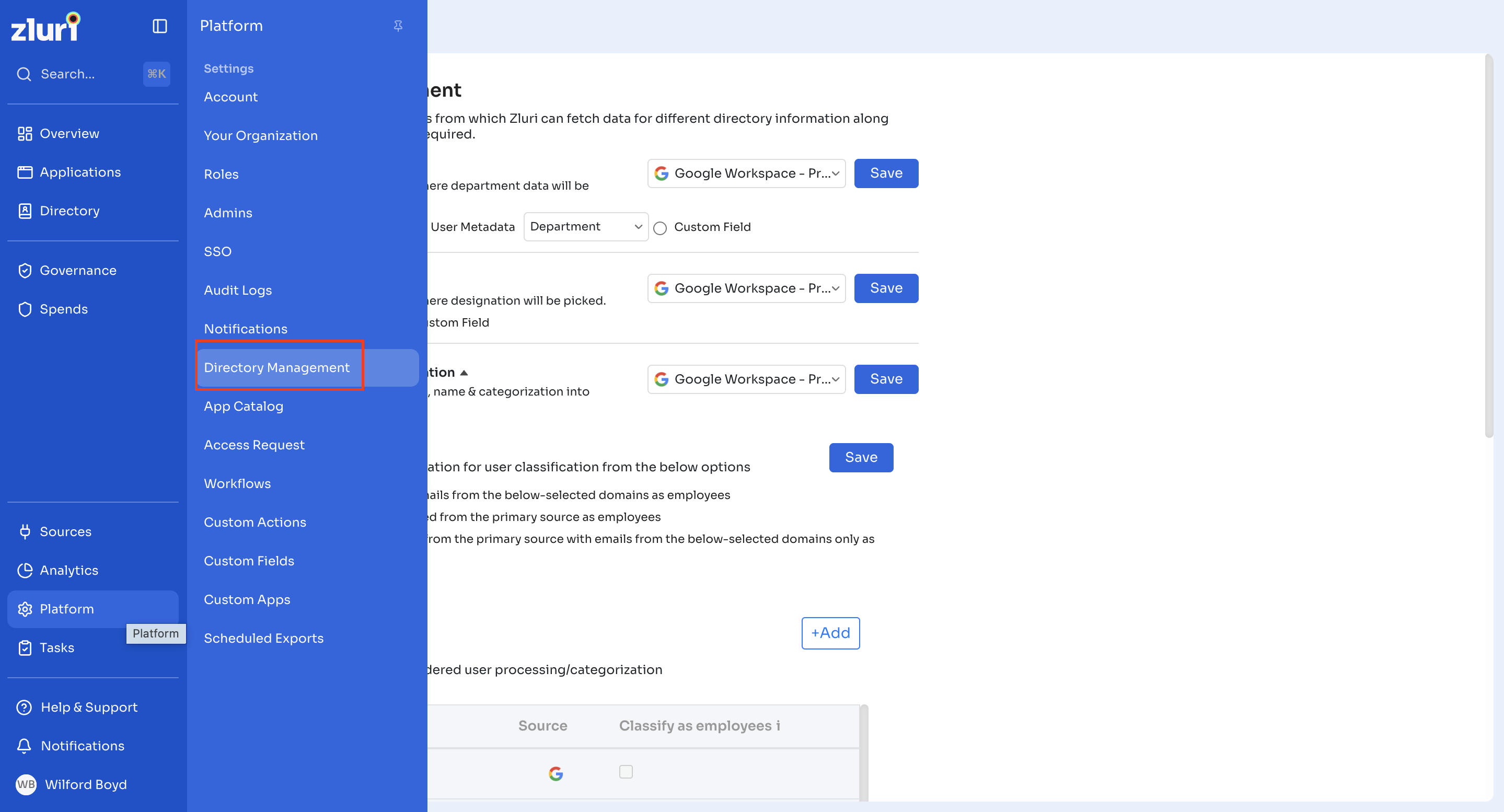
Source Mapping
Directory Management lists each directory attribute as its own section. For every attribute, a dropdown lets you choose which connected source Zluri should treat as the source of truth for that field, and each section saves independently.
Fields available
- Department
- Designation
- User processing & Categorization
- Reporting Manager
- Joining Date
- Cost Center
- Business Unit
- Personal Email
Steps to configure
-
Go to Platform → Directory Management.
-
For the field you want to update, choose a source system from its dropdown.
-
If the field offers a Data Source choice (see below), pick which one applies.
-
Select that field's own Save button.

Data Source options
Some fields offer an additional Data Source choice below their main source dropdown, controlling exactly where within that source system the value comes from:
- Department offers three options:
- Groups — Zluri derives the department from the user's group membership in the connected source
- User Metadata — Zluri reads the value from a specific metadata field in the source system, chosen from a secondary dropdown next to this option (for example, Department)
- Custom Field — Zluri reads the value from a custom field configured in Zluri instead
- Designation and Reporting Manager each offer two options — their native type (Title or Manager, respectively) or Custom Field
Joining Date, Cost Center, Business Unit, and Personal Email don't offer this additional choice — they always use the source system's native value for that attribute.
User Processing and Categorization
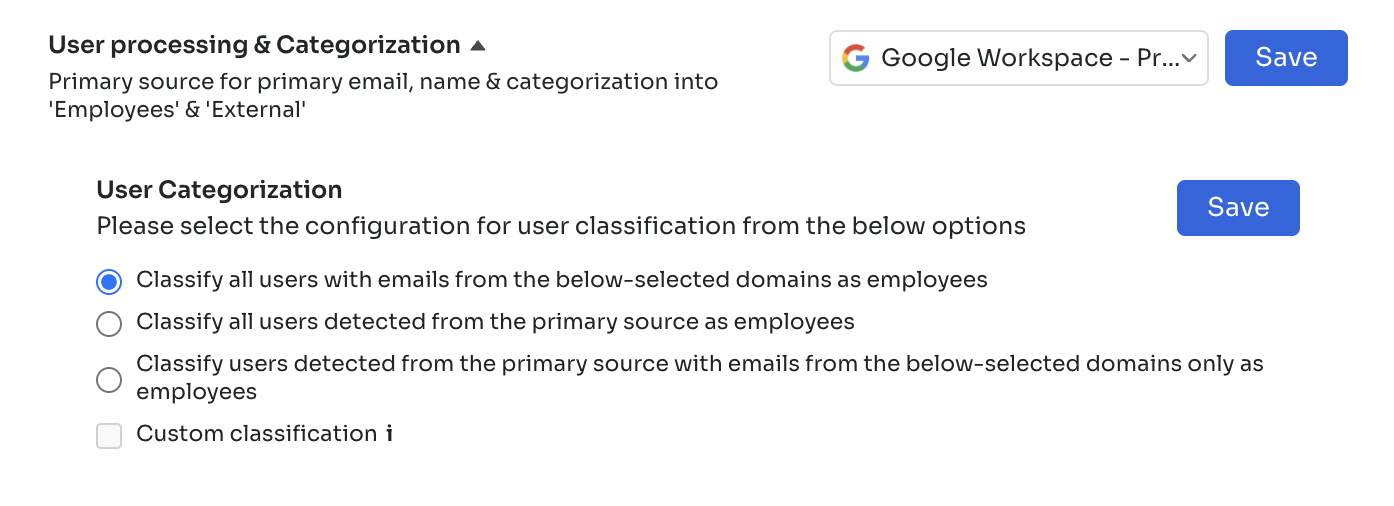
The User processing & Categorization field sets the source of truth Zluri uses for user status, primary email, name, and the initial input for classification. Because this source of truth determines user status, it also decides whether a person is still active within the organization. Choose a source from the dropdown and select Save.
User Categorization
Below the source field, User Categorization controls how Zluri classifies identities as employees. The options are:
- Classify all users with emails from the below-selected domains as employees
- Classify all users detected from the primary source as employees
- Classify users detected from the primary source with emails from the below-selected domains only as employees
A separate Custom classification checkbox, with an info icon for details, is also available alongside these three options.
Select Save to apply the configuration.
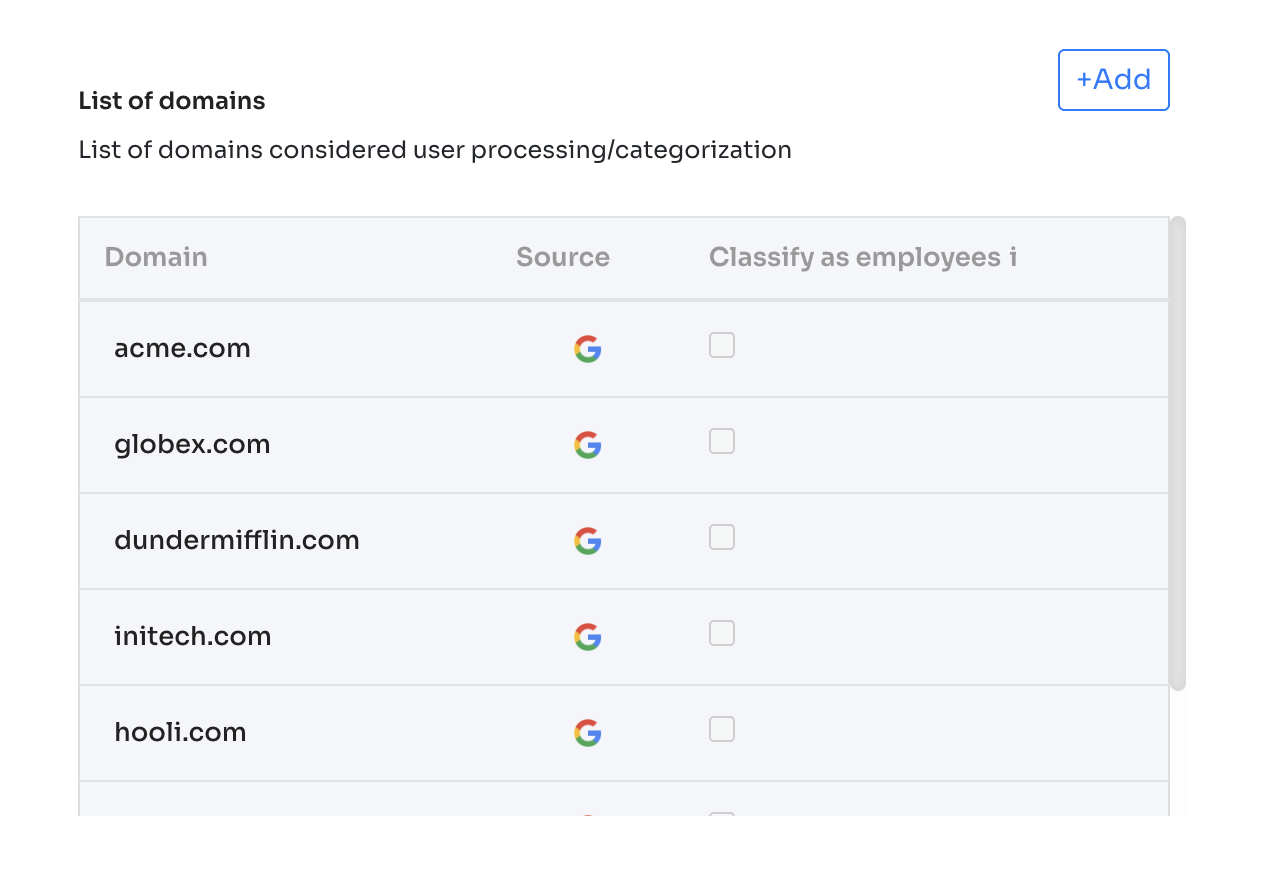
Domain Management
The List of domains table shows every domain Zluri considers during user processing and categorization. Each row displays:
-
Domain
-
Source (the connected system reporting that domain, for example Google Workspace or Azure AD)
-
Whether users from that domain are classified as employees, via a checkbox
Add a new domain
Select +Add above the table to add a domain to the list.
Viewing and Managing the Directory
Beyond configuring how attributes are sourced, the Directory section in the left sidebar lets administrators browse and manage everything Zluri has synced: individual users, groups, departments, and cost centers. It's organized into four tabs: Users, Groups, Departments, and Cost Centers.
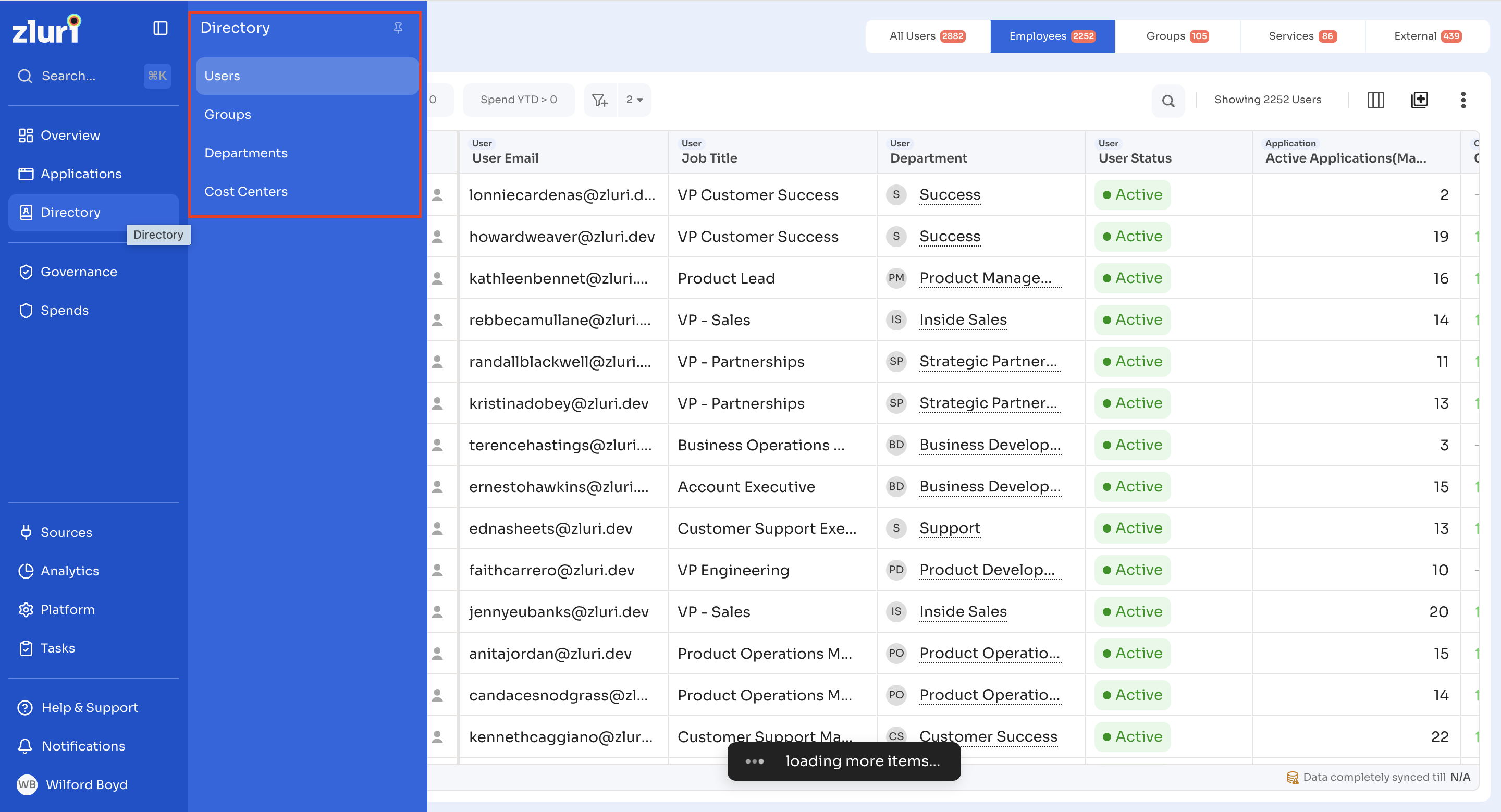
A separate Overview section, above Directory in the left sidebar, summarizes org-wide identity and access activity (access requests, certifications, orphaned and dormant accounts, and top requested apps) — see the Overview article for details.
Users
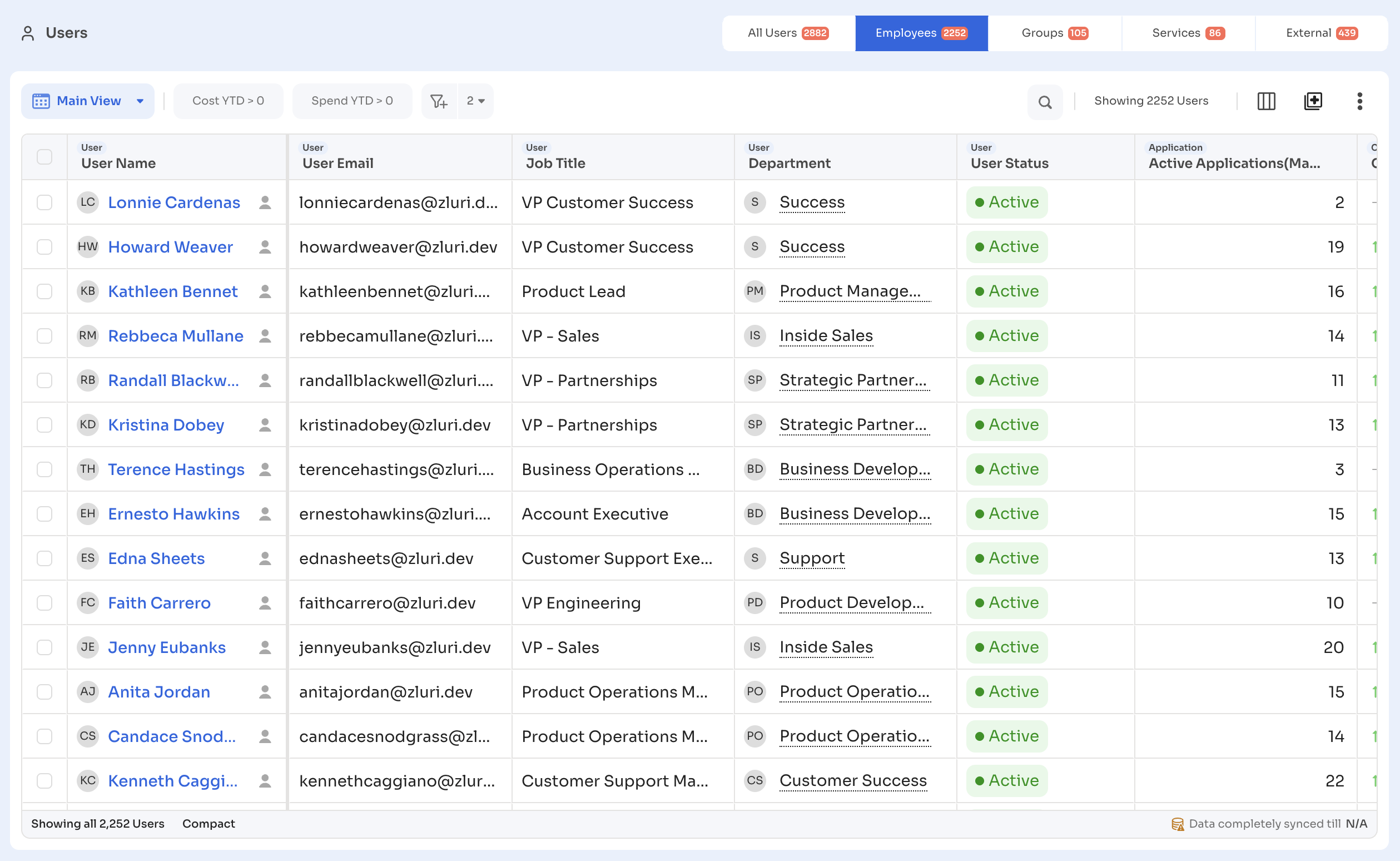
The Users tab lists every identity Zluri has synced, split into All Users, Employees, Groups, Services, and External, each with its own count.
The table can be customized with saved views (Main View), filters such as Cost YTD and Spend YTD, and column selection. Default columns include User Name, User Email, Job Title, Department, User Status, and Active Applications.
User detail page
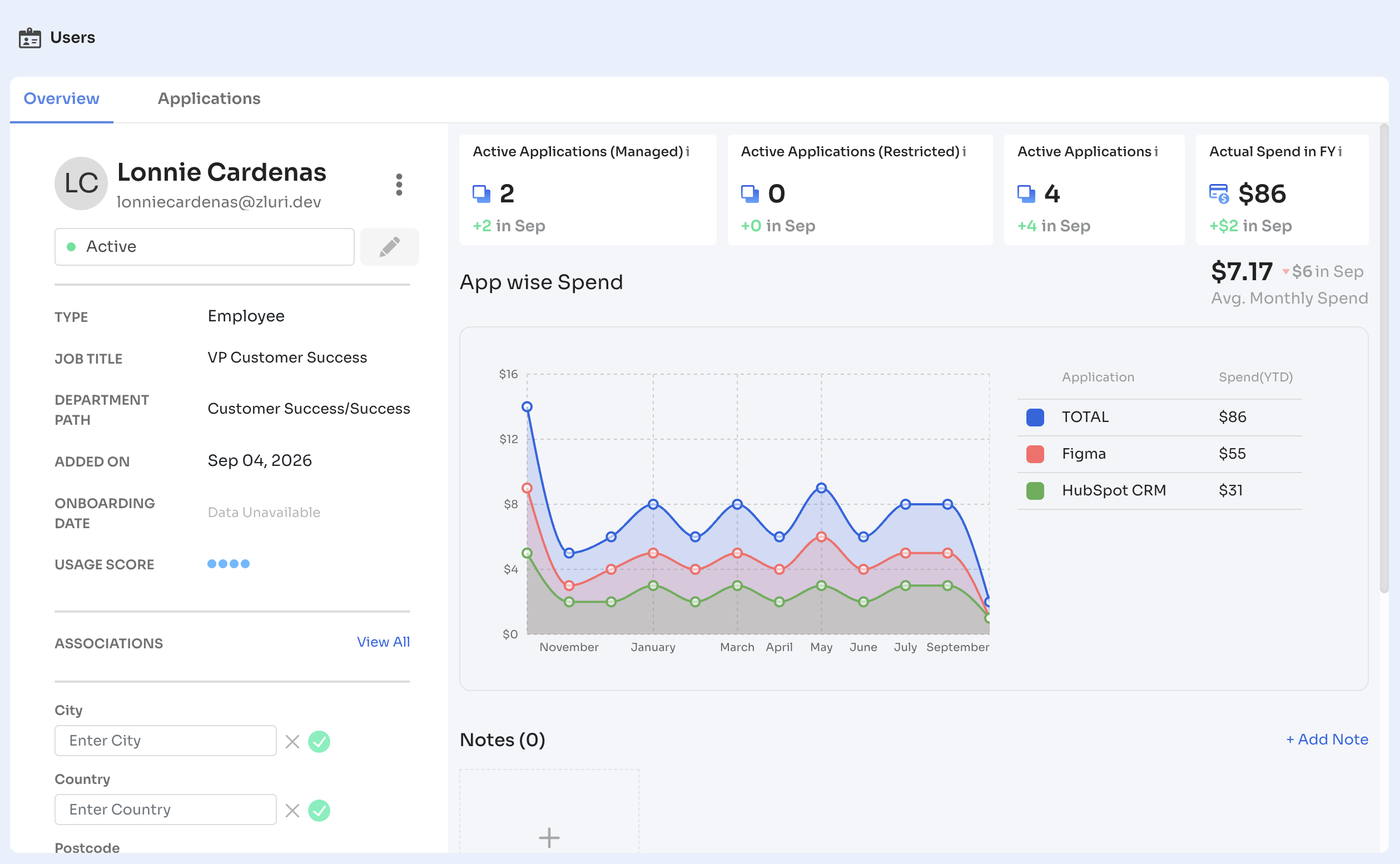
Selecting a user opens their detail page, with Overview and Applications tabs.
The Overview tab shows:
-
Name, email, and current status (Active/Inactive), with an edit option
-
Active Applications (Managed), Active Applications (Restricted), Active Applications, and Actual Spend in FY, each with the change for the current month
-
An App wise Spend chart and breakdown table
-
Identity fields: Type, Job Title, Department Path, Added On, Reporting Manager, Onboarding Date, and Usage Score
-
Additional custom fields further down: Worker Type, Employee Type, Location, OrgUnitsPath, Work Location, Offboarding Date, and StartDate, each editable inline
-
Email Aliases and Sources, showing which connected systems contribute data for this user
-
An Associations section and a Notes panel for adding context manually
Groups
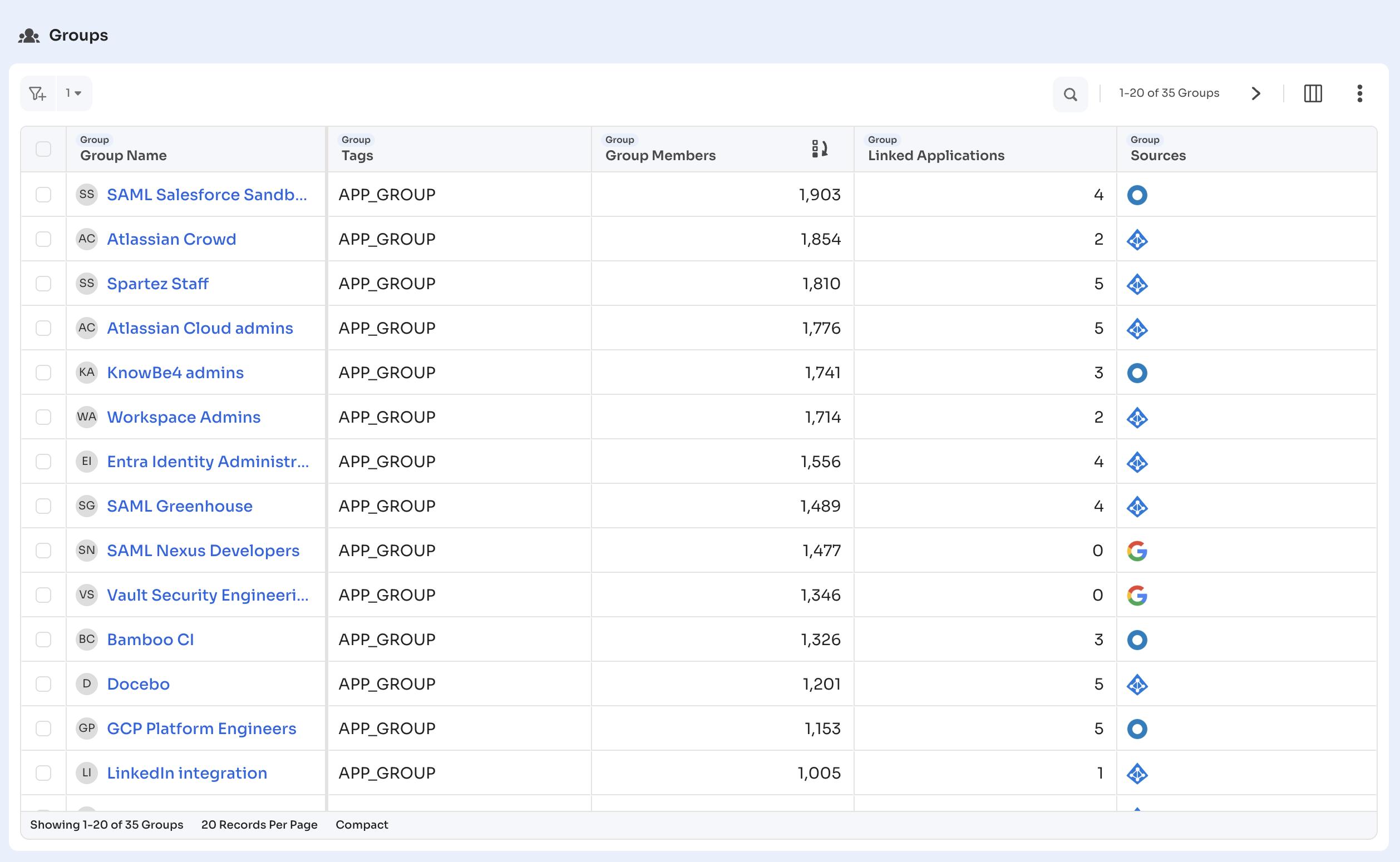
The Groups tab lists every group Zluri has discovered, showing Group Name, Tags, Group Members, Linked Applications, and Sources.
Group detail page
Selecting a group opens a detail view with two sections:
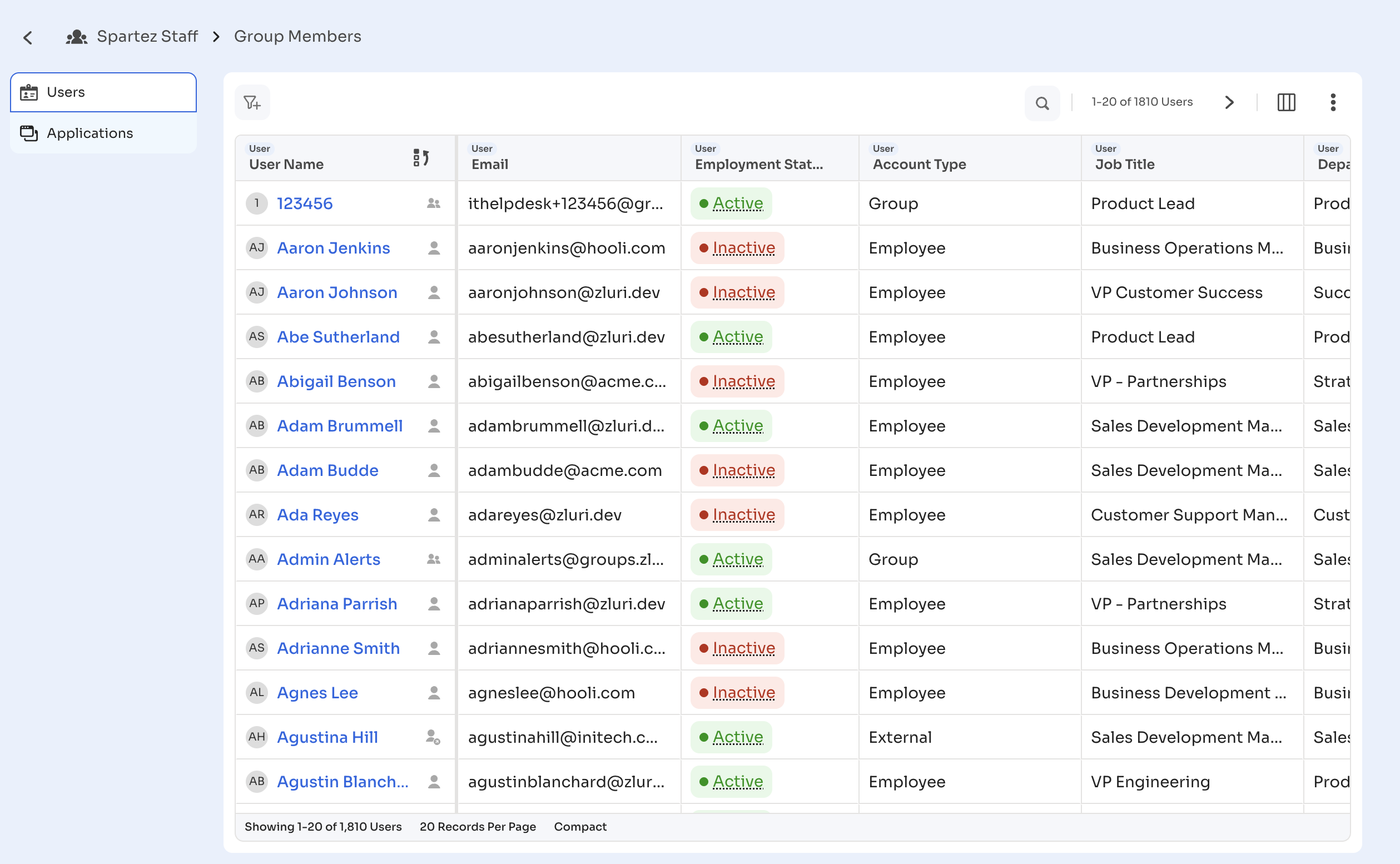
- Users: members of the group, with columns such as Email, Employment Status, Account Type, Job Title, and Department
- Applications: applications linked to the group, showing Application Name, Category, Owner, Authorization Status, and Status
Departments
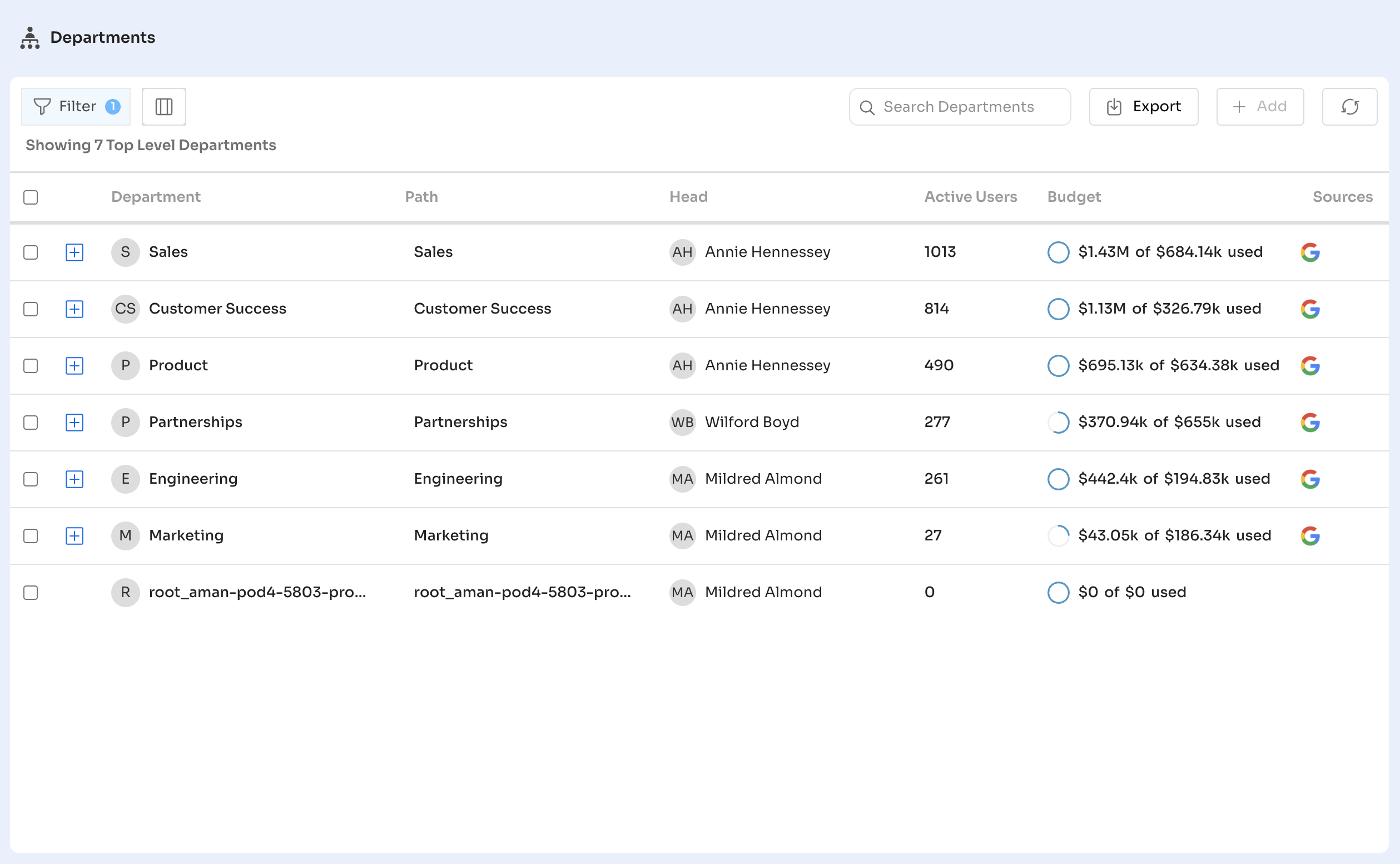
The Departments tab lists top-level departments, showing Department, Path, Head, Active Users, Budget, and Sources. Use Filter, Search, or Export to work with the list, and Add to create a new department.
Department detail page
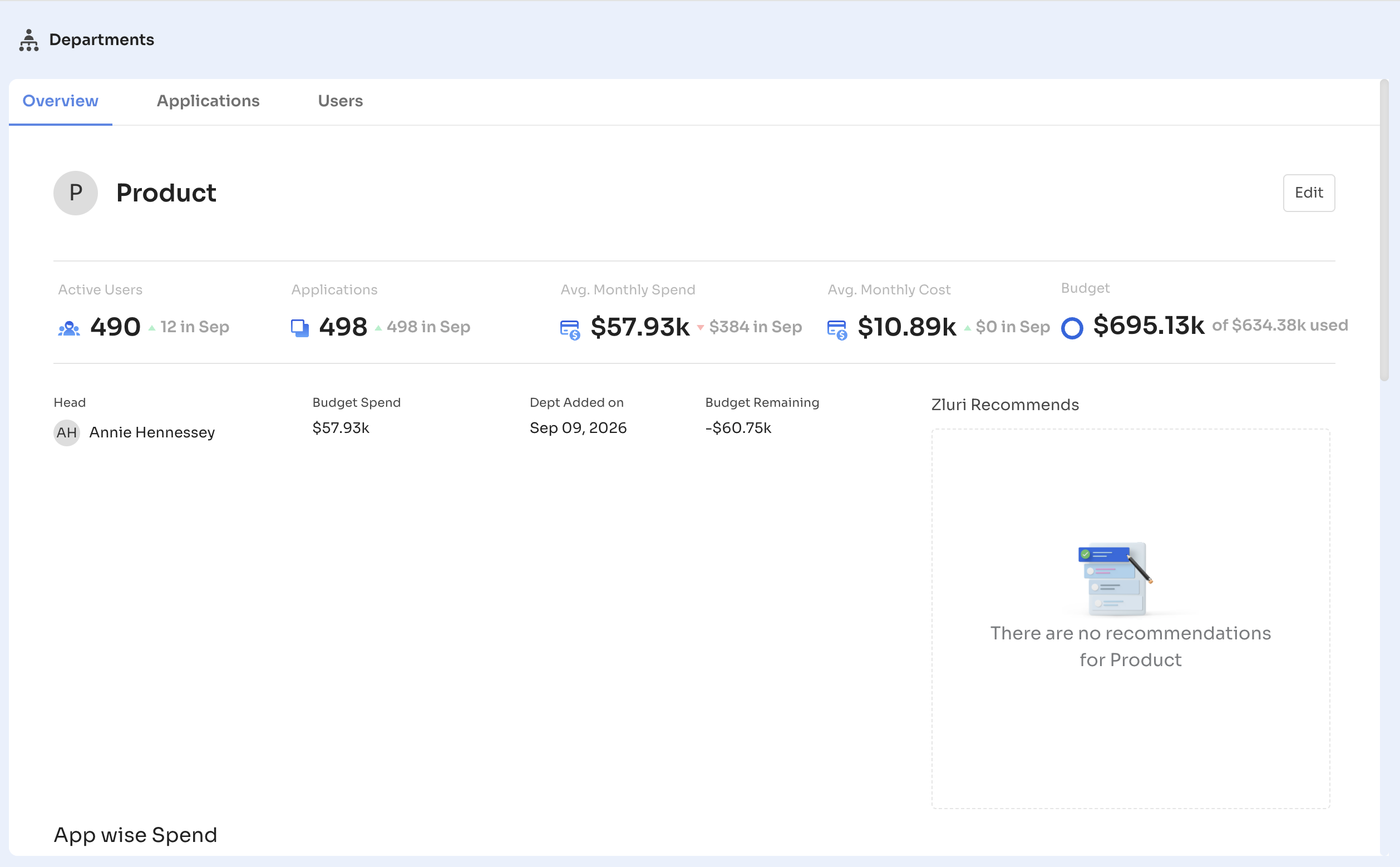
Selecting a department opens a detail view with three tabs:
-
Overview: Active Users, Applications, Avg. Monthly Spend, Avg. Monthly Cost, and Budget, along with Head, Budget Spend, Dept Added on, Budget Remaining, a Zluri Recommends panel, an App wise Spend chart, an App wise Usage chart, and a Notes panel for adding context manually
-
Users: everyone in the department, with Email, Department Path, Designation, Apps Used, Cost [YTD], Status, and Spend [YTD]
-
Applications: every application used within the department, with Owner, Spend [YTD], Total Users, Source, Status, and Cost [YTD]
Cost Centers
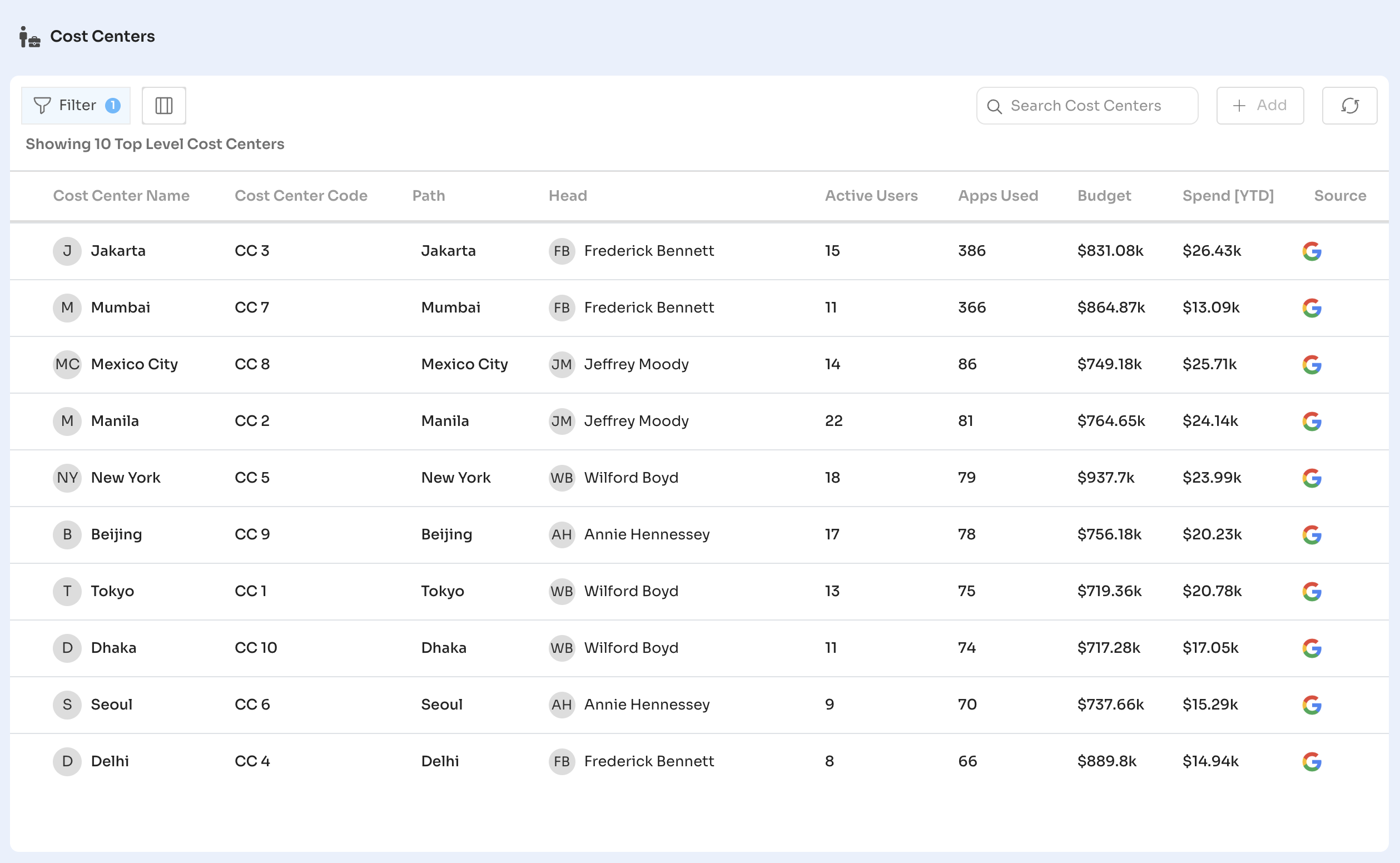
The Cost Centers tab lists cost centers configured in Zluri, showing Cost Center Name, Cost Center Code, Path, Head, Active Users, Apps Used, Budget, Spend [YTD], and Source. If no cost centers have been created yet, this tab shows an empty state with an option to Add one.
Updated 20 days ago