
Application overview
Application overview
Selecting an application in the Applications table opens its profile. The profile centralizes every detail about that application, organized into tabs.
Accessing an application profile
Select any application name in the Applications table to open its profile.
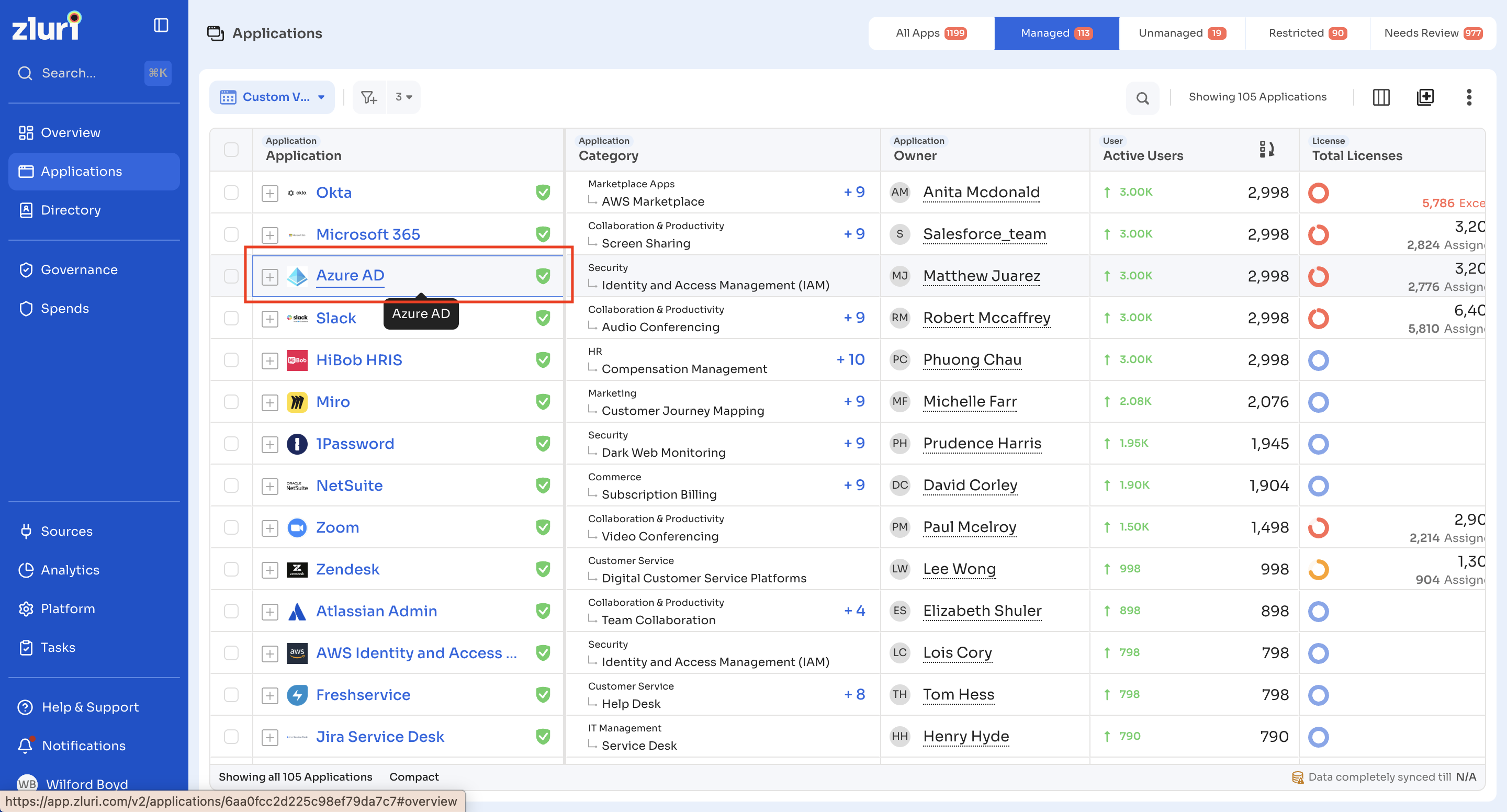
Profile tabs
An application profile contains the following tabs:
- Overview
- About
- Insights
- Users
- Contract & Licenses
- Optimization
- Roles
- Permissions
- Spends
- Chargebacks
- Automation
- Security
- Compliances
Overview tab
The Overview tab is the default landing tab and summarizes the application's key details.
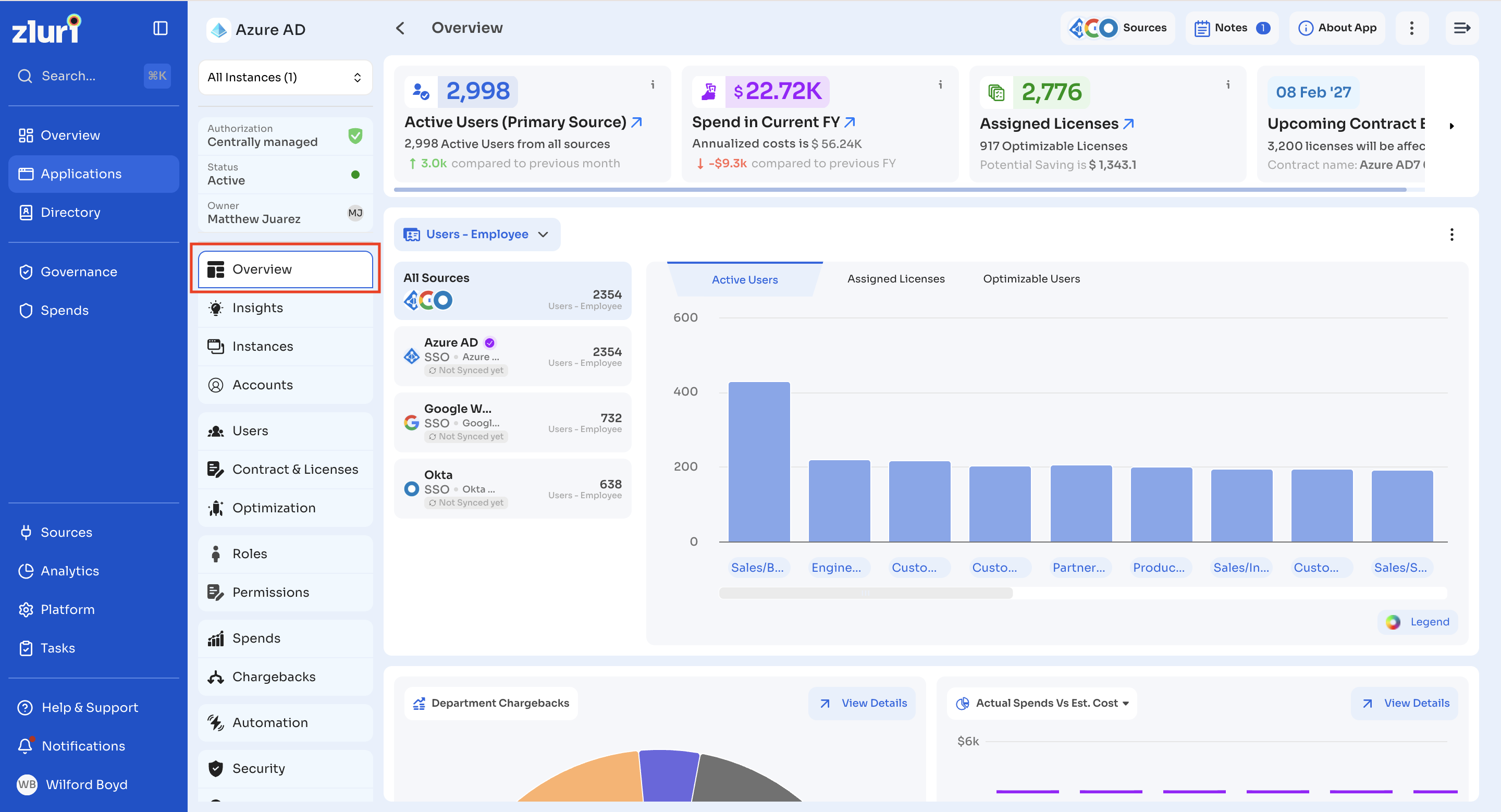
Summary strip
The top of the tab displays:
| Field | Description |
|---|---|
| Authorization | The application's authorization status, for example Centrally Managed |
| Status | The application's current status, for example Active |
| Owner | The assigned application owner |
Select Sources to view every source contributing data for this application.
Select Add Note to attach a note to the application.
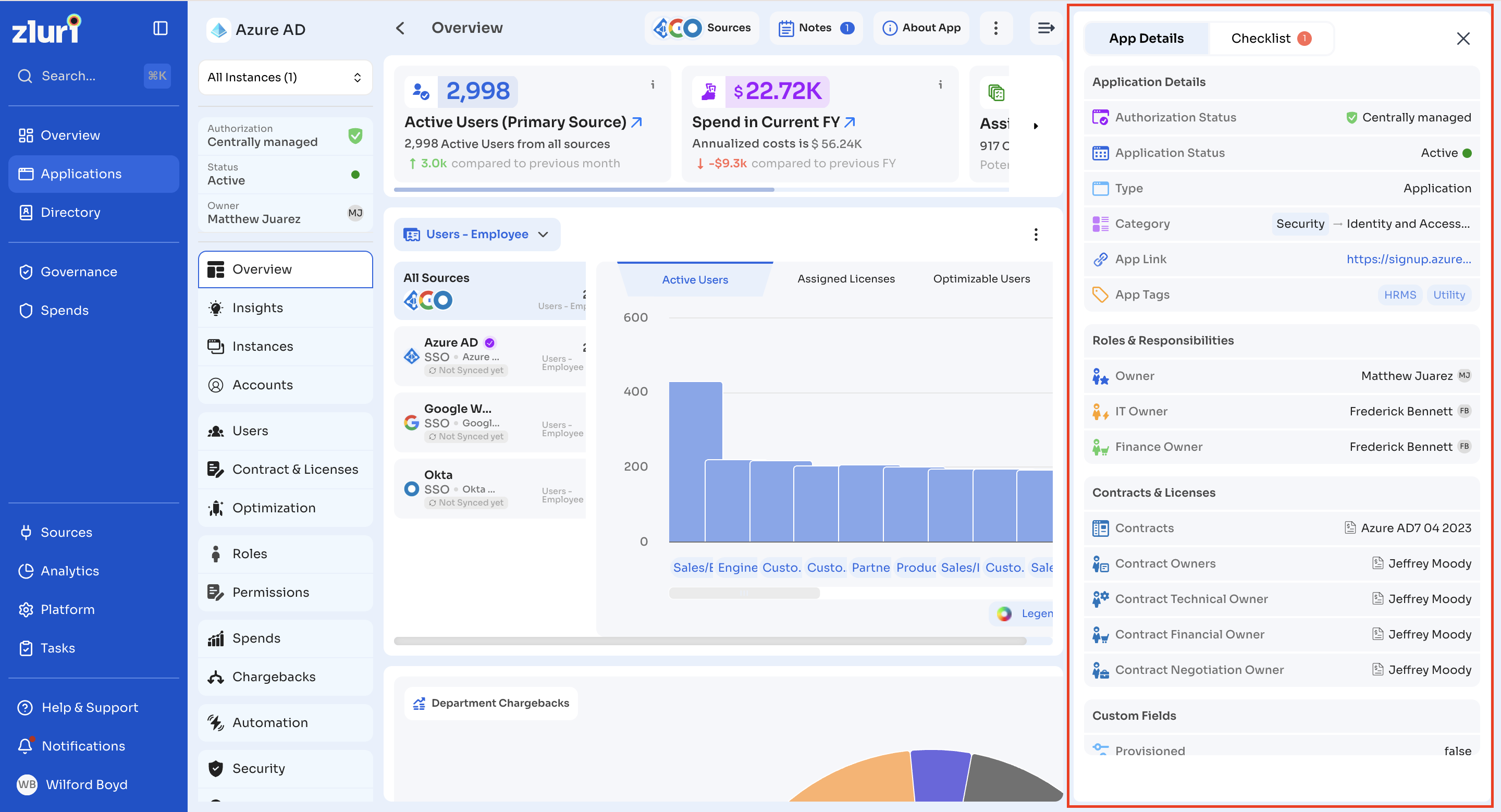
App Details panel
Select the arrow icon at the top right of the Overview tab to open a side panel with two tabs: App Details and Checklist.
The App Details tab shows structured metadata about the application, grouped into sections:
| Section | Fields |
|---|---|
| Application Details | Authorization Status, Application Status, Type, Category, App Link, App Tags |
| Roles & Responsibilities | Owner, IT Owner, Finance Owner |
| Contracts & Licenses | Contracts, Contract Owners, Contract Technical Owner, Contract Financial Owner, Contract Negotiation Owner |
| Custom Fields | Organization-specific fields, for example Provisioned |
| Security & Compliance | Compliance Certificates (for example DoD IL2, EU-MCC), Threat Level |
Application checklist
Select Checklist at the top of the Overview tab to open the Application Checklist panel. The checklist highlights outstanding setup items across key areas of the application.
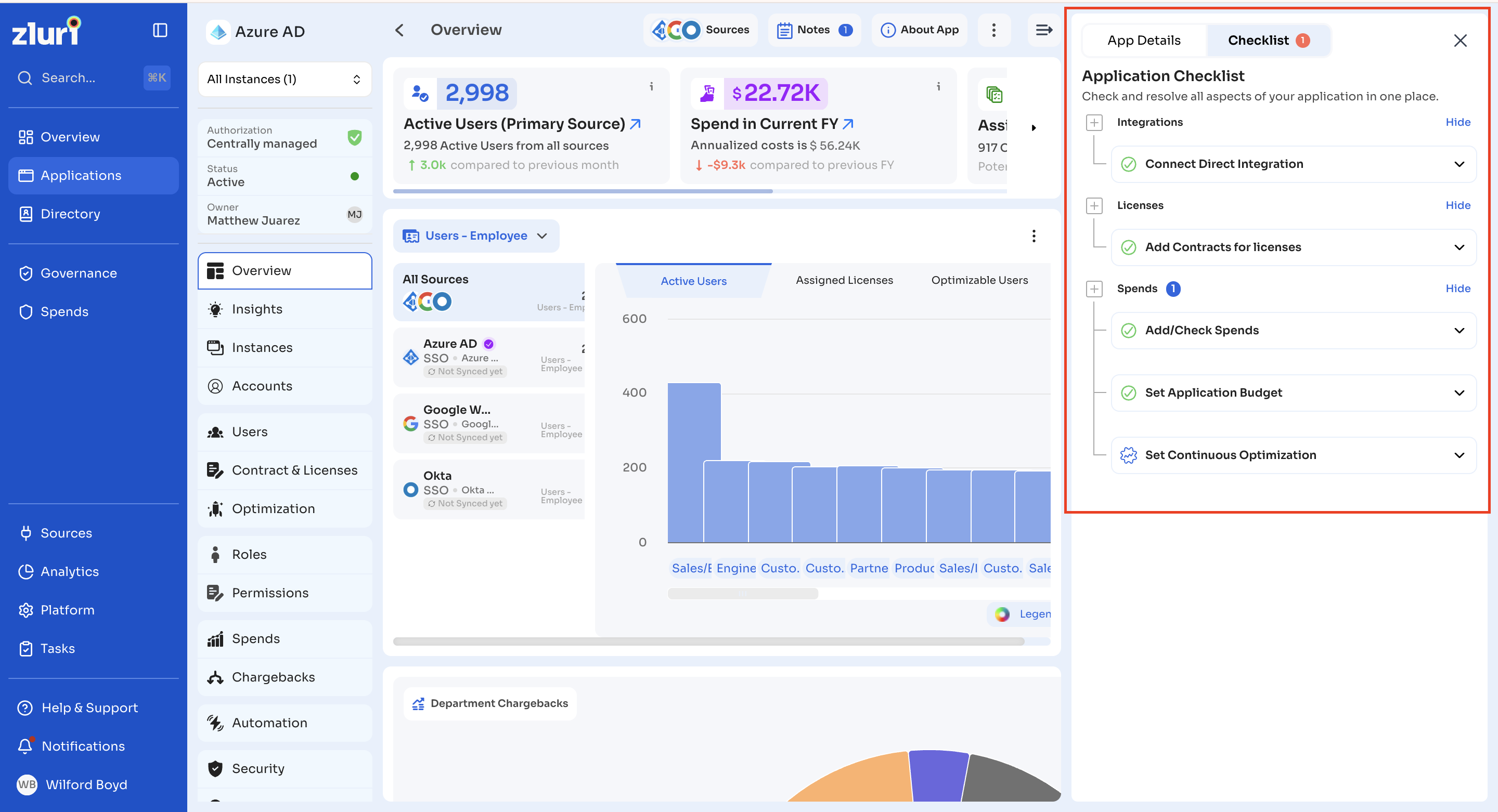
The checklist groups items under:
- Integrations: for example, Connect Direct Integration
- Licenses: for example, Add Contracts for licenses
- Spends: for example, Add/Check Spends, Set Application Budget, Set Continuous Optimization
A badge on the Checklist button and on each group shows the number of outstanding items. A checkmark indicates a completed item. Select Hide next to a group to collapse it from view.
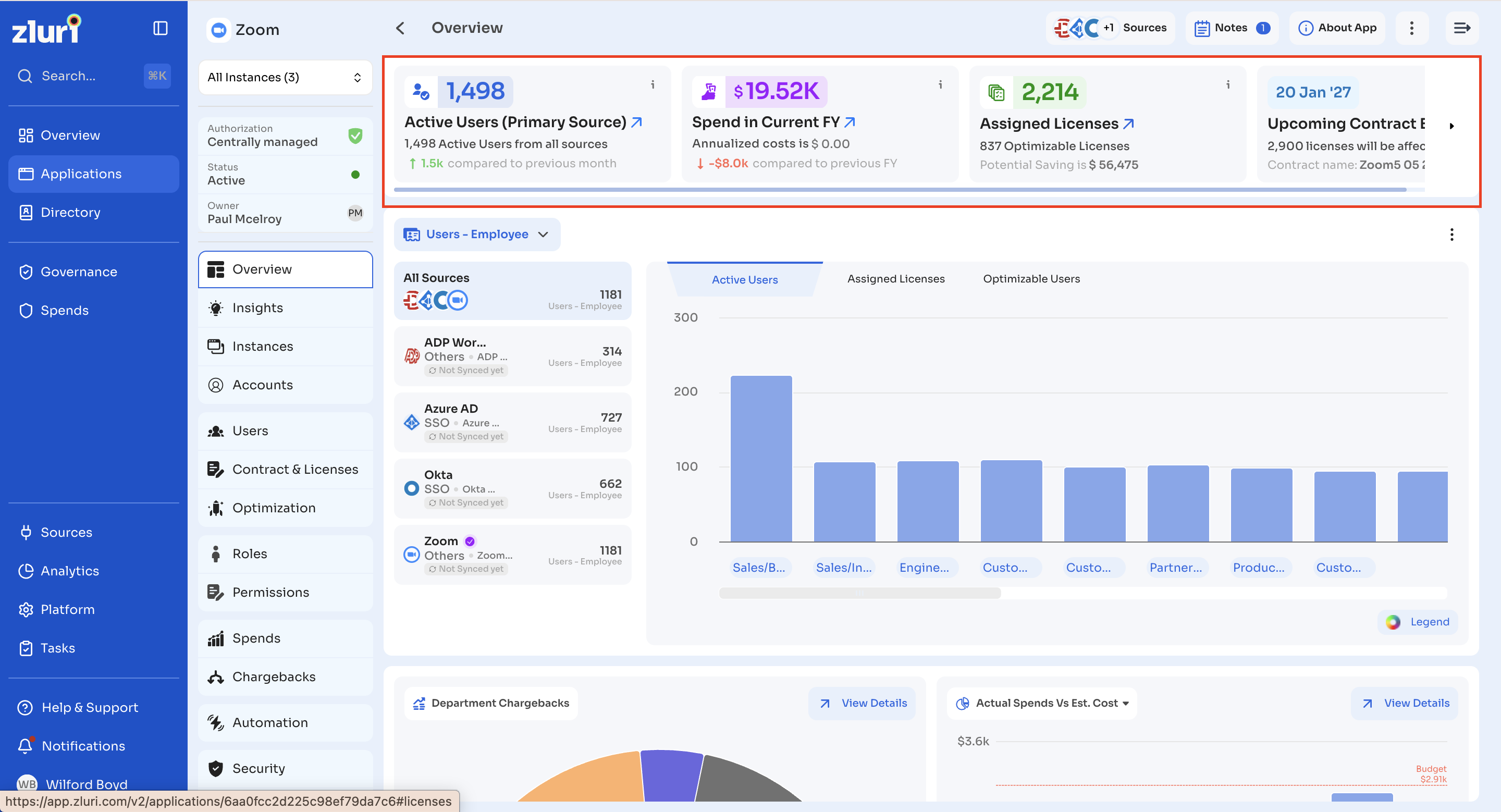
Stat cards
The Overview tab displays four stat cards:
| Card | Description |
|---|---|
| Active Users (Primary Source) | Active users detected from the application's primary source, with active users from all sources shown below it |
| Spend in Current FY | Total spend recorded in the current financial year |
| Assigned Licenses | Number of licenses currently assigned to users, with potential savings if optimizable licenses exist |
| Upcoming Contract End Date | The end date of the next contract due for renewal. Select Add Application contract if no contract data exists |
Department breakdown chart
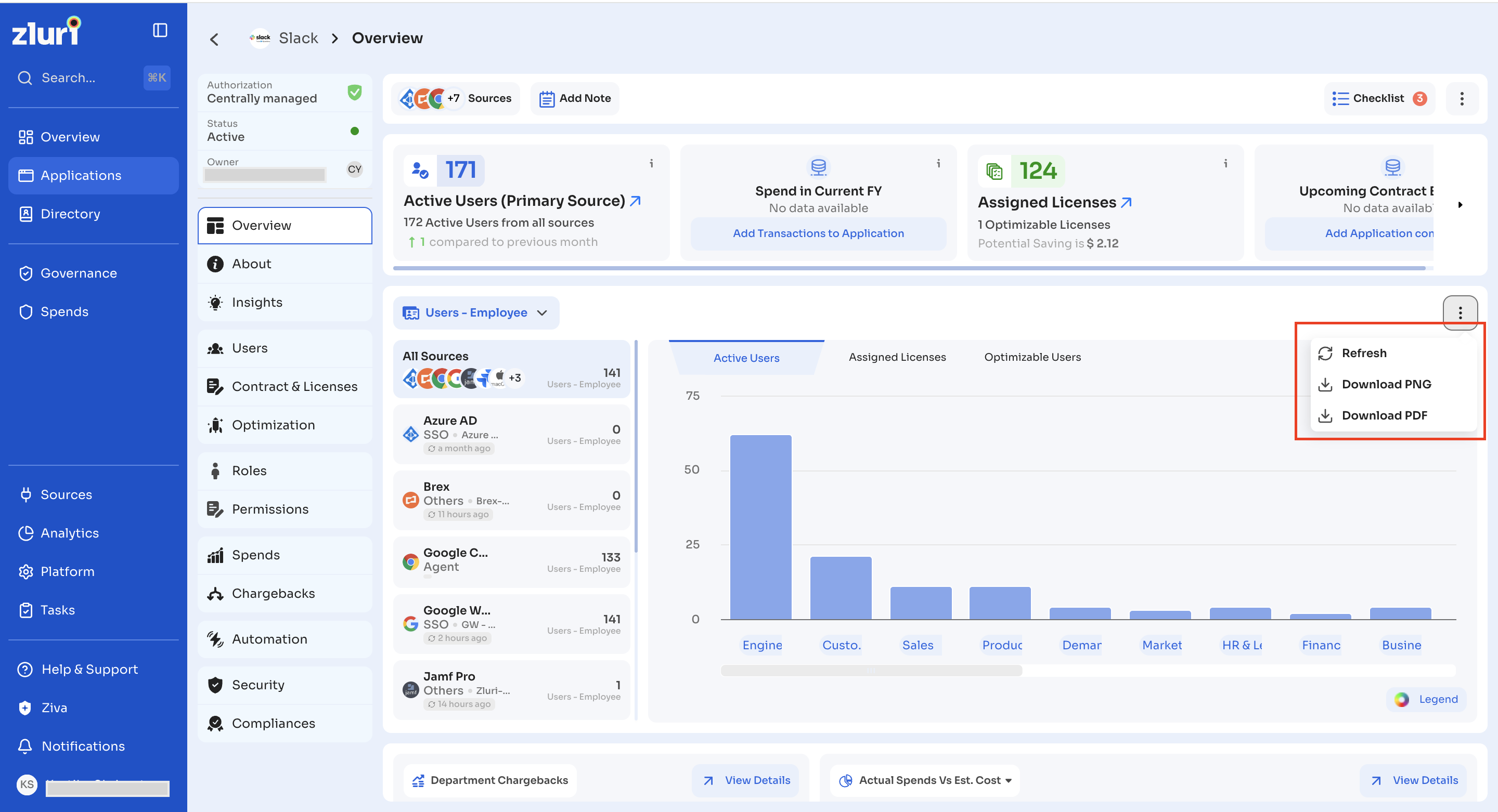
A chart shows active users, assigned licenses, or optimizable users broken down by department. Switch between these views using the tabs above the chart.
Select the three-dot menu above the chart for Refresh, Download PNG, or Download PDF.
Department Chargebacks and spend comparison
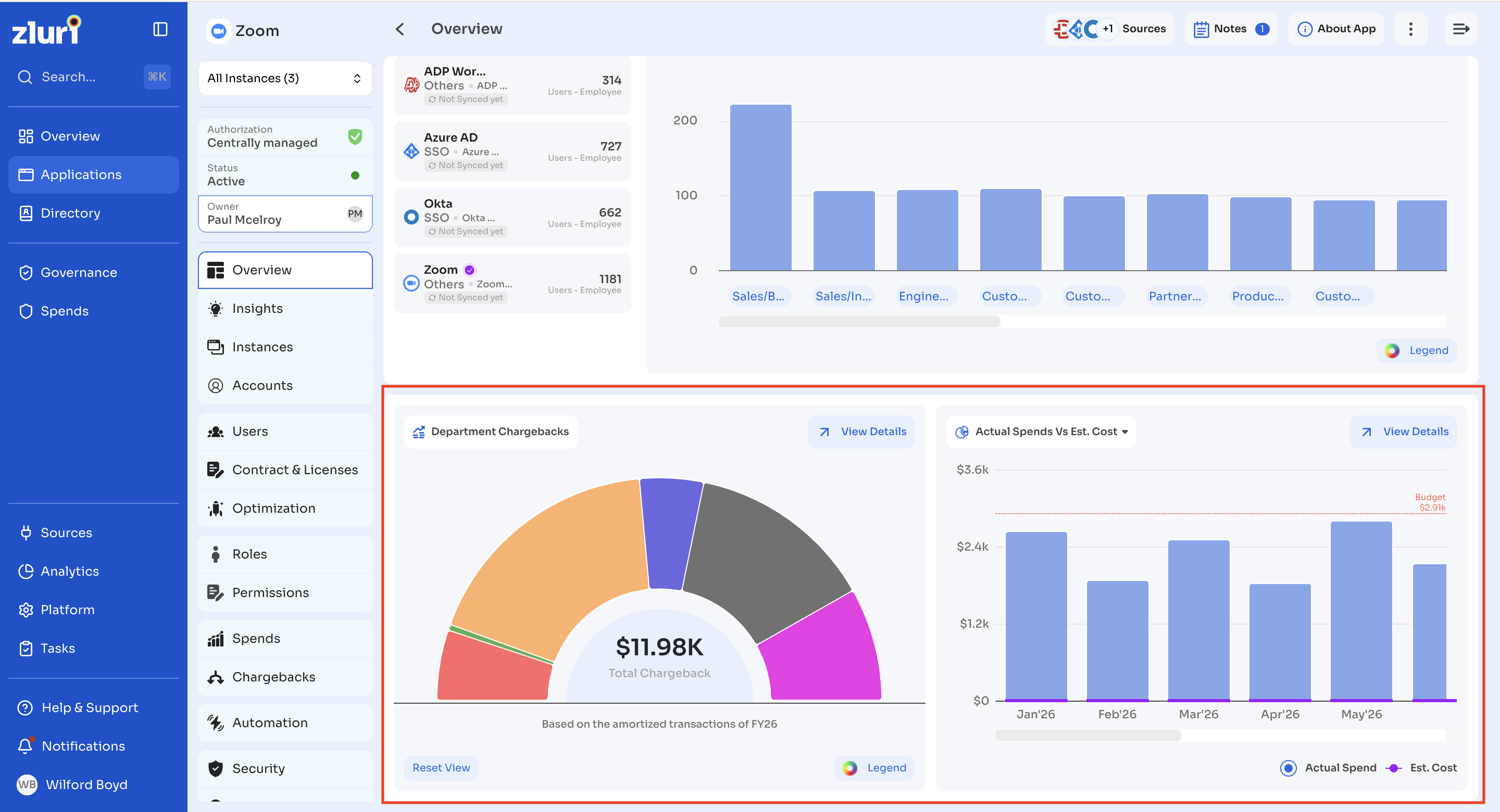
The bottom of the tab displays two cards:
- Department Chargebacks: shows chargeback allocation by department. Displays a No Data Available state when nothing is recorded.
- Actual Spends Vs Est. Cost: a line chart comparing actual spend against estimated cost over time.
Select View Details on either card for a full breakdown.
Actions menu
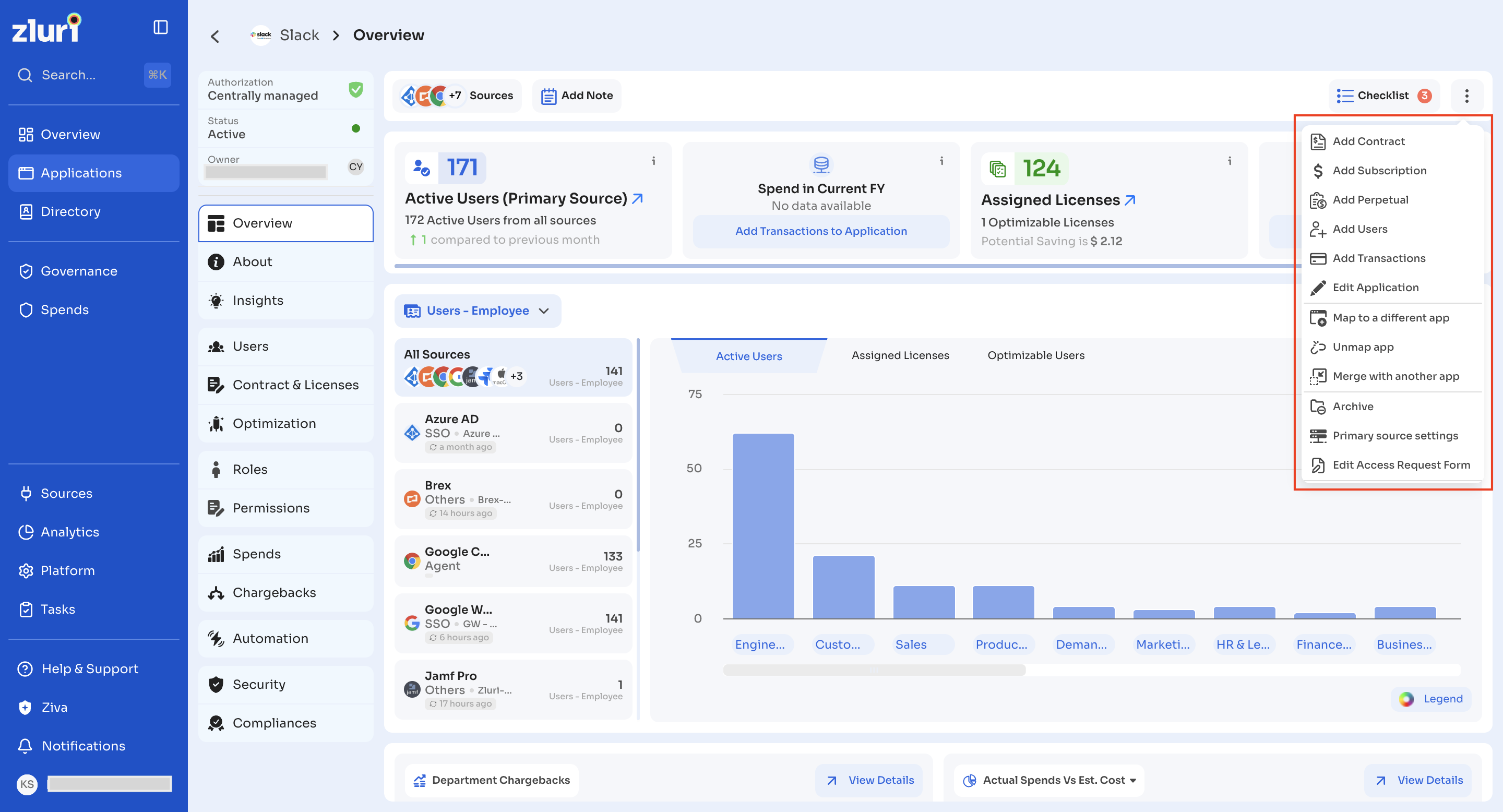
Select the three-dot menu at the top right of the profile for the following actions:
- Add Contract
- Add Subscription
- Add Perpetual
- Add Users
- Add Transactions
- Edit Application
- Map to a different app
- Unmap app
- Merge with another app
- Archive
- Primary source settings
- Edit Access Request Form
Updated about 1 month ago