
Run Logs
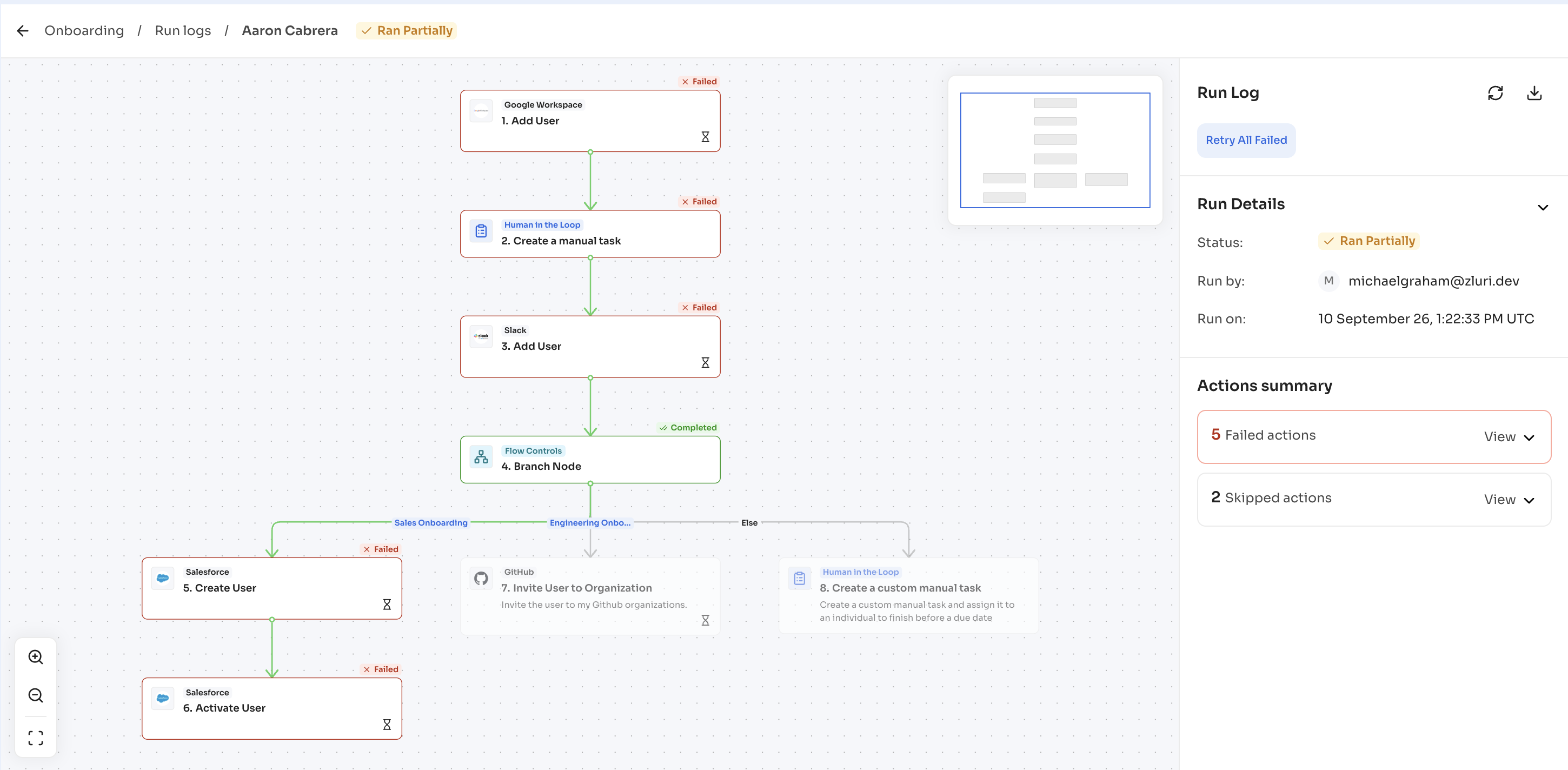
The run viewer renders the playbook graph with the results of a single run laid over it, so tracing what ran, what did not, and why happens on the same picture used to build the playbook.
Steps
- Navigate to the Runs tab of the playbook.
- Filter the list by status, date range, initiator, or what started the run.
- Select a run to open the run viewer.
- Review the summary at the top for the overall status, start and end times, duration, who or what started the run, the user it ran on, and counts of completed, failed, and skipped actions.
- Review the node colors on the graph to see which steps succeeded and which did not.
- Select any node to open its execution details, including the inputs Zluri sent, the response the application returned, condition results showing which rules passed and which failed, approval decisions with the approver and the decision time, error messages, and timestamps.
Act on a failed action
Steps
- Select Retry on a failed action to run that action again.
- Select the option to convert a failed automated action into a manual task when the action cannot succeed automatically.
Run statuses
The table below lists every run status and what it means.
| Status | Meaning |
|---|---|
| Completed | Every action that ran finished successfully. Skipped actions do not change this status. |
| Completed with errors | The run finished, and at least one action failed. |
| Failed | The run stopped without completing. |
| In progress | The run is still going. |
Run statuses
The table below lists every run status and what it means.
| Status | Meaning |
|---|---|
| Completed | The action finished successfully |
| Completed with errors | The action finished, but some parts of the action failed. |
| Failed | The action stopped without completing. |
| In progress | The action is in flight. |
| Scheduled | The action is queued to start later, for example after a delay. |
| Awaiting Approval | The action is pending approval before executing. |
| Rejected | The action was not approved to run. |
| Skipped or Aborted | The action did not run because conditions were not met or the workflow was broken because of a previous action's failure. |
| Cancelled | The action was marked as cancelled by a user. |
Node colors on the graph carry the same meaning at the step level.
| Color | Meaning |
|---|---|
| Green | The action completed successfully. |
| Amber | The action completed with errors. |
| Red | The action failed. |
| Gray | Zluri skipped the action or never reached it. |
Zluri dims the branches that did not run, which distinguishes a path whose conditions did not match from a path that ran and failed.
Review individual items inside a multi-item action
Some actions work on however many items they find at the time they run, for example an action that removes every API token belonging to a user. In the run viewer, these actions expand to show one entry for every item Zluri found, so the outcome of each individual item is visible rather than a single combined result.
The parent action shows the action name, the number of items Zluri discovered, and the combined status. Expanding it lists each item with its identifier, the operation performed on it, and its own status.
Steps
- Select the expand control on a multi-item action in the run viewer. Actions with more than five items start collapsed to keep the graph readable.
- Review each item’s status in the list below the parent action.
- Select Retry on a failed item to run that item again without repeating the whole action.
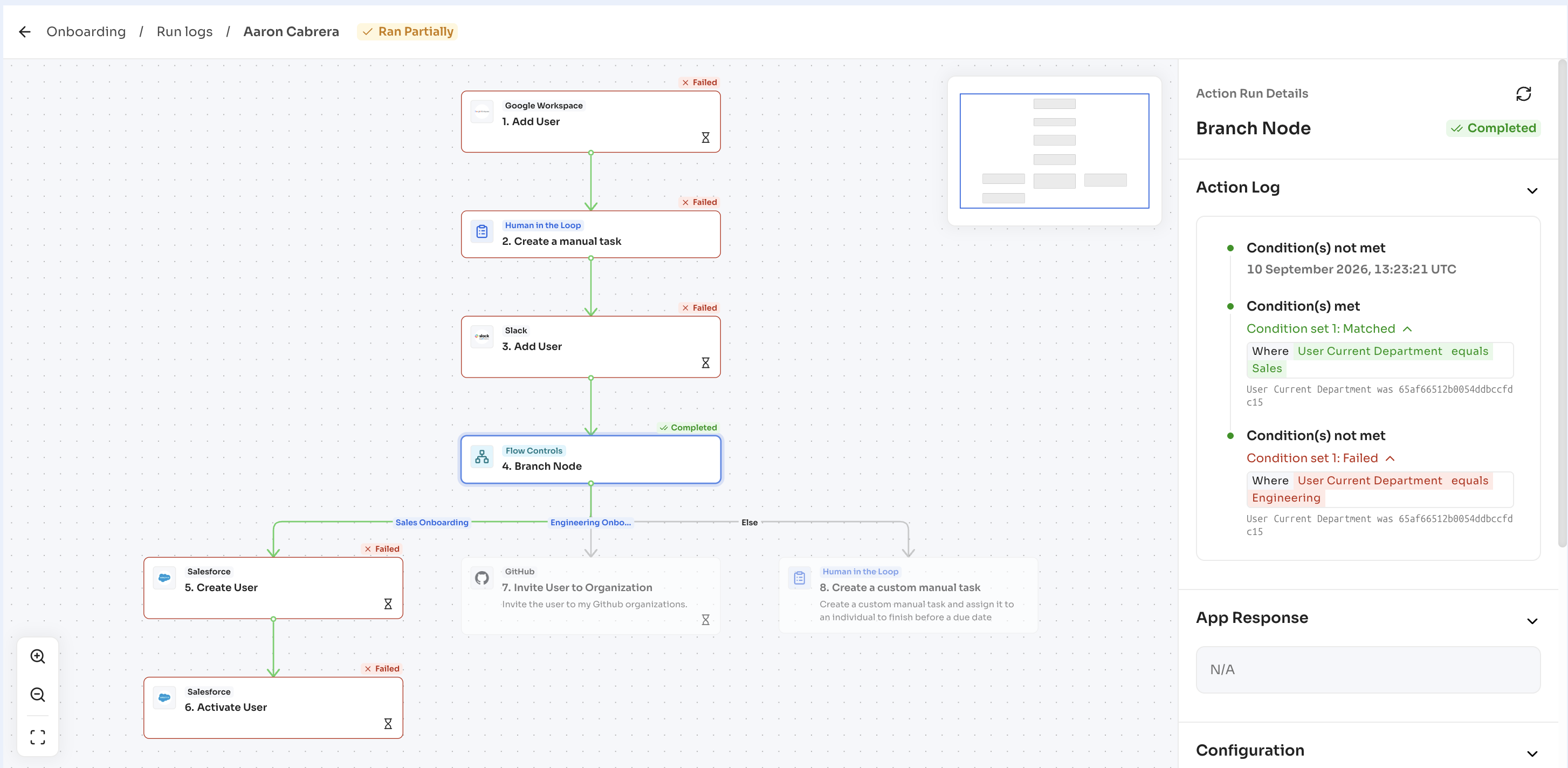
When one item fails and the rest succeed, the parent action shows as completed with errors, and the individual failure stays traceable in the list.
Updated 20 days ago