
Contract Upload and Contract Mapping Process
Upload a contract PDF and let Zluri AI read it and fill in the contract for you. Zluri AI extracts the contract details, such as the applications, vendor, dates, and line items, into a draft contract. You review the draft, map anything Zluri AI couldn't match, and add the contract.
Before you begin
- Each file must be a PDF of up to 5 MB.
- You can upload up to 10 files at a time. Zluri AI processes each file separately as an individual contract.
- Only English-language files are supported.
What Zluri AI extracts
Zluri AI reads each PDF and extracts the contract details into a draft contract, such as:
- The applications the contract covers, matched to the applications in your Zluri account
- The vendor
- The start date and other dates
- The agreement type and description
- The line items, mapped to applications where Zluri AI can match them
Upload contract PDFs
Steps
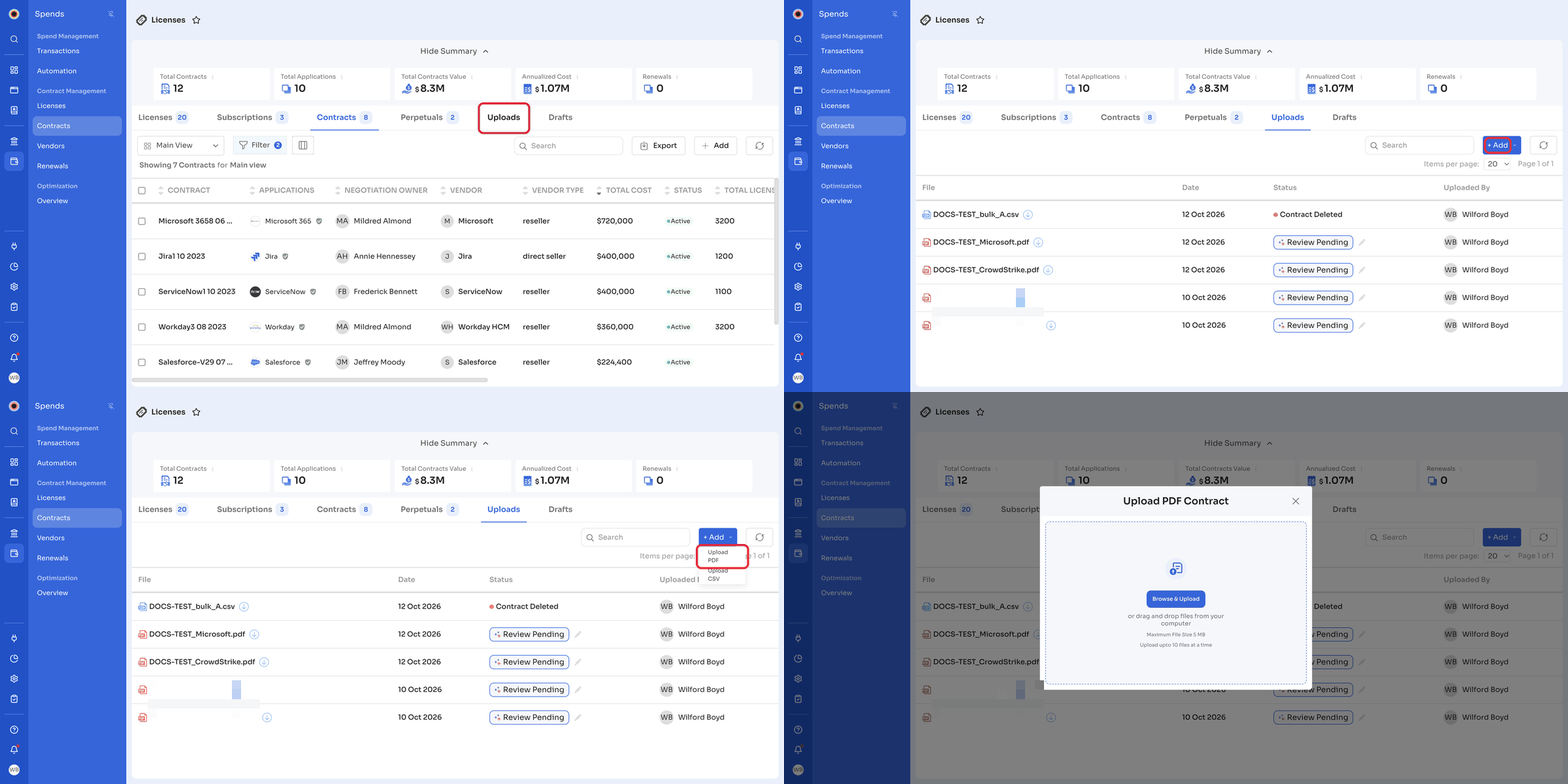
- In the left navigation, click Spends.
- Under Contract Management, click Contracts, then click the Uploads tab.
- Click + Add, then click Upload PDF.
- In Upload PDF Contract, click Browse & Upload, or drag and drop the files. Each file shows Upload Completed when it finishes uploading. To remove a file before you submit, click its delete icon.
- Keep Processing by Zluri AI selected, then click Submit.
Zluri AI processes each file separately as an individual contract, which can take several minutes. When the draft is ready, Zluri sends an in-app notification, Contract Management - Contract PDF Draft Generated.
Upload from the Create a Contract pageYou can also upload a single contract PDF while creating a contract. In the document panel on the right of the Create a Contract page, click Browse & Upload and keep Process using Zluri AI selected. See Create a Contract.
Track your uploads
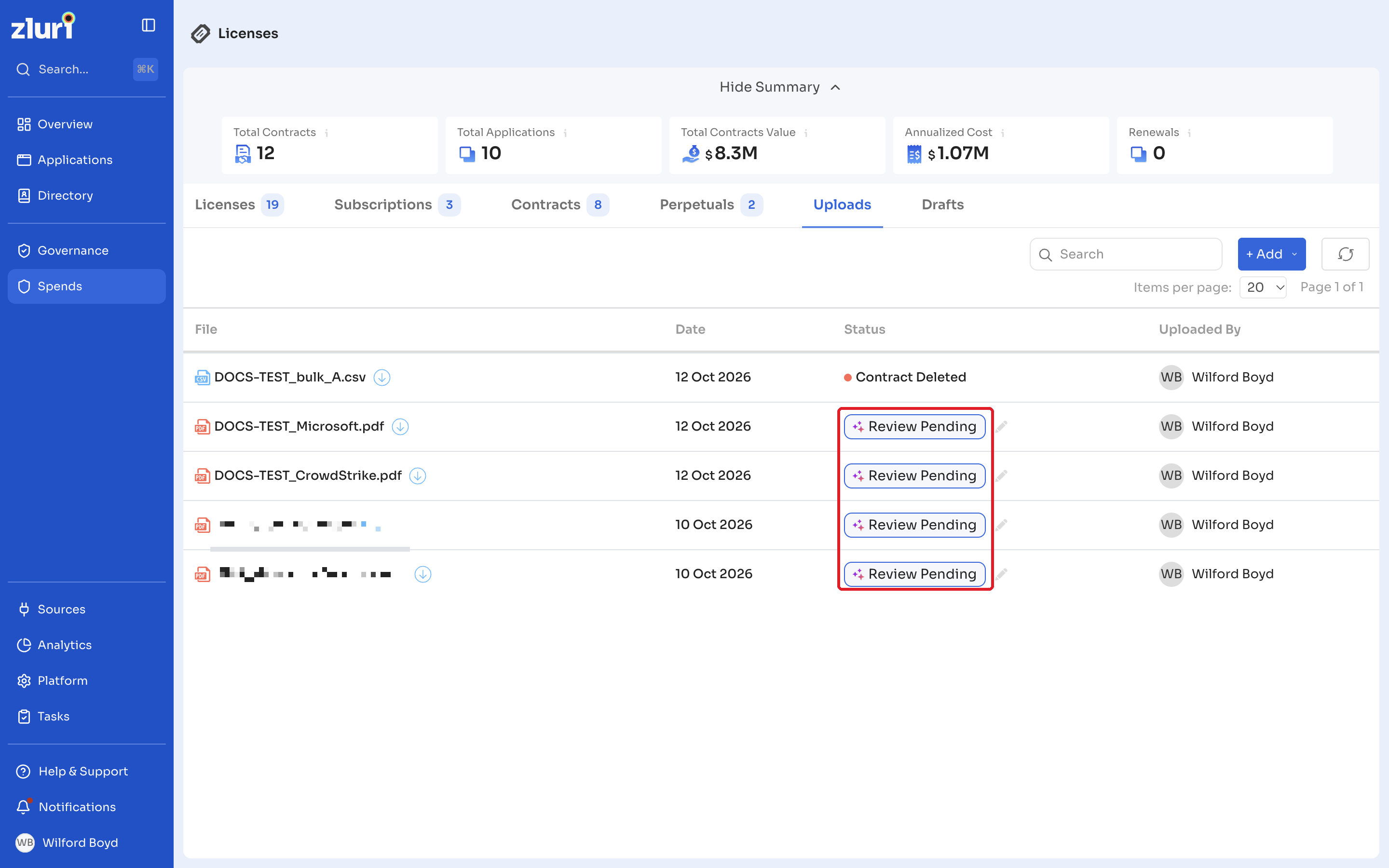
The Uploads tab lists every contract file uploaded to Zluri.
| Column | Description |
|---|---|
| File | The uploaded PDF. Click the download icon next to it to download the file. |
| Date | The date the file was uploaded. |
| Status | The processing status of the file. It changes from Pending to Validating, AI Processing..., and then Review Pending, when the draft contract is ready for you to review. |
| Uploaded By | The user who uploaded the file. |
Use Search to find a file, and click the refresh icon to update the list.
Review the draft contract
Steps
-
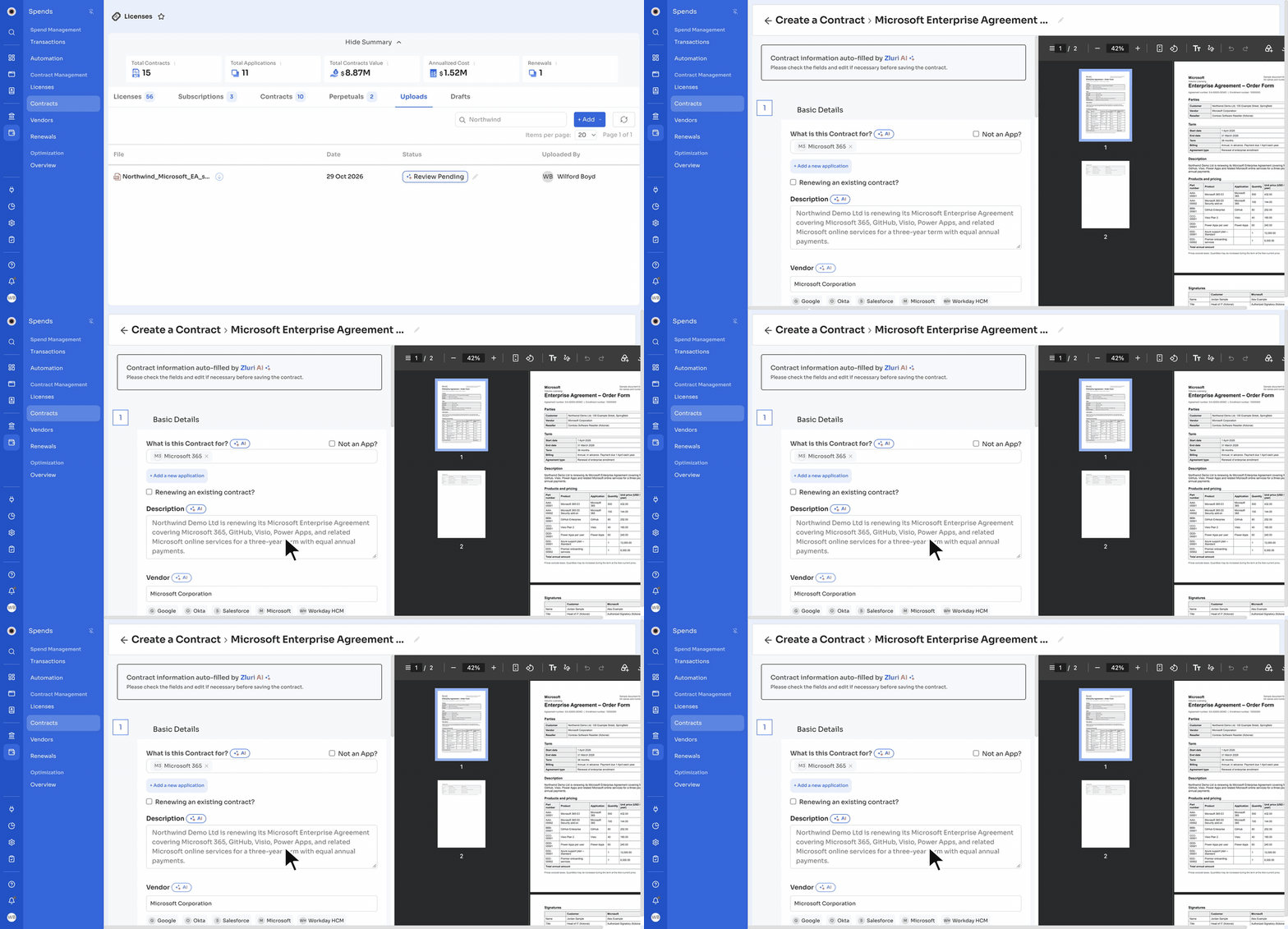
On the Uploads tab, click the edit icon next to Review Pending.
The Create a Contract page opens with the draft. A banner shows Contract information auto-filled by Zluri AI. The form is on the left, and the uploaded PDF is on the right so you can compare the two. -
Check each section: Basic Details, Checklist, Contract Line Items, and Review. Fields that Zluri AI filled in, such as What is this Contract for?, Description, Vendor, Start Date, and Agreement Type, show an AI label. Zluri AI also adds the line items it reads from the PDF. Edit any field that needs a change, and fill in any required field that's empty, such as End Date.
-
Map the applications and line items, as described below.
-
Click Next to move through each section.
Map applications
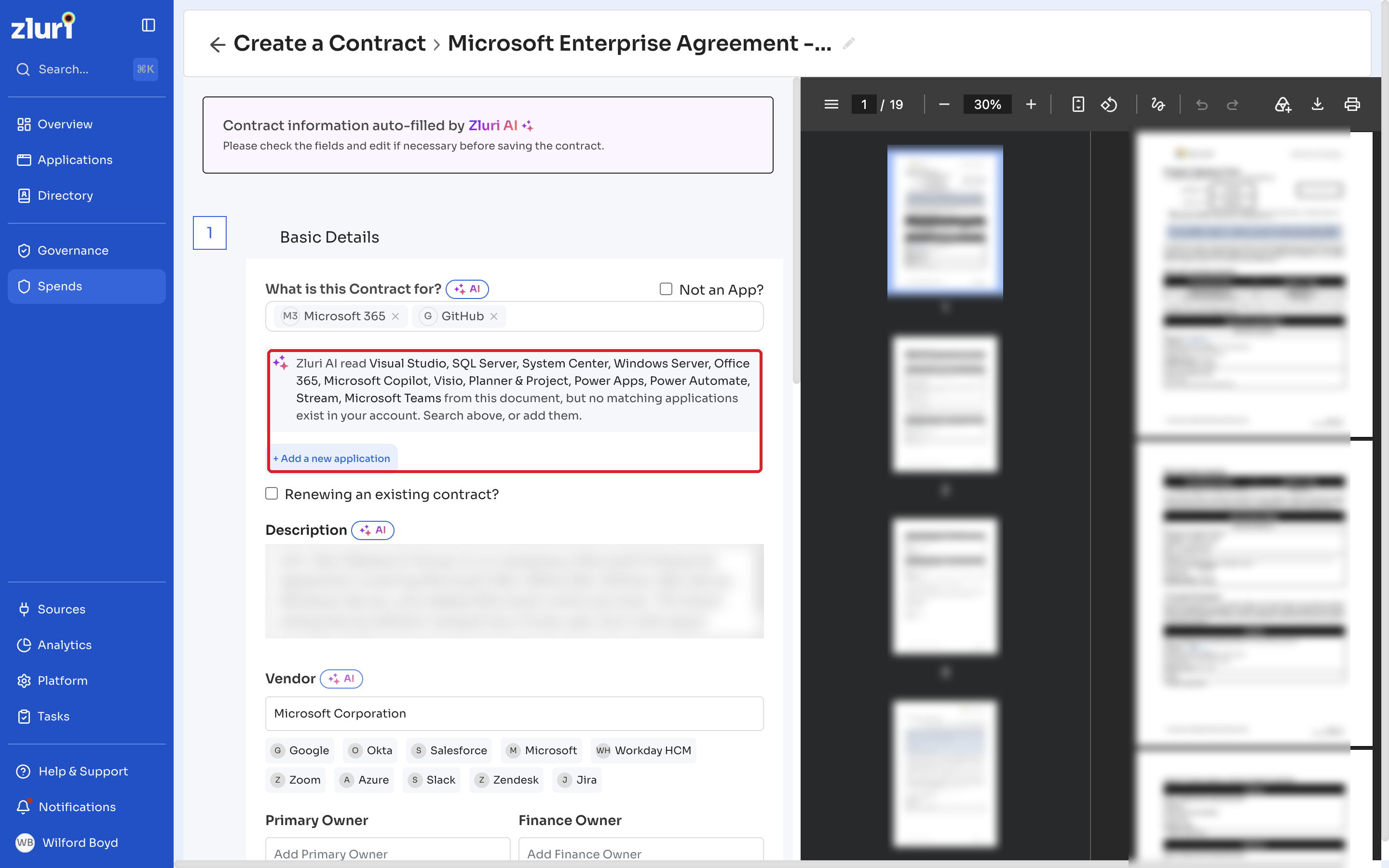
Zluri AI matches the applications in the PDF to the applications in your Zluri account and adds the matches under What is this Contract for?.
If the PDF names applications that don't exist in your account, Zluri lists them in a note, for example: Zluri AI read CrowdStrike Falcon, CrowdStrike Threat Graph … from this document, but no matching applications exist in your account. Search above, or add them.
To map these applications:
- Search for the application under What is this Contract for? and select it, or
- Click + Add a new application to add it to Zluri.
You must select at least one application before you can continue. If the contract isn't for an application, select Not an App?.
Map line items to applications
Every line item needs an application. In Contract Line Items, the Application Name column shows Not set for any line item that Zluri AI couldn't map.
If you continue while line items aren't mapped, Zluri shows Assign an application to every line item, with the list of line items that need one.
Steps
- Click Review line items to return to the line item list.
- Click the edit icon on a line item to open it. The Edit Line Item panel opens.
- Under Application Name, select the line item's application.
- Click Save.
- Repeat for each line item that shows Not set.
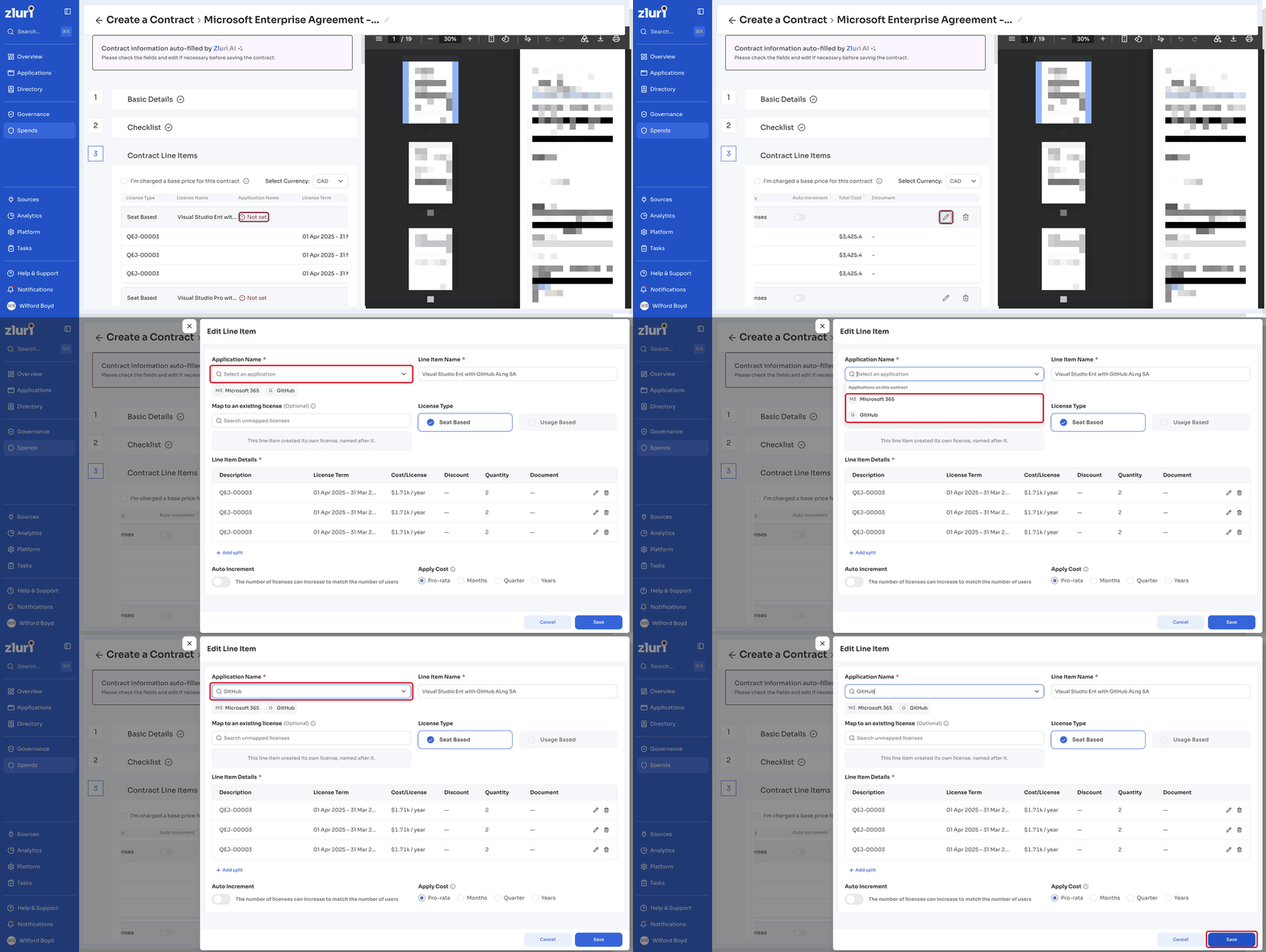
To link a line item to a license record Zluri already tracks, select the license under Map to an existing license (Optional) in the Edit Line Item panel. See Map a line item to an existing license. You can also map it later from the Licenses page. See From the Licenses page.
Add the contract
Steps
- In Review, check the contract summary.
- Click Add Contract.
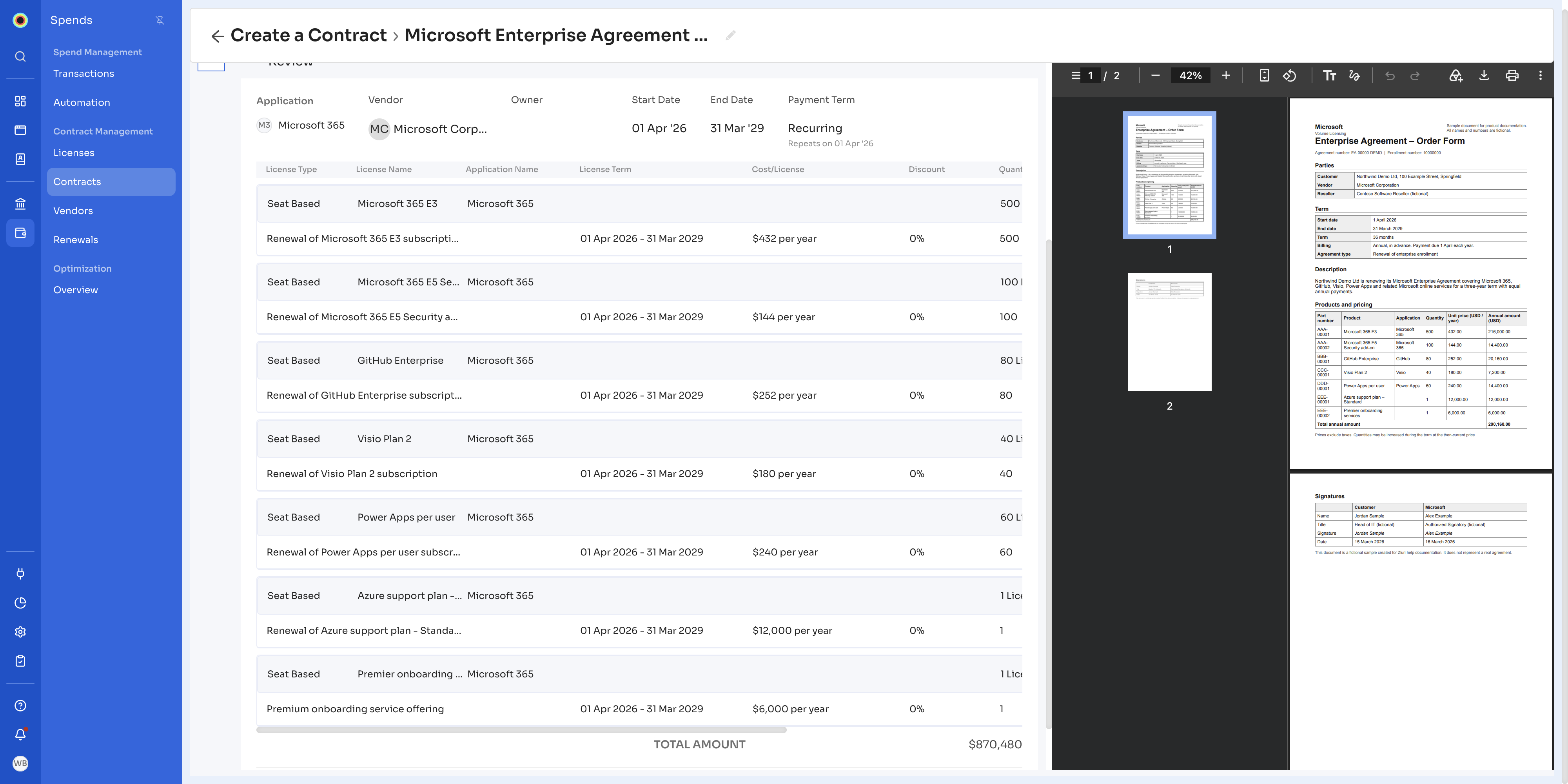
To finish later, click Save for later. Zluri saves your changes and shows Contract draft saved successfully! The upload stays in Review Pending until you click Add Contract. To continue, go back to the Uploads tab and click the edit icon next to Review Pending.
Related articles
Updated about 8 hours ago