
Licenses
The Licenses page shows every license your organization owns across all applications in one place. Use it to track license quantities, costs, and utilization, and to connect licenses with the contracts they belong to.
How licenses work in Zluri
A license record is an entry in your organization's license inventory. Each license record comes from one of two sources:
- Integration: Zluri detects the license through a direct integration with the application.
- Manual: Users enter license details manually when an integration can't provide them, for example from a contract.
A license record exists independently of any contract until a user maps it to a contract line item. Mapping connects the license to the purchase it belongs to, so Zluri attributes its cost, renewal date, and utilization correctly. Each license record maps to only one contract line item at a time, across all contracts.
License types
Zluri supports two license types:
- Seat Based: Licenses assigned to individual users, each with its own pricing.
- Usage Based: Licenses priced on usage. For example, DocuSign charges by the number of envelopes signed, even when a user holds a license. Gen AI tools work the same way, charging for credit or token use.
Active license groups
A single license can contain multiple groups, each covering a different date range. The Licenses page shows only the groups active on the current date, and Zluri attributes cost only for those active groups.
For example, a license has one group from January 1 to August 1 and a second group from August 1 to December 31. On September 28, only the second group is active, so the page shows that group's quantity and cost.
When multiple groups are active at the same time, the page shows the average cost per license and the combined quantity of all active groups.
Access the Licenses page
Steps
- In the left navigation, click Spends.
- Under Contract Management, click Licenses.
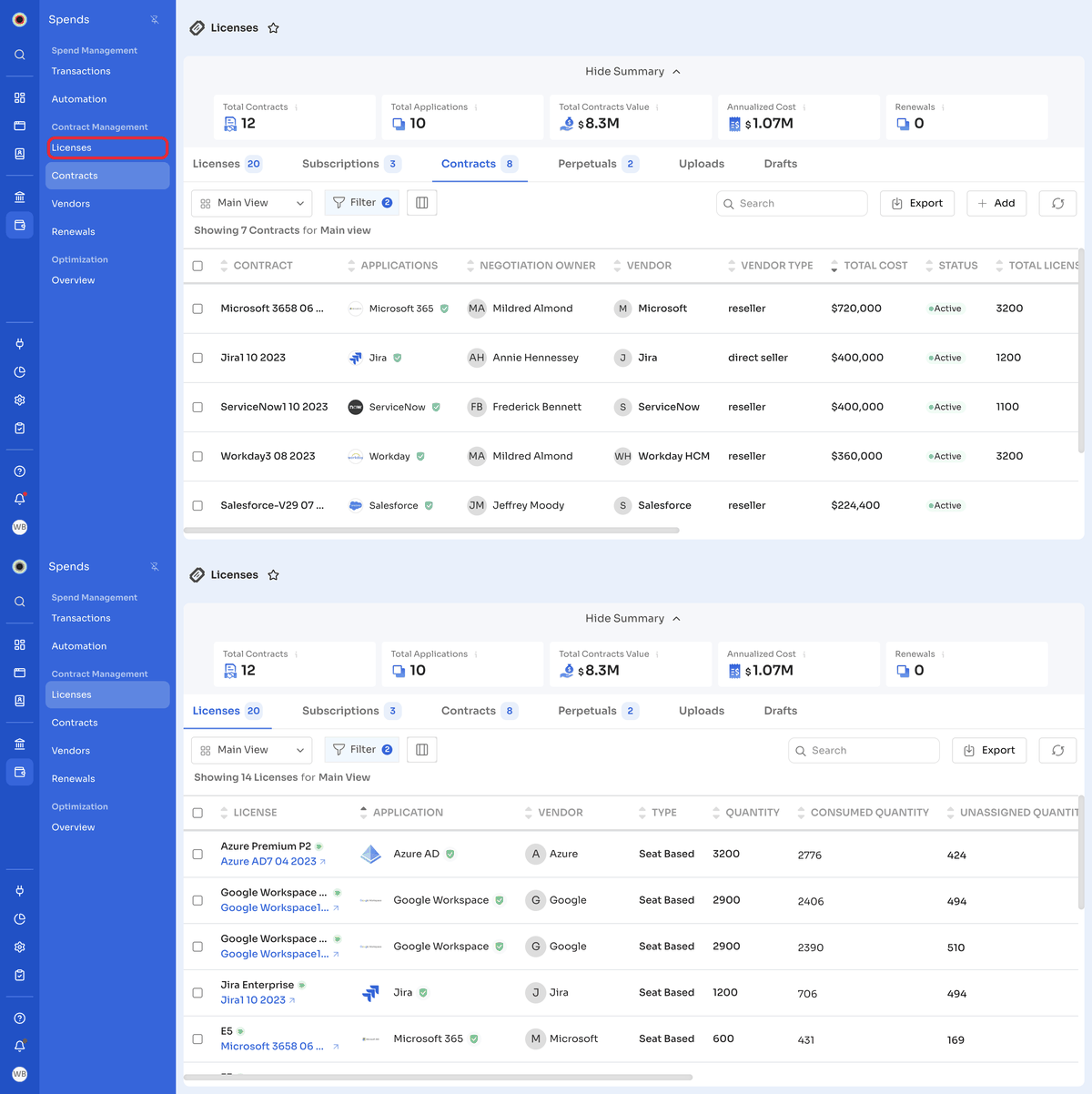
The Licenses page opens on the Licenses tab. The number next to each tab shows how many records it contains. The page has six tabs:
| Tab | Description |
|---|---|
| Licenses | All licenses in your organization. This article covers this tab. |
| Subscriptions | Licenses managed as subscriptions. See Subscriptions. |
| Contracts | All contracts in your organization. See Contracts. |
| Perpetuals | Licenses purchased with a one-time payment. See Perpetuals. |
| Uploads | Contract files uploaded to Zluri. |
| Drafts | Contracts saved as drafts and not yet finalized. |
License summary metrics
The summary at the top of the page shows five metrics across your contracts. Click Hide Summary to collapse it, or Show Summary to expand it again. Hover over the info icon next to a metric to see its definition.
| Metric | Description |
|---|---|
| Total Contracts | The total number of contracts in your organization. |
| Total Applications | The total number of applications covered by your contracts. |
| Total Contracts Value | The combined value of all contracts. |
| Annualized Cost | The total contract cost for the current financial year. |
| Renewals | The number of renewals due in the current month. |
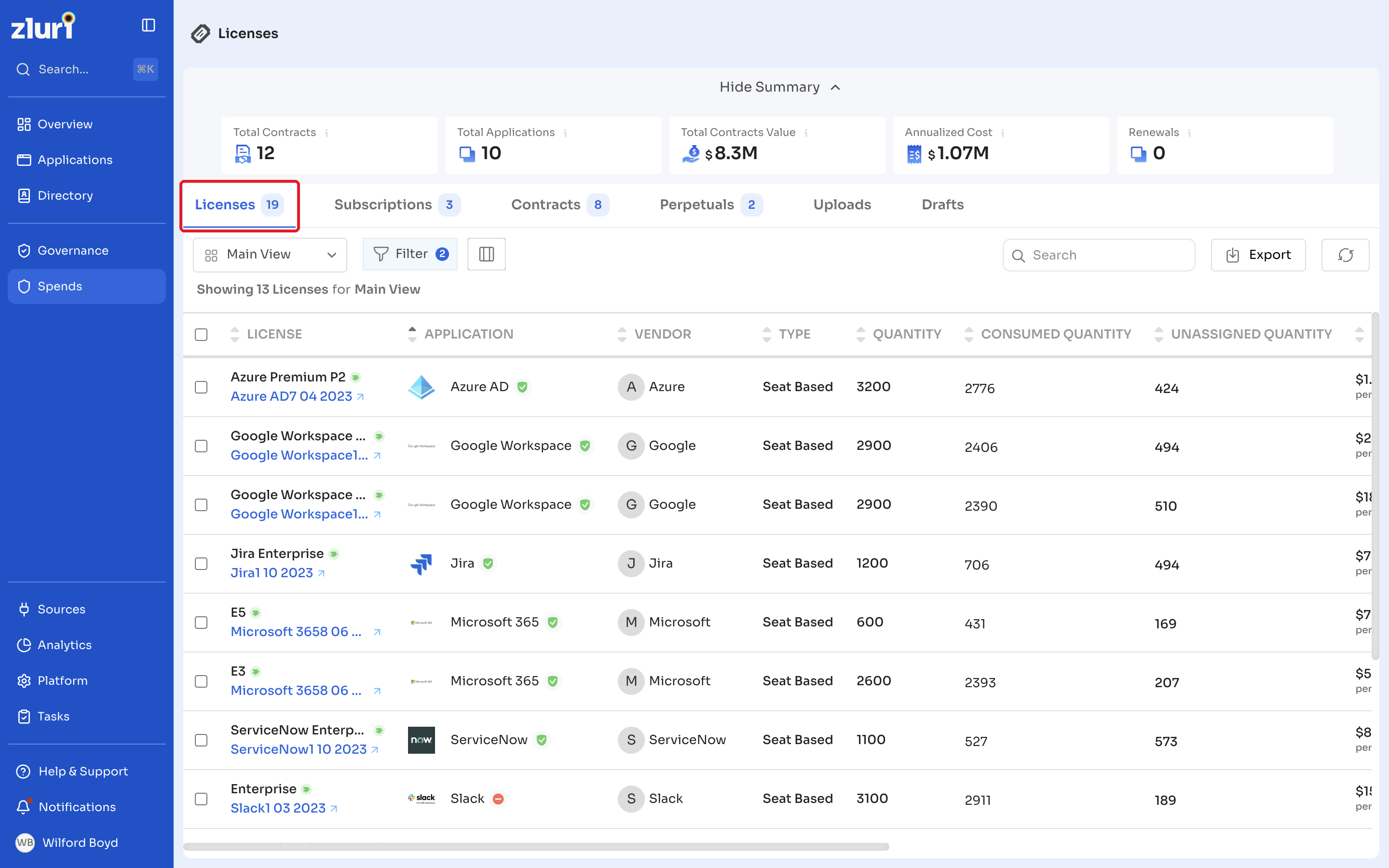
License table columns
The license table shows the following details for each license in the default view:
| Column | Description |
|---|---|
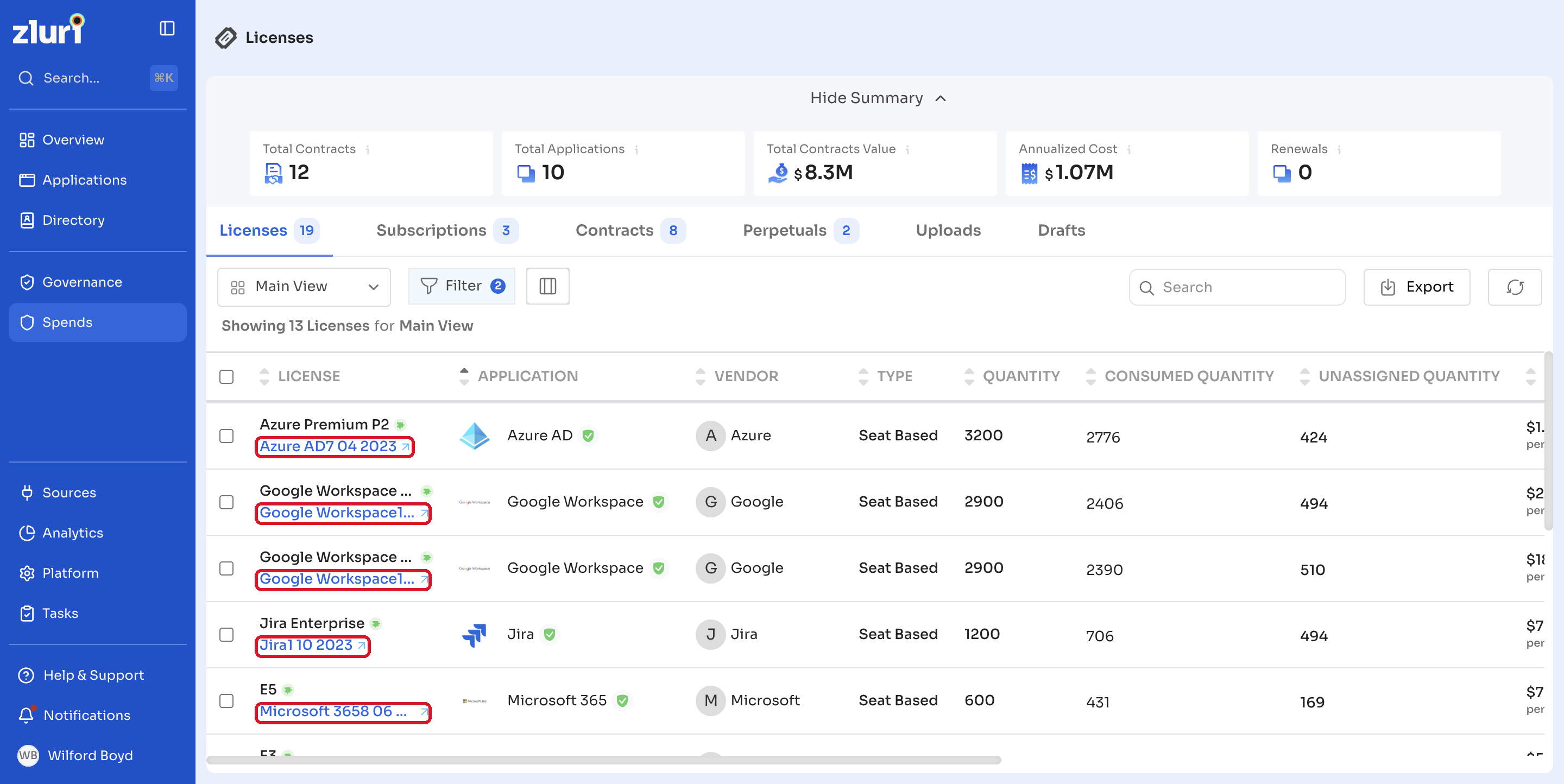
| License | The license name. If the license is mapped to a contract, the contract name appears below it as a link. |
| Application | The application the license belongs to, with its status icon. |
| Vendor | The vendor that provides the license. |
| Type | Whether the license is Seat Based or Usage Based. |
| Quantity | The total number of licenses purchased. |
| Consumed Quantity | The number of licenses currently in use. |
| Unassigned Quantity | The number of licenses not assigned to any user. |
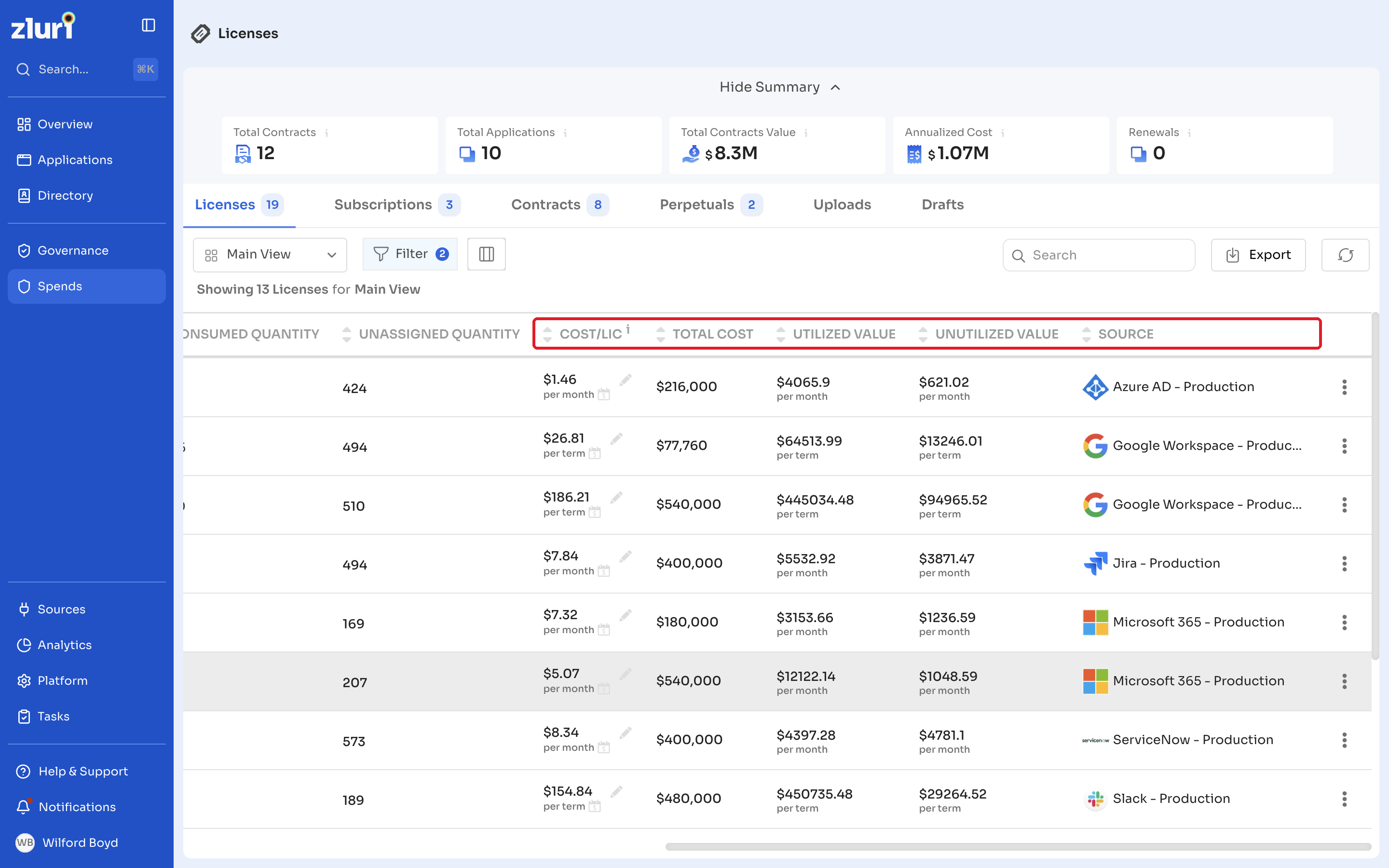
| Cost/Lic | The cost of a single license, shown per month or per term. |
| Total Cost | The total cost of all licenses in the record. |
| Utilized Value | The cost of the licenses currently in use, shown per month or per term. |
| Unutilized Value | The cost of the licenses not in use, shown per month or per term. |
| Source | The integration instance or source that provided the license data, such as Azure AD - Production. |
Click the contract link below a license name to open that contract's details.
Customize the license view
Switch or save a view
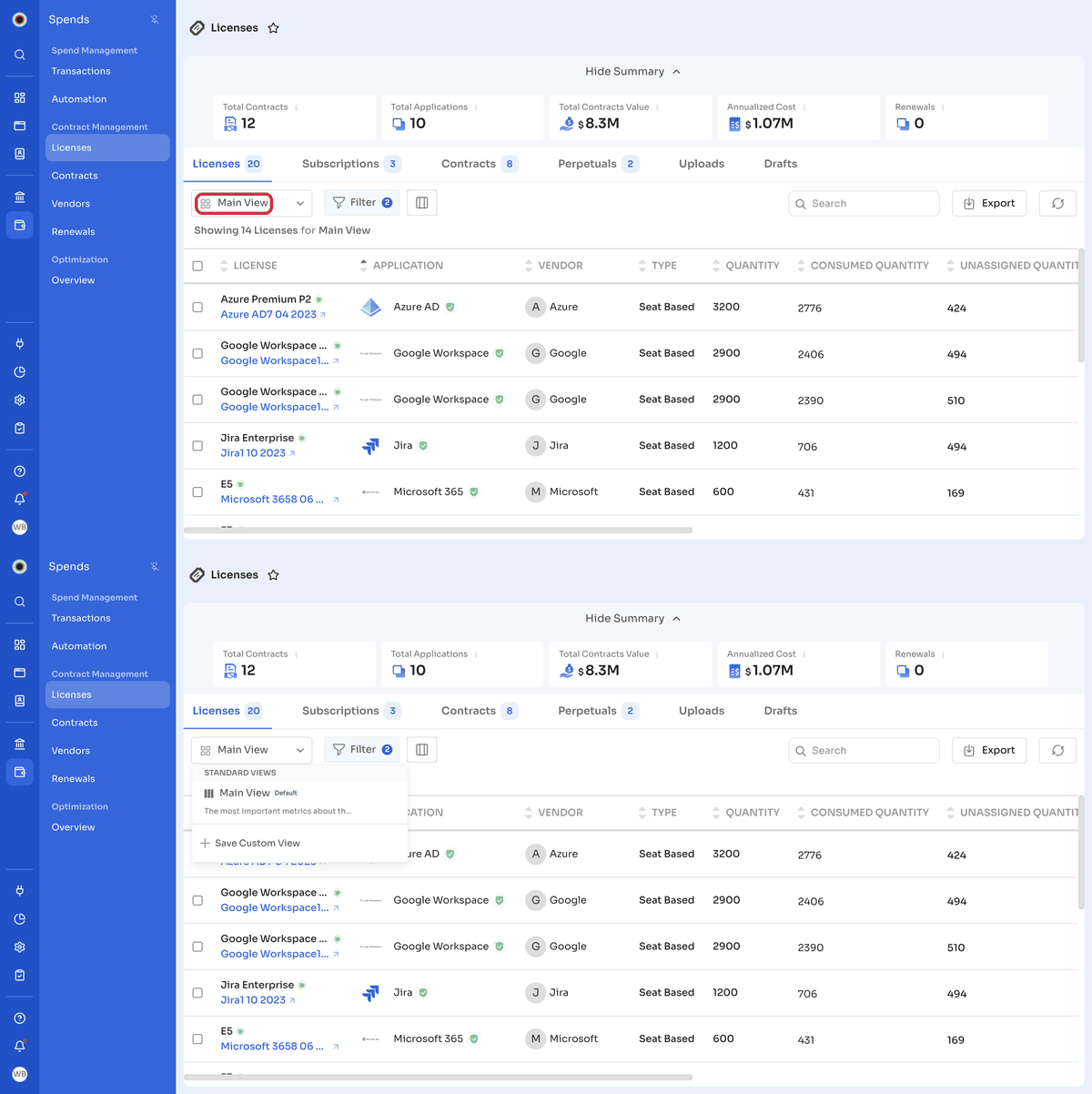
The page opens in Main View, the default standard view.
Steps
- Click the view selector, which shows Main View by default.
- Select a view from the list, or click Save Custom View to save your current columns and filters as a new view.
Show or hide columns
Steps
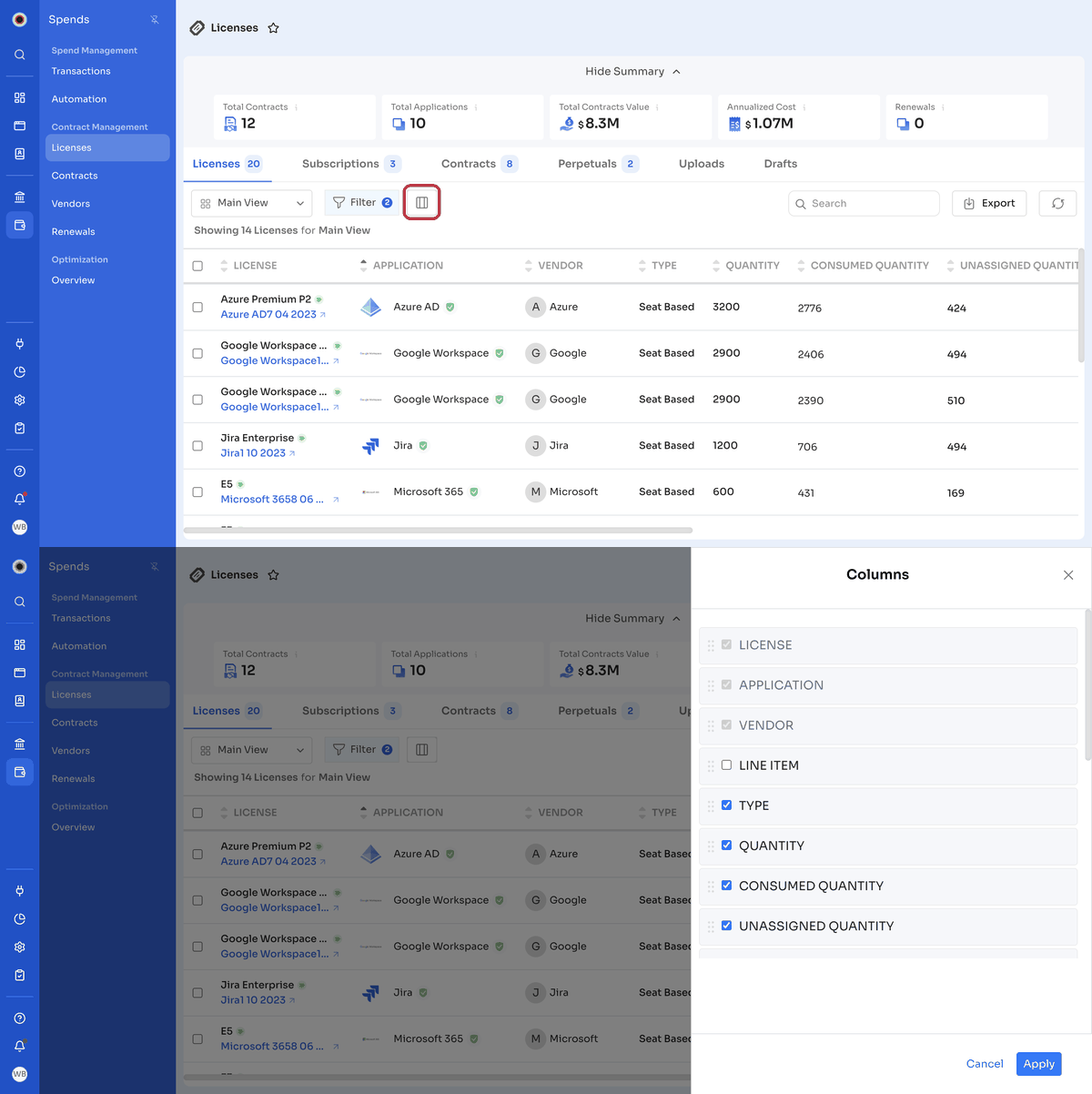
- Click the columns icon next to Filter.
- In the Columns panel, select the columns to show and clear the ones to hide.
- Drag columns to change their order.
- Click Apply.
The License, Application, and Vendor columns always appear. The Line Item column is hidden by default. Select Line Item to show the contract line item each license is mapped to.
Filter licenses
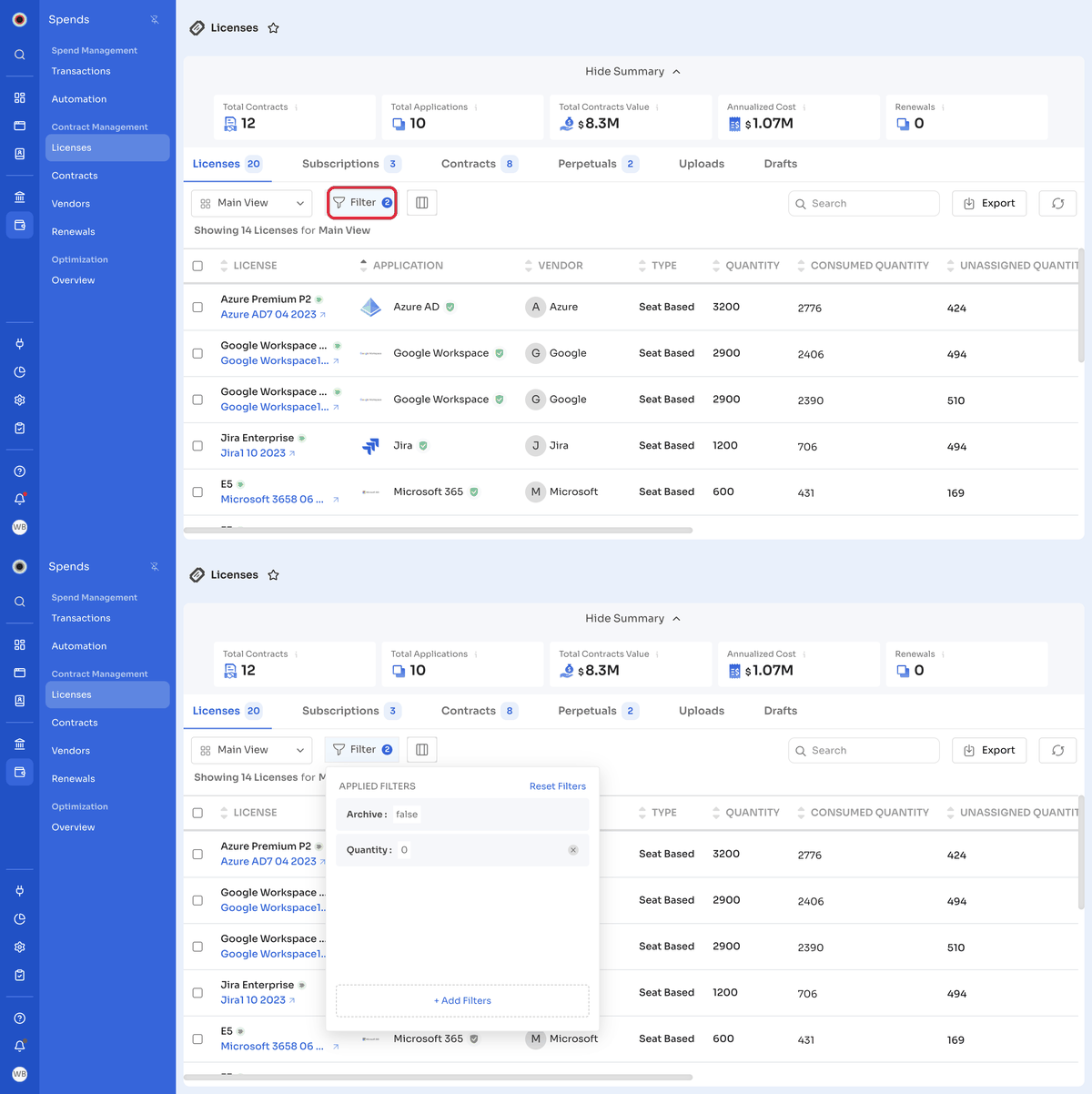
The default view applies filters for Archive and Quantity, so the table may show fewer licenses than the tab count.
Steps
- Click Filter to see the applied filters.
- Click + Add Filters to add a filter, or click the close icon on a filter to remove it.
- Click Reset Filters to return to the default filters.
Use the Search box to find a license by name, and click the refresh icon to reload the table.
Edit the cost per license
Steps
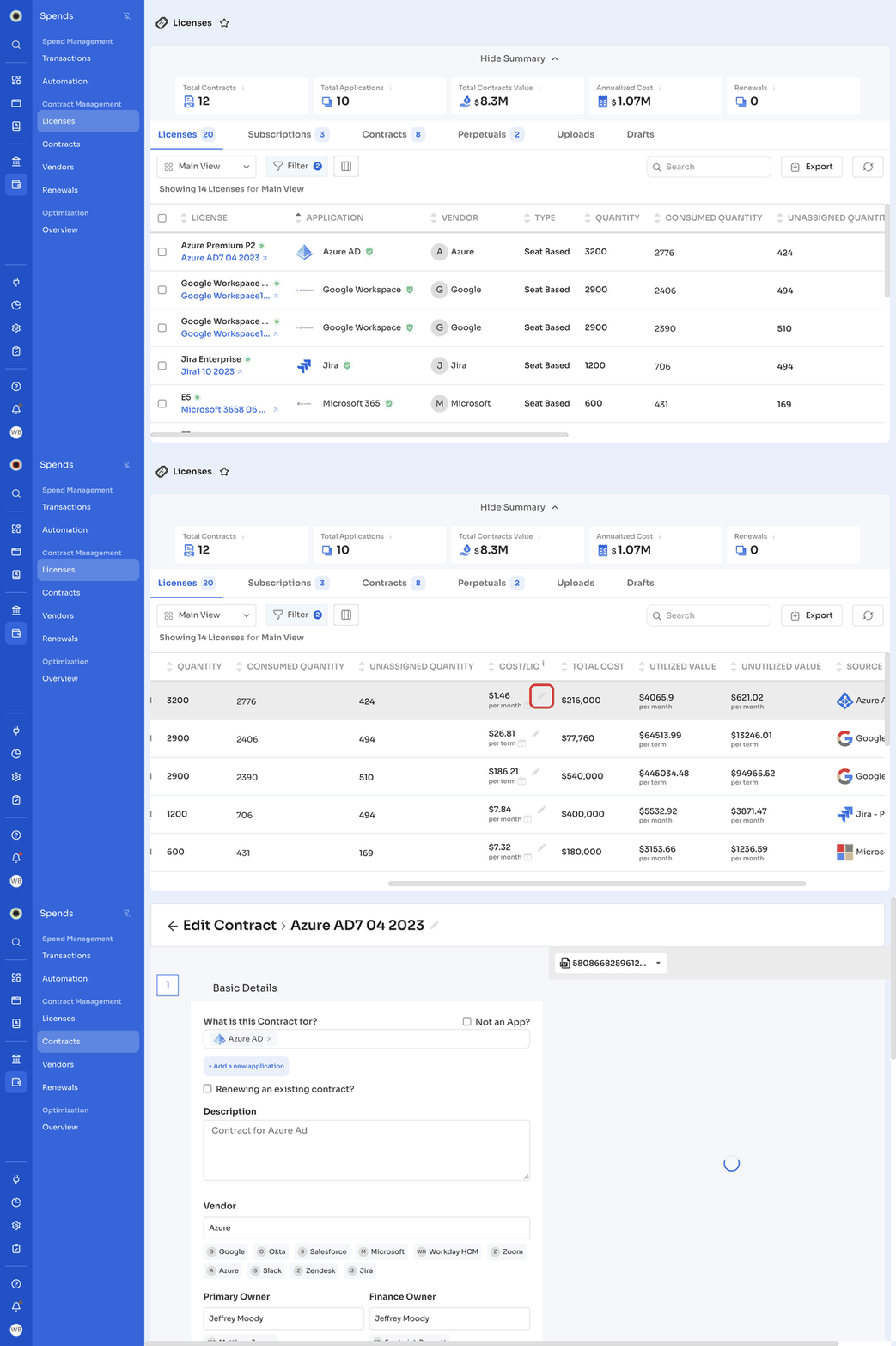
- In the Cost/Lic column, click the edit icon next to the cost. The Edit Contract page opens for the contract the license belongs to.
- Update the cost.
- Save your changes.
Zluri recalculates Total Cost, Utilized Value, and Unutilized Value based on the new cost.
Mapped licensesWhen a license is mapped to a contract line item, the contract's Quantity and Cost/License values take precedence. Zluri replaces the license's values with the contract's values.
License actions
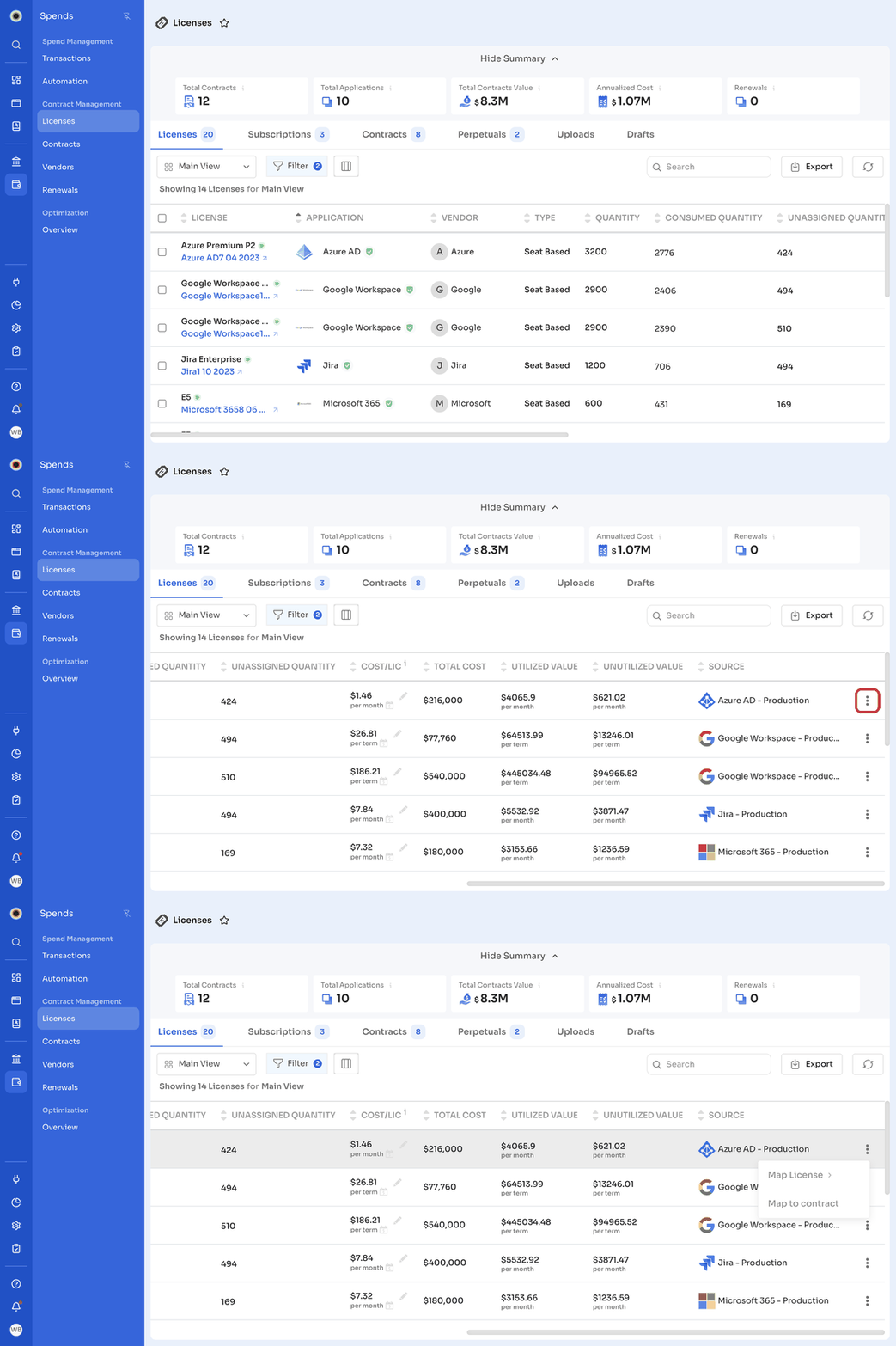
Each license row has an action menu (⋮) at the end of the row, with two options:
| Action | Description |
|---|---|
| Map License | Map this license record to another license record. |
| Map to contract | Connect the license to a line item in an existing contract. |
Map a license to a contract
Map a license detected through an integration to the contract line item it was purchased under, so its cost and renewal date come from the actual purchase. On the license row, click ⋮ > Map to contract. For the steps and rules, see Map Licenses to Contracts.
Bulk edit licenses
Archive, unarchive, or delete several licenses at once.
Steps
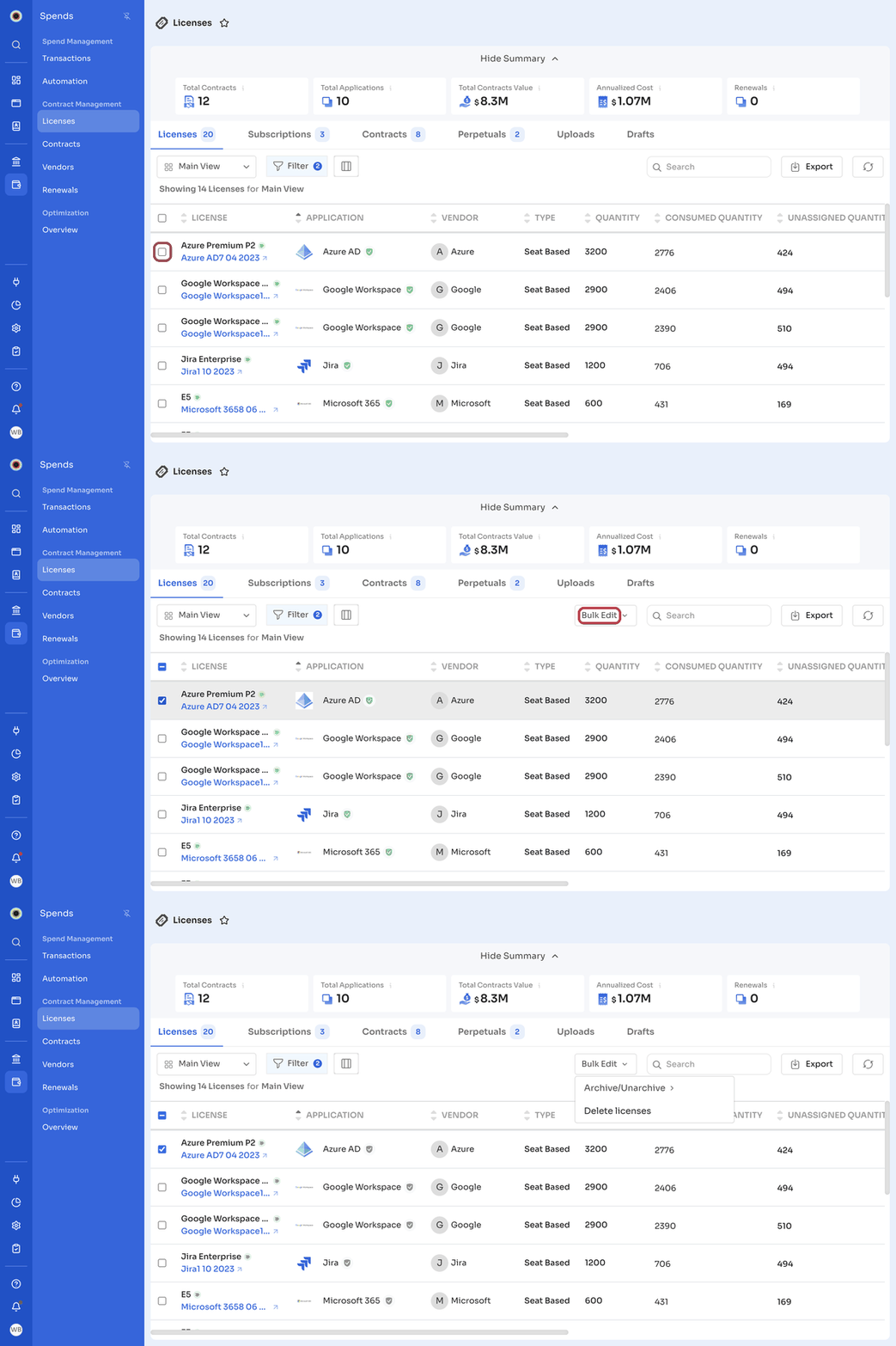
- Select the checkbox next to each license you want to update. To select every license in the table, select the checkbox in the header row.
- Click Bulk Edit, which appears next to Search once you select a license.
- Choose an action:
- To archive or restore licenses, select Archive/Unarchive > Archive or Unarchive.
- To remove licenses, select Delete licenses.
Archived licensesThe default view filters out archived licenses. To see archived licenses again, change the Archive filter.
Export license data
Steps
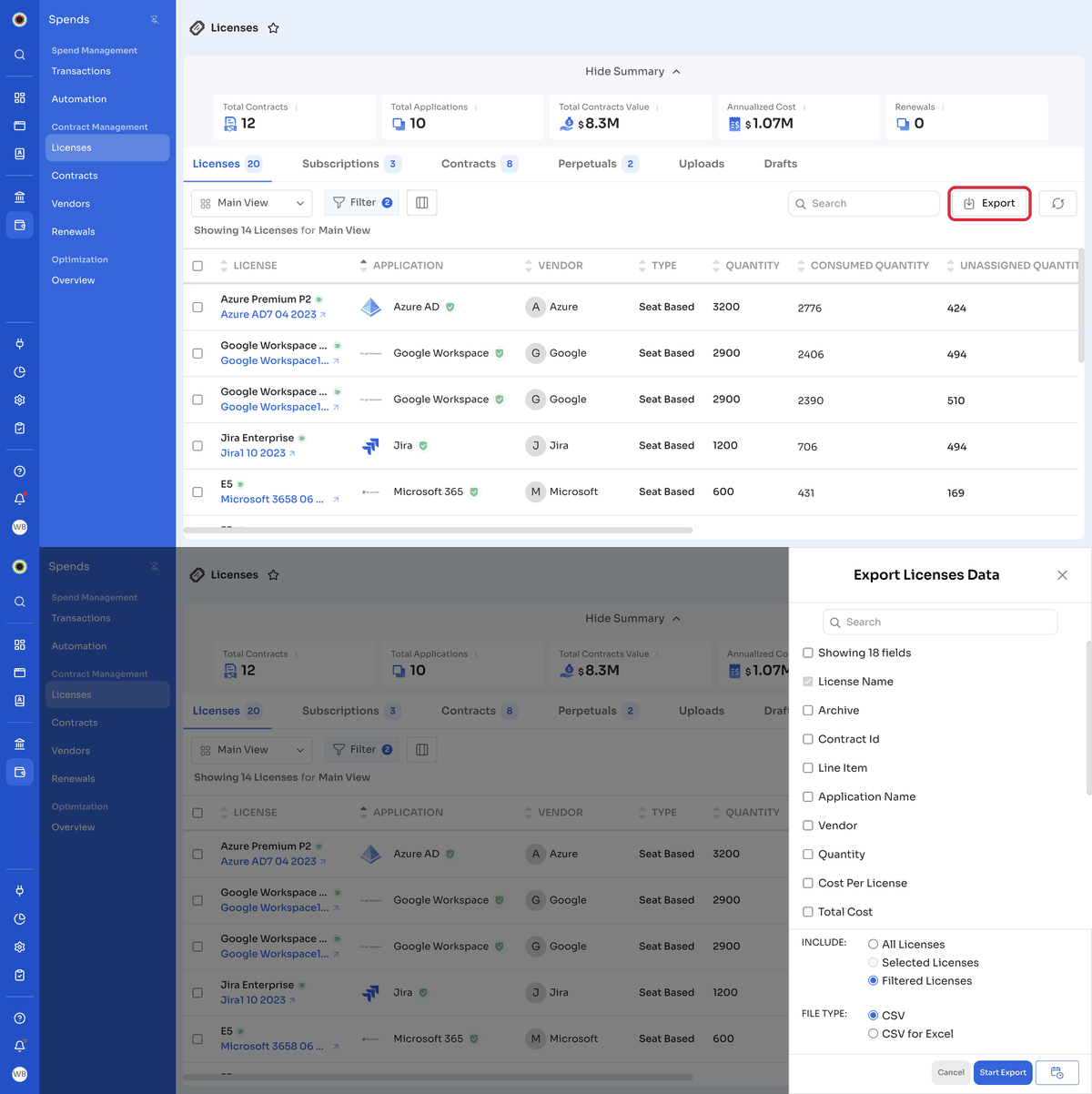
- Click Export.
- In the Export Licenses Data panel, select the fields to include. License Name is always included.
- Under Include, select All Licenses, Selected Licenses, or Filtered Licenses.
- Under File Type, select CSV or CSV for Excel.
- Click Start Export.
Assign users to licenses
Assign licenses to users from an application's Contract & Licenses tab or from a contract's line items. For the steps, see Assign Licenses to Users.
Got questions? Feel free to submit a ticket or contact us directly at [email protected].
Updated about 10 hours ago