
Contract Uploads
The Uploads tab lists every contract file uploaded to Zluri, whether you uploaded a PDF for Zluri AI to read or a CSV to add contracts in bulk. Use it to track the processing status of each file and to continue reviewing PDF drafts.
Open the Uploads tab
- In the left navigation, click Spends.
- Under Contract Management, click Contracts, then click the Uploads tab.
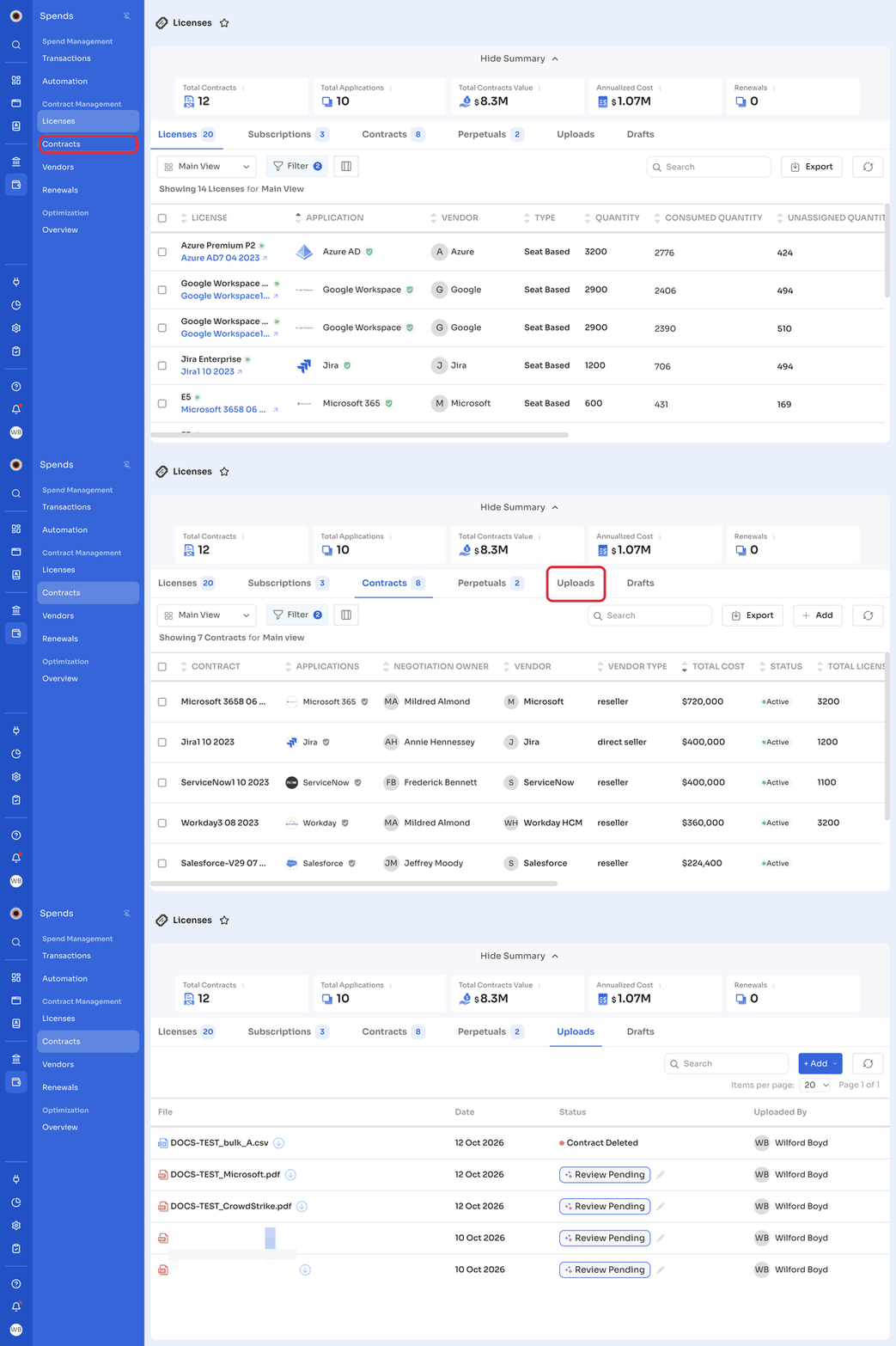
Upload a file
Click + Add, then choose the type of upload:
| Option | Use it to | See |
|---|---|---|
| Upload PDF | Let Zluri AI read a contract PDF and create a draft contract for you to review | Contract Upload and Contract Mapping Process |
| Upload CSV | Add several contracts at once from a CSV file | Bulk Contract Upload |
Upload columns and statuses
| Column | Description |
|---|---|
| File | The uploaded PDF or CSV. Click the download icon next to it to download the file. |
| Date | The date the file was uploaded. |
| Status | The processing status of the file. |
| Uploaded By | The user who uploaded the file. |
The Status column shows where each file is in processing:
| File type | Status order |
|---|---|
| Pending → Validating → AI Processing... → Review Pending. Click the edit icon next to Review Pending to review the draft contract. | |
| CSV | Pending → Contract Added. The contracts appear on the Contracts tab. |
Use Search to find a file, and click the refresh icon to update the list.
Related articles
Updated about 8 hours ago
Did this page help you?