
Bulk Contract Upload
Add several contracts at once by uploading a CSV file. Download the contract template, fill in one row for each contract line item, and upload the file.
Before you begin
- Use the template from the Bulk Contract Upload panel. The template contains the column names and sample data.
- Keep the column names in the template unchanged.
- Each row in the template is a line item. Rows with the same Contract Name are added as one contract. For example, the sample data has two rows for one contract with two line items.
- Delete the sample rows and the last row of the template, which marks each column as [mandatory] or [optional]. Zluri flags that row as errors if you upload it.
Upload contracts in bulk
Steps
-
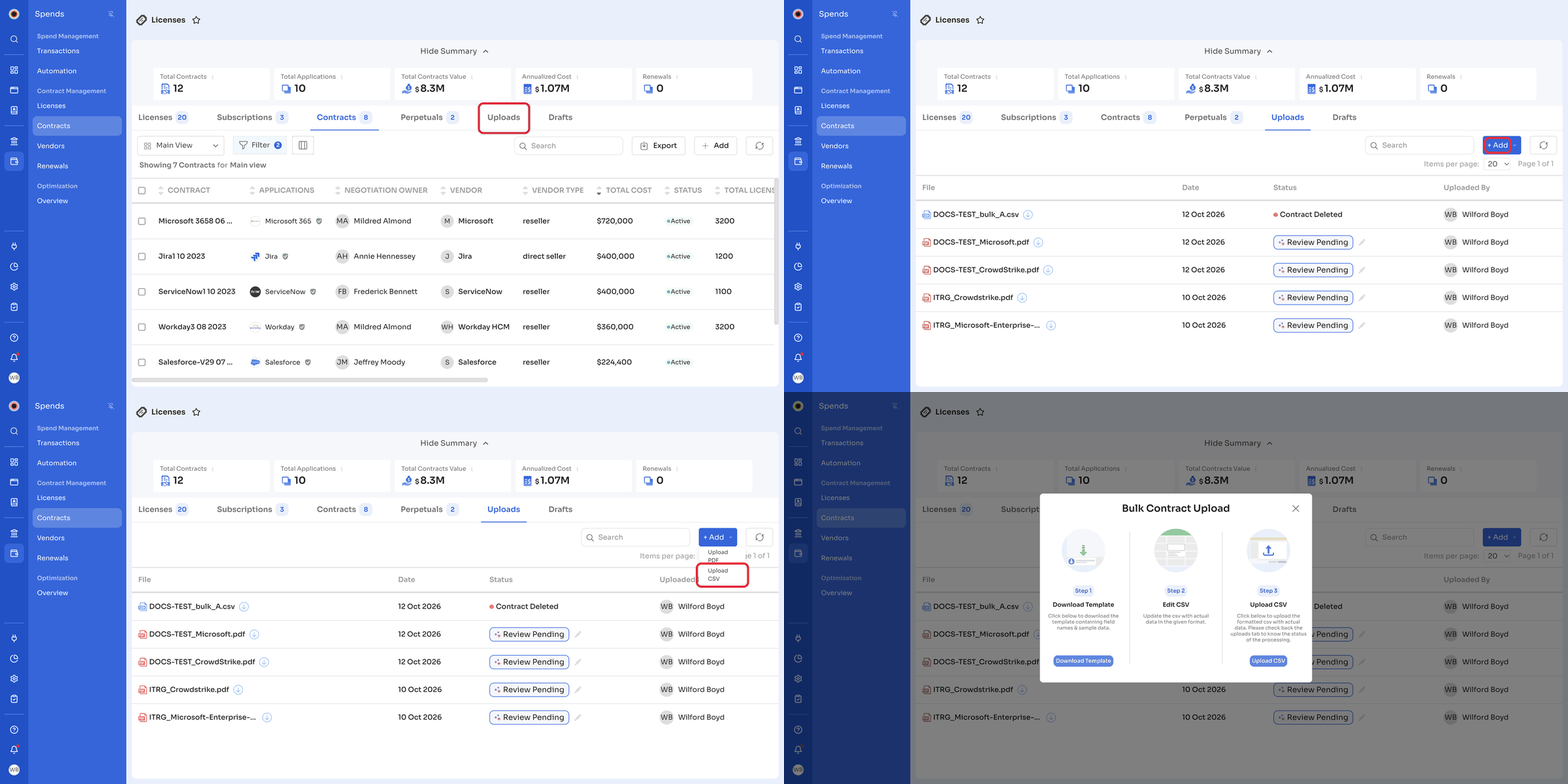
In the left navigation, click Spends.
-
Under Contract Management, click Contracts, then click the Uploads tab.
-
Click + Add, then click Upload CSV.
The Bulk Contract Upload panel opens with three steps. -
Under Step 1: Download Template, click Download Template. Zluri downloads
Sample_contract_upload_format.csv. -
Under Step 2: Edit CSV, replace the sample data with your contract data, in the format shown in the template.
-
Under Step 3: Upload CSV, click Upload CSV and select the file.
Zluri checks the file as soon as you select it.
- If the file has no errors, Zluri shows Contract Bulk Upload has been initiated! The changes might take some time to reflect. The file appears on the Uploads tab with the status Pending. When processing finishes, the status changes to Contract Added, and the contracts appear on the Contracts tab. You don't need to review them first.
- If the file has errors, Zluri doesn't upload it. See Fix errors in the CSV.
Fix errors in the CSV
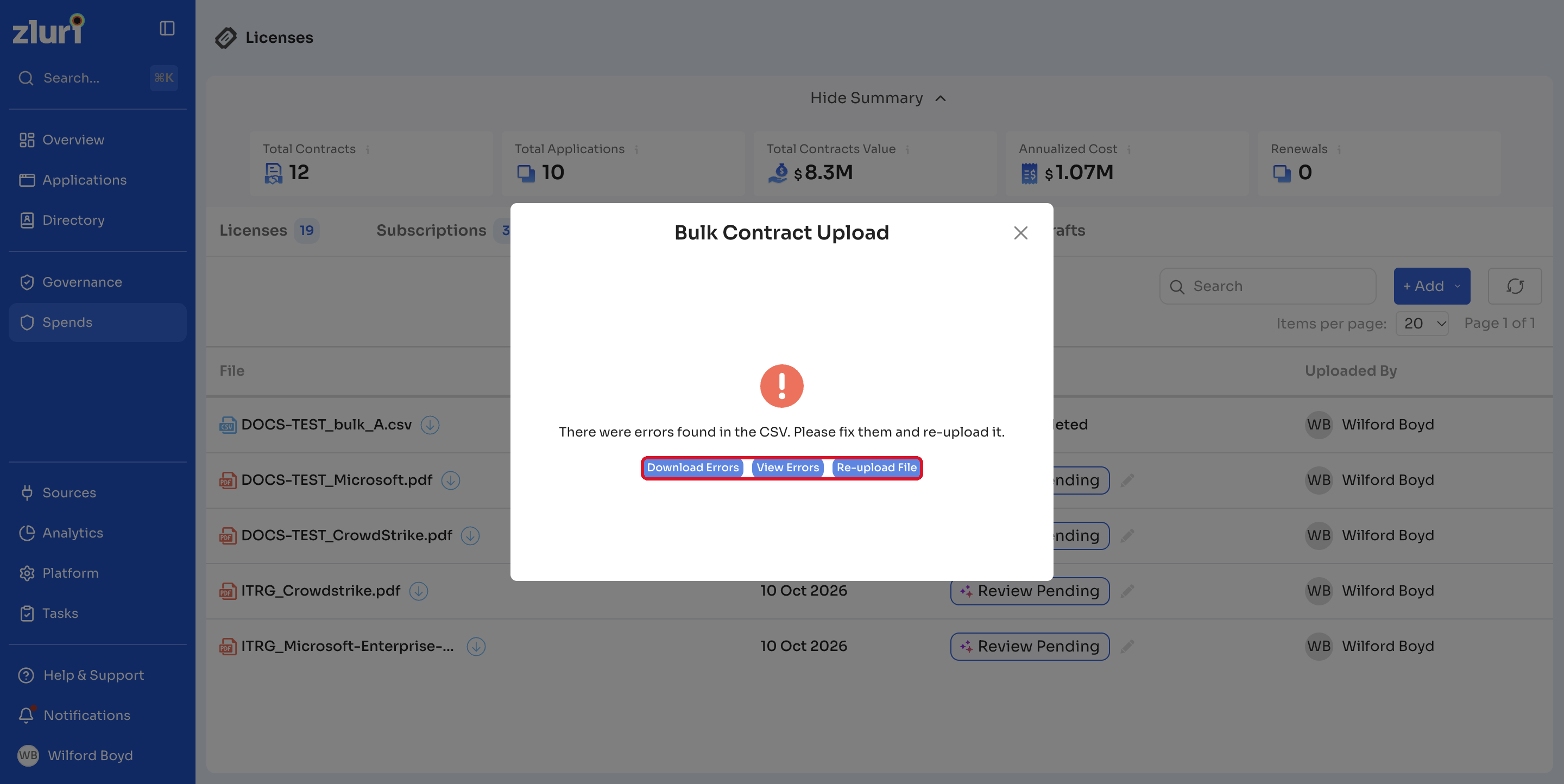
If Zluri finds errors, the Bulk Contract Upload panel shows There were errors found in the CSV. Please fix them and re-upload it.
Steps
- Click View Errors to see the rows in Contract Bulk Upload Errors. Each cell with an error is marked with an error icon. You can also click Download Errors.
- Fix the marked cells in your CSV.
- Click Re-upload File and select the corrected file.
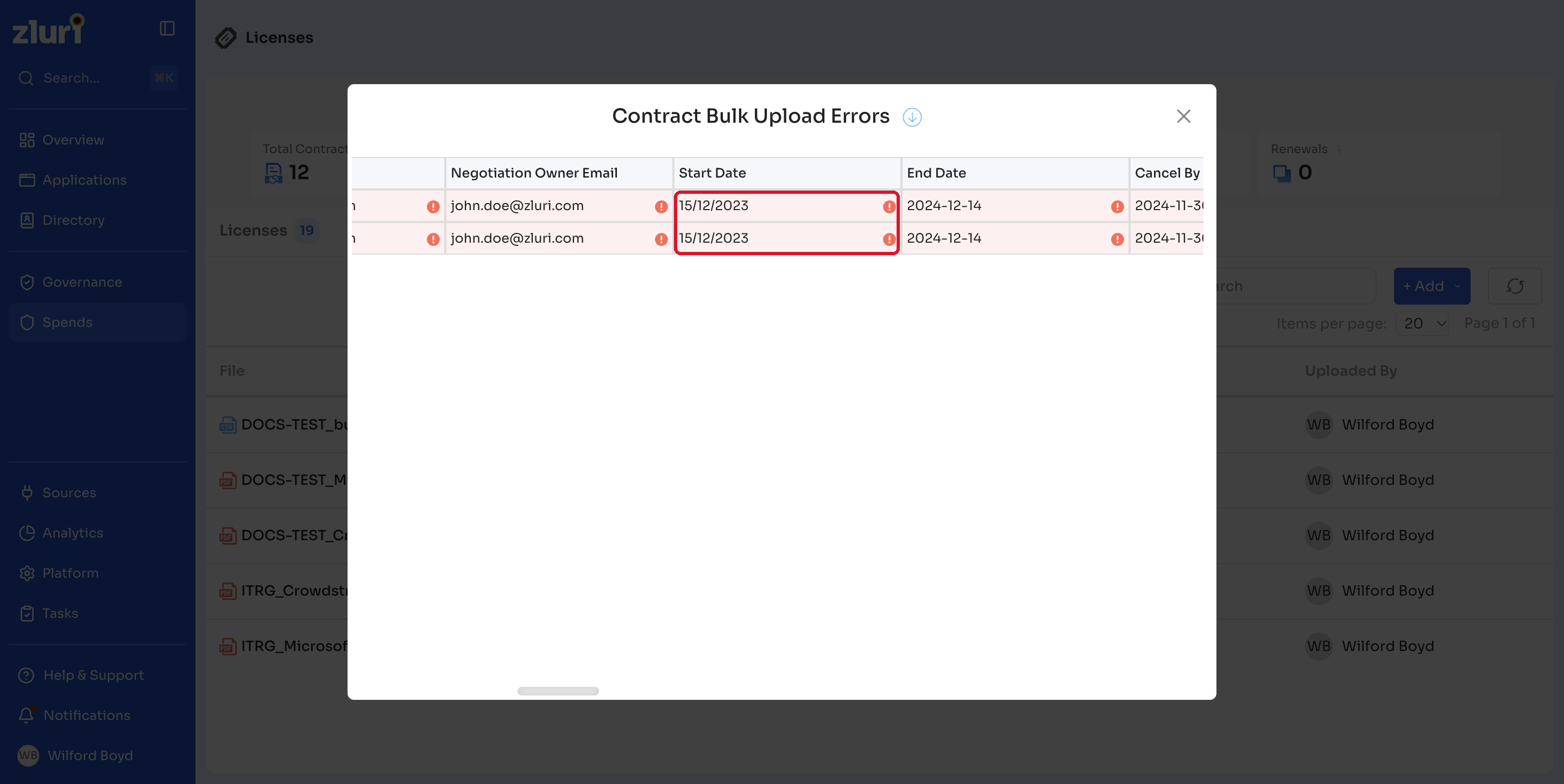
Zluri marks a cell as an error when, for example:
- A date isn't in the
YYYY-MM-DDformat. - A value isn't one that Zluri recognizes, for example in Payment Term.
- The Application doesn't exist in Zluri.
Template columns
Dates in the sample data use the format YYYY-MM-DD, for example 2023-12-15. For columns that don't apply to a contract, enter a hyphen (-), as the sample data does.
Contract details
| Column | Required | Sample value |
|---|---|---|
| Contract Name | Mandatory | Microsoft Enterprise Agreement |
| Currency | Mandatory | INR |
| Base Price | Optional | 1000 |
| Description | Optional | Microsoft EA 2024 |
| Vendor | Optional | Microsoft |
| Agreement Type | Optional | Order |
Owners
| Column | Required | Sample value |
|---|---|---|
| Primary Owner Email | Optional | [email protected] |
| Finance Owner Email | Optional | [email protected] |
| IT Owner Email | Optional | [email protected] |
| Negotiation Owner Email | Optional | [email protected] |
Dates and renewal
| Column | Required | Sample value |
|---|---|---|
| Start Date | Mandatory | 2023-12-15 |
| End Date | Mandatory | 2024-12-14 |
| Cancel By Date | Optional | 2024-11-30 |
| Renew By Date | Optional | 2024-11-30 |
| Auto Renews | Mandatory | Yes |
Payment and cost
| Column | Required | Sample value |
|---|---|---|
| Payment Term | Mandatory | One Time |
| Payment Term Period | Optional | - |
| Payment Term Frequency | Optional | - |
| Payment Date | Mandatory | 2023-12-15 |
| Cost Amortization | Mandatory | Months |
| Discount Type | Optional | Percentage |
| Discount Value | Optional | 0 |
True ups
| Column | Required | Sample value |
|---|---|---|
| Contract has True Ups? | Mandatory | No |
| True Up Period | Optional | - |
| True Up Frequency | Optional | - |
| First True Up Date | Optional | - |
Line items
| Column | Required | Sample value |
|---|---|---|
| Line Item Name | Mandatory | E3 Seats - EMEA |
| Application | Mandatory | Microsoft 365 |
| License Type | Mandatory | Seat |
| Auto Increment | Mandatory | Yes |
| Apply Cost | Mandatory | Pro-rata |
License groups
| Column | Required | Sample value |
|---|---|---|
| Group Description | Mandatory | E3 EMEA block |
| Group Start Date | Mandatory | 2023-12-15 |
| Group End Date | Mandatory | 2024-12-14 |
| Group Cost Per License | Mandatory | 10 |
| Group Cost Period | Mandatory | Months |
| Group Quantity | Mandatory | 10 |
| Group Discount Type | Optional | Percentage |
| Group Discount Value | Optional | 0 |
Related articles
Updated 4 days ago