
App-level Optimization tab
The Optimization tab of an application shows how many of its licenses are optimizable and how much you save by reclaiming them. Use it to track optimizable licenses over time, run optimization on demand, review past runs, and configure optimization settings for the application.
Open the Optimization tab
- In the left navigation, click Applications.
- Open the application.
- In the application menu, click Optimization.
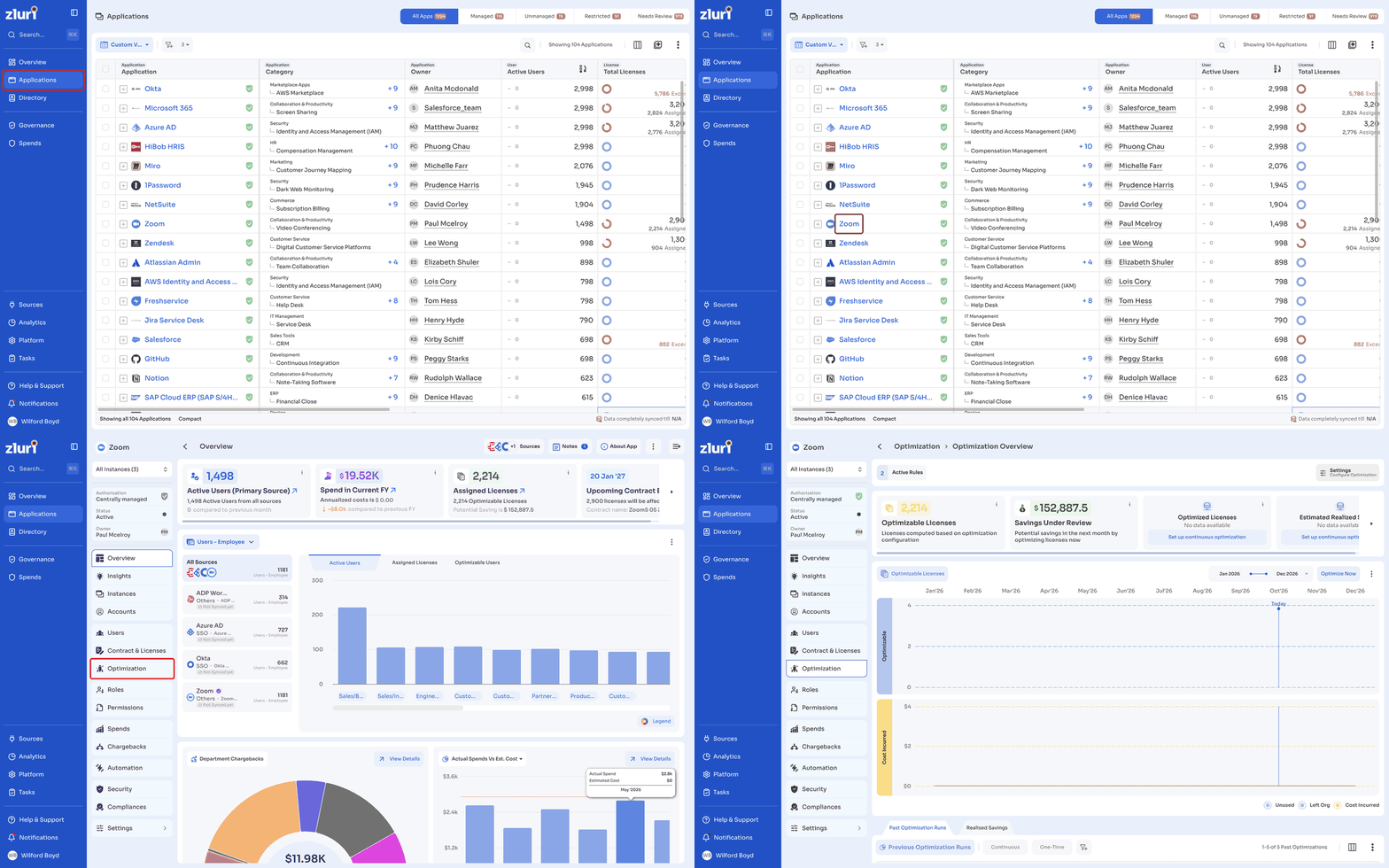
You can also click an application's name on the Spends > Optimization > Overview page.
The Optimization Overview page opens. Use the instance dropdown at the top of the application menu to view data for All Instances or a single instance.
Active rules and settings
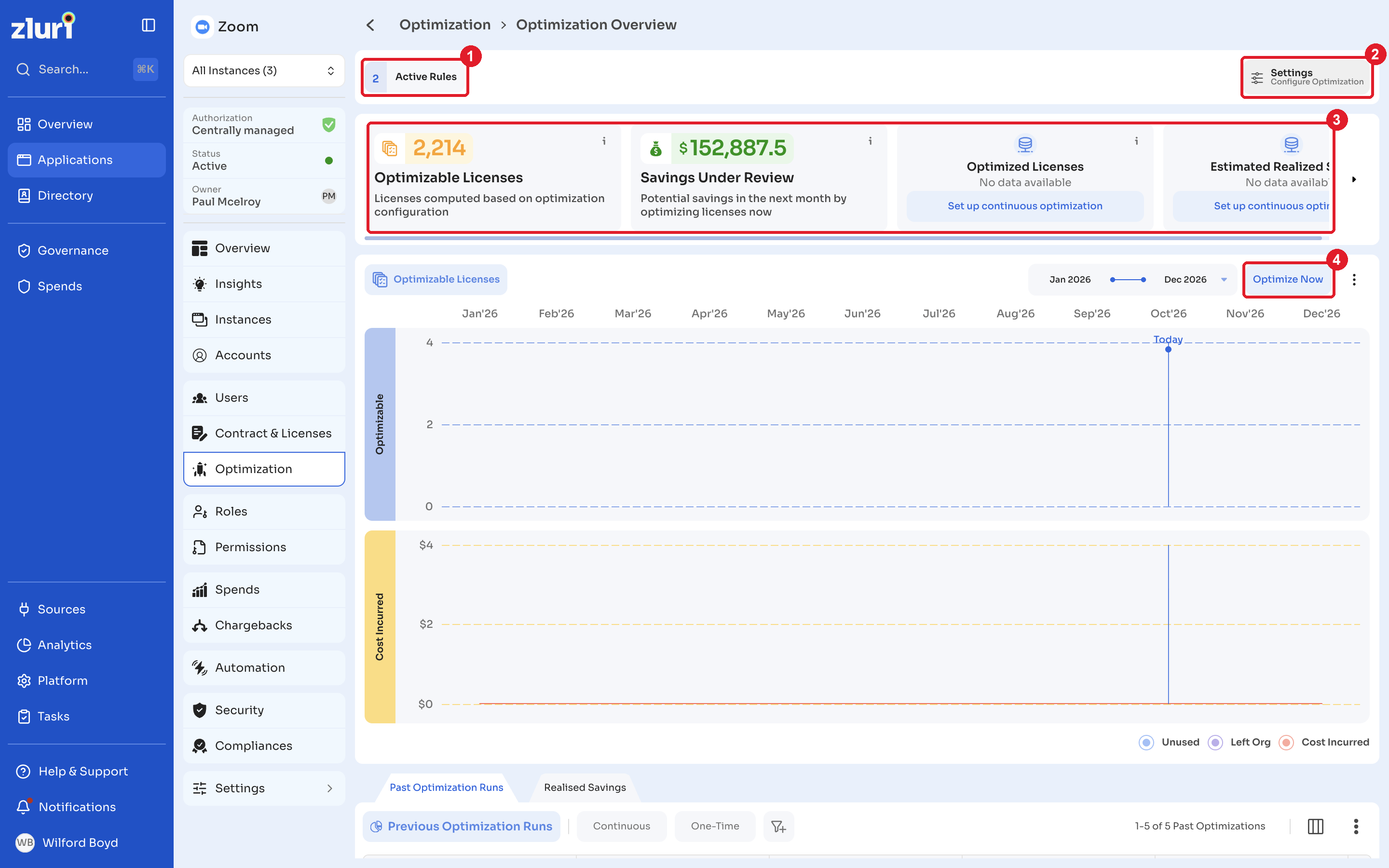
The Active Rules count at the top of the page shows the number of optimization rules currently active for the application.
Click Settings to open Optimization Settings for the application. See Continuous Optimization.
Summary cards
| Card | What it shows |
|---|---|
| Optimizable Licenses | The number of licenses identified for optimization, based on the application's optimization configuration. |
| Savings Under Review | The potential savings in the next month if you optimize the optimizable licenses now. |
| Optimized Licenses | The number of licenses optimized through continuous optimization. |
| Estimated Realized Savings | The estimated savings from licenses already optimized through continuous optimization. |
Optimized Licenses and Estimated Realized Savings show data only after continuous optimization is set up. Click Set up continuous optimization on either card to configure it.
Optimizable Licenses chart
The Optimizable Licenses chart tracks optimizable licenses and cost over a date range. A Today marker separates past data from the current month.
The chart has two panels:
- Optimizable: The number of optimizable licenses each month, split into Unused and Left Org licenses.
- Cost Incurred: The cost incurred for the application each month.
To work with the chart:
- Select the date range dropdown to change the start and end months.
- Click Optimize Now to review optimizable licenses and start a one-time optimization run.
- Click the more options menu (⋮) to Refresh the chart, Download PNG, or Download PDF.
Optimize now
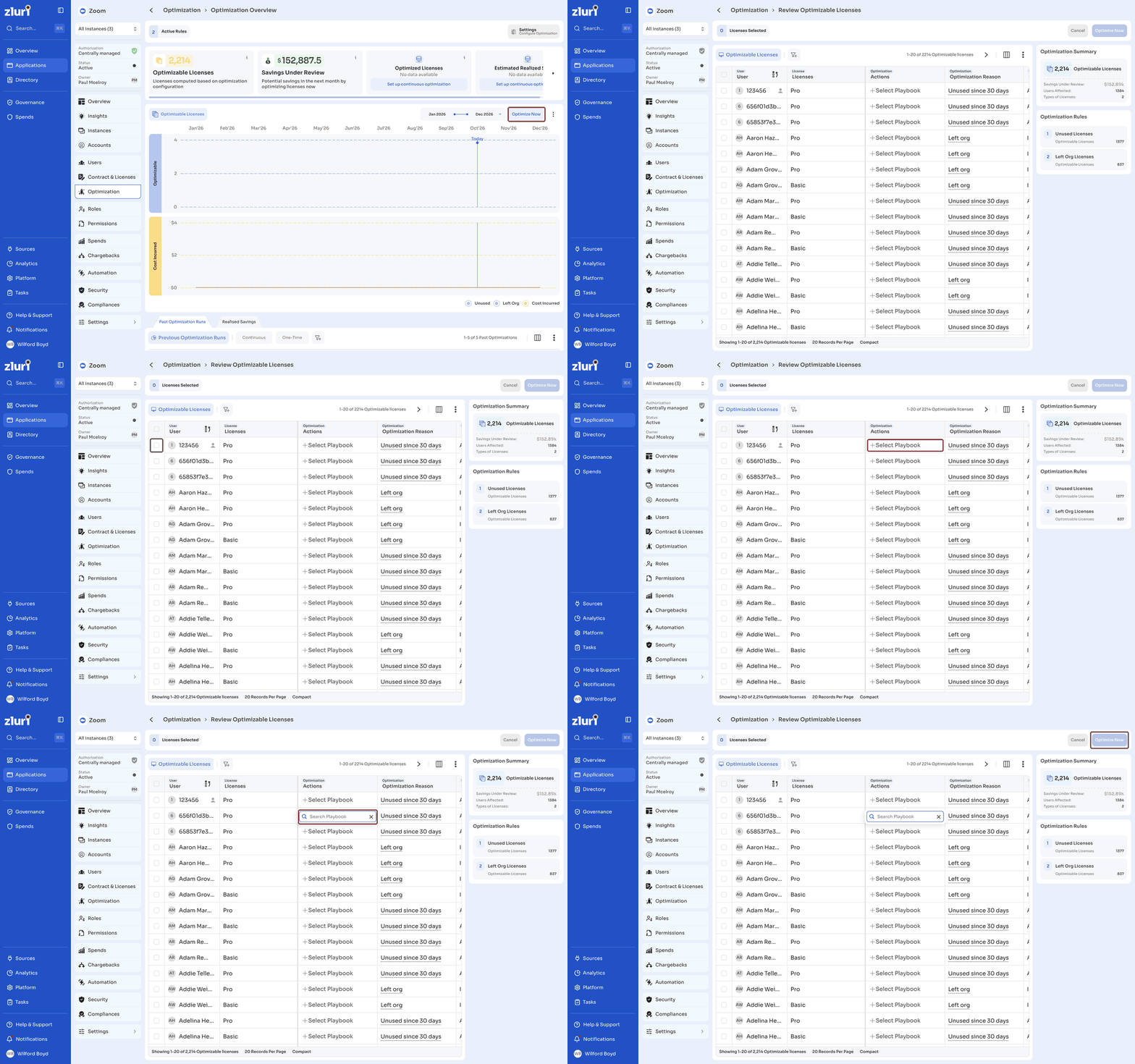
Optimize Now opens the Review Optimizable Licenses page, where you choose a playbook for each license and run it once.
| Column | Description |
|---|---|
| User | The user the license is assigned to. |
| Licenses | The license. |
| Actions | The playbook to run. Click Select Playbook to choose one. |
| Optimization Reason | Why the license is optimizable, for example Unused since 30 days or Left org. |
| User Employment Status | The user's employment status. |
| Account Type | The user's account type. |
| Last Used | When the user last used the application. |
| Savings Under Review (monthly) | The monthly savings if the license is optimized. |
| Date Since Optimizable | The date the license became optimizable. |
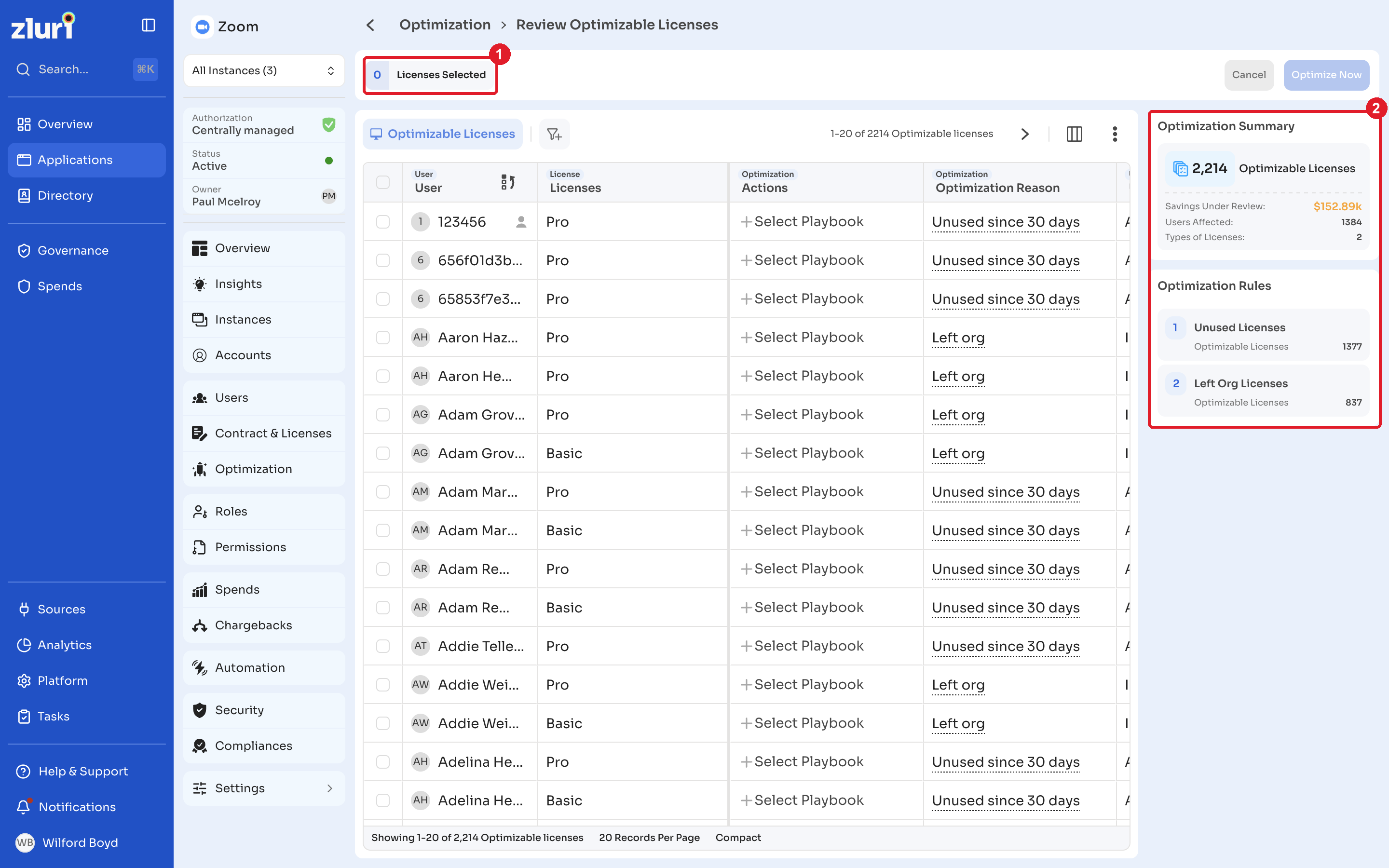
The Optimization Summary on the right shows the number of optimizable licenses, the savings under review, the number of users affected, and the types of licenses. Optimization Rules shows the number of optimizable licenses for each rule, for example Unused Licenses and Left Org Licenses.
Steps
- Click Optimize Now.
- Select the licenses to optimize. The number of licenses selected appears at the top.
- For each license, click Select Playbook and choose the playbook to run.
- Click Optimize Now.
Past Optimization Runs
The Past Optimization Runs tab lists every optimization run for the application.
| Column | Description |
|---|---|
| Run On | The date and time of the run. |
| Run Type | Whether the run was Continuous or One-Time. |
| Licenses Run On | The number of licenses included in the run. |
| Users Run On | The number of users included in the run. |
| Completed Workflows | The number of workflows completed for the run. |
| Pending Workflows | The number of workflows still pending. |
| Errored Workflows | The number of workflows that ran into errors. |
| Users Within Cool Off Period | The number of users within the cool-off period. |
| Workflow Executions | The number of workflow executions for the run. |
Click Continuous or One-Time to filter runs by type. Click the filter icon to add more filters.
Realised Savings
The Realised Savings tab lists the savings from licenses revoked through optimization.
| Column | Description |
|---|---|
| License Revocation Date | The date the licenses were revoked. |
| Licenses Revoked | The number of licenses revoked. |
| Estimated Savings | The estimated savings from the revoked licenses. |
| Actions | The actions available for the record. |
Click the more options menu (⋮) to Refresh the table, change the View Density, Export View, or create a Custom Export.
Related articles
Updated 14 days ago