
Payment Methods
The Payment Methods tab stores the credit cards, bank accounts, and other payment options associated with your spend transactions.
View payment methods
- Go to Spends > Transactions.
- Click the Payment Methods tab.
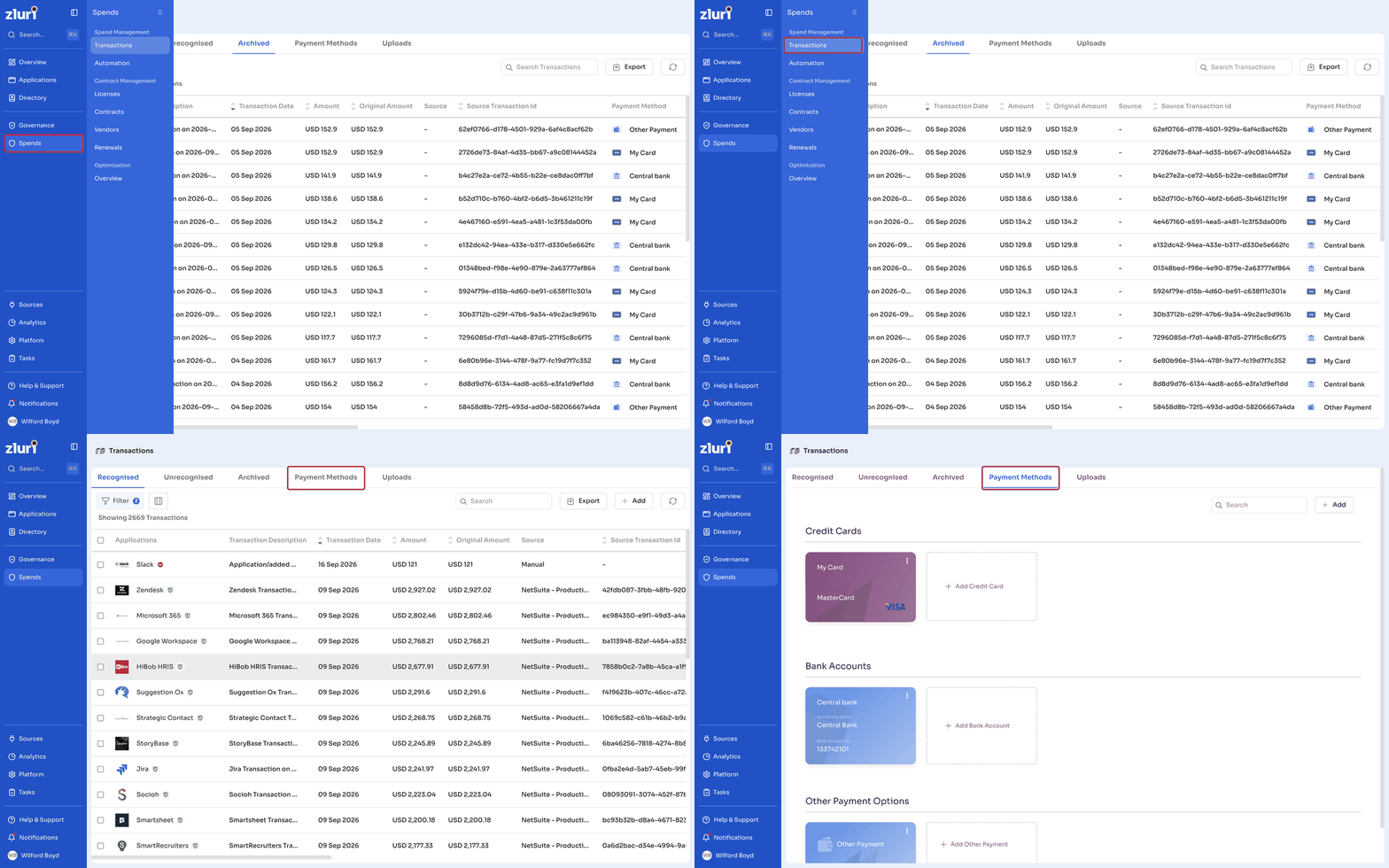
Payment methods are grouped into three categories: Credit Cards, Bank Accounts, and Other Payment Options.
Add a payment method
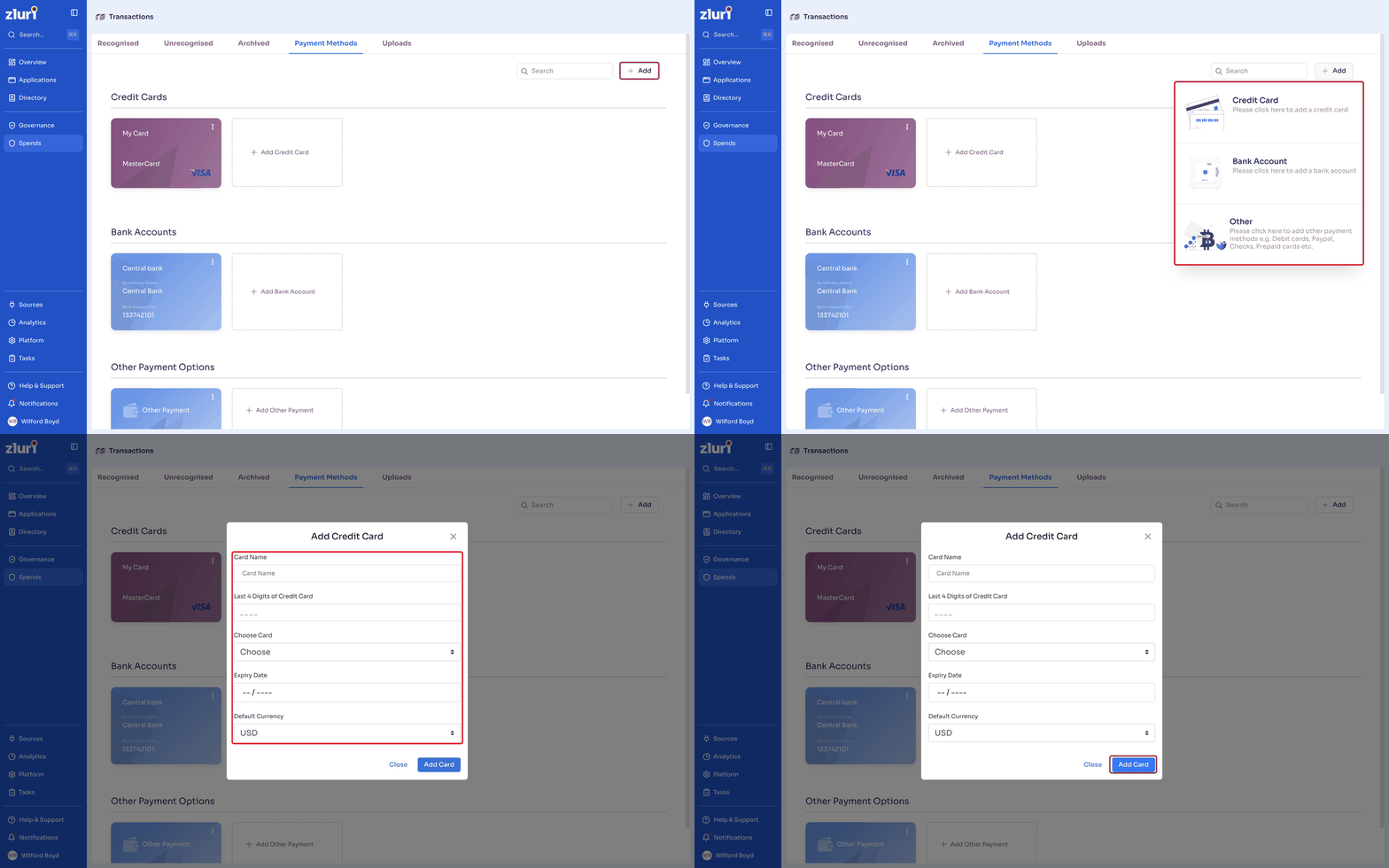
- Click Add in the top right, then choose Credit Card, Bank Account, or Other. Alternatively, click Add Credit Card, Add Bank Account, or Add Other Payment directly under the relevant category.
- For a credit card, enter the Card Name, the Last 4 Digits of Credit Card, select the card network under Choose Card, set the Expiry Date, and select the Default Currency.
- For a bank account or other payment method, enter the equivalent required details for that type. Use Other for payment methods like debit cards, PayPal, checks, or prepaid cards.
- Click Add Card (or the equivalent save button for the type you selected).
Edit or delete a payment method
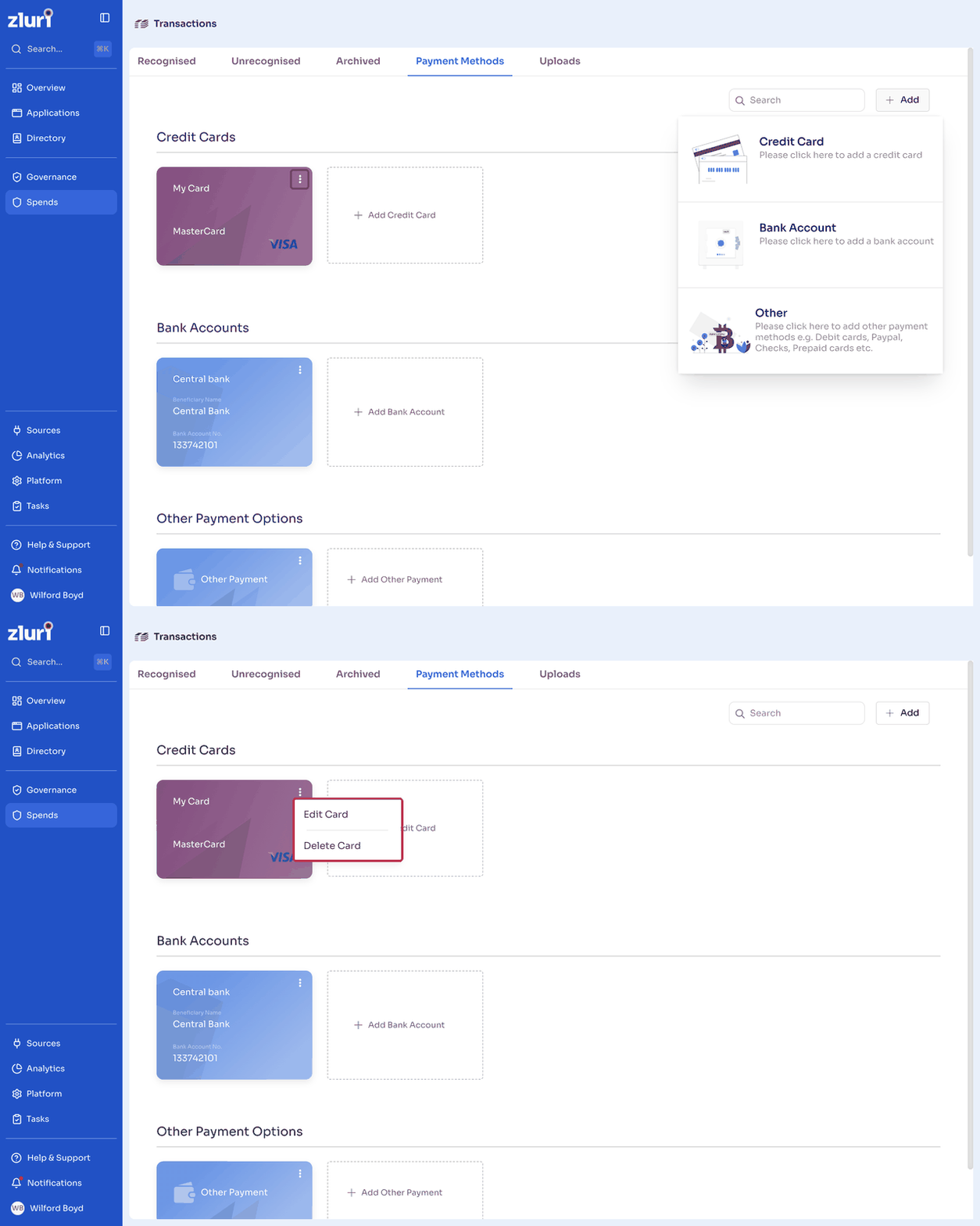
- Click the three-dot menu on a payment method card.
- Select Edit Card to update the details in the same fields used to add it, then click Edit Card again to save your changes.
- Select Delete Card to remove the payment method. In the confirmation dialog, click Delete to confirm. Deleting a payment method removes it from any transactions it was mapped to.
Got questions? Feel free to submit a ticket or contact us directly at [email protected].
Updated 12 days ago
Did this page help you?