
Archived Transactions
Archived transactions are spend entries you have removed from active view, typically because they are not related to a SaaS product or should not be reflected in your dashboard. Archiving does not delete a transaction. The Archived tab shows the same transaction data as the Recognised and Unrecognised tabs, filtered to transactions marked as archived.
View archived transactions
- Go to Spends > Transactions.
- Click the Archived tab.
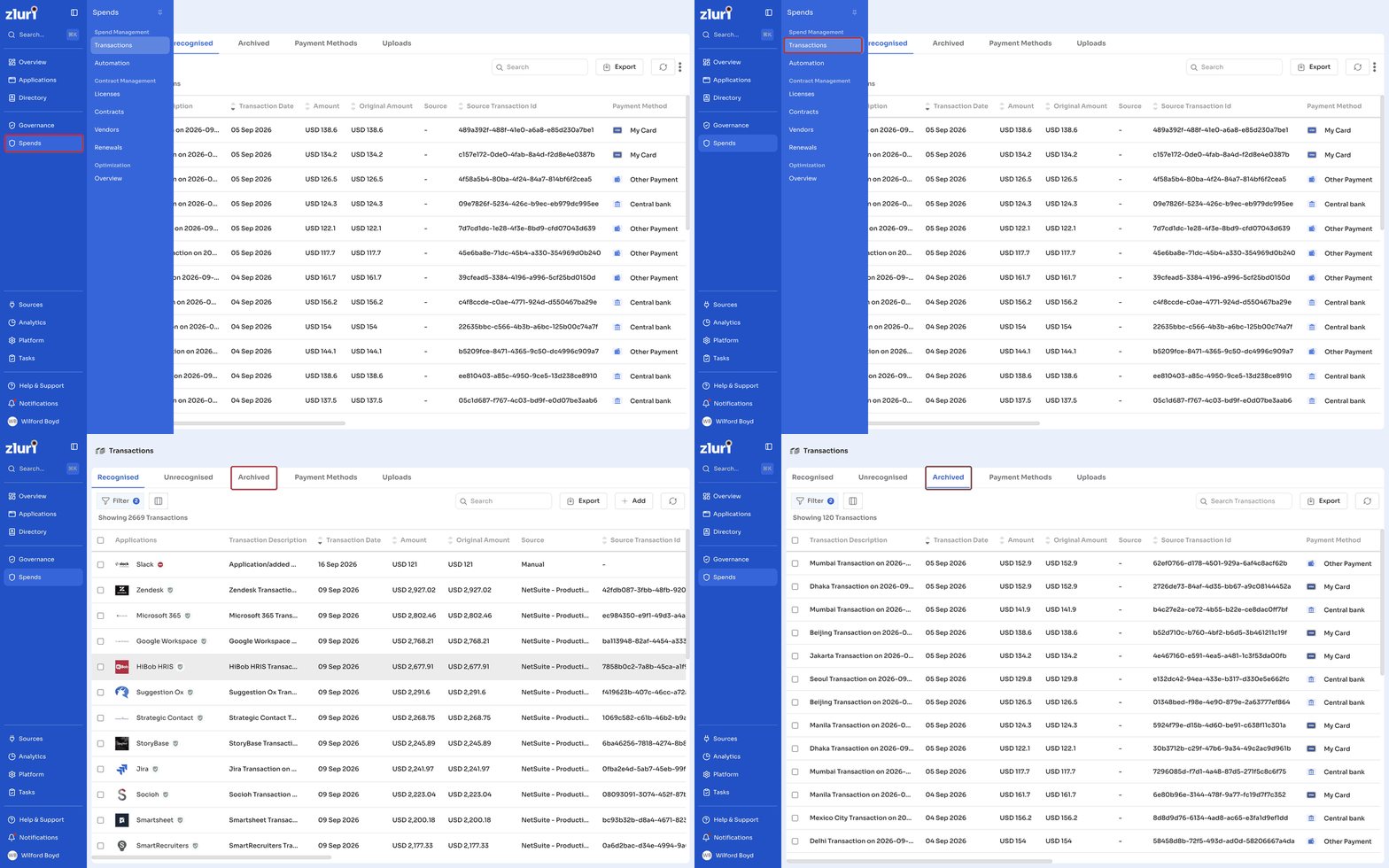
The table shows the following columns by default:
| Column | Description |
|---|---|
| Transaction Description | A short description of the transaction |
| Transaction Date | The date the transaction occurred |
| Amount | The transaction amount in your default currency |
| Original Amount | The transaction amount in its original currency |
| Source | Where the transaction came from |
| Source Transaction Id | The transaction's ID from its source system |
| Payment Method | The payment method used |
Scroll right or use the column icon to add these fields: Last Digits, Transaction Type, Account Name, Vendor, Amortization Start Date, Amortization End Date, Cost Center Name, Cost Center Code, Po Number, Updated By, and Action Type.
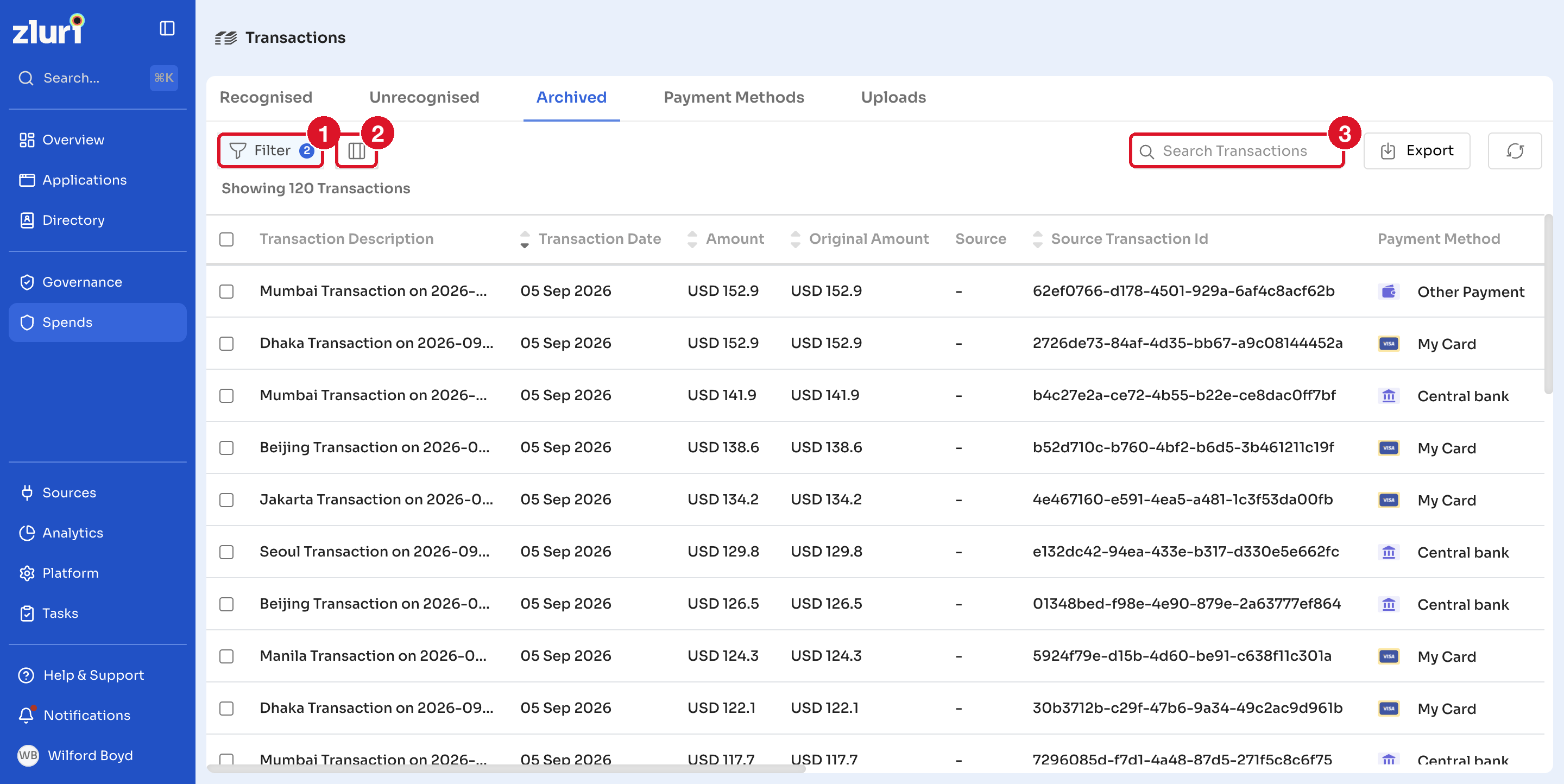
Filter and customize the view
- Click Filter to narrow the list by specific criteria. The Archived tab applies an Archive: true filter by default.
- Click the column icon to choose which fields appear in the table.
- Use the Search bar to find a specific transaction.
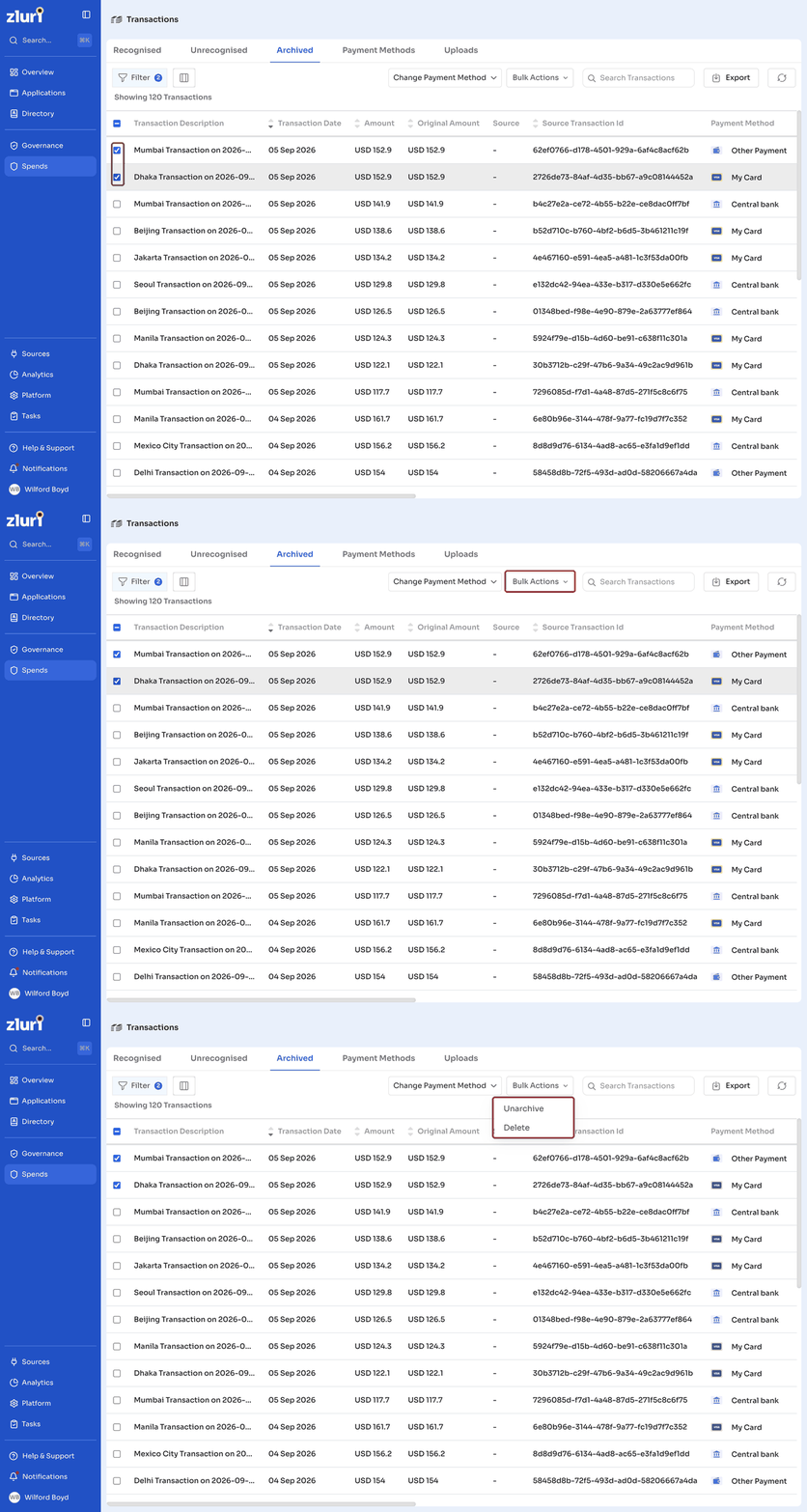
Unarchive or delete archived transactions
- Select one or more transactions using the checkboxes.
- Click Bulk Actions.
- Choose Unarchive to move the transactions back to the Recognised or Unrecognised tab, or choose Delete to remove them permanently.
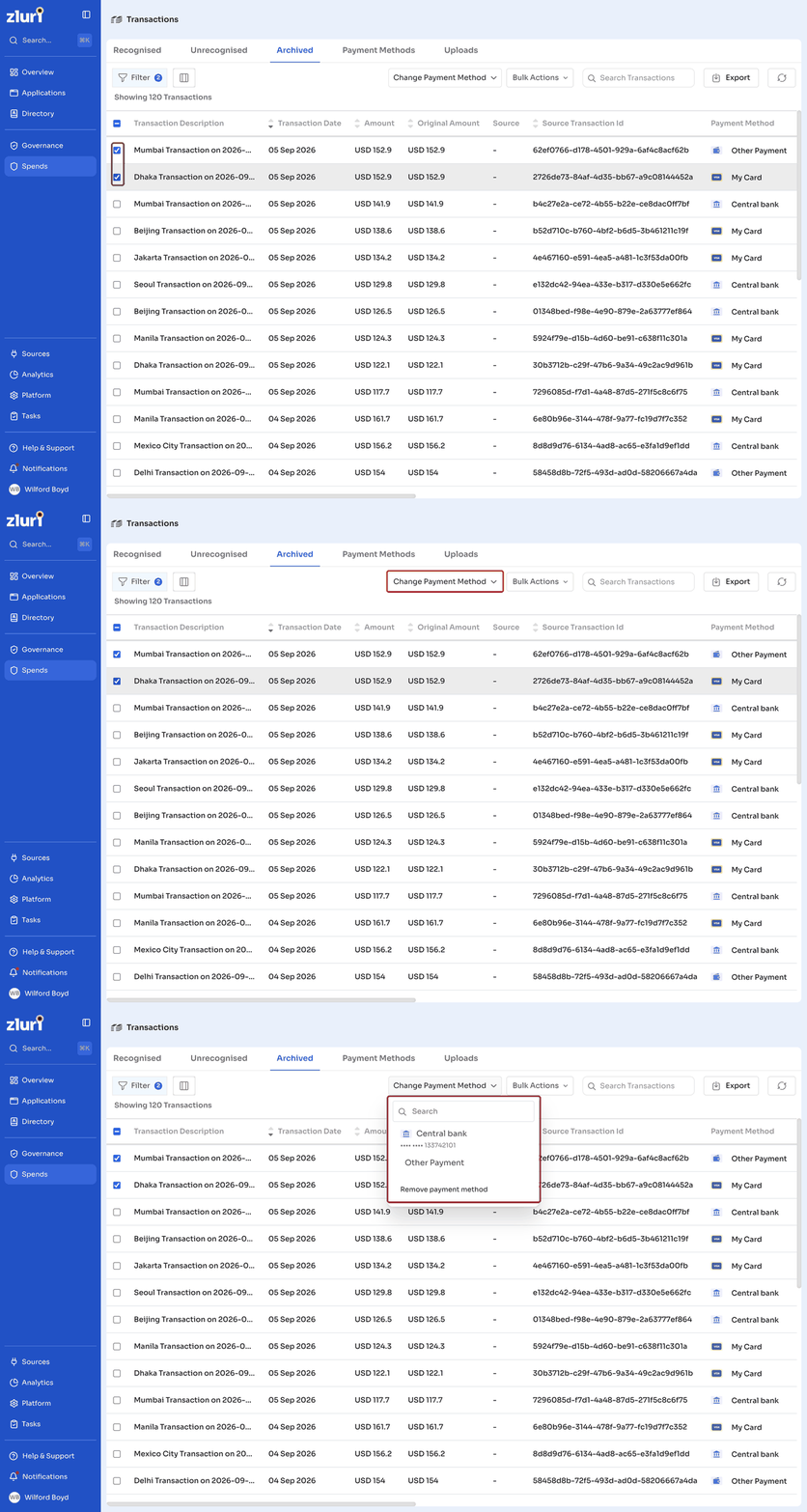
Change the payment method on archived transactions
- Select one or more transactions using the checkboxes.
- Click Change Payment Method.
- Choose an existing payment method, or click Remove payment method to clear it.
How a transaction gets archived
A transaction moves to the Archived tab in one of two ways:
- You archive it manually from the Recognised or Unrecognised tab.
- An automation rule archives it automatically based on conditions you define. See Automation for the full steps on creating archiving rules.
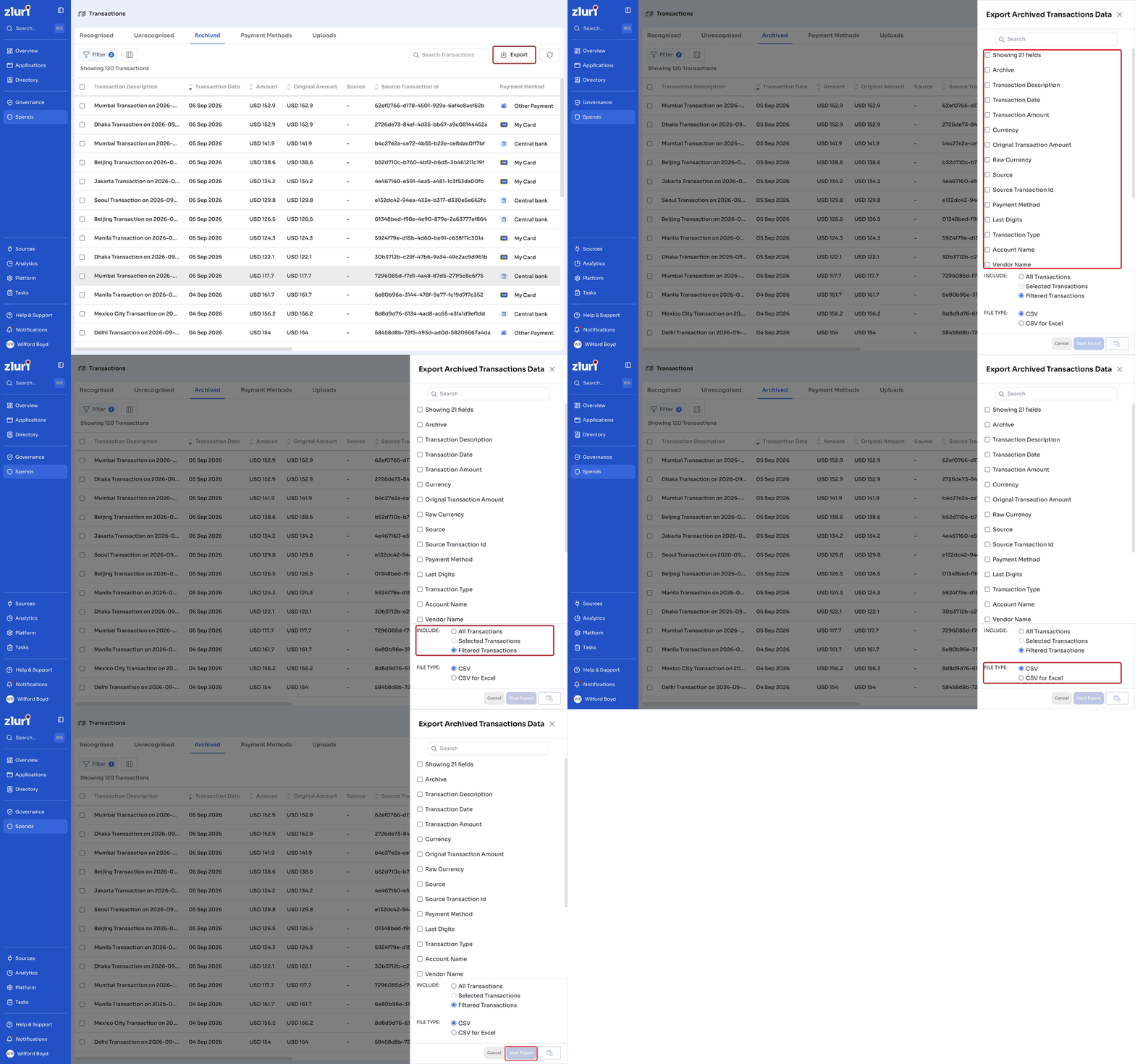
Export archived transactions
- Click Export.
- In the Export Archived Transactions Data panel, select the fields you want to include, or check Showing [n] fields to select all visible columns.
- Under Include, choose All Transactions, Selected Transactions, or Filtered Transactions.
- Under File Type, choose CSV or CSV for Excel.
- Click Start Export.
Got questions? Feel free to submit a ticket or contact us directly at [email protected].
Updated 12 days ago