
Unrecognized Transactions
Unrecognized transactions are spend entries that Zluri could not automatically match to an application in your inventory. Review these transactions and map them to the correct application so they move into the Recognized tab.
View unrecognized transactions
- Go to Spends > Transactions.
- Click the Unrecognised tab.
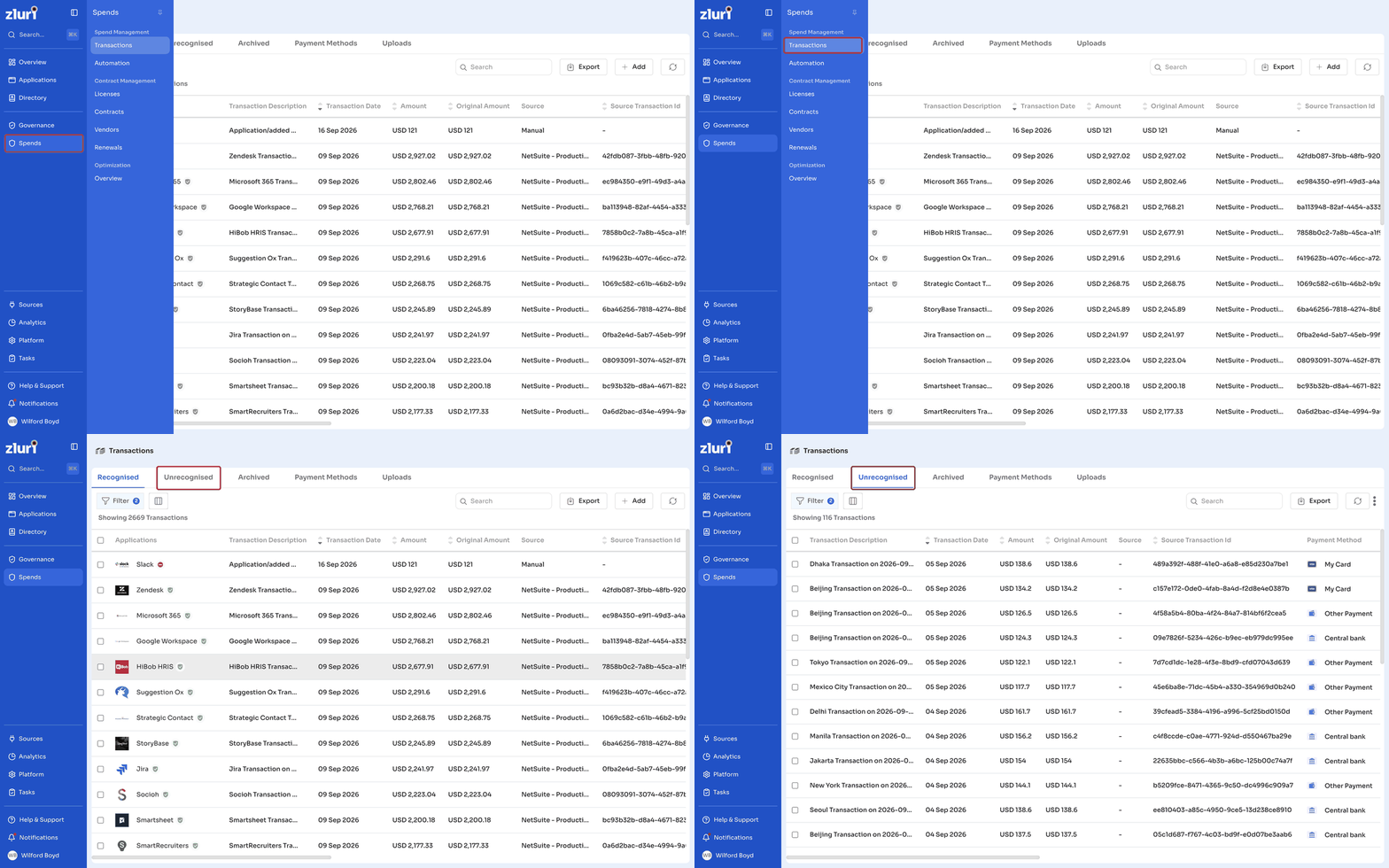
The table shows the following columns:
| Column | Description |
|---|---|
| Transaction Description | A short description of the transaction |
| Transaction Date | The date the transaction occurred |
| Amount | The transaction amount in your default currency |
| Original Amount | The transaction amount in its original currency |
| Source | Where the transaction came from |
| Source Transaction Id | The transaction's ID from its source system |
| Payment Method | The payment method used |
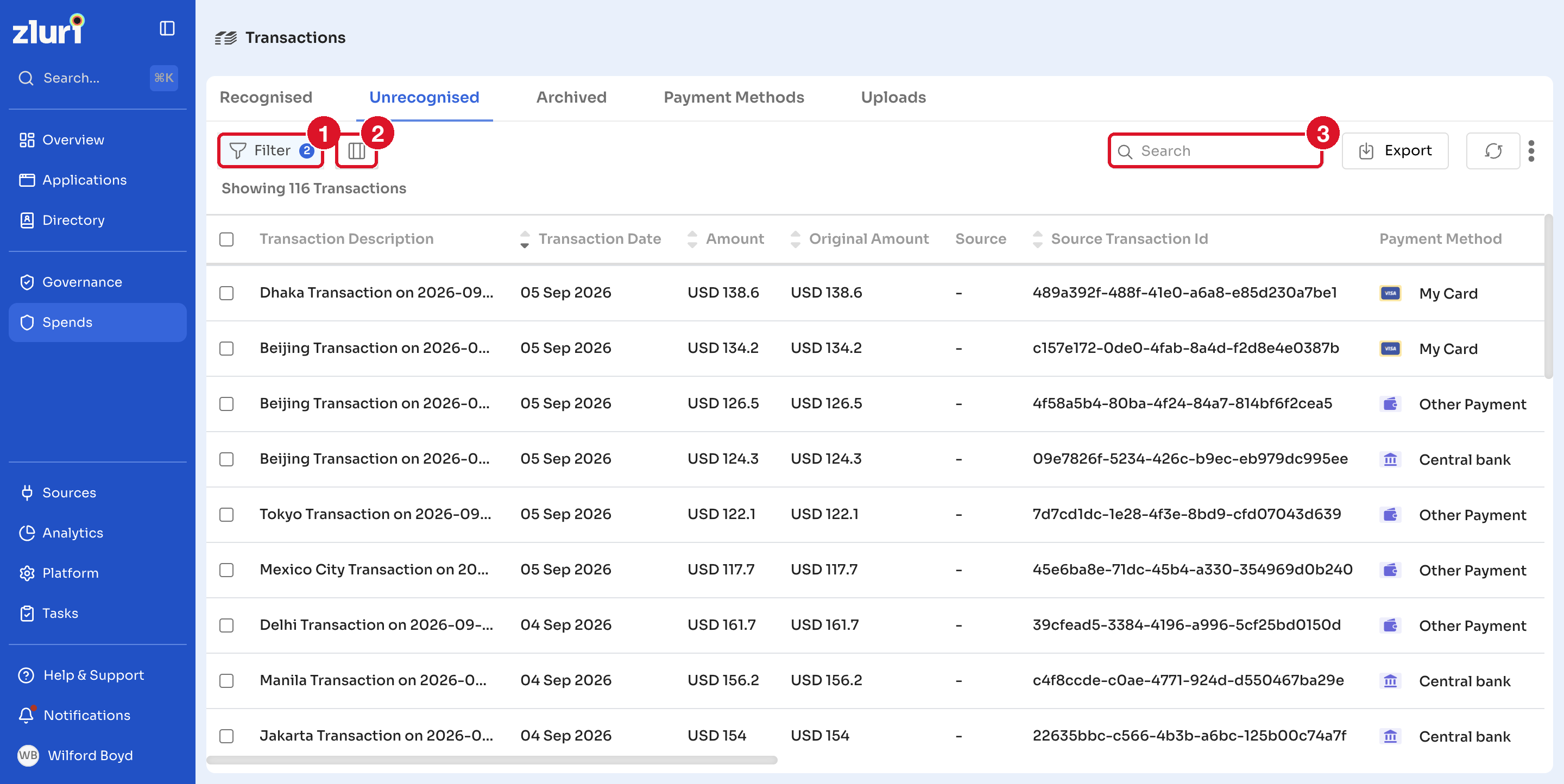
Filter and customize the view
- Click Filter to narrow the list by specific criteria.
- Click the column icon to choose which fields appear in the table.
- Use the Search bar to find a specific transaction.
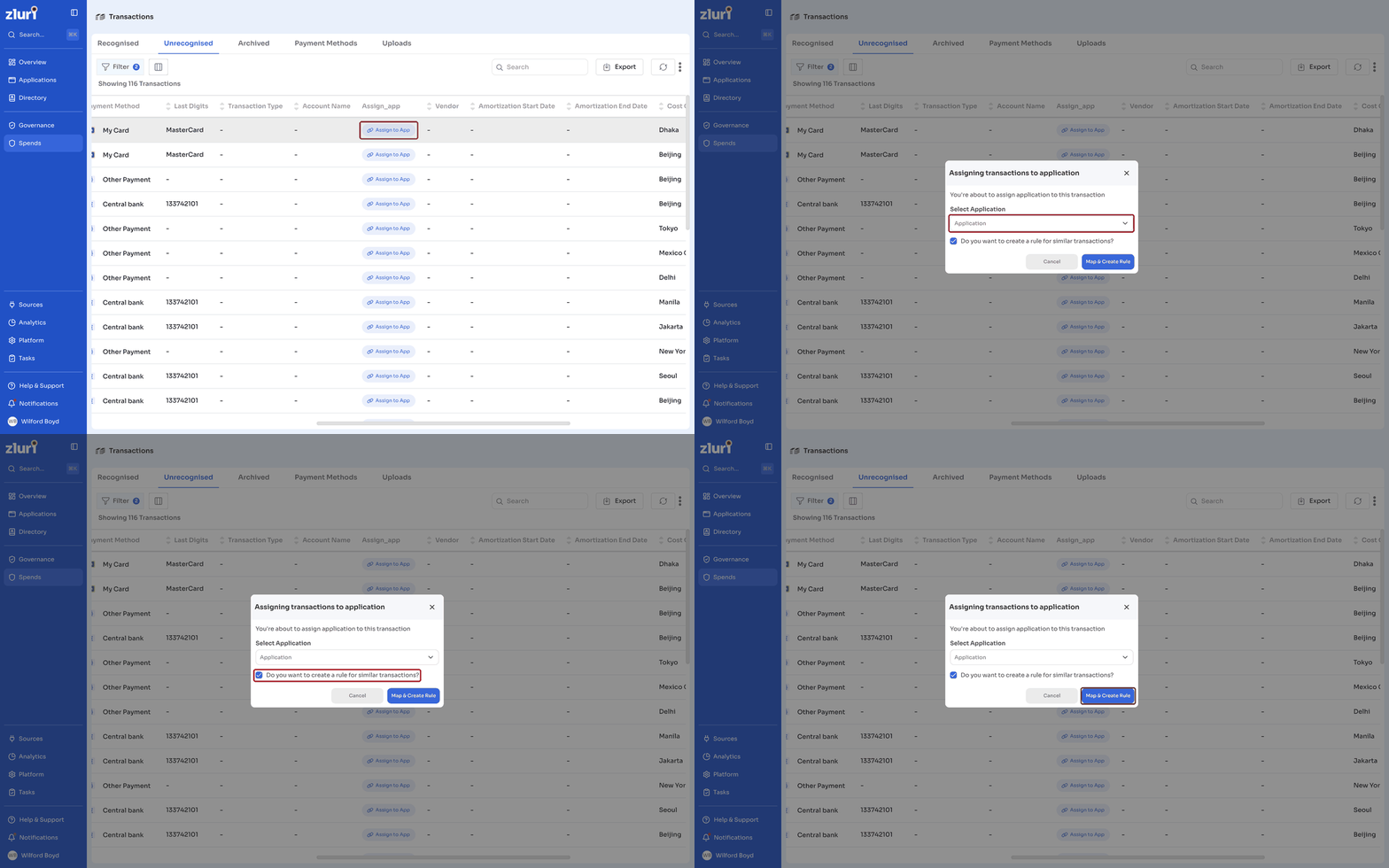
Map an unrecognized transaction
- Scroll right to the Assign_app column, then click Assign to App on the transaction row.
- In the Assigning transactions to application dialog, under Select Application, search for and select the application the transaction belongs to.
- Decide whether to keep Do you want to create a rule for similar transactions? selected. Keep it selected only if the transaction description reliably identifies this application every time. Clear it if the description is generic and could belong to different applications in the future.
- Click Map & Create Rule. If you cleared the checkbox, click Map.
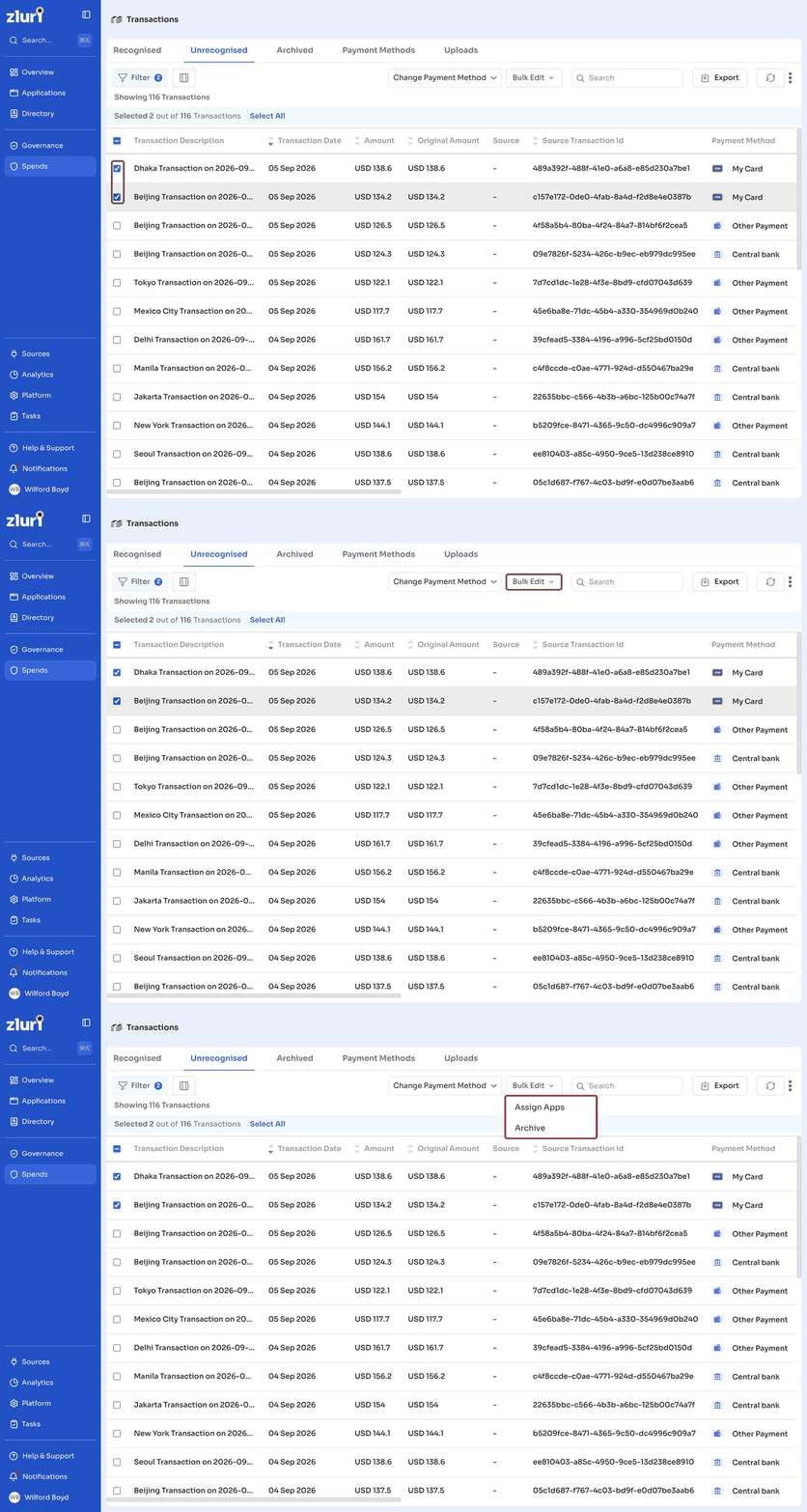
Assign or archive transactions in bulk
- Select one or more transactions using the checkboxes.
- Click Bulk Edit.
- Choose Assign Apps to map the selected transactions to an application, or Archive to move them to the Archived tab.
Change the payment method
- Select one or more transactions using the checkboxes.
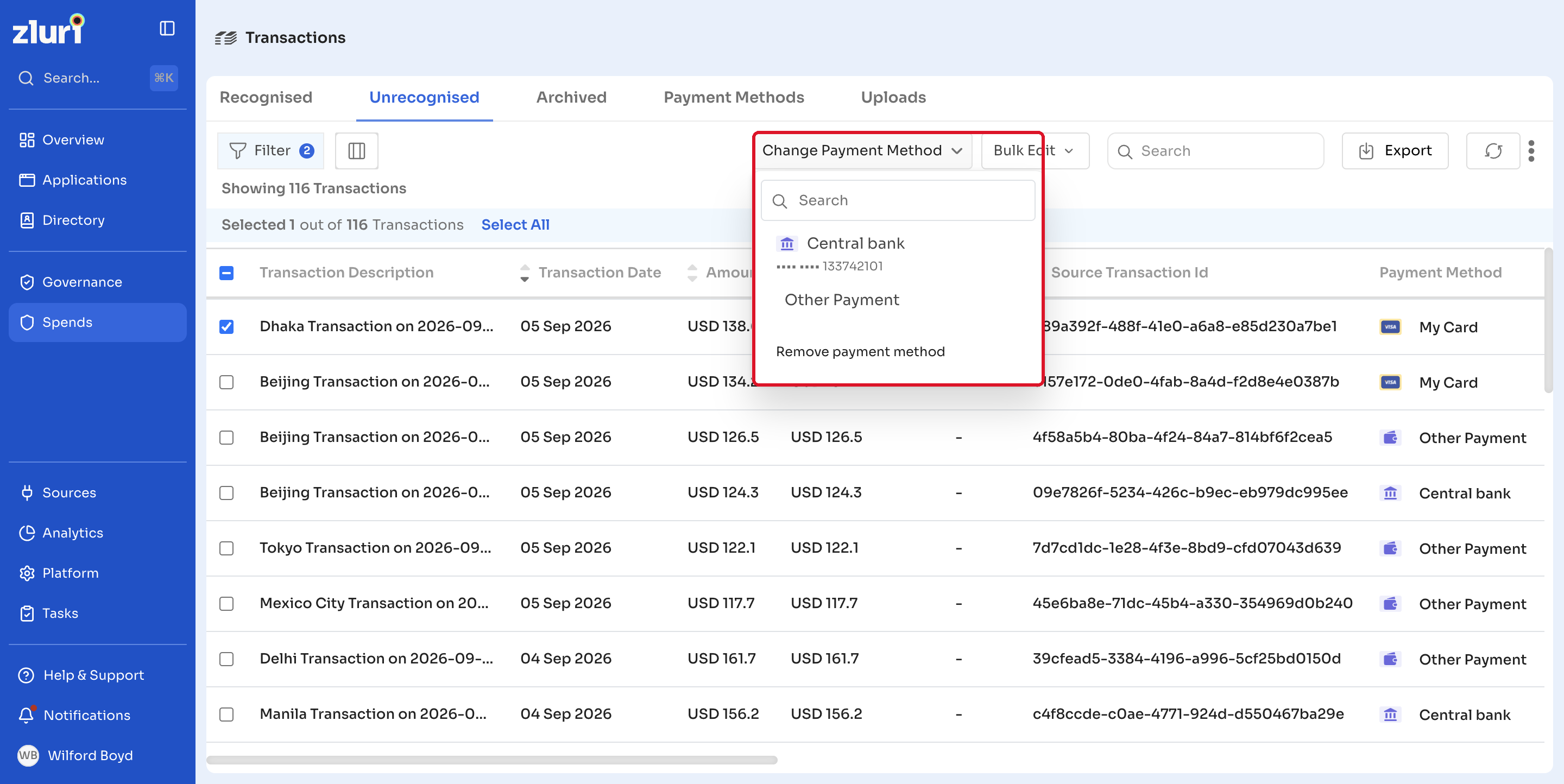
- Click Change Payment Method.
- Search for and select a payment method, or click Remove payment method to clear it.
To add or manage payment methods, see Payment Methods.
Export unrecognized transactions
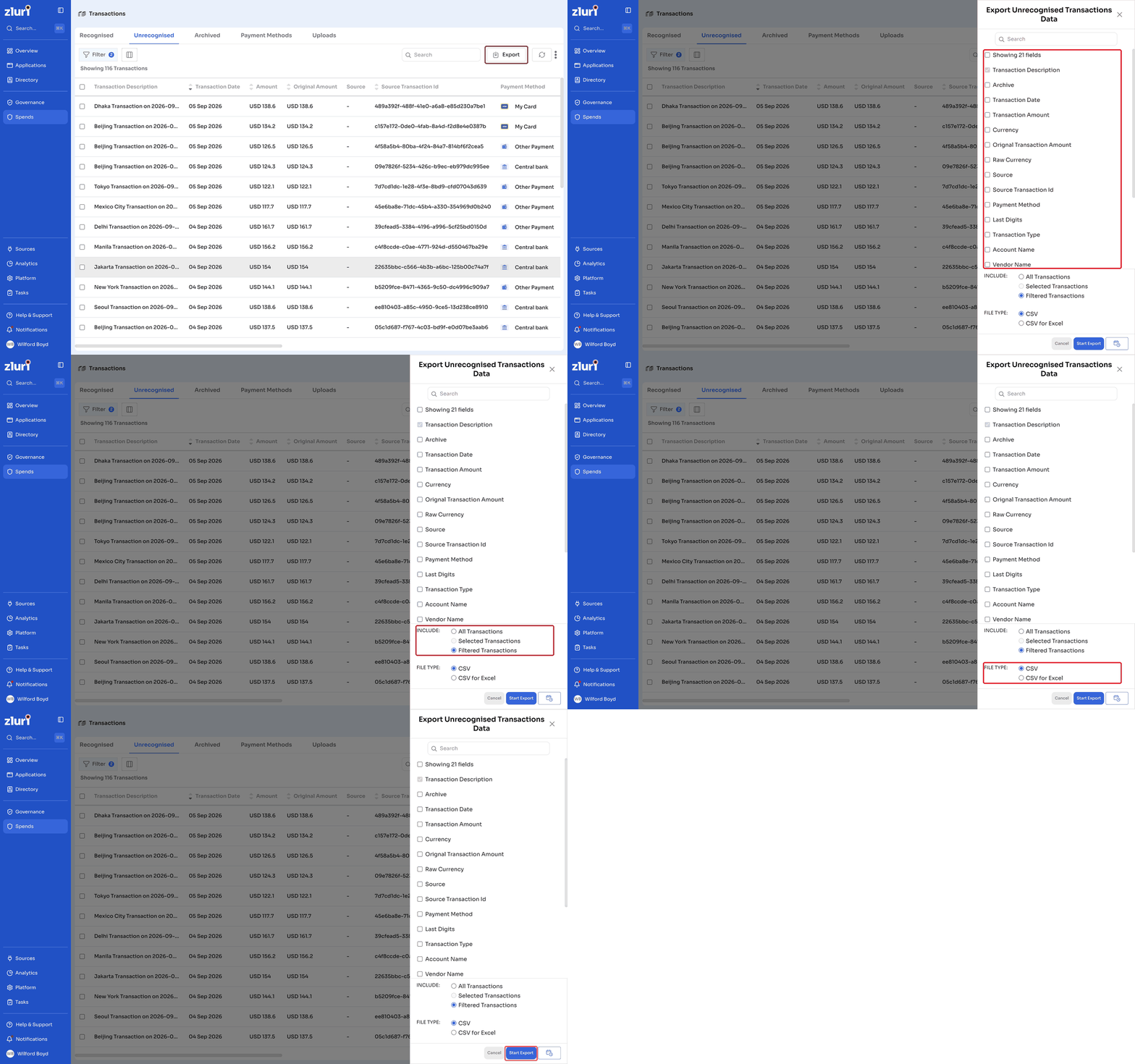
- Click Export.
- In the Export Unrecognised Transactions Data panel, select the fields you want to include, or check Showing [n] fields to select all visible columns.
- Under Include, choose All Transactions, Selected Transactions, or Filtered Transactions.
- Under File Type, choose CSV or CSV for Excel.
- Click Start Export.
Updated 12 days ago
Did this page help you?