
Drafts
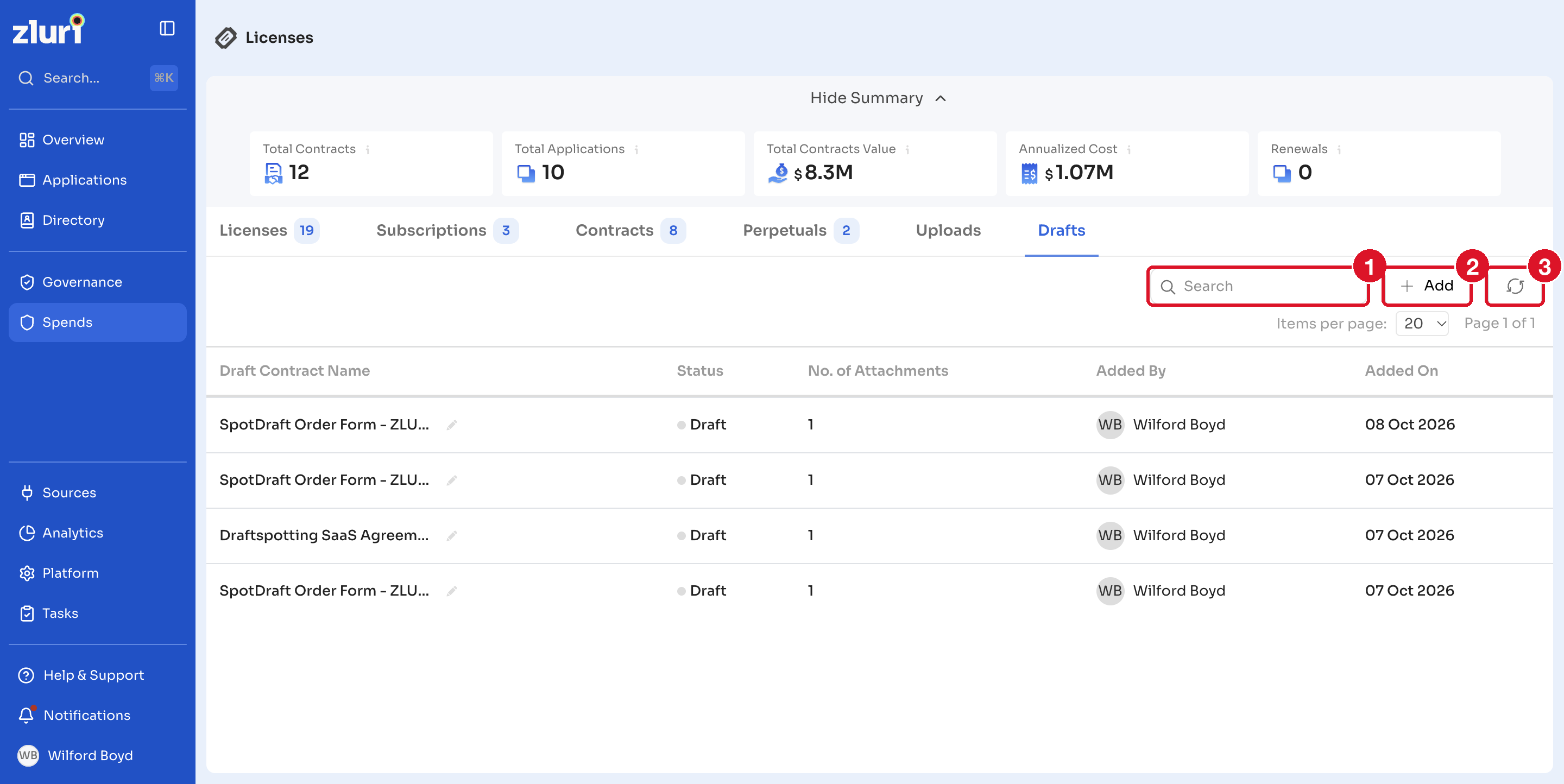
The Drafts tab lists contracts that you started on the Create a Contract page and saved to finish later. Drafts aren't added as contracts until you complete and add them.
Open the Drafts tab
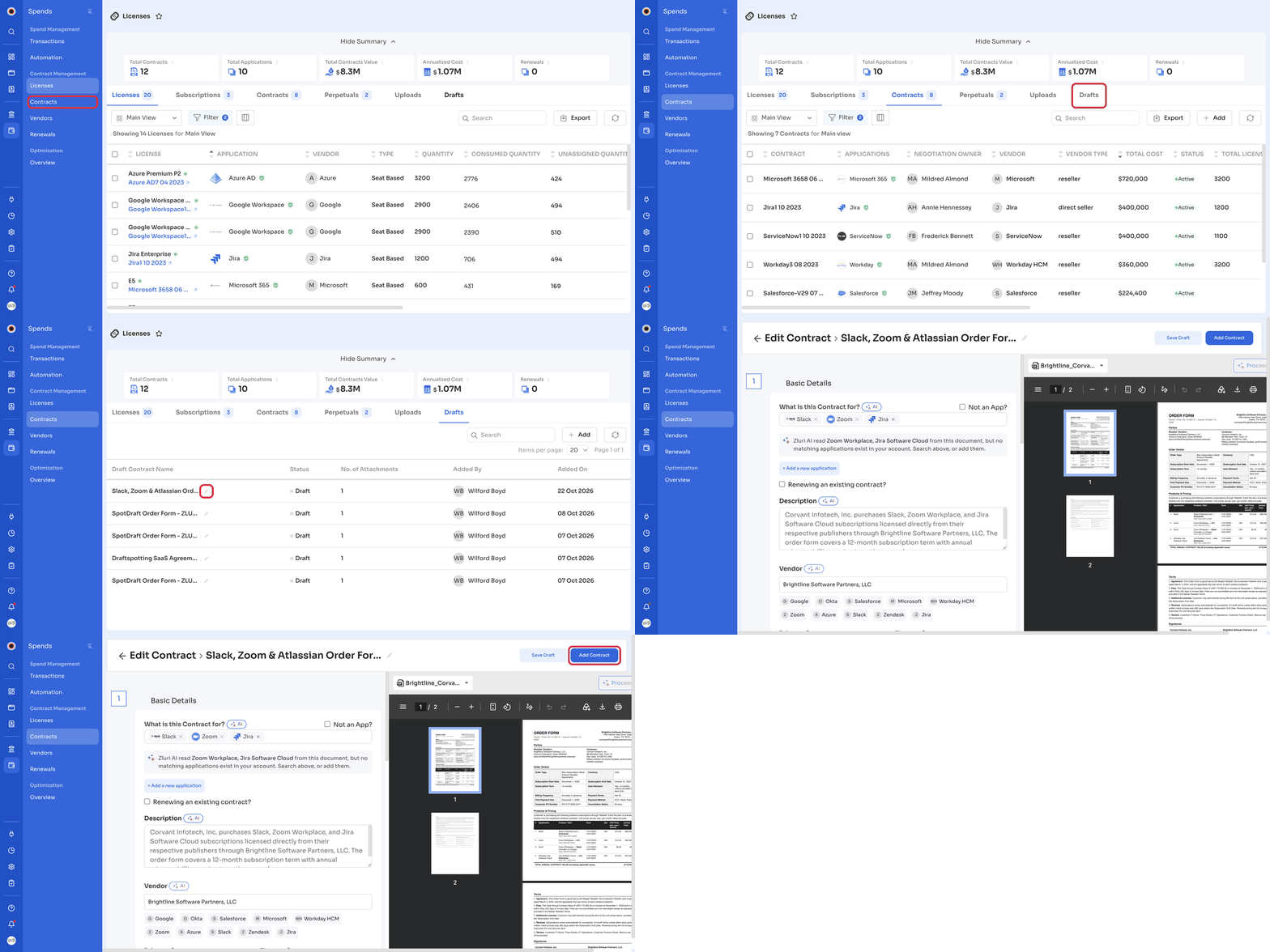
- In the left navigation, click Spends.
- Under Contract Management, click Contracts, then click the Drafts tab.
The list shows these columns:
| Column | Description |
|---|---|
| Draft Contract Name | The name of the draft contract. |
| Status | The status of the draft, for example Draft. |
| No. of Attachments | The number of documents attached to the draft. |
| Added By | The user who saved the draft. |
| Added On | The date the draft was saved. |
- Use Search to find a draft.
- Click + Add to create a contract.
- Click the refresh icon to update the list.
Save a contract as a draft
On the Create a Contract page, click Save as Draft at the top of the page. See Create a Contract.
Drafts of uploaded PDFsDrafts created from an uploaded contract PDF don't appear on the Drafts tab. When you click Save for later on a PDF draft, find it on the Uploads tab instead. See Contract Upload and Contract Mapping Process.
Continue a draft
- On the Drafts tab, find the draft.
- Click the edit icon next to the draft's name.
- Complete the remaining sections, then click Add Contract.
Related articles
Updated 10 days ago
Did this page help you?