
Automated Transaction Mapping
Zluri pulls spend transactions from your accounting systems, cards, and expense tools, and maps each one to the application it paid for. Transactions that Zluri can't map land on the Unrecognised tab, where someone has to map them by hand. When the same charges come in the next month, they have to be mapped again.
Automated transaction mapping reduces this manual work. Rules in Spends > Automation map, unmap, or archive transactions automatically. You can create a rule while you're mapping, unassigning, or archiving a transaction, right from the same window, so you don't have to leave the page and rebuild the rule from memory.
How transactions are mapped automatically
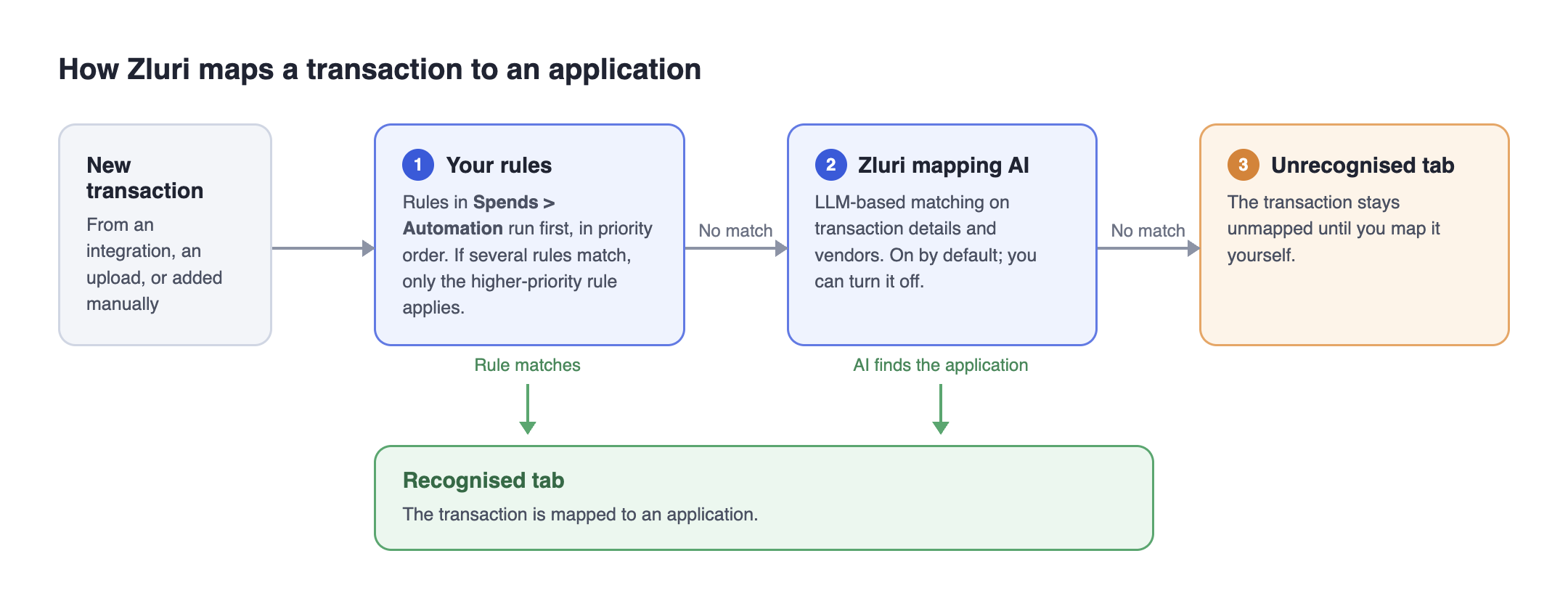
- Your rules run first, in priority order. Rules in Spends > Automation apply to transactions that meet their conditions. When a transaction matches more than one rule, only the higher-priority rule applies.
- Zluri's mapping AI runs after your rules. It uses LLM-based matching on patterns from transaction details and vendors to map remaining unmapped transactions to the right application. It rarely maps non-software spend, such as travel or meals, to an application. It's on by default, but you can turn it off for a fully rule-based, deterministic system.
- Anything still unmapped stays on the Unrecognised tab for you to map.
When the mapping AI can missThe mapping AI can still miss or mismatch:
- Applications that aren't in Zluri's app catalog yet.
- Brand-level charges, such as Google or Microsoft, that could belong to one of many products.
Adding the missing applications to the catalog fixes most of these.
Turn the mapping AI on or off
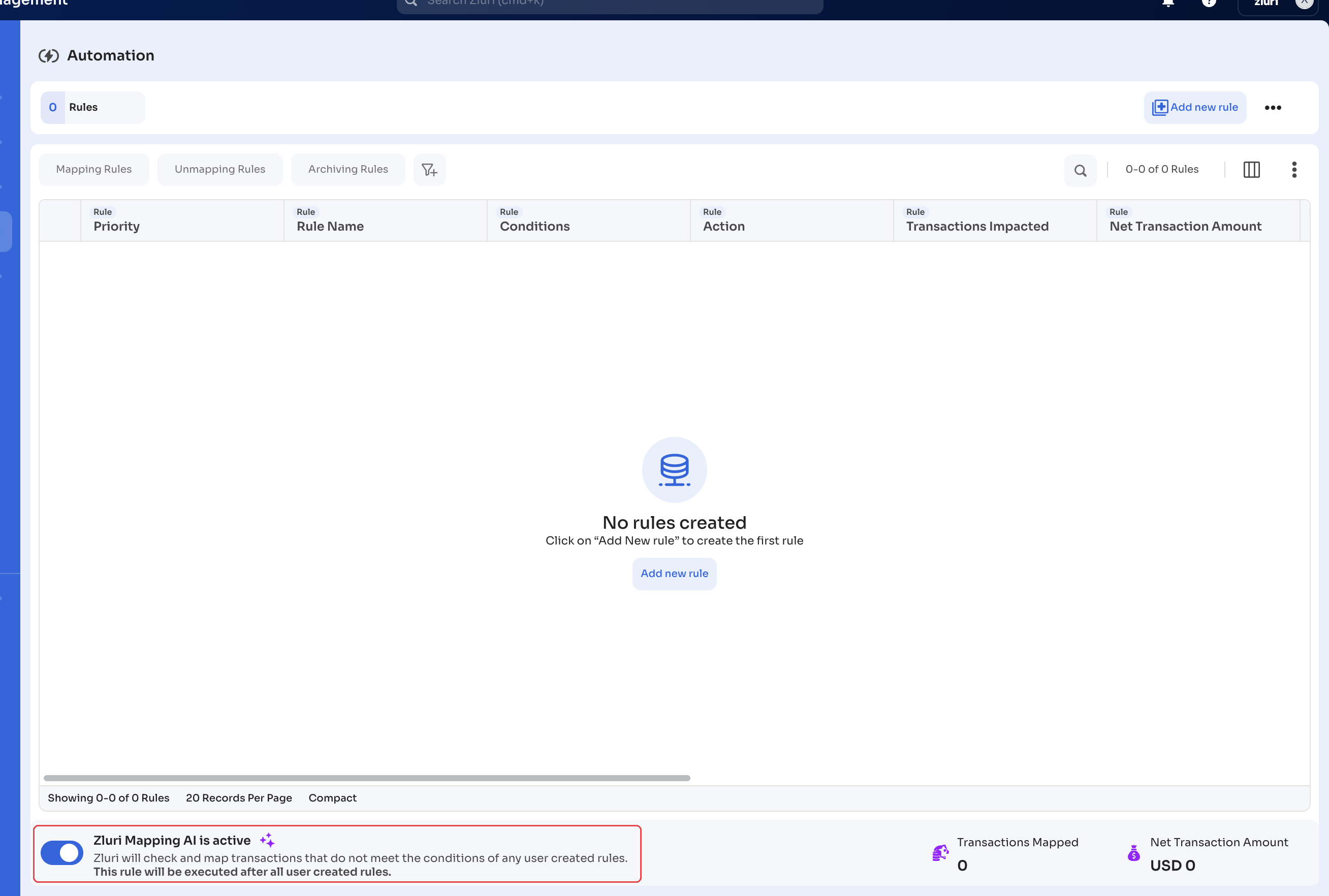
The mapping AI's status shows at the bottom of the Automation page, below your rules. When it's on, the bar reads Zluri Mapping AI is active with the note Zluri will check and map transactions that do not meet the conditions of any user created rules. This rule will be executed after all user created rules. The same bar shows Transactions Mapped and Net Transaction Amount for the transactions the mapping AI has mapped.
Steps
- In the left navigation, click Spends.
- Under Spend Management, click Automation.
- At the bottom of the page, click the toggle next to Zluri Mapping AI is active to turn the mapping AI off. Click it again to turn it back on.
Create a rule while you map a transaction
When you map a transaction from the Unrecognised tab, Zluri asks Do you want to create a rule for similar transactions?
Steps
- On the Unrecognised tab, scroll right to the Assign_app column, then click Assign to App on the transaction row.
- In the Assigning transactions to application dialog, under Select Application, search for and select the application.
- Decide whether to keep Do you want to create a rule for similar transactions? selected. Keep it selected only if the transaction description reliably identifies this application every time. Clear it if the description is generic and could belong to different applications.
- Click Map & Create Rule. If you cleared the checkbox, click Map.
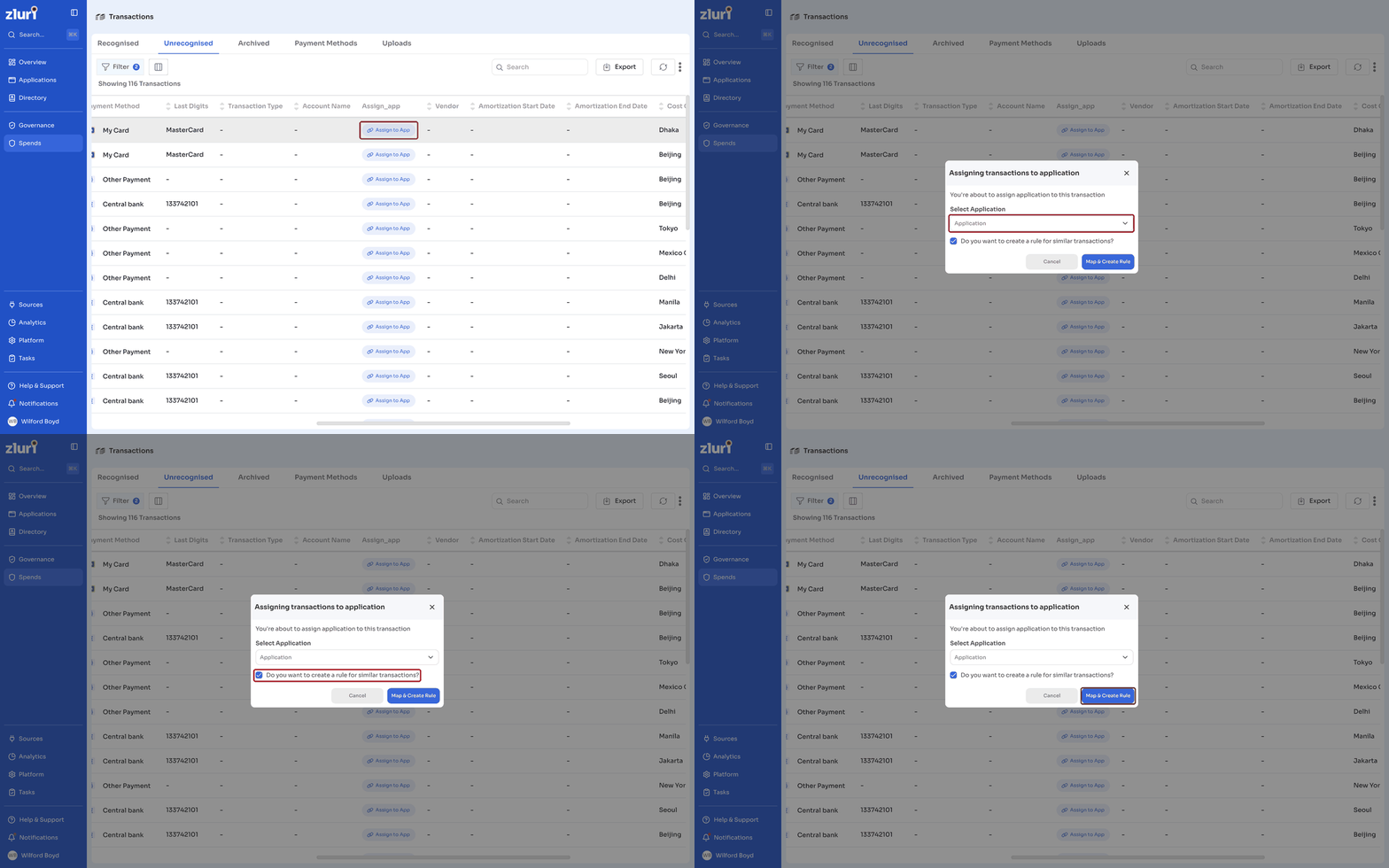
The transaction is mapped first, so declining the rule doesn't affect the mapping.
Create a rule while you unassign or archive transactions
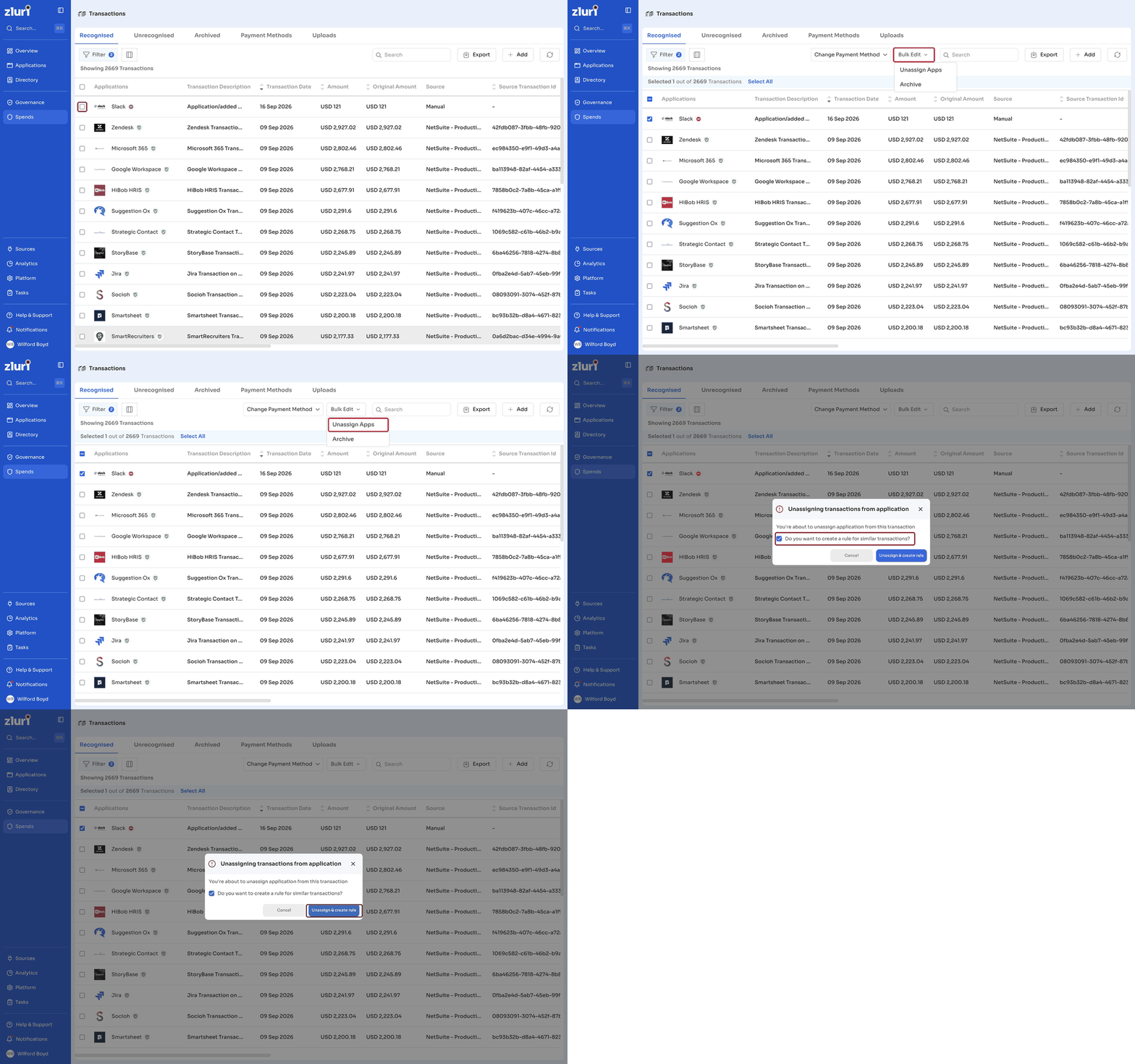
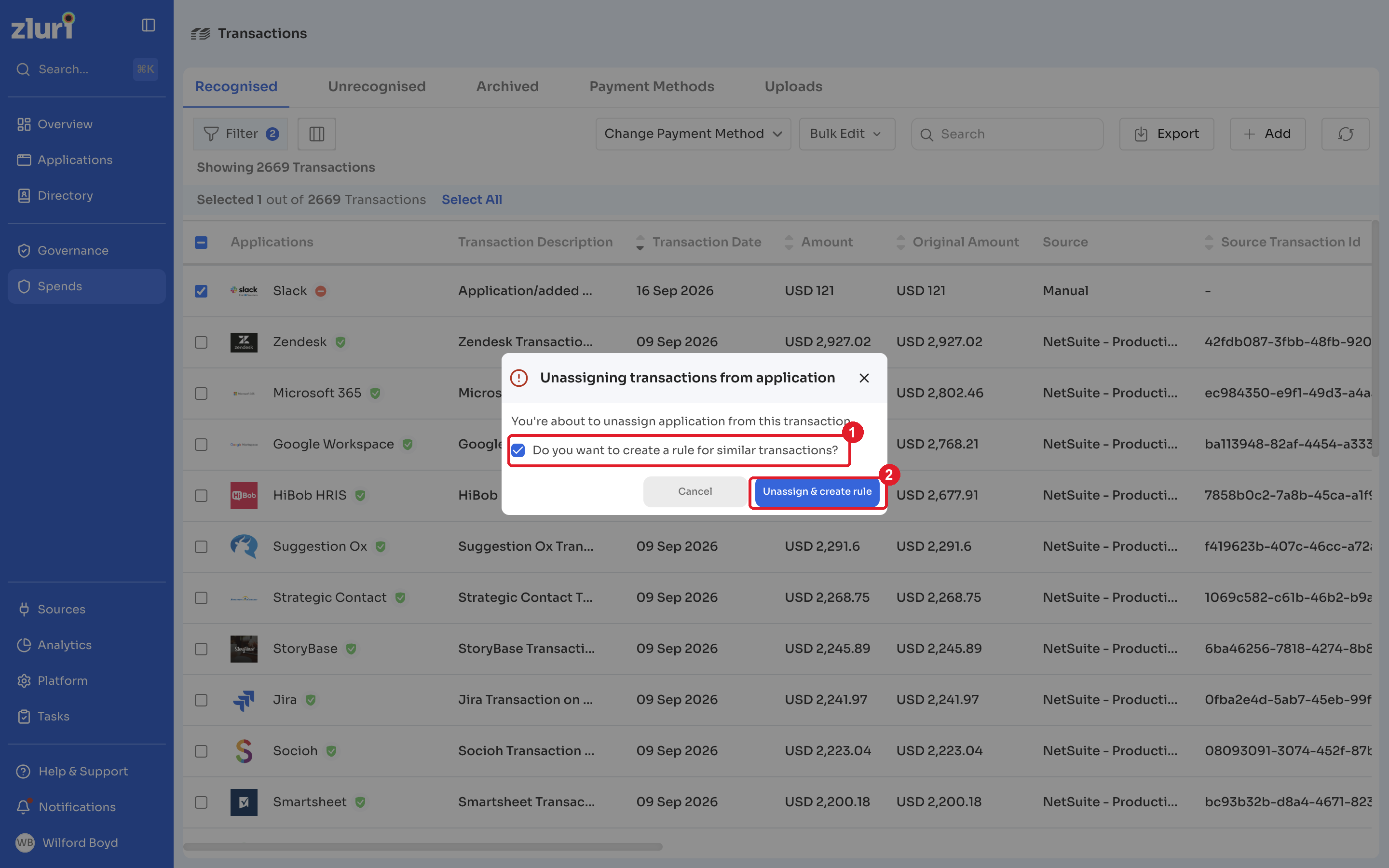
The same option appears when you unassign or archive transactions on the Recognised tab.
Steps
- On the Recognised tab, select one or more transactions.
- Click Bulk Edit, then click Unassign Apps or Archive.
- Decide whether to keep Do you want to create a rule for similar transactions? selected.
- Click the button for your choice:
| Action | With the rule | Without the rule |
|---|---|---|
| Unassign | Unassign & create rule | Unassign app |
| Archive | Archive & create rule | Archive |
How the rule is filled in
Zluri builds the rule from the transaction you acted on:
| Rule part | What Zluri fills in |
|---|---|
| Rule name | The action, application, and date. For example, a mapping rule is named Assign Microsoft 365 - 07 Oct 2026. |
| Description condition | The transaction description, with numbers such as invoice numbers, dates, and reference codes removed. For example, AWS INVOICE 4471-9920 USD becomes AWS INVOICE USD. |
| Vendor condition | The transaction's vendor. If the transaction has no vendor, Zluri leaves it empty. |
| Action | Maps to the application you picked, unmaps the transaction when you unassign, or archives it when you archive. The rule appears on the matching tab of the Automation page: Mapping Rules, Unmapping Rules, or Archiving Rules. |
| Priority | Last, below every existing rule. |
When you select several transactions, Zluri fills in a field only if it has the same value across all of them. If the values differ, Zluri leaves the field empty.
Why new rules go lastA rule created this way is inferred from one transaction. Rules that someone wrote on the Automation page reflect deliberate intent, so they keep priority. If the new rule turns out to be too broad, existing rules still apply first.
You can edit, reorder, deactivate, or delete these rules on the Automation page, like any other rule.
Related articles
Updated 2 days ago