
Request to Forego Licenses
Request to Forego asks employees whether they still need an application license before Zluri removes it. Employees get a prompt on Slack or email and choose to keep or forego the license. You set what happens for each choice, how often Zluri reminds employees who don't respond, and what happens if they never respond.
This lets you reclaim unused licenses without manual follow-up, while giving employees a chance to keep the licenses they need.
How it works
- You add a Request to Forego action to an application's deprovisioning playbook.
- When the playbook runs, employees get a prompt asking whether they still need their license.
- Employees choose Keep License or Forego License, and Zluri runs the action you set for that choice.
- Employees who don't respond get reminder messages, if you set them up, until the deadline.
- If employees still don't respond after all reminders, Zluri runs the playbook you set for no response, for example one that removes the unused license.
- A cool-off period starts after an employee responds, or after the actions for non-responders complete. During the cool-off period, the employee doesn't get another prompt, which prevents duplicate prompts in the next optimization cycle.
- You track responses, actions, and reminders in the run logs.
Add Request to Forego to a playbook
Steps
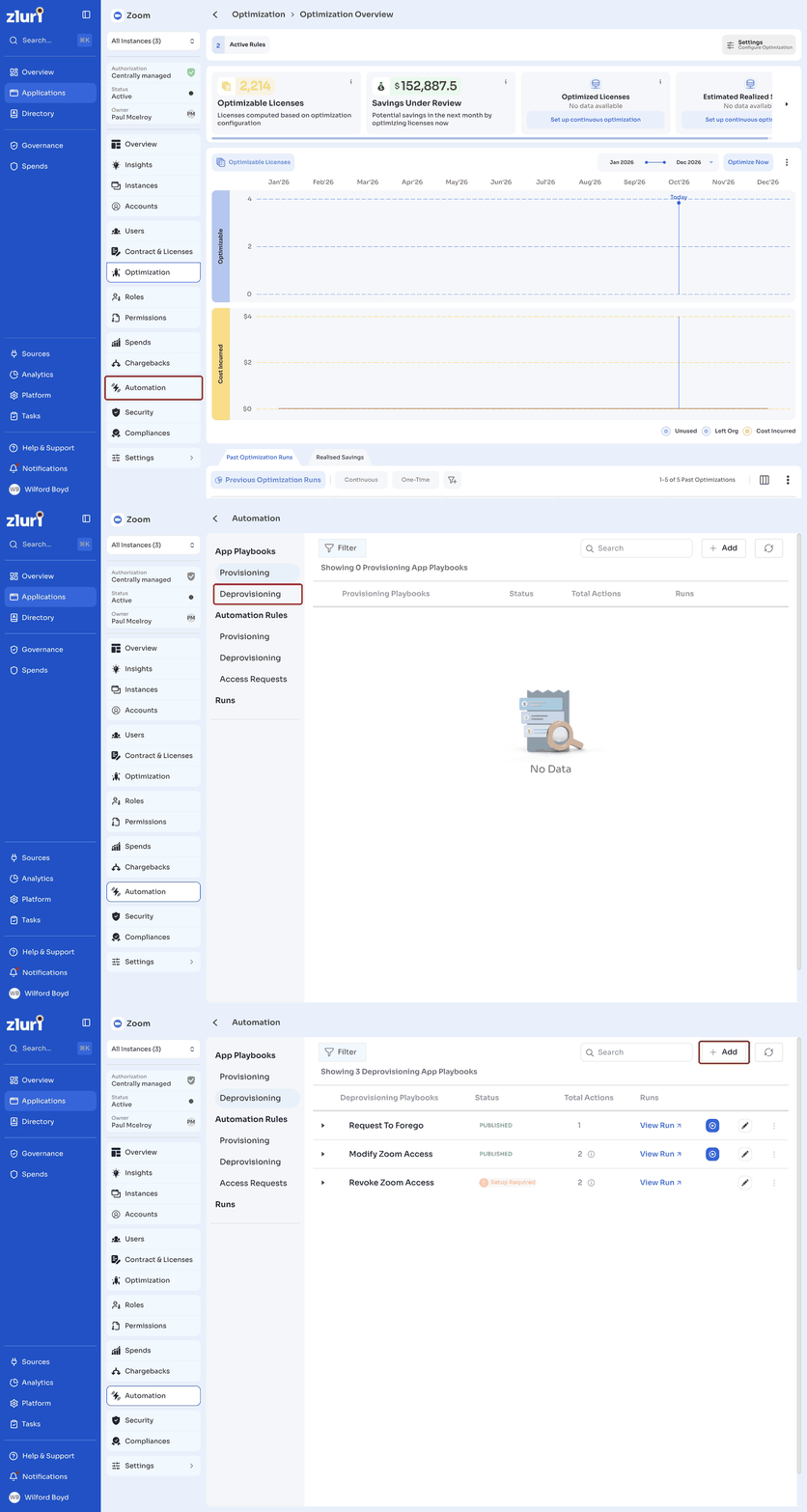
- In the left navigation, click Applications, then open the application.
- In the application menu, click Automation.
- Under App Playbooks, click Deprovisioning, then click Add.
- If you have more than one instance of the application connected to Zluri, select an application instance. This step is optional.
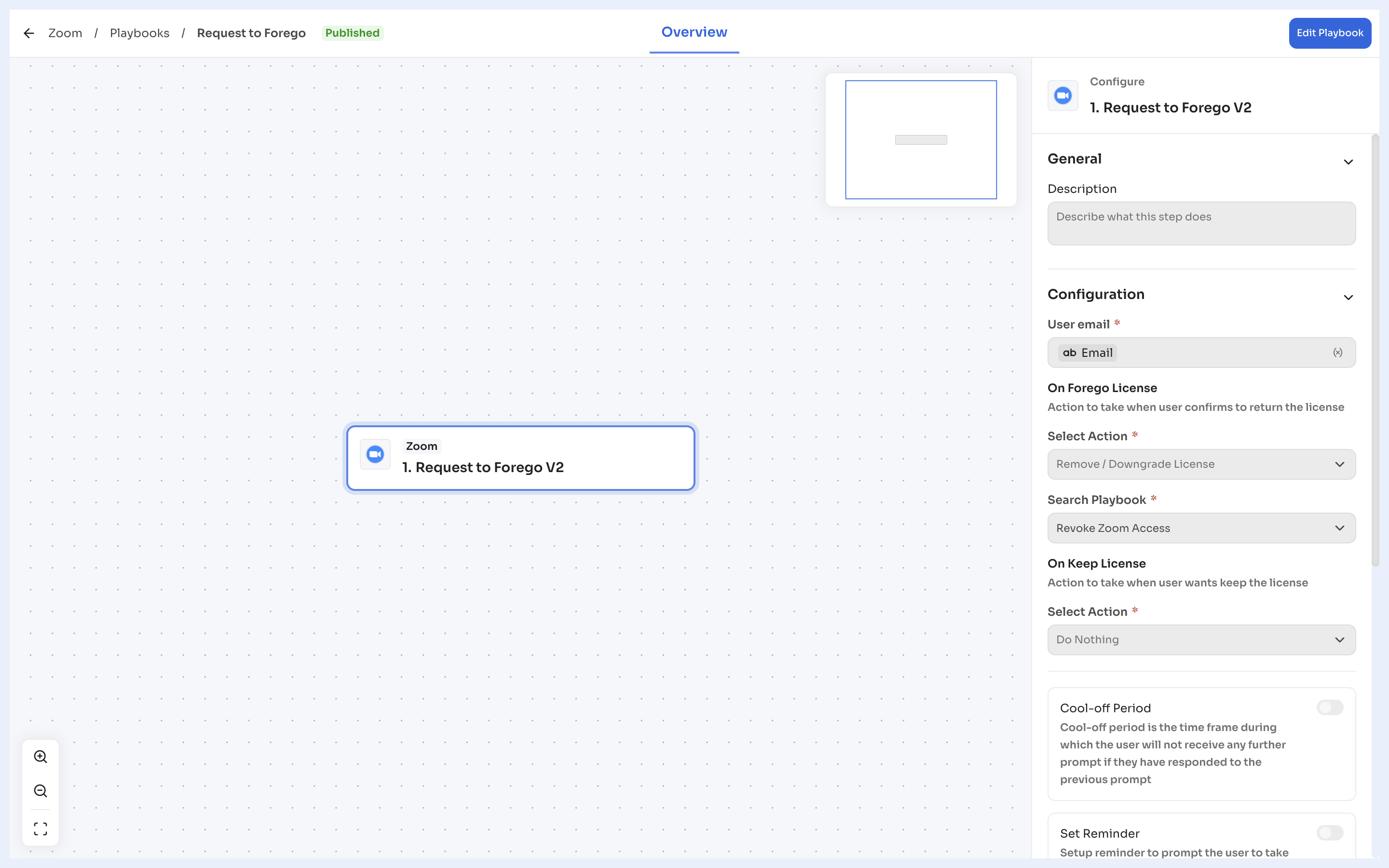
- Click + Add an action, and select the Request to Forego V2 action for the application.
- Under Configuration, set the following:
- User email: The email of the user to prompt.
- On Forego License: Under Select Action, choose the action to take when the user confirms they want to return the license, for example Remove / Downgrade License. Then, in Search Playbook, select the playbook to run.
- On Keep License: Under Select Action, choose the action to take when the user wants to keep the license, for example Do Nothing.
- To stop users who already responded from getting another prompt for a time, turn on Cool-off Period and set the period.
- To remind users who haven't responded, turn on Set Reminder and set how many times and how often to remind them.
- Under Action on No Response, click + Add Action, then click Run Playbook. Select the playbook that revokes the license, and the number of days after the last reminder for the playbook to run.
- Click Save Action, then click Publish App Playbook.
Run the playbook
You can run the playbook manually, or through continuous optimization.
Run manually
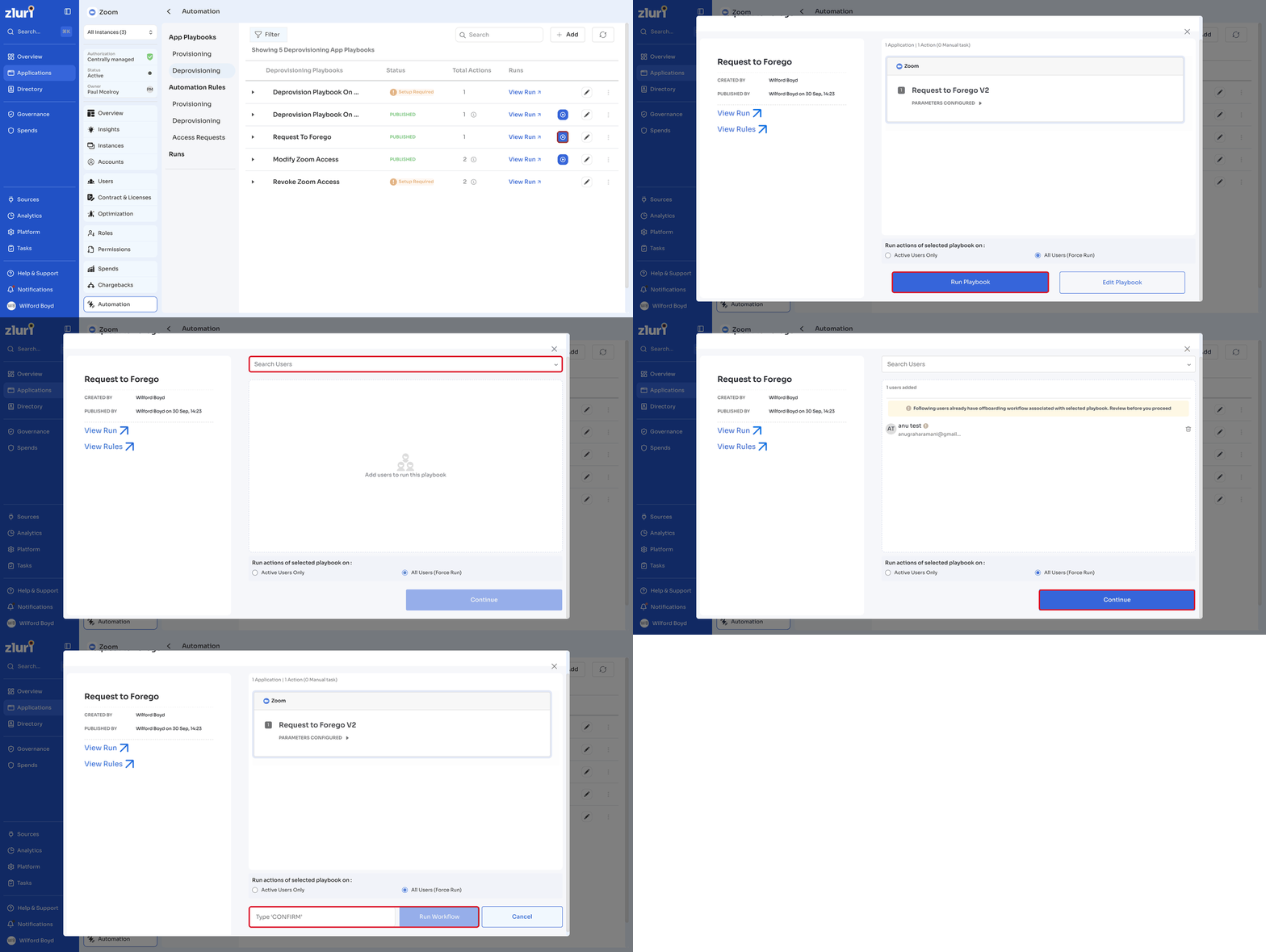
- In the application's Automation tab, under App Playbooks, click Deprovisioning.
- Click the run icon on the playbook.
- Click Run Playbook.
- Under Search Users, search for and select the users to run the playbook on, then click Continue.
- Type CONFIRM, then click Run Workflow.
Run through continuous optimization
Select the playbook in the application's Optimization Settings, under CONTINUOUS OPTIMIZATION, and choose an interval. Zluri runs the playbook on optimizable licenses at each interval. See Continuous Optimization.
View run logs
- In the application's Automation tab, click Runs.
- Click View Log on the run.
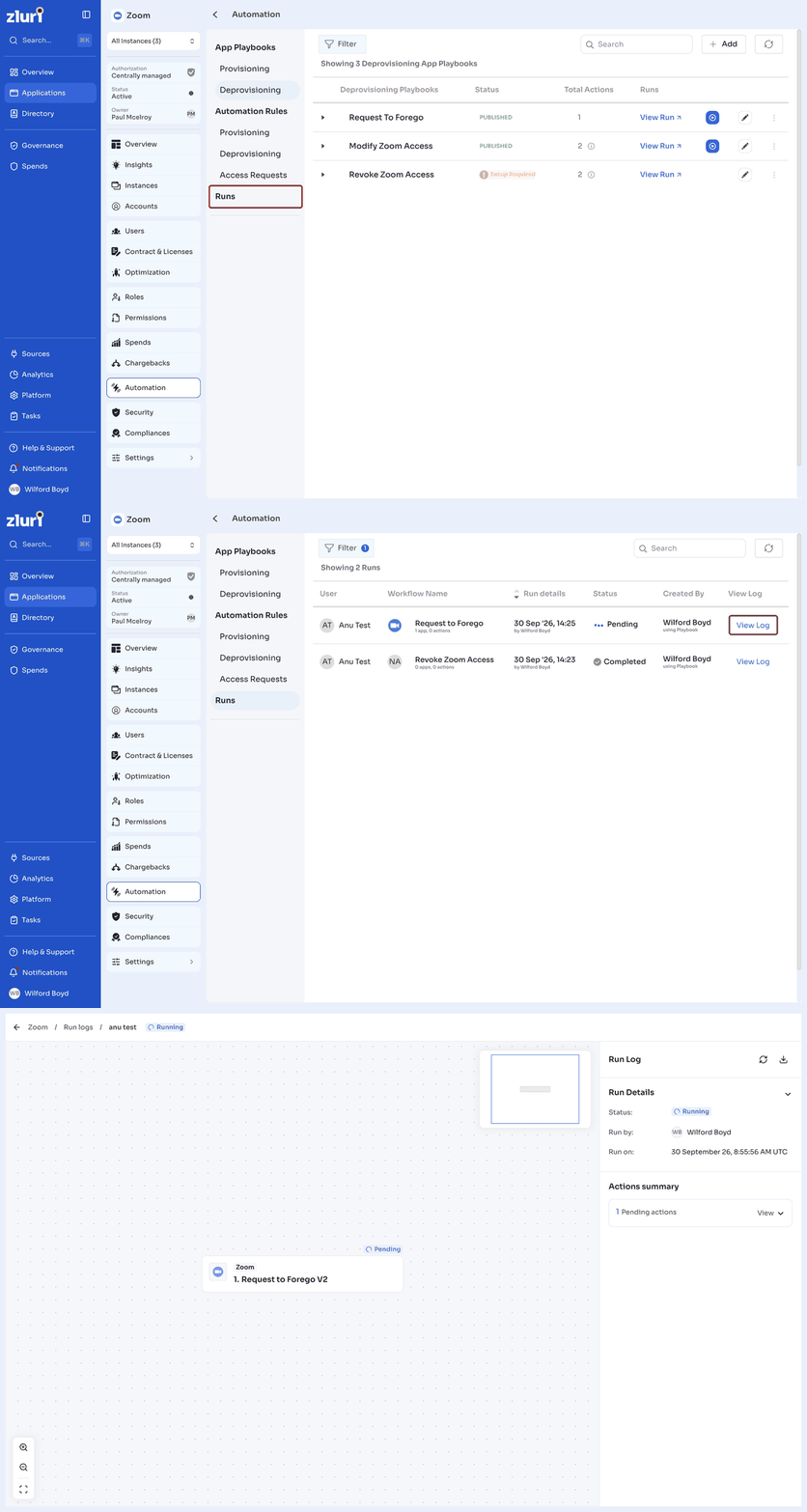
The log shows the complete timeline of the run, including:
- The configuration settings, such as reminders and cool-off periods
- Notifications sent to users
- Reminder messages and when they were delivered
- Automatic actions triggered for users who didn't respond
- When the cool-off period started
Track optimization results
- Open the application's Optimization tab.
- In Past Optimization Runs, select the run.
The run summary shows:
- Optimization summary: How many unused licenses were identified and optimized, and the estimated cost savings.
- User and license details: The employees whose licenses were flagged as optimizable, and the type of license each one held.
- Response tracking: Which users received the Request to Forego prompt, and whether they responded.
- Savings confirmation: The total estimated savings from reclaiming unused licenses.
Related articles
Updated 14 days ago