
Continuous Optimization
Continuous optimization reviews an application's licenses on a schedule and acts on the optimizable ones automatically. You set how Zluri identifies unused and undeprovisioned licenses, choose a playbook, and choose how often it runs. Zluri then runs the playbook on optimizable licenses at each interval, without manual intervention.
You set up continuous optimization separately for each application, in its Optimization Settings.
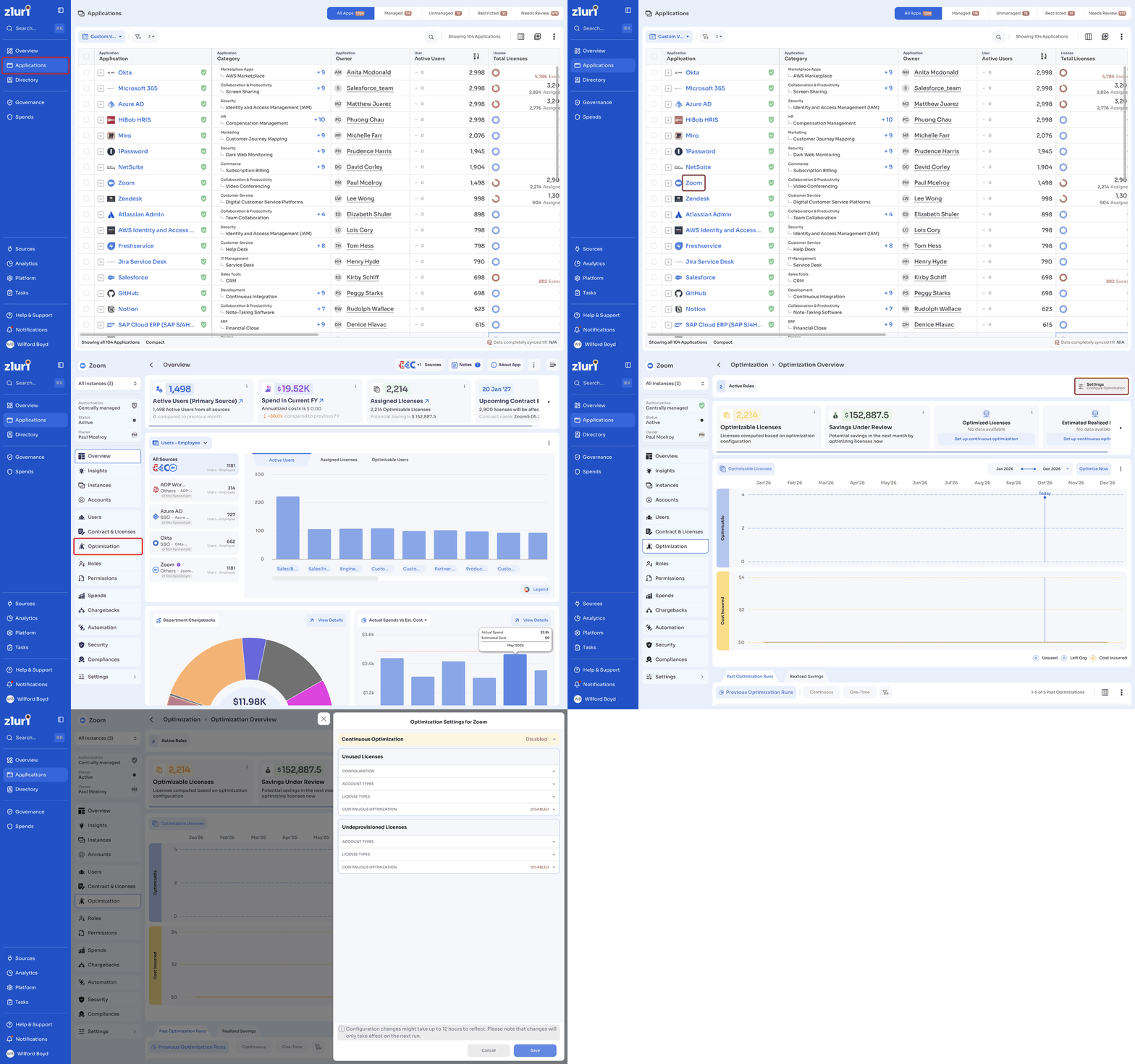
Open Optimization Settings
- In the left navigation, click Applications, then open the application.
- In the application menu, click Optimization.
- On the Optimization Overview page, click Settings.
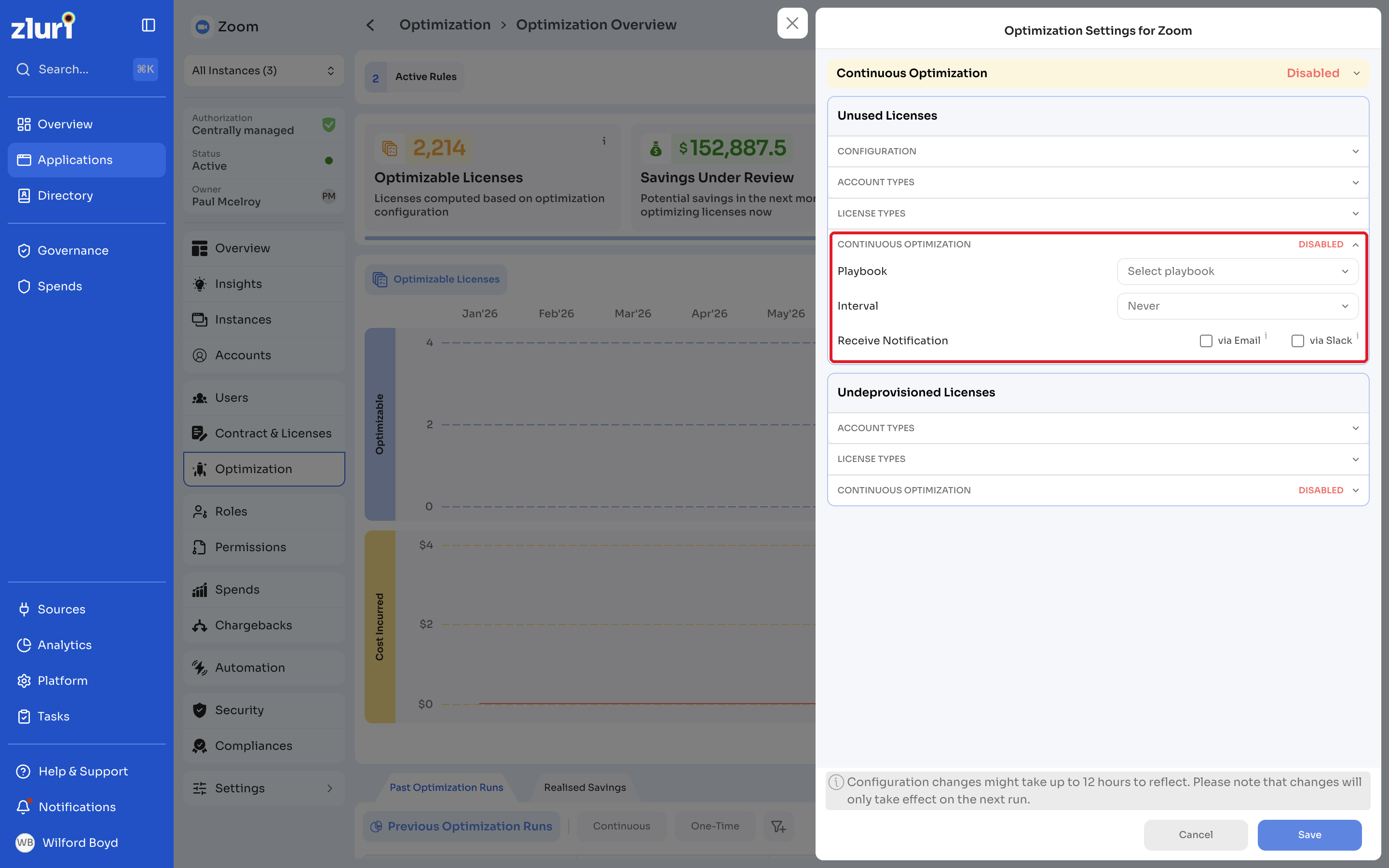
Optimization Settings for [application] opens. The Continuous Optimization status at the top shows whether continuous optimization is enabled for the application, for example Disabled for undeprovisioned and unused.
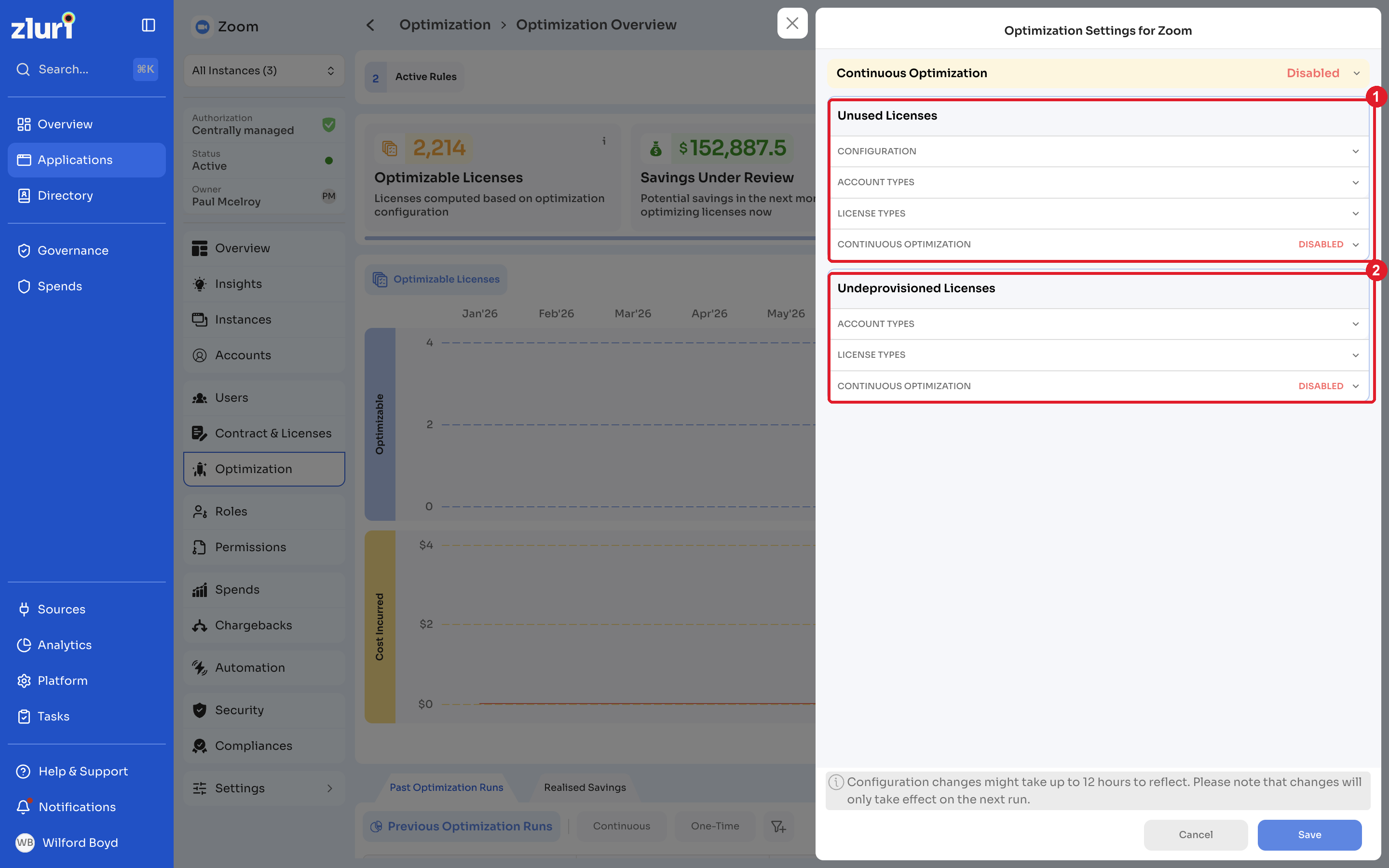
Settings are grouped into two sections, Unused Licenses and Undeprovisioned Licenses. Each section has its own settings and its own continuous optimization schedule.
NoteConfiguration changes might take up to 12 hours to reflect. Changes take effect only on the next run.
Configure unused licenses
Configuration
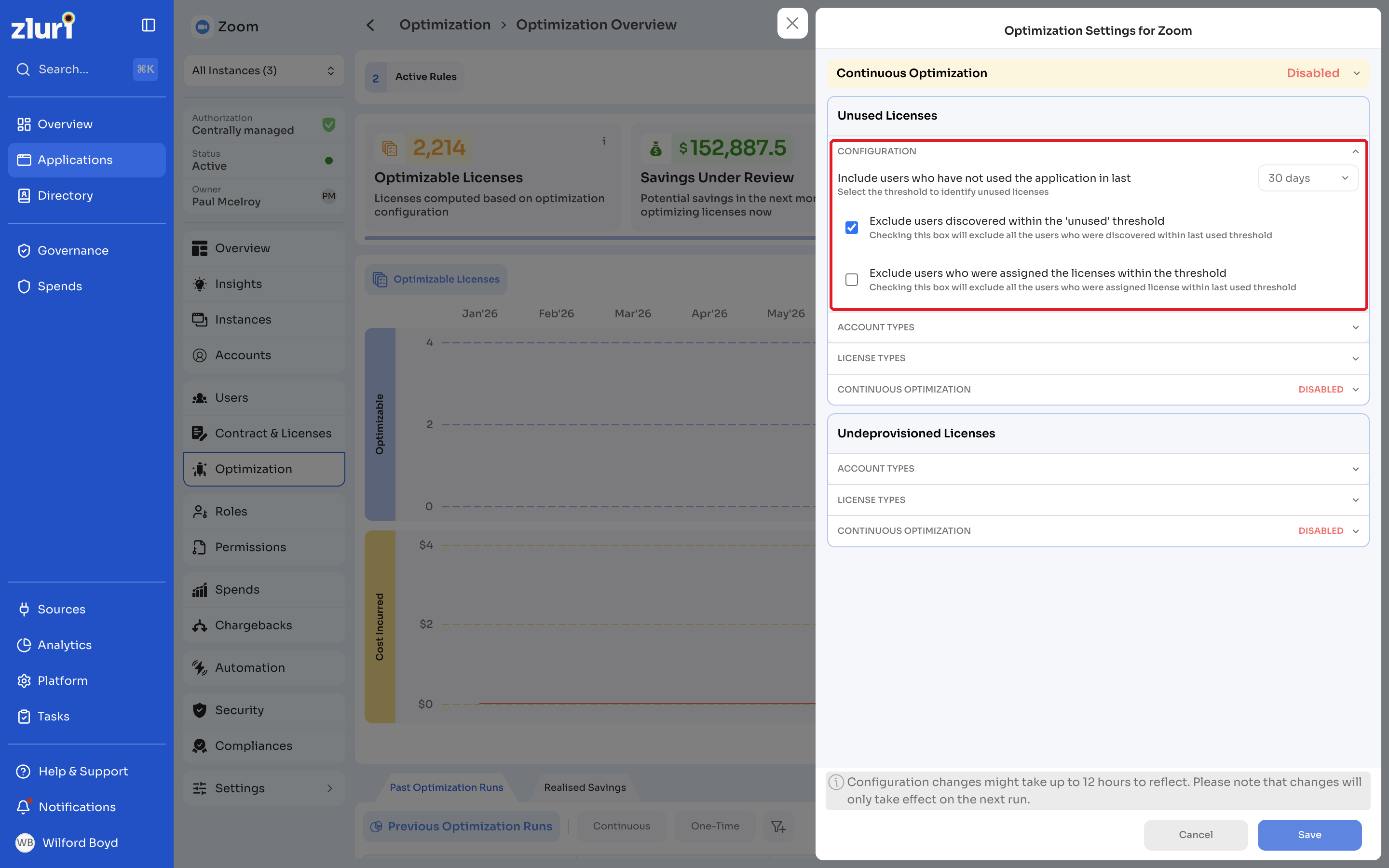
Under Unused Licenses, expand CONFIGURATION.
| Setting | Description |
|---|---|
| Include users who have not used the application in last | The threshold for identifying unused licenses: 30 days, 60 days, or 90 days. |
| Exclude users discovered within the 'unused' threshold | Excludes users who were discovered within the last used threshold. |
| Exclude users who were assigned the licenses within the threshold | Excludes users who were assigned the license within the last used threshold. |
For example, you might not want to revoke a free license that isn't being used, but you would want to revoke it if the user has left the organization. Use the account type and license type settings below to control this.
Account types
Expand ACCOUNT TYPES to include or exclude account types from optimization: Group, Service, and External.
License types
Expand LICENSE TYPES to include or exclude the application's license types from optimization. The list shows the application's licenses, for example Pro and Basic.
Configure undeprovisioned licenses
Under Undeprovisioned Licenses, expand ACCOUNT TYPES and LICENSE TYPES to include or exclude account types and license types, as described above.
Set up continuous optimization
Set up the schedule separately for Unused Licenses and Undeprovisioned Licenses.
Steps
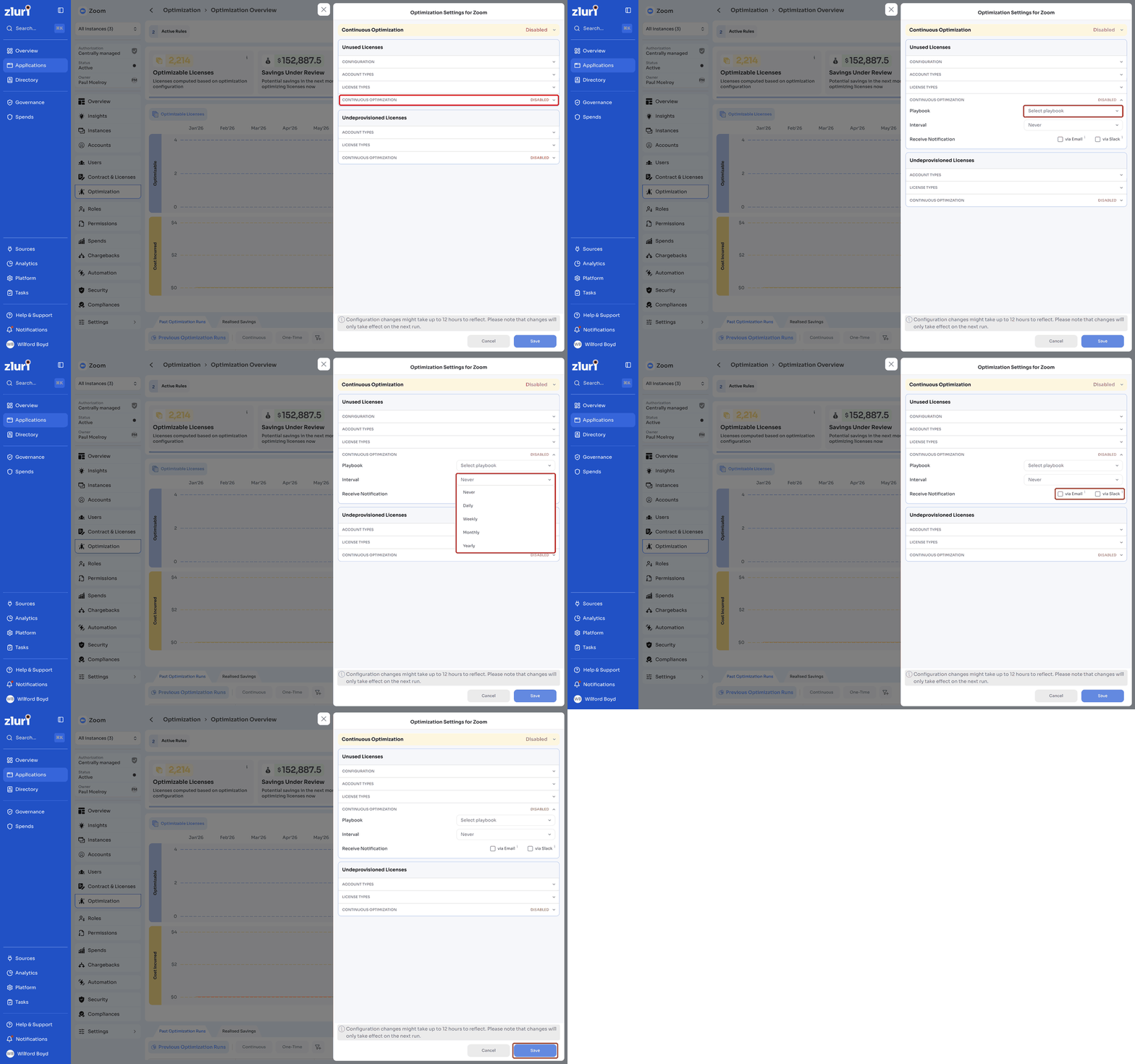
- In the section, expand CONTINUOUS OPTIMIZATION.
- In Playbook, select the playbook to run on the optimizable licenses.
- In Interval, select how often the playbook runs: Daily, Weekly, Monthly, or Yearly. Select Never to turn off continuous optimization for the section.
- Under Receive Notification, select via Email, via Slack, or both.
- Click Save.
Once continuous optimization runs, the Optimized Licenses and Estimated Realized Savings cards on the application's Optimization Overview page show data. Until then, they show Set up continuous optimization.
Exclude users from optimization
To keep specific users out of optimization, use the Optimization Inclusion column in the application's Users tab or in the Users table. See Exclude Users from Optimization.
Track continuous optimization runs
Each continuous run appears in the Past Optimization Runs tab of the application's Optimization page, with the run type Continuous. Click Continuous to see only continuous runs. See App-level Optimization tab.
To see the detailed log of a run, open the application's Automation tab, click Runs, and click View Log on the run.
Related articles
Updated 14 days ago