
Transaction Automation
Automation applies rules to spend transactions automatically, sorting them as mapped, unmapped, or archived without manual review. Once you create a rule, it applies automatically to all future transactions that meet its conditions, so you no longer need to review every transaction manually.
Rule types
Automation supports three rule types, each shown as a separate tab:
- Mapping Rules: Assign a transaction that meets the rule's conditions to an application.
- Unmapping Rules: Remove an application assignment from a transaction that meets the rule's conditions.
- Archiving Rules: Move a transaction that meets the rule's conditions to the Archived tab.
View automation rules
- Go to Spends > Automation.
- Select a tab to filter the list: Mapping Rules, Unmapping Rules, or Archiving Rules.
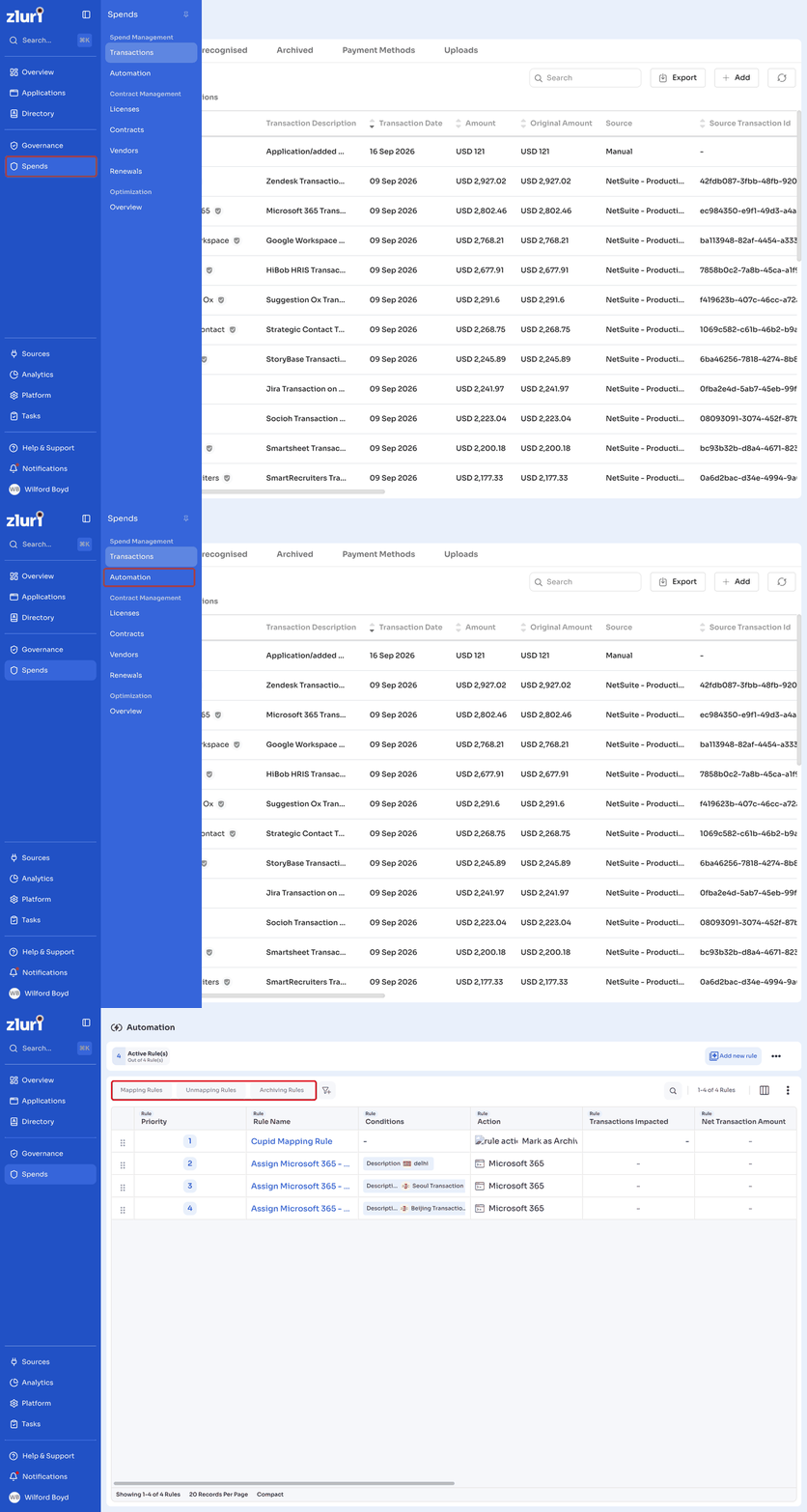
The rule list shows Priority, Rule Name, Conditions, Action, Transactions Impacted, Net Transaction Amount, Status, Created By, Created On, Modified On, and Last Run for each rule. Scroll horizontally to view all columns. A summary card at the top shows the count of active rules out of the total rules created.
Use the Search field to find a rule by keyword. Separate multiple keywords with a comma.
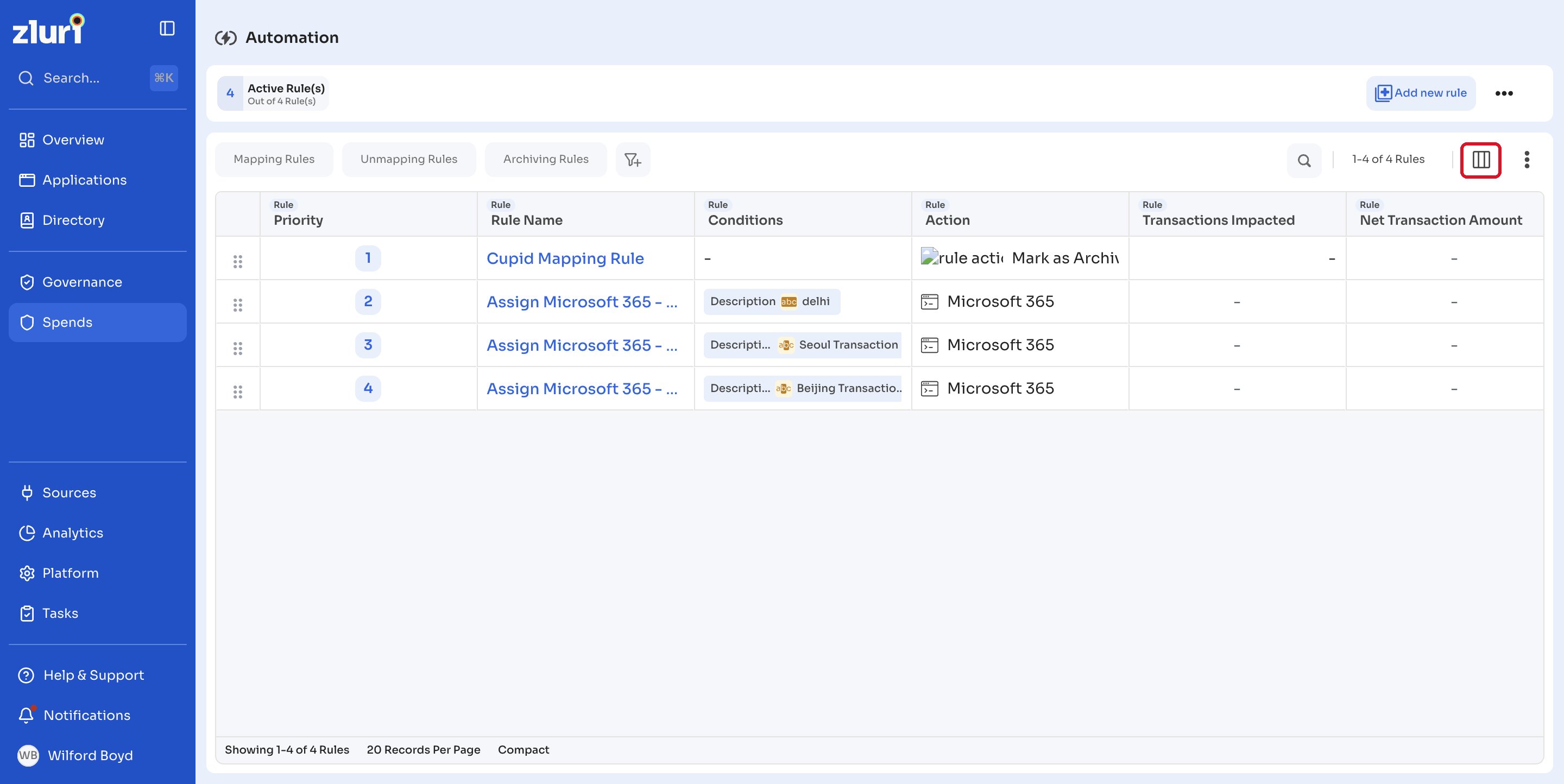
Click the columns icon to choose which fields appear in the list, such as Rule Name, Action, and Status. You can also filter the list by rule name, action type, or status.
Add a rule
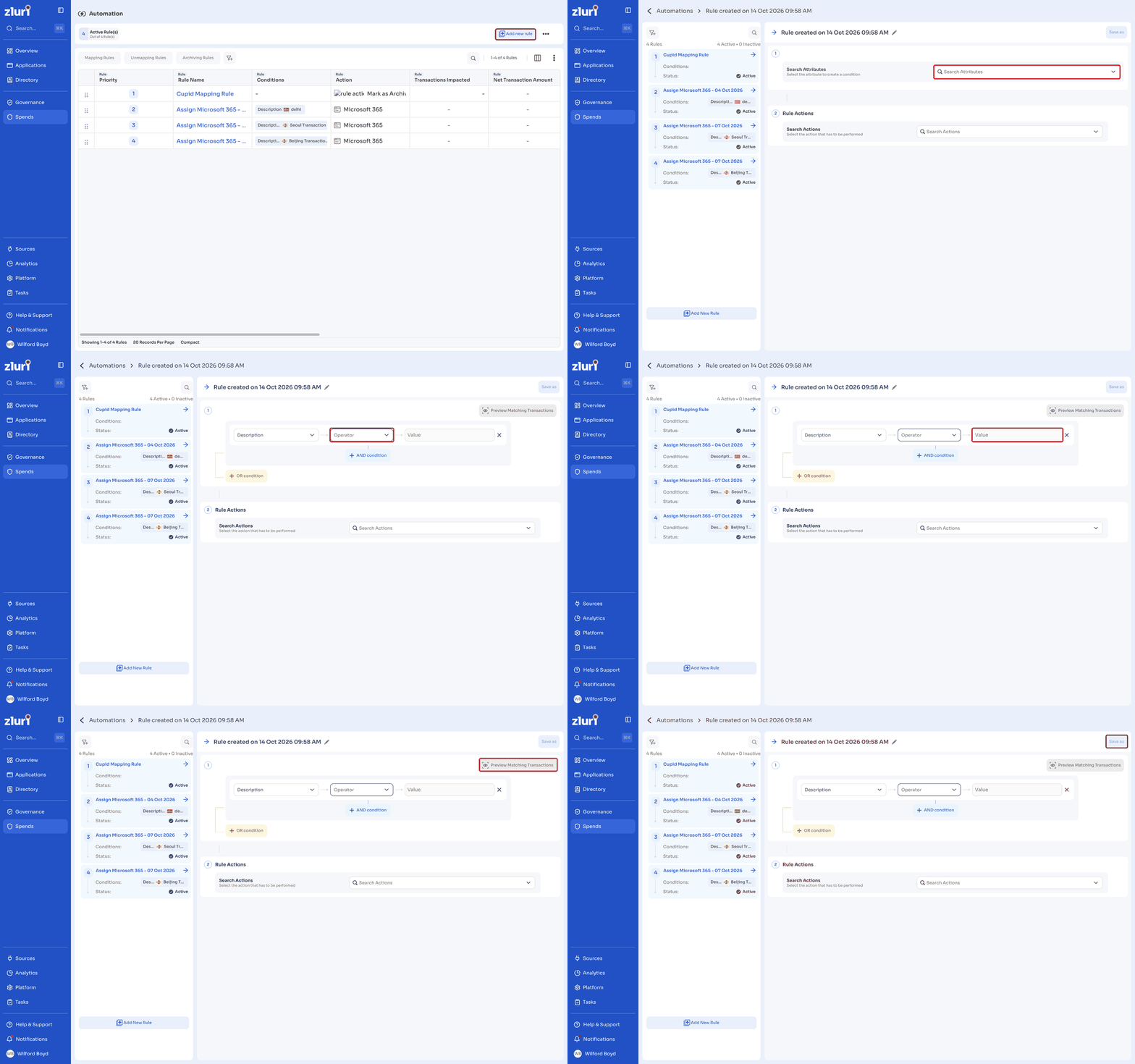
- Go to Spends > Automation.
- Click Add new rule.
- Rename the rule using the pencil icon next to the default name, then click the checkmark to confirm. The default name follows the format Rule created on [date, time].
- Under Search Attributes, select an attribute to build a condition on: Description (a string field) or Vendor (a multiple-selection field).
- Select an Operator. Description offers Is Equal, Is not equal, Contains, Does not contain, Starts with, Does not start with, and Ends with. Vendor offers only equals and not equals.
- Enter a Value to complete the condition.
- To add more conditions, click AND condition or OR condition. Repeat to add as many conditions as the rule needs.
- Click Preview Matching Transactions to check which transactions the rule would affect before saving.
- Under Rule Actions, select the action the rule performs, such as Map to Application, then select the target from the dropdown.
- Toggle the rule to Active, or leave it off to save it as inactive.
- Click Save. To save the rule without activating it yet, click the arrow next to Save as and select Draft instead.
How rules apply
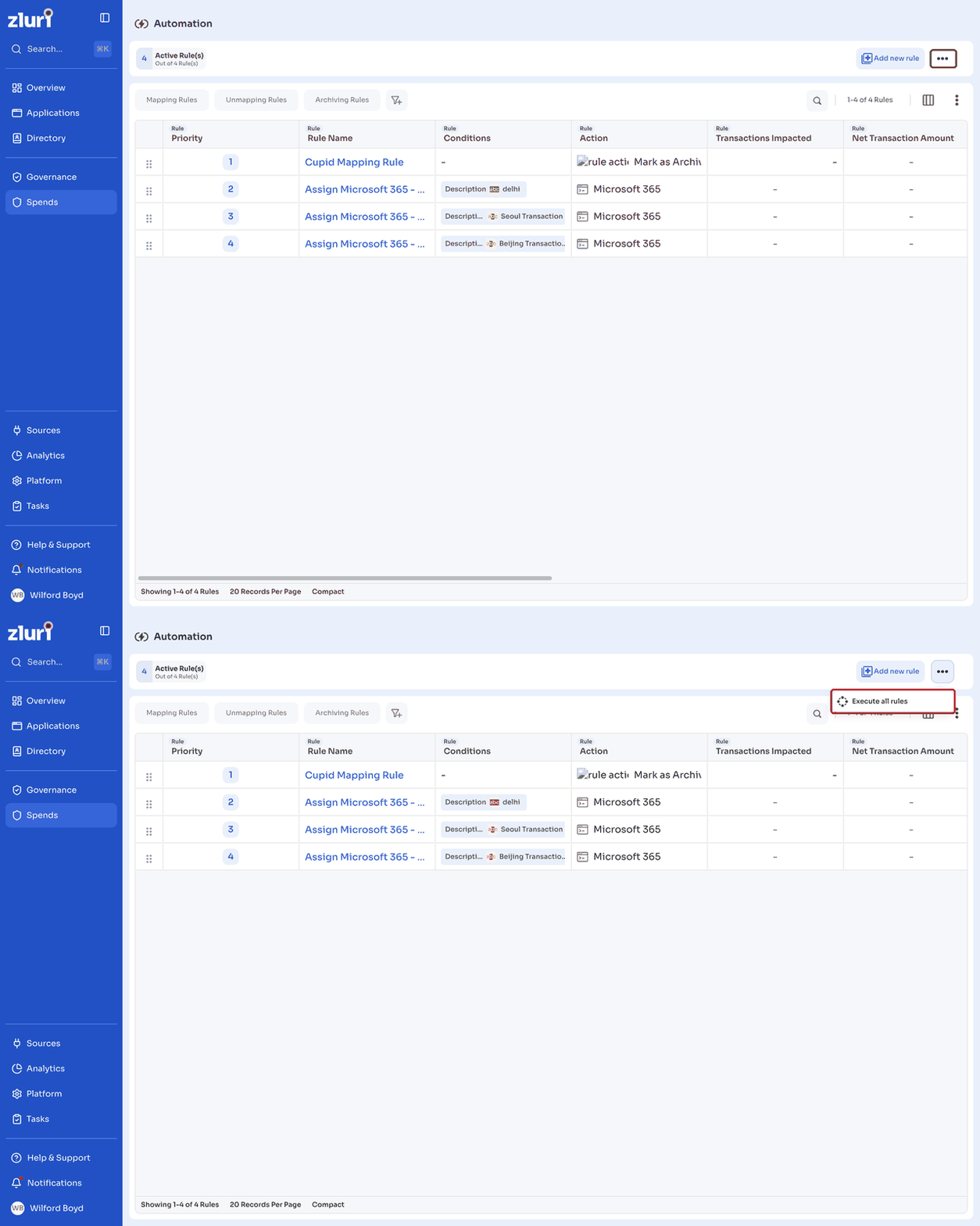
A saved rule applies automatically to transactions that meet its conditions going forward. To apply rules against transactions that already exist, click (...) next to Add new rule and select Execute all rules.
Before the rules run, Zluri shows a confirmation panel with:
- An explanation of what execution does: it runs all existing transactions through every rule you've created, in priority order.
- A breakdown of how many transactions may be impacted, split by Recognized, Unrecognized, and Archived.
- A checklist you must confirm before proceeding:
- You understand how many total transactions may be impacted by the rules.
- You're aware the process is irreversible and cannot be stopped once started.
- You acknowledge the process may take a few hours to complete, given the number of transactions.
- You understand rule creation and editing will be temporarily disabled until the process finishes.
- You're aware that any transaction that doesn't match a rule will remain unchanged.
Once all five items are checked, click Execute all rules to start the process.
Zluri's mapping AI also runs after all your custom rules, using patterns from transaction details and vendors to map any remaining unmapped transactions. It's on by default, but you can turn it off if you want a fully rule-based, deterministic system. See Turn the mapping AI on or off.
Manage a rule
Drag a rule using the handle next to its priority number to change the order rules run in.
Open a rule and click Edit to change its conditions or actions.
Click the three-dot menu next to a rule and select Delete Rule to remove it. Before deleting a rule, revert all transactions it has already processed.
Deactivating a rule stops it from running on future transactions, but does not undo what it already did.
Rules run in the order set by their Priority number, starting from 1. When a transaction matches more than one rule, only the higher-priority rule applies to it.
Change the view
Click the three-dot menu at the top right of the rule list to Refresh the list or switch View Density between Compact and Comfortable.
Updated 10 days ago