
Optimization Overview
Optimization helps you find licenses your organization pays for but doesn't need, and reclaim them. Zluri identifies optimizable licenses for each application based on license usage and user status, shows how much you could save, and runs playbooks to remove or downgrade those licenses, either once or on a schedule.
Types of optimizable licenses
Zluri identifies two types of optimizable licenses:
| Type | What it means |
|---|---|
| Unused Licenses | Licenses assigned to users who haven't used the application within the threshold you set, for example 30, 60, or 90 days. |
| Undeprovisioned Licenses | Licenses still assigned to users who have left the organization. The app-level Optimization tab shows these as Left Org. |
You choose how Zluri identifies each type in the application's Optimization Settings. See Continuous Optimization.
Open the Optimization page
- In the left navigation, click Spends.
- Under Optimization, click Overview.
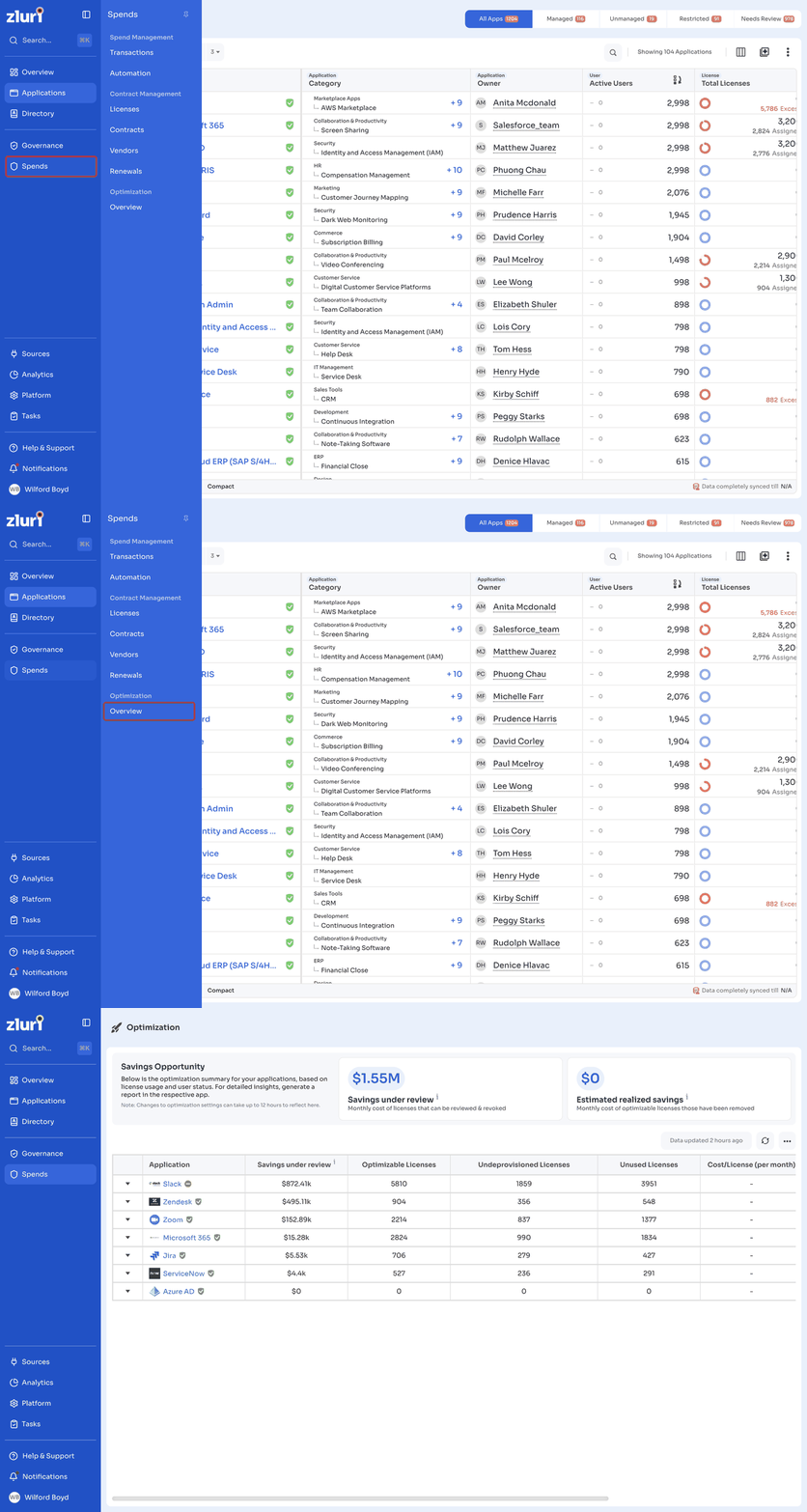
The Optimization page shows a summary of optimization across your applications. For detailed insights, open the application's Optimization tab. See App-level Optimization tab.
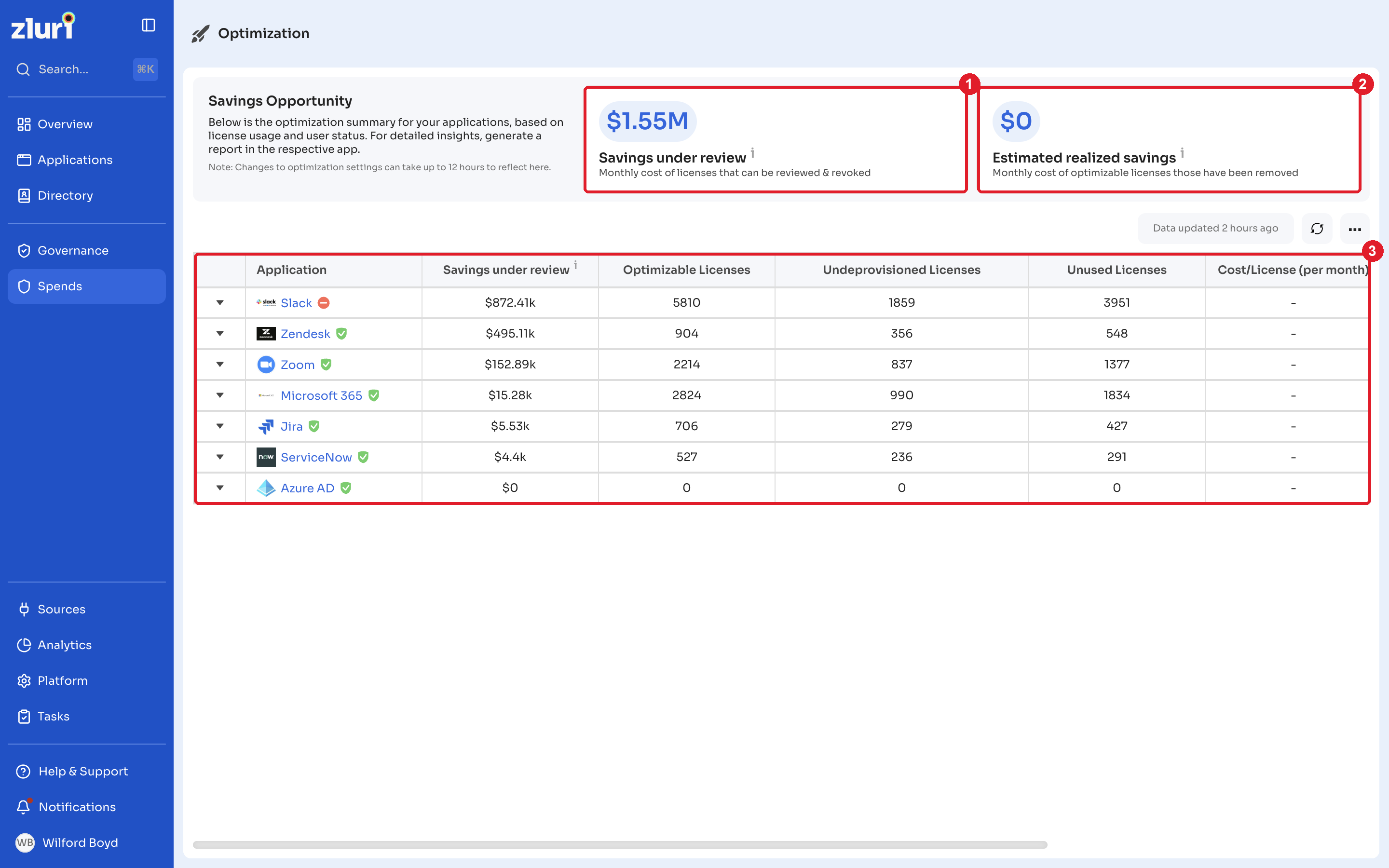
NoteChanges to optimization settings can take up to 12 hours to reflect on this page.
Savings Opportunity
The summary at the top of the page shows:
| Card | What it shows |
|---|---|
| Savings under review | The monthly cost of licenses that can be reviewed and revoked. |
| Estimated realized savings | The monthly cost of optimizable licenses that have been removed. |
Application list
The table lists the applications with optimization data.
| Column | Description |
|---|---|
| Application | The application. Click its name to open the application's Optimization tab. |
| Savings under review | The monthly cost of the application's licenses that can be reviewed and revoked. |
| Optimizable Licenses | The number of optimizable licenses for the application. |
| Undeprovisioned Licenses | The number of licenses still assigned to users who have left the organization. |
| Unused Licenses | The number of licenses assigned to users who haven't used the application within the threshold. |
| Cost/License (per month) | The monthly cost of each license. |
| Estimated realized savings (monthly) | The monthly savings from optimizable licenses that have been removed. |
| Optimized Licenses | The number of licenses optimized. |
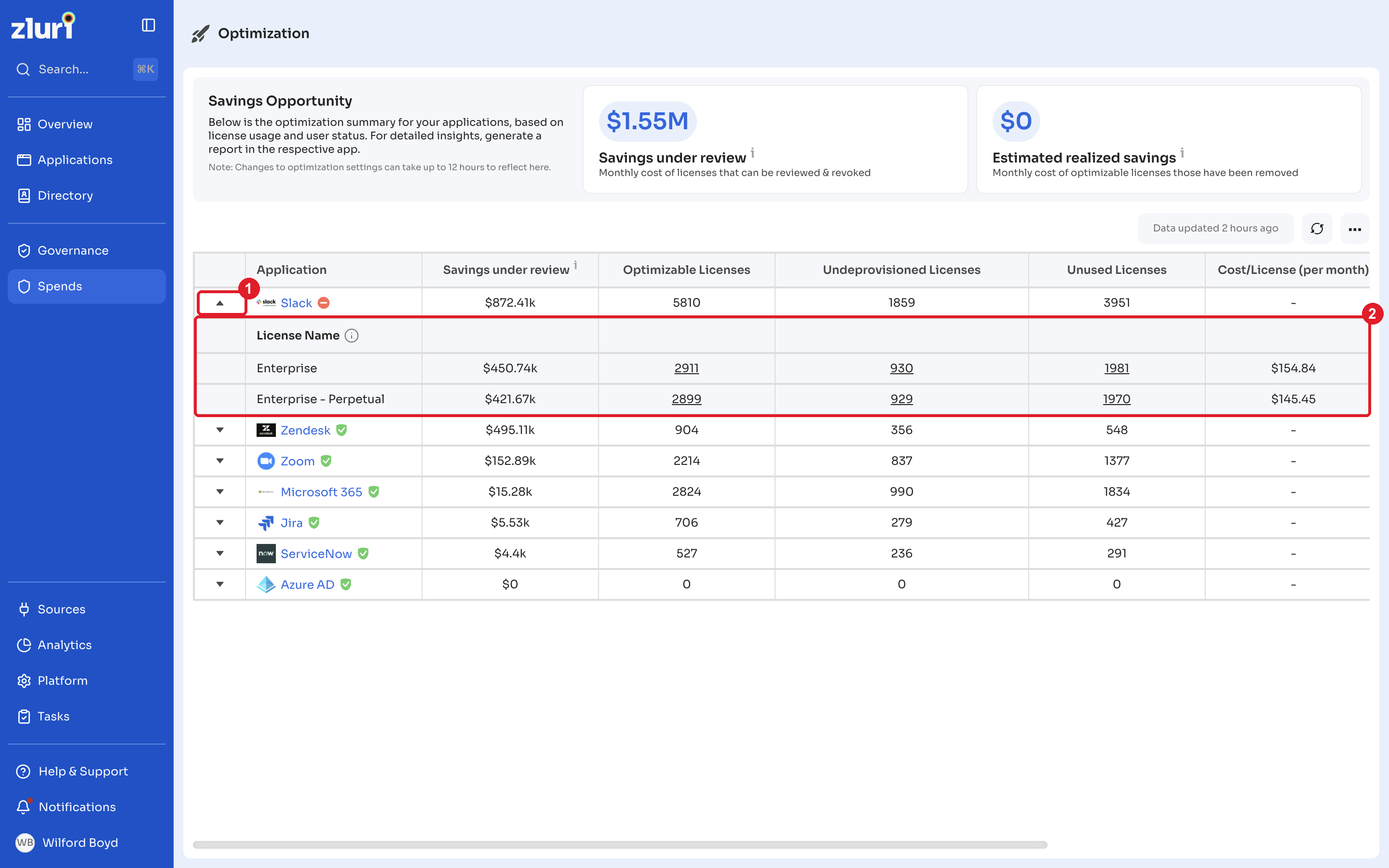
Click the arrow next to an application to see the same details for each of its licenses, for example Enterprise and Enterprise - Perpetual. The license list shows licenses included in continuous optimization with at least one active user. New, unreviewed licenses are included by default.
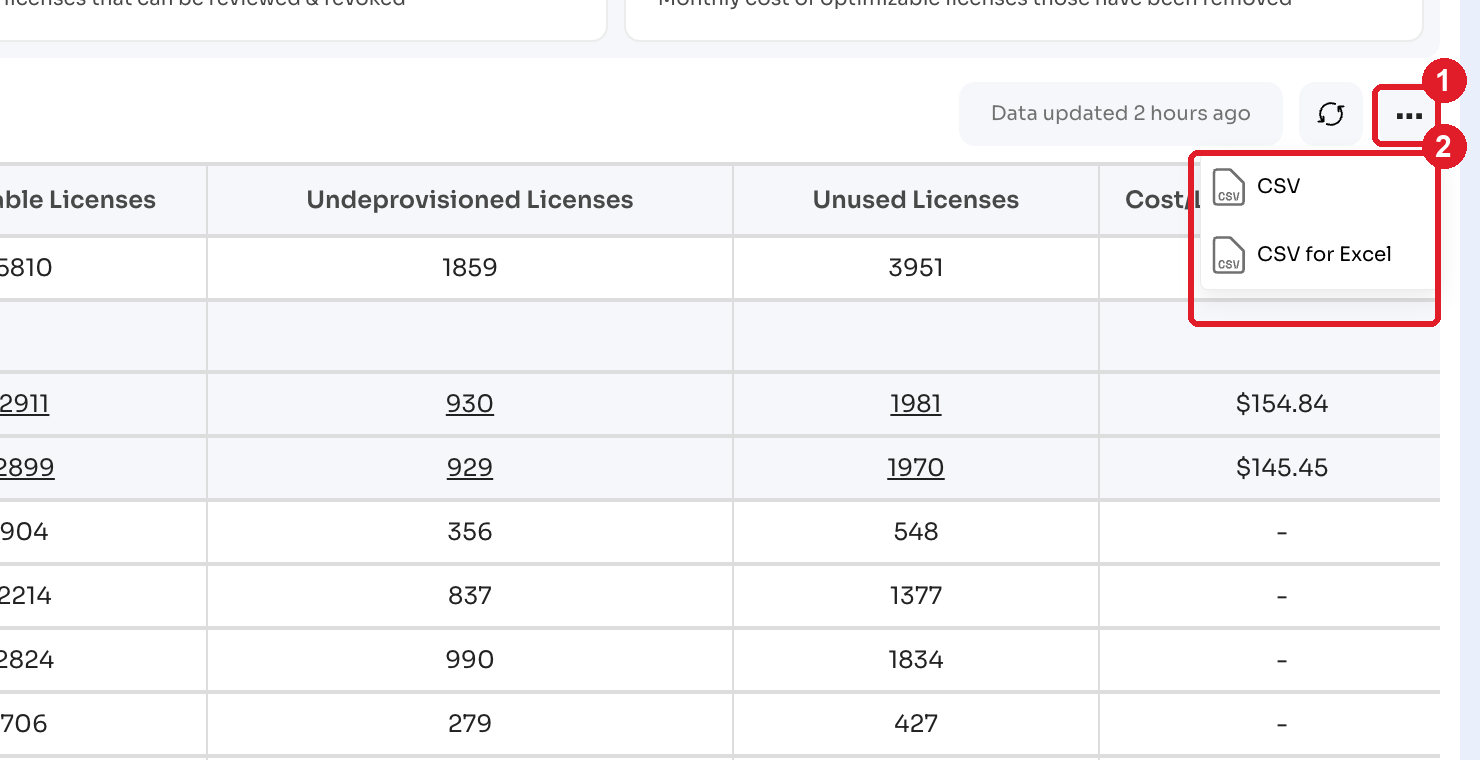
The time of the last data update appears above the table. Click the refresh icon to refresh the data. To export the list, click the more options menu (...) and select CSV or CSV for Excel.
How optimization works
- Zluri identifies optimizable licenses. For each application, Zluri flags unused and undeprovisioned licenses based on the application's optimization settings. You can choose which account types and license types to include, and exclude users who were recently discovered or recently assigned a license.
- You review the licenses. The application's Optimization tab shows the optimizable licenses, the reason each one is optimizable, and the savings under review.
- A playbook acts on the licenses. A playbook is a set of actions that runs on one or more users, for example removing or downgrading a license. Run a playbook once with Optimize Now, or set up continuous optimization to run it on a schedule.
- Zluri tracks the results. Each run appears in Past Optimization Runs, and savings from revoked licenses appear in Realised Savings.
Playbook actions
A playbook can include different kinds of actions:
- Automated actions: For applications integrated with Zluri, actions run directly in the application through APIs.
- Manual tasks: Zluri assigns a task to a user, group, or role to complete, and tracks it.
- Custom HTTP requests: Zluri sends a request to an API or webhook.
- Jira actions: Zluri assigns the task through Jira. When the task is marked as completed, it shows up in Zluri.
- Request to Forego: Zluri asks users whether they want to keep or give up a license, and acts on their response. See Request to Forego Licenses.
Related articles
Updated 14 days ago