
Contract & Licenses
The Contract & Licenses tab shows license and contract data for an application, including cost trends, license utilization, and individual license and contract records.
For organization-wide license management, see Licenses. For organization-wide contract management, see Contracts.
Accessing Contract & Licenses
-
Select Applications in the left navigation, then select an application to open its profile.
-
Select Contract & Licenses in the left panel.
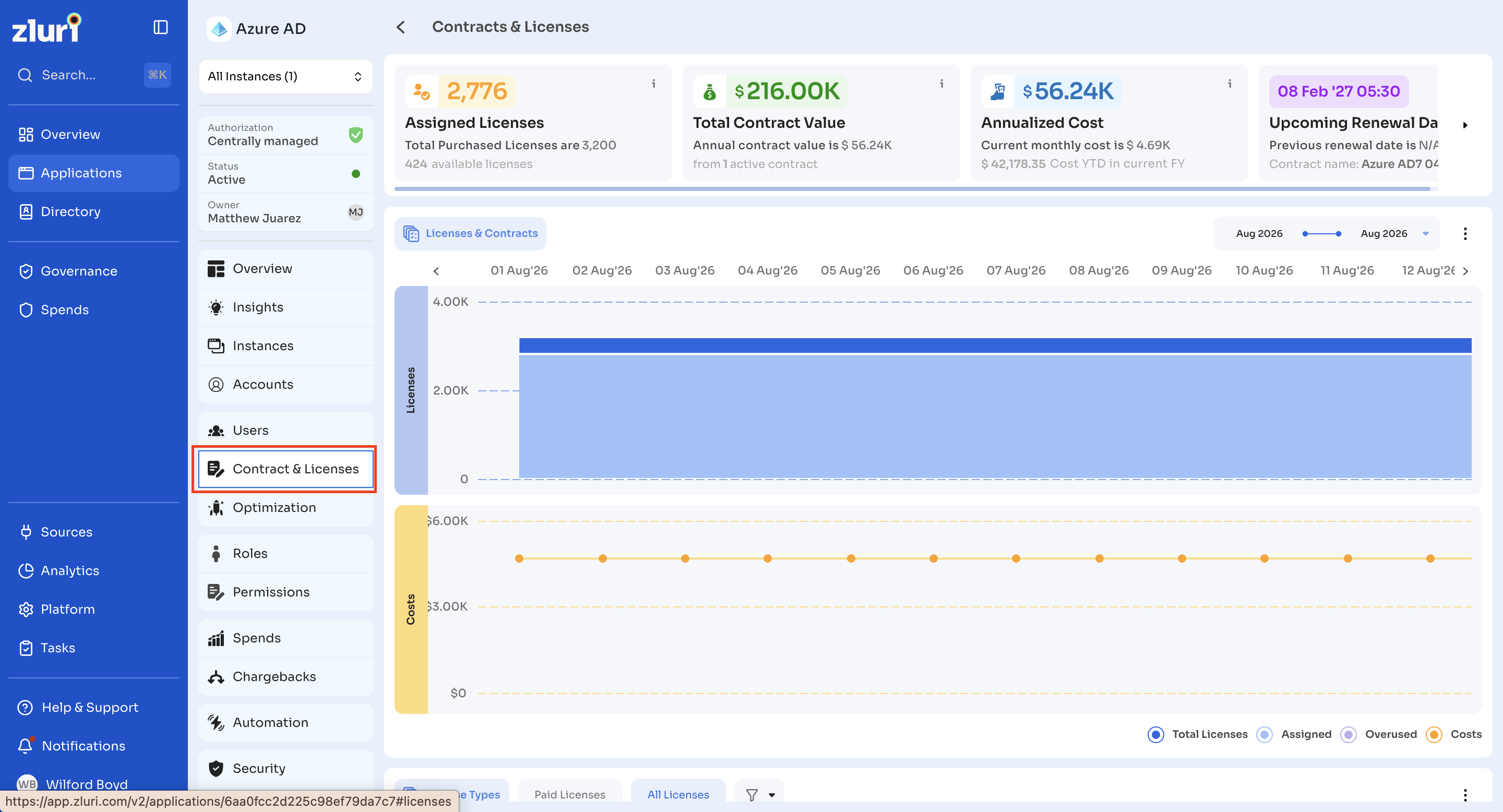
Stat cards
The top of the tab displays four stat cards:
| Card | Description |
|---|---|
| Assigned Licenses | Number of licenses currently assigned to users, with the total purchased licenses and the number of available licenses. Select Add Contracts & Licenses if no data exists |
| Total Contract Value | Total value of contracts linked to the application, with the annual contract value and the number of active contracts it comes from |
| Annualized Cost | The application's annualized cost, with the current monthly cost and the cost year-to-date in the current financial year |
| Upcoming Renewal Date | The date and time of the next contract renewal, with the previous renewal date and the contract name. Select Add Application Contract if no data exists |
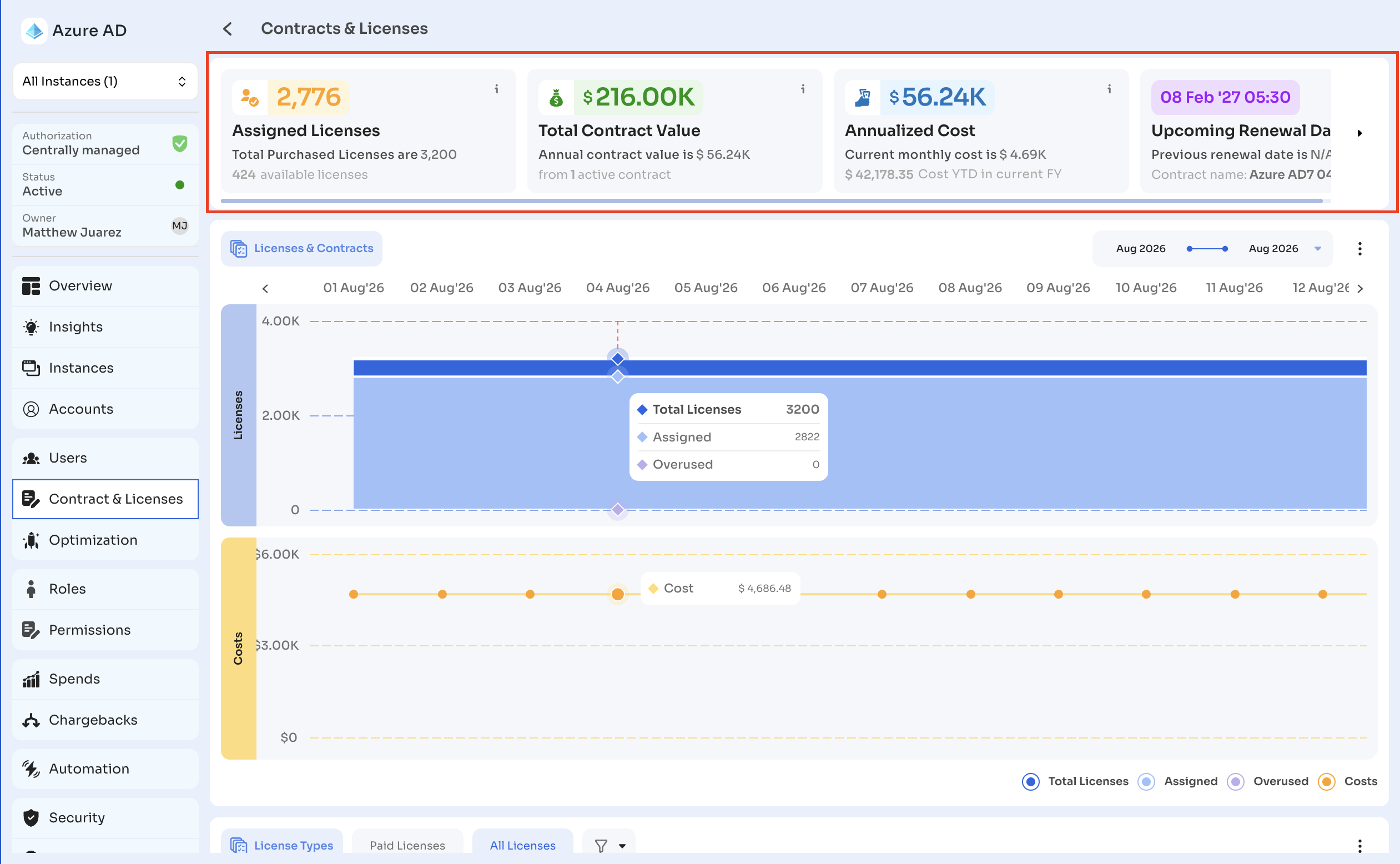
Licenses & Contracts chart
Below the stat cards, the Licenses & Contracts chart plots license count and cost over a selected date range. The chart has two panels:
- Licenses: plots Total Licenses, Assigned, and Overused licenses for each day in the range
- Costs: plots the application's cost for each day in the range
Hover over a date in either panel to see the values for that day, for example Total Licenses 3200, Assigned 2822, and Overused 0 in the Licenses panel, and the cost for that day in the Costs panel.
The legend below the chart identifies each metric by color: Total Licenses, Assigned, Overused, and Costs.
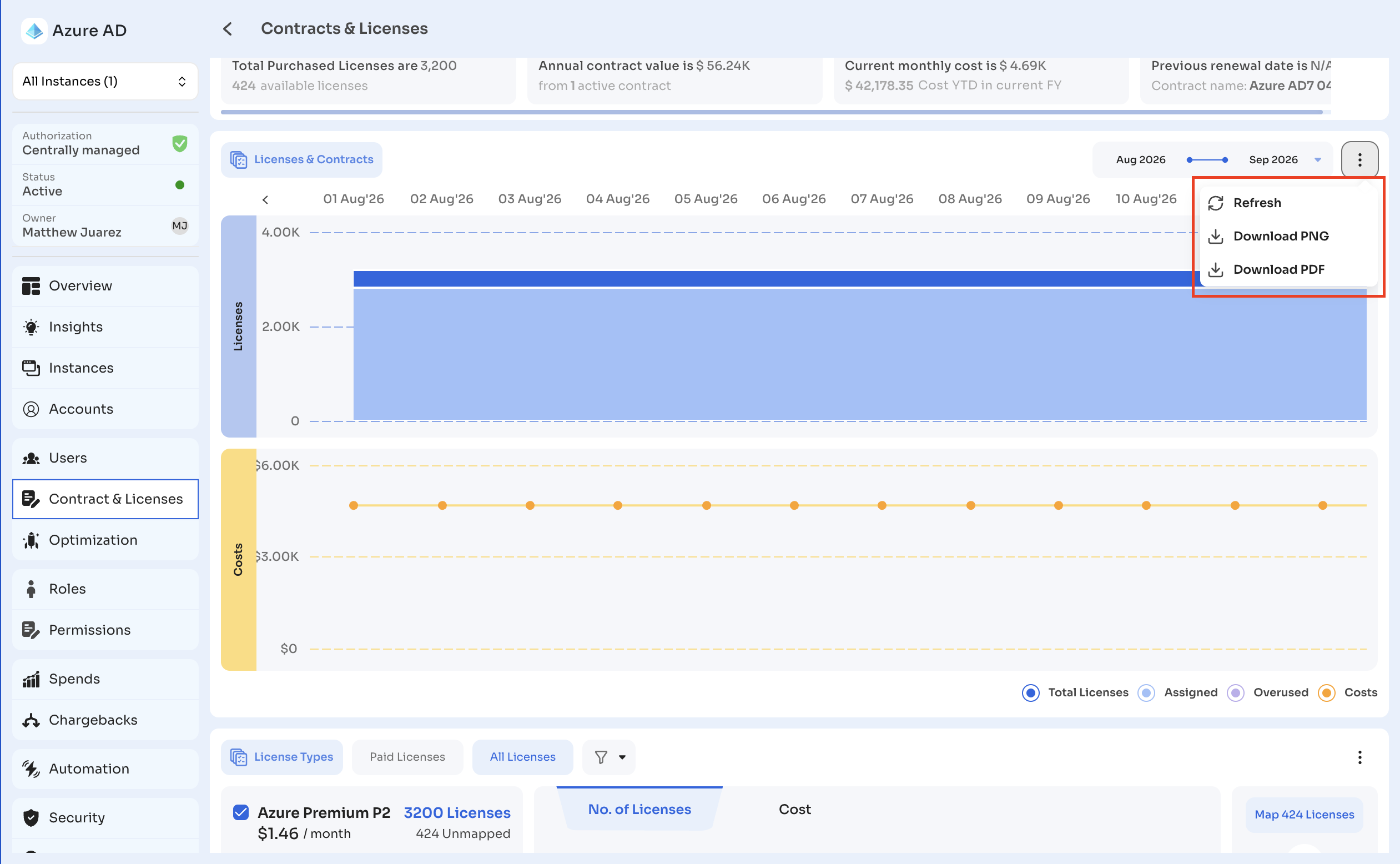
- Use the date range picker at the top right to set the period, for example Aug 2026 to Sep 2026.
- Use the arrows on either side of the date axis to scroll through the dates in the range.
- Select the three-dot menu for Refresh, Download PNG, or Download PDF.
License Types view
Below the chart, switch between License Types, Paid Licenses, and All Licenses using the tabs. Use the filter icon to narrow results.
The License Types view lists each license type as a checklist item, showing:
- The license name, for example Azure Premium P2
- The number of licenses, for example 3200 Licenses
- The cost per month
- The number of unmapped licenses
Select or clear the checkbox next to a license type to include or exclude it from the chart on the right, which breaks down licenses or cost by department. Toggle between No. of Licenses and Cost to change what the chart displays.
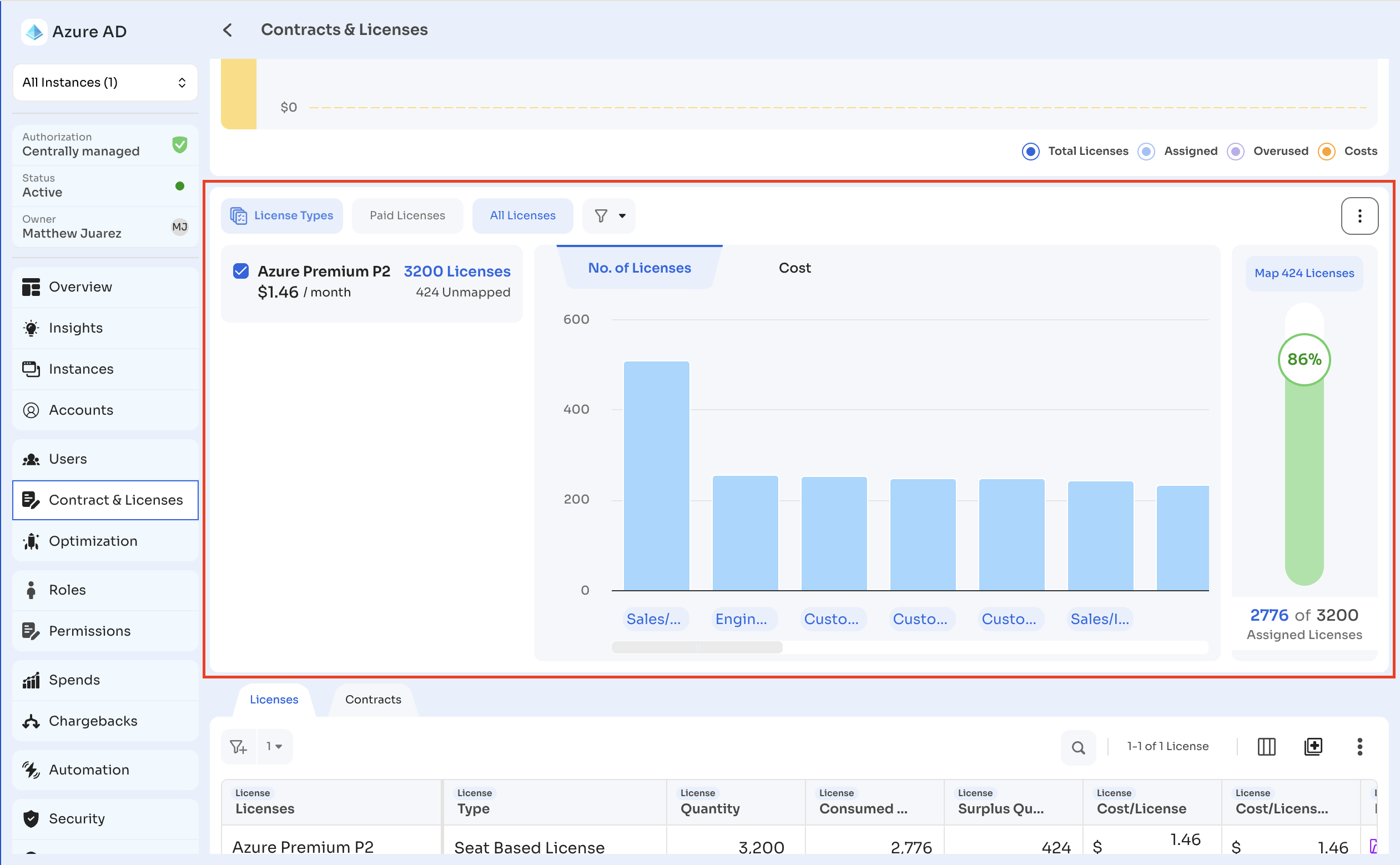
The panel on the right shows the number of assigned licenses out of the total, for example 2,776 of 3,200 Assigned Licenses. When some licenses are not yet mapped to users, a Map [N] Licenses button appears, where [N] is the number of licenses still to be mapped. Select it to map those licenses. See Map licenses to users.
When no licenses exist, the view shows a No Licenses Available state.
Select the three-dot menu for Refresh, View Density, Export View, or Custom Export.
Licenses and Contracts table
At the bottom of the tab, switch between the Licenses and Contracts sub-tabs.
Both tables include a filter icon, a search icon, a record count, and Modify Columns to show or hide columns. Select the three-dot menu for Refresh, View Density, Export View, or Custom Export.
Licenses table
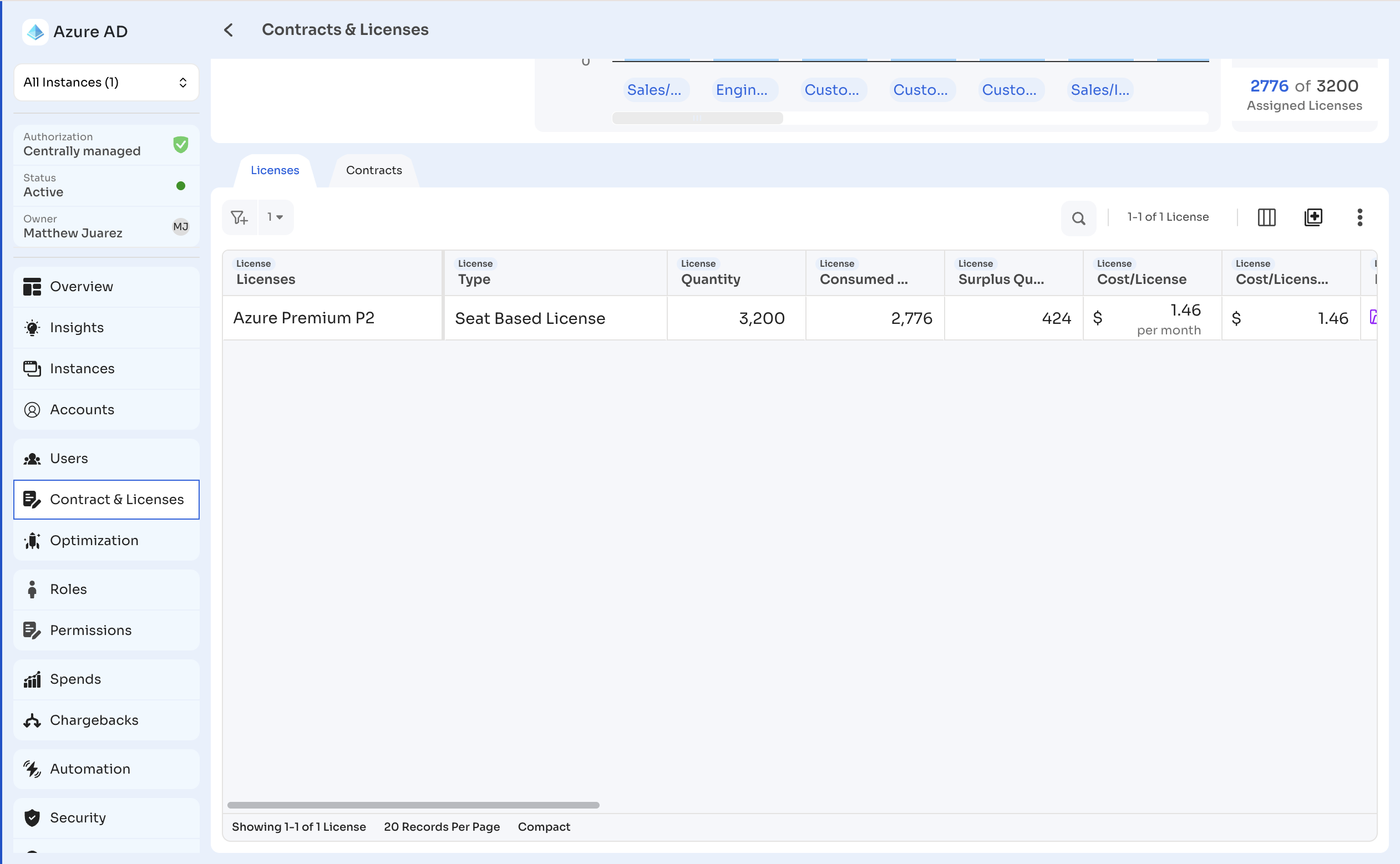
The Licenses sub-tab lists every license linked to the application, covering license quantities and cost, the contract each license belongs to, utilization value, optimization data, and the license source. For full details on managing licenses, see Licenses.
Column headers are grouped by category (License, Contract, Cost, Optimization, Source, and Action). The table displays the following columns:
| Column | Category | Description |
|---|---|---|
| Licenses | License | The license name |
| Type | License | The license type, for example Seat Based License |
| Quantity | License | The total number of licenses purchased |
| Consumed Quantity | License | The number of licenses currently in use |
| Surplus Quantity | License | The number of unused licenses |
| Cost/License | License | The cost of a single license, with its billing period, for example per month |
| Cost/License (per month) | License | The monthly cost of a single license |
| Is Archived? | License | Whether the license is archived or unarchived |
| Contract | Contract | The contract the license belongs to |
| Vendor | Contract | The vendor on the linked contract |
| Contract Start Date | Contract | The start date of the linked contract |
| End Date | Contract | The end date of the linked contract |
| Total Contract Value | License | The total value of the linked contract |
| Utilized Value | Cost | The cost of licenses currently in use |
| Unutilized Value | Cost | The cost of unused licenses |
| Cost Benchmark | License | The benchmark cost for the license, where available |
| Optimizable Licenses | Optimization | The number of licenses identified for optimization |
| Optimized Licenses | Optimization | The number of licenses already optimized |
| Savings Under Optimization | Optimization | The potential savings from optimizable licenses |
| Estimated Realized Savings | Optimization | The estimated savings realized from optimization |
| Source | Source | The source the license data comes from, for example Azure AD |
| Actions | Action | A three-dot menu with Edit License and Delete License options |
When no license records match the current filters, the table shows a No results found in App Licenses state.
Contracts table
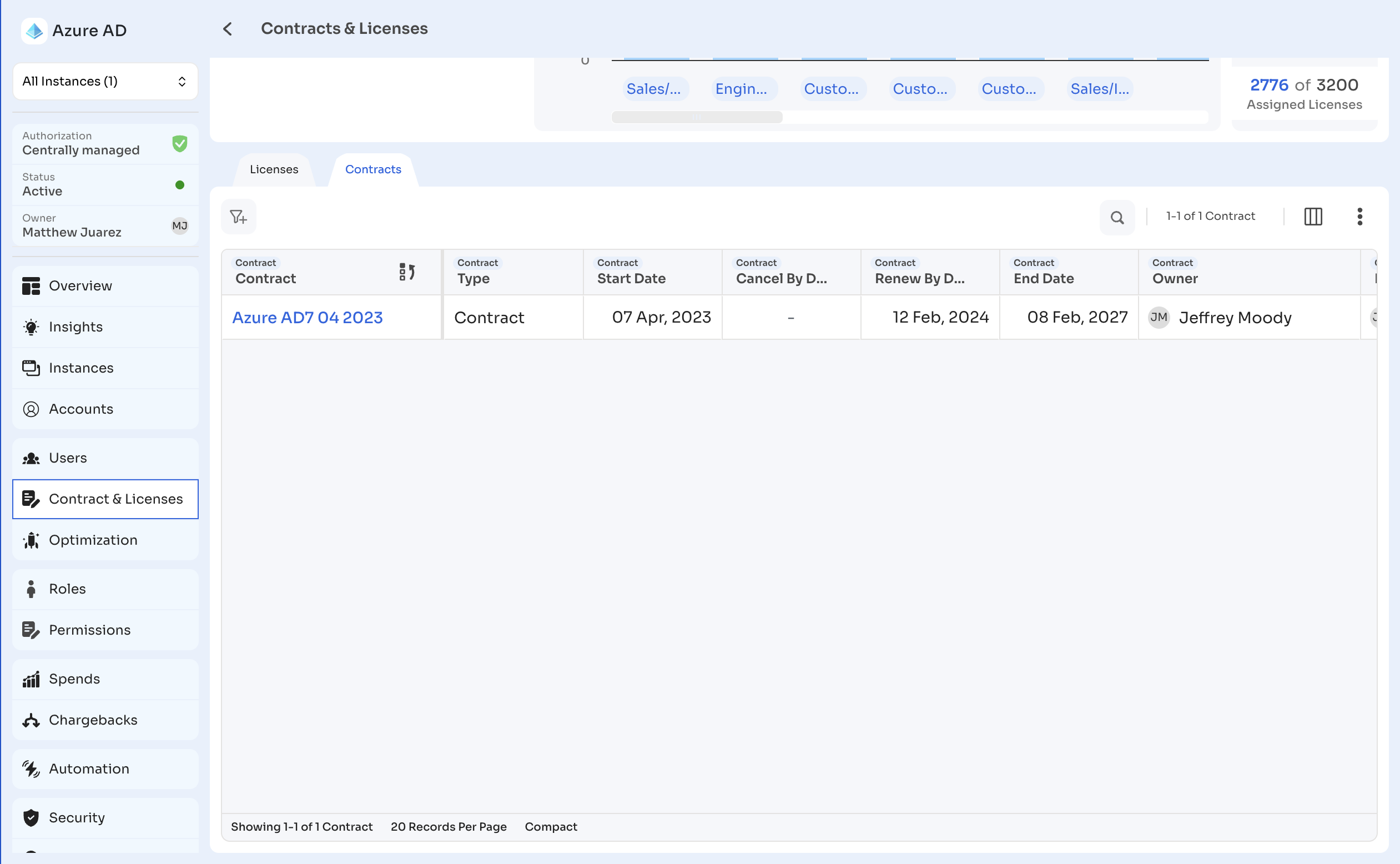
The Contracts sub-tab lists every contract linked to the application, covering contract dates, ownership, vendor details, renewal and payment terms, cost, and the licenses each contract includes. Use this view to review contract terms and ownership without leaving the application profile. Select a contract name to open its details. For full details on managing contracts, see Contracts.
Column headers are grouped by category (Contract, Cost, and License). The table displays the following columns:
| Column | Category | Description |
|---|---|---|
| Contract | Contract | The contract name |
| Type | Contract | The contract type, for example Contract |
| Start Date | Contract | The date the contract starts |
| Cancel By Date | Contract | The last date to cancel the contract |
| Renew By Date | Contract | The date by which the contract must be renewed |
| End Date | Contract | The date the contract ends |
| Owner | Contract | The contract owner |
| Finance Owner | Contract | The person responsible for the contract's finances |
| IT Owner | Contract | The person responsible for the application from IT |
| Negotiation Owner | Contract | The person responsible for negotiating the contract |
| Vendor | Contract | The contract vendor |
| Vendor Type | Contract | The vendor type, for example Direct seller |
| Agreement Type | Contract | The agreement type, for example Master |
| Description | Contract | The contract description |
| Status | Contract | The contract status, for example Active |
| Auto Renewal | Contract | Whether the contract renews automatically |
| First Renewal Date | Contract | The date of the contract's first renewal |
| Next Payment Date | Contract | The date of the next payment |
| Payment Method | Contract | The payment method for the contract |
| No. of Documents | Contract | The number of documents attached to the contract |
| Archive Status | Contract | Whether the contract is archived or unarchived |
| Total Cost | Cost | The total cost of the contract |
| Total Contract Value | Cost | The total value of the contract |
| Total Licenses | License | The total number of licenses in the contract |
| Consumed Licenses | License | The number of licenses in use |
| Seat Based Licenses | License | The number of seat-based license types in the contract |
| Usage Based Licenses | License | The number of usage-based license types in the contract |
| License Types | License | The license types included in the contract |
Density and record count
Toggle Compact or Comfortable at the bottom left of the table to adjust row spacing. The footer shows the record count and page size, for example Showing 1-1 of 1 License and 20 Records Per Page.
Updated 12 days ago