
Create a Contract
Create a contract manually when you want to enter every contract detail yourself. The Create a Contract page has four sections: Basic Details, Checklist, Contract Line Items, and Review. A green check mark appears next to each section once you complete it.
Before you begin
Keep the following details from your vendor agreement at hand:
- The applications the contract covers and the vendor
- The contract start date, end date, and any cancel-by or renew-by date
- The payment term, payment method, and payment date
- The licenses in the contract, with their quantities and costs
- A copy of the contract document, if you want to attach it
Start a new contract
Steps
- In the left navigation, click Spends.
- Under Contract Management, click Contracts.
- Click + Add.
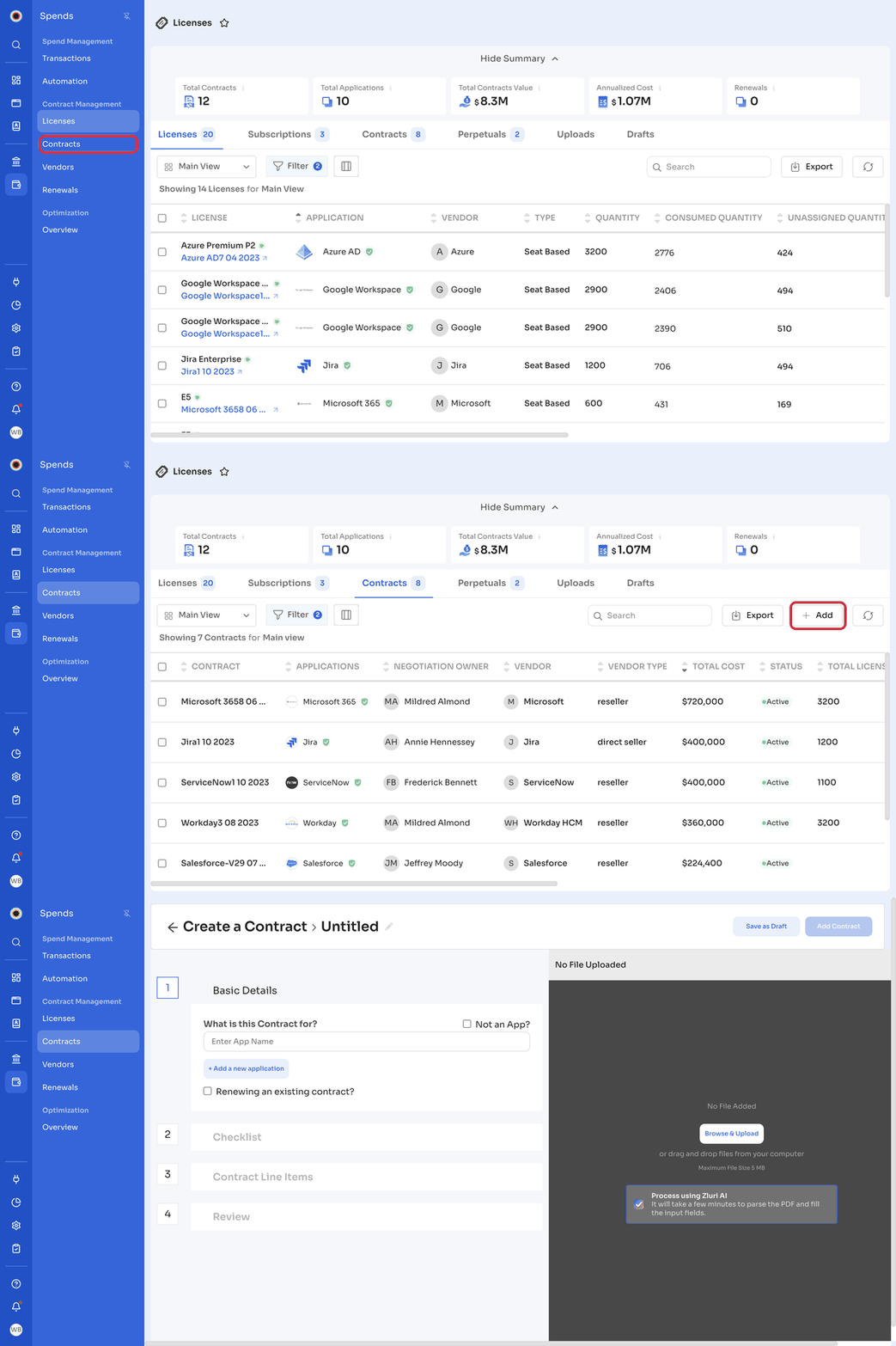
The Create a Contract page opens. The form is on the left, and a document panel is on the right.
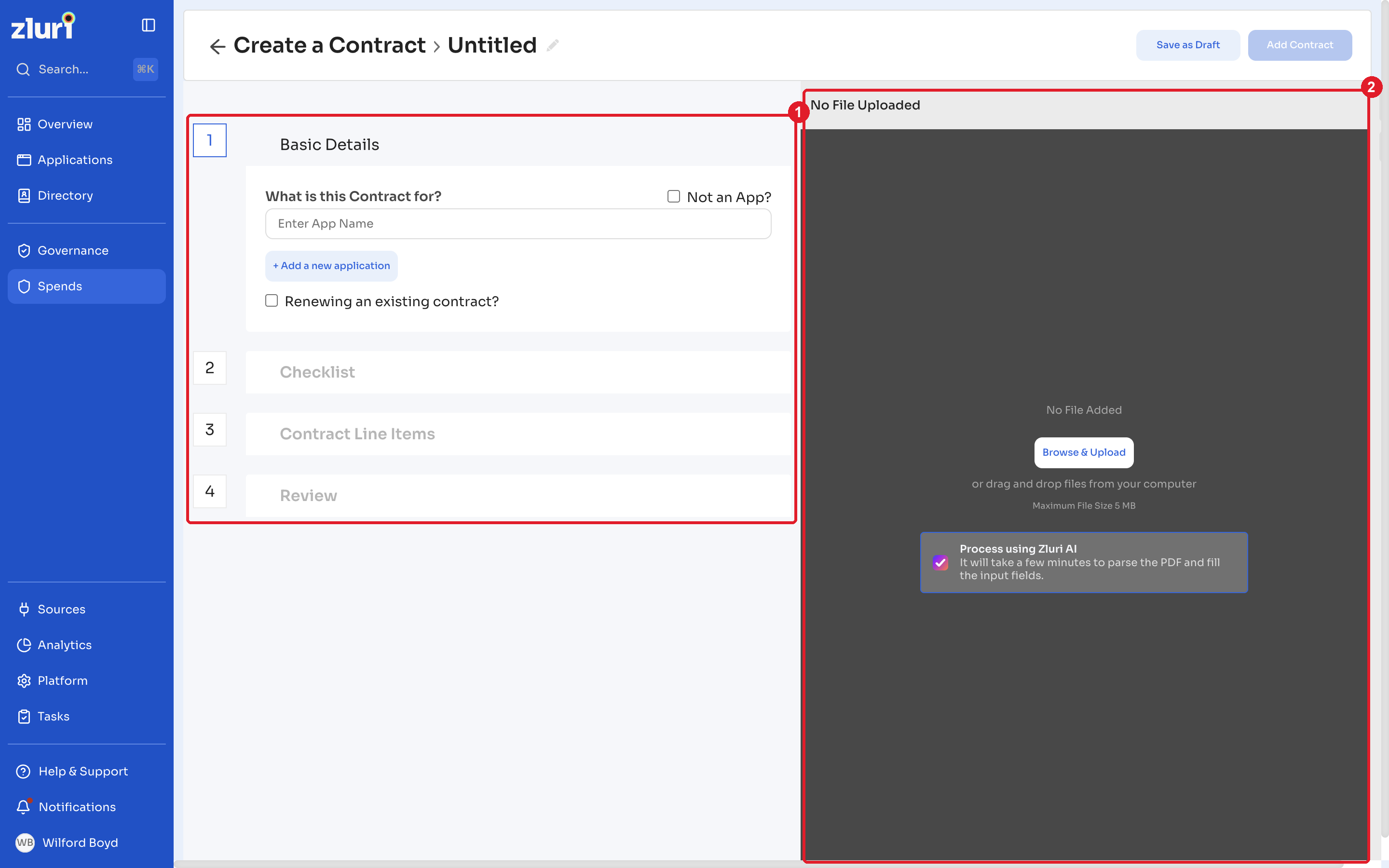
Let Zluri AI fill in the formTo skip manual entry, upload the contract PDF in the document panel on the right. Click Browse & Upload or drag and drop the file, and keep Process using Zluri AI selected. Zluri AI reads the PDF and fills in the fields in a few minutes. Files can be up to 5 MB. For more, see Contract Upload and Contract Mapping Process.
Step 1: Enter basic details
Select the applications
A contract can cover more than one application. Add every application the contract's line items apply to. Renewals, spend, and the application-level views follow every application on the contract. Existing contracts keep their single application until you add another one.
Each line item belongs to one application, and a license is counted the same way as on a single-application contract. For example, one Atlassian contract can cover both Jira and Confluence, with separate line items for each. A Microsoft Enterprise Agreement can include Microsoft 365, Visio, Power Apps, and GitHub licenses.
Steps
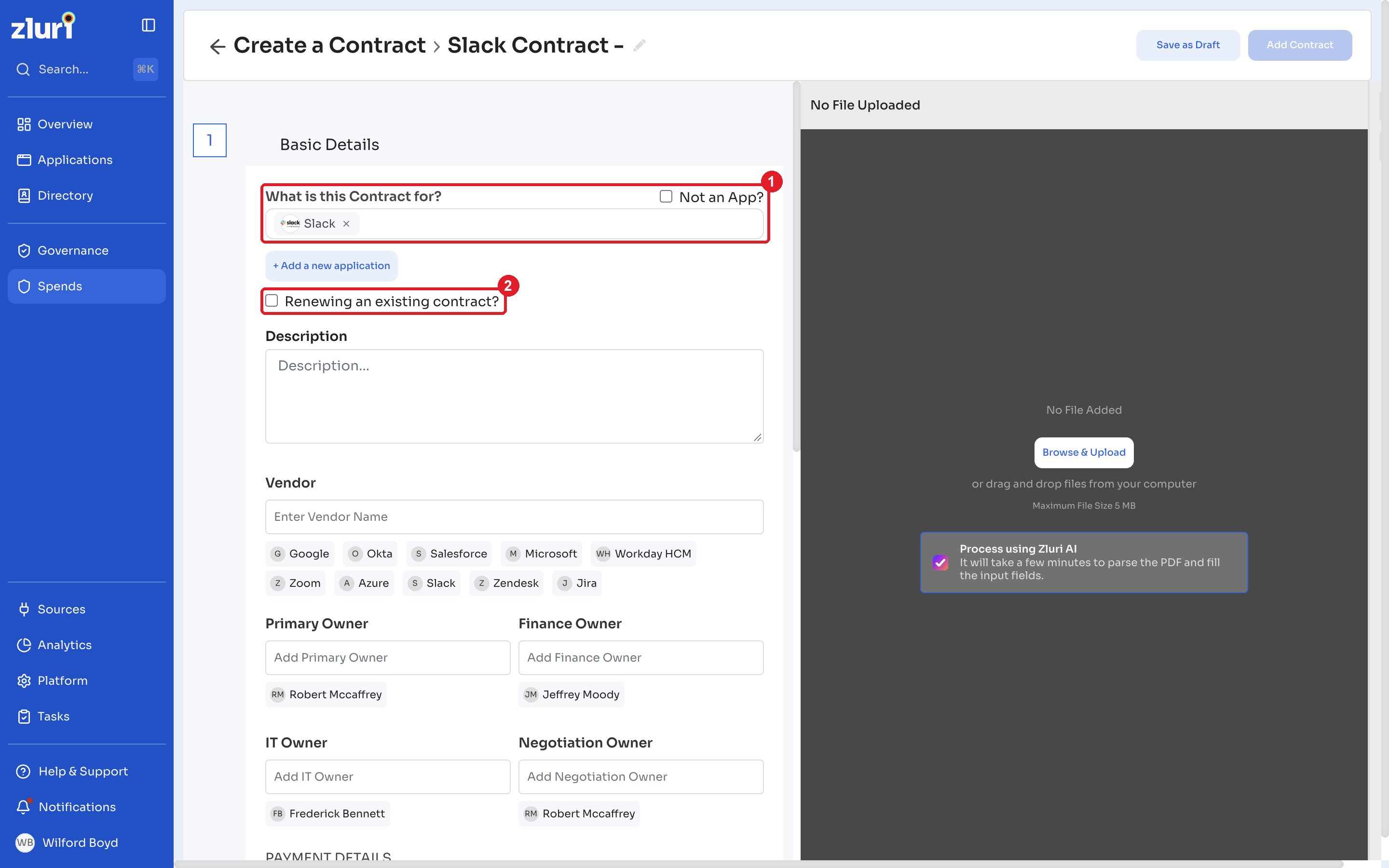
- Under What is this Contract for?, search for and select each application the contract covers. To add an application that isn't in Zluri yet, click + Add a new application.
- Select Not an App? if the contract isn't for an application.
- If this contract renews an existing one, select Renewing an existing contract? and select the earlier contract.
Zluri names the contract automatically from the application and start date, for example Slack Contract - 01 Oct 2026. Click the edit icon next to the name at the top of the page to rename it.
Removing applicationsRemove an application from the list only when no line item in the contract uses it. If a line item still uses the application, the remove option is disabled and shows the number of linked licenses. Change or delete those line items first.
Contracts API and multiple applicationsIf you integrate with the Zluri contracts API, a contract now returns an
appsarray along with the existingapp_namefields. Every existing field is still populated, and nothing changes for a contract with a single application. An integration that assumes a contract has exactly one application reads only the first application and misses the rest. Update it to read theappsarray before you add applications to existing contracts.
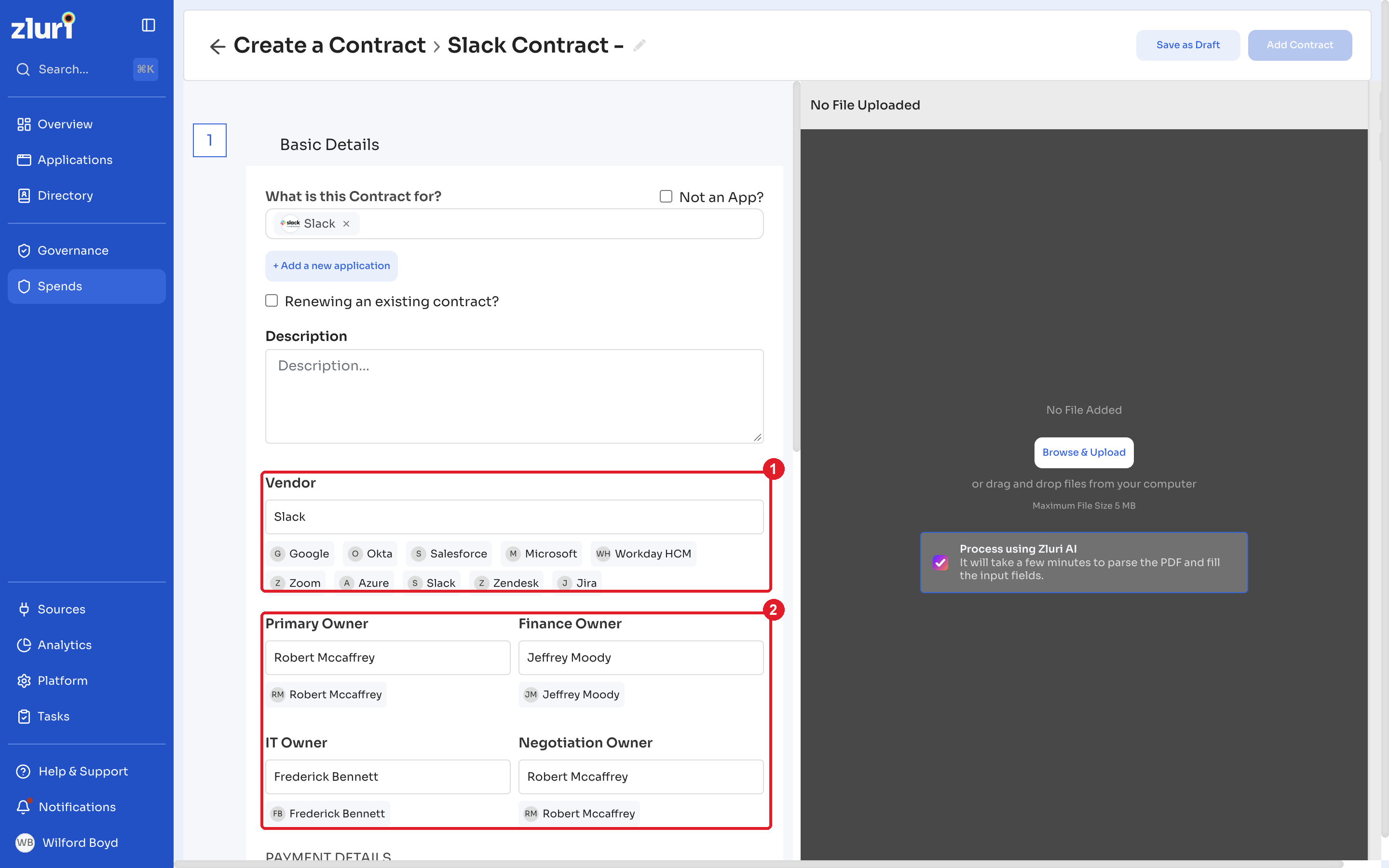
Add the description, vendor, and owners
| Field | Description |
|---|---|
| Description | A short description of the contract. |
| Vendor | The vendor that provides the contract. Select a suggested vendor or search for one. |
| Primary Owner | The main owner of the contract. |
| Finance Owner | The person responsible for the contract's finances. |
| IT Owner | The person responsible for the contract on the IT side. |
| Negotiation Owner | The person who negotiates the contract with the vendor. |
Owners receive contract reminders, so assign each owner who needs to know about renewals and payments. See Contract Notifications and Reminders.
Enter the payment details
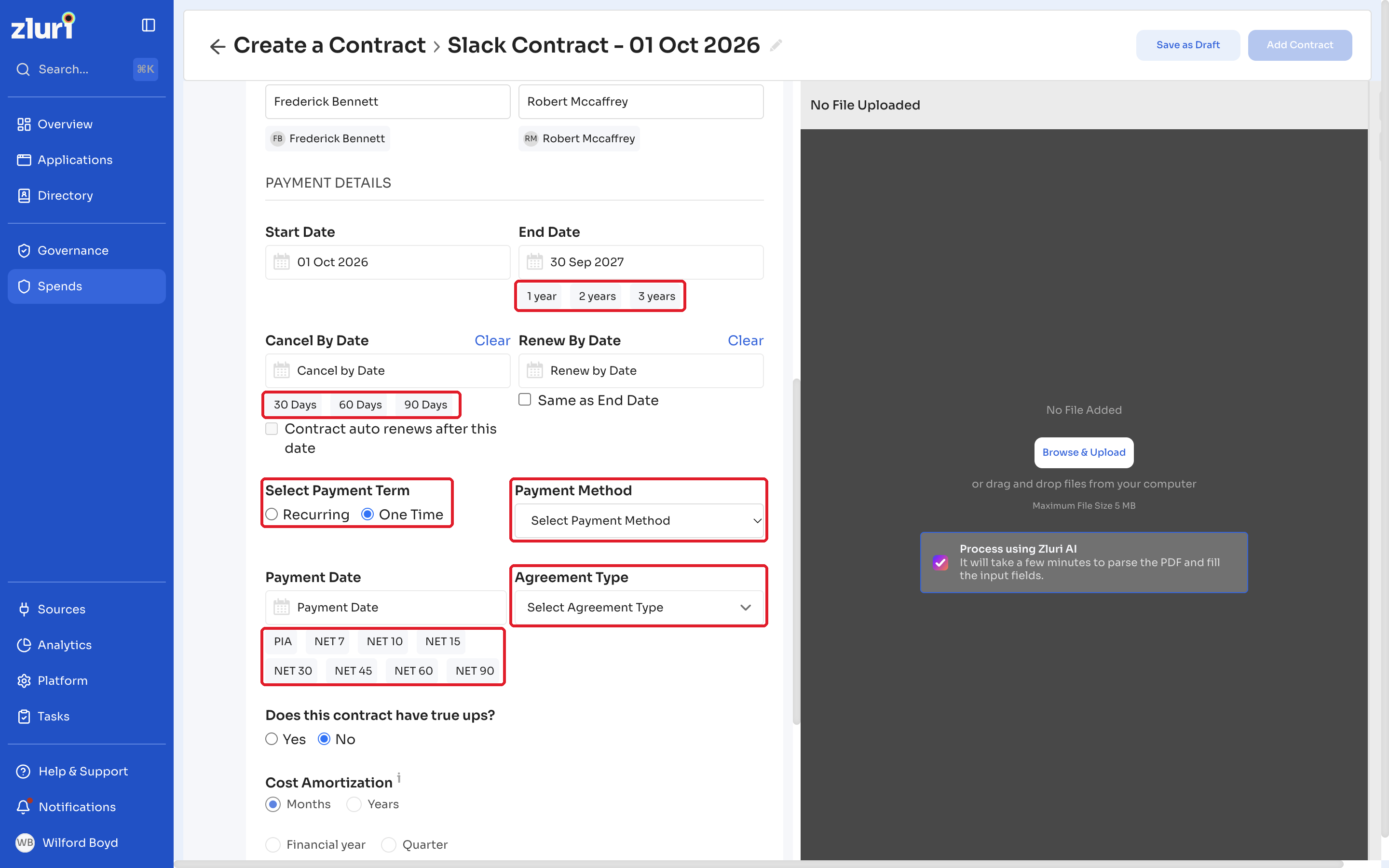
Under PAYMENT DETAILS, enter the contract dates and payment terms:
| Field | Description |
|---|---|
| Start Date | The date the contract starts. |
| End Date | The date the contract ends. Click 1 year, 2 years, or 3 years to set it from the start date. |
| Cancel By Date | The last date to cancel before the contract renews. Click 30 Days, 60 Days, or 90 Days to set it before the end date. Select Contract auto renews after this date if the contract renews automatically. |
| Renew By Date | The date to renew the contract by. Select Same as End Date to match the end date. |
| Select Payment Term | Whether you pay One Time or on a Recurring schedule. |
| Payment Method | The credit card, bank account, or other payment method used for the contract. |
| Payment Date | The date payment is due. Click PIA, NET 7, NET 10, NET 15, NET 30, NET 45, NET 60, or NET 90 to set it from the start date. |
| Agreement Type | The contract's role in your vendor relationship: Master, SOW, Service, True Up, Order, or Others. |
| Does this contract have true ups? | Select Yes if the contract allows buying additional licenses after signing. |
| Cost Amortization | How Zluri spreads the contract cost over time: Months, Years, Financial year, Quarter, or Start date. |
Use Clear next to Cancel By Date or Renew By Date to remove a date. When you finish, click Next.
Step 2: Complete the checklist
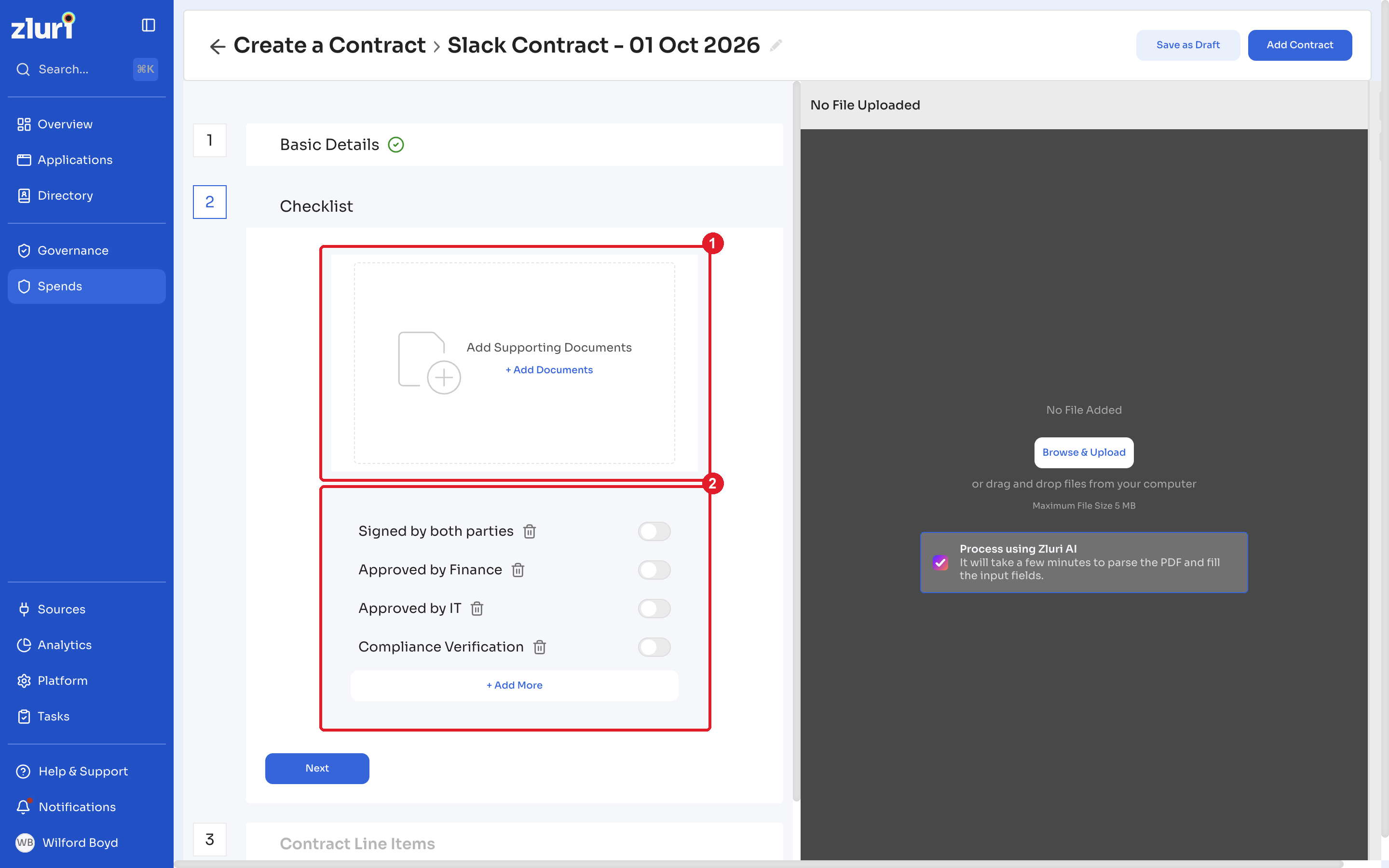
Use the checklist to attach supporting documents and track approvals.
Steps
- Click + Add Documents to attach the contract and any supporting documents.
- Turn on each checklist item that applies: Signed by both parties, Approved by Finance, Approved by IT, or Compliance Verification.
- Click + Add More to add a custom checklist item, or click the delete icon to remove one.
- Click Next.
The checklist status appears on the contract's details page after you add the contract.
Step 3: Add contract line items
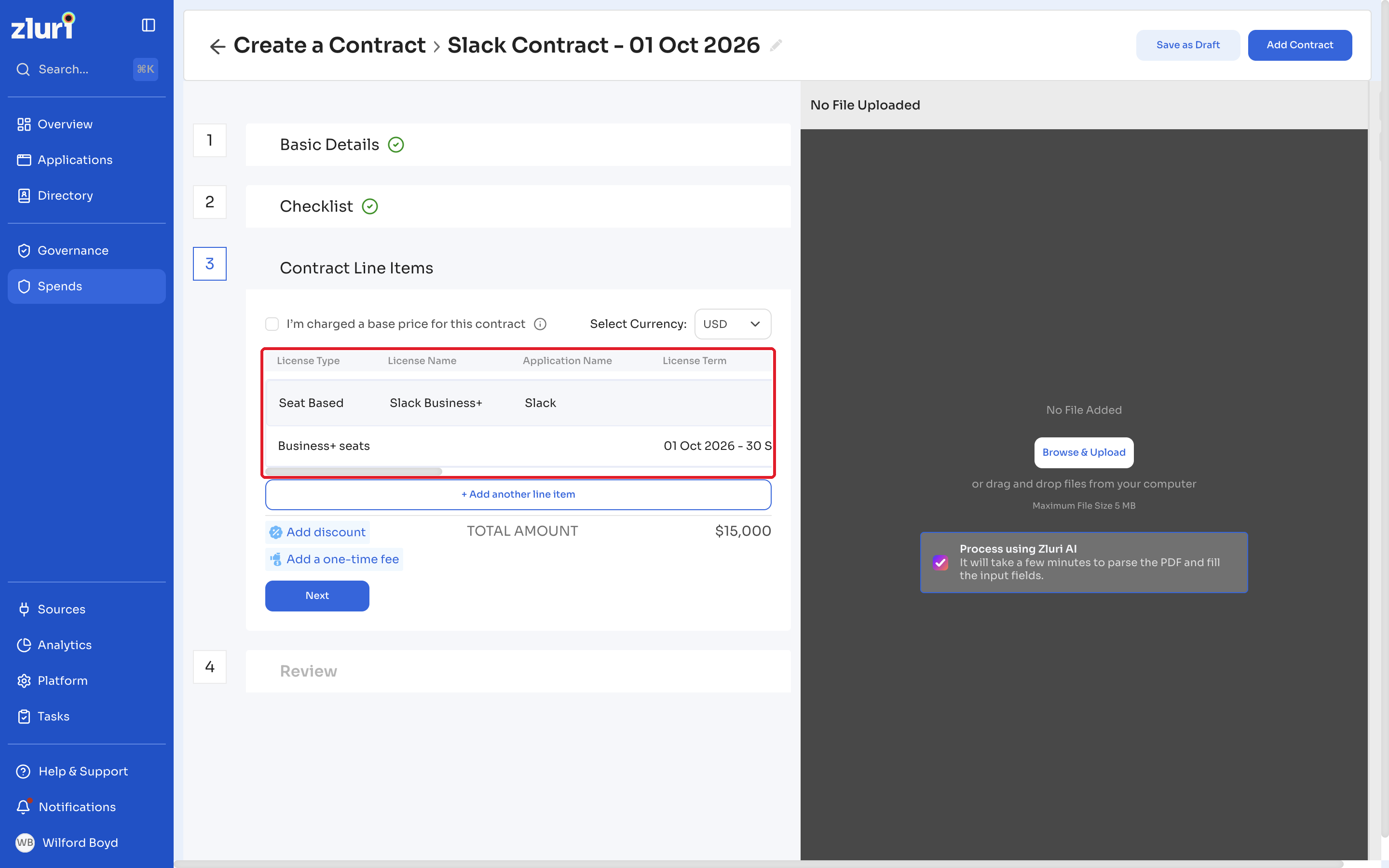
Line items capture each license in the contract and what it costs.
Steps
- If the vendor charges a flat base price for the contract, select I'm charged a base price for this contract.
- From Select Currency, select the contract currency.
- Click + Add a new line item and enter the details for each license, such as License Type, License Name, Application Name, and License Term.
- Click Add discount or Add a one-time fee if either applies.
- Review the TOTAL AMOUNT, then click Next.
Choose the application for a line item
Every line item needs an application. The Application Name list shows the applications you selected in Step 1. To use an application that isn't in the list, search for it or create it from the same list. Zluri adds it to the contract's applications automatically.
Map a line item to an existing license
A line item records what the contract pays for. If Zluri already discovered the license in the application, map the line item to it, so the license and its users roll up to this contract instead of staying unmapped.
Steps
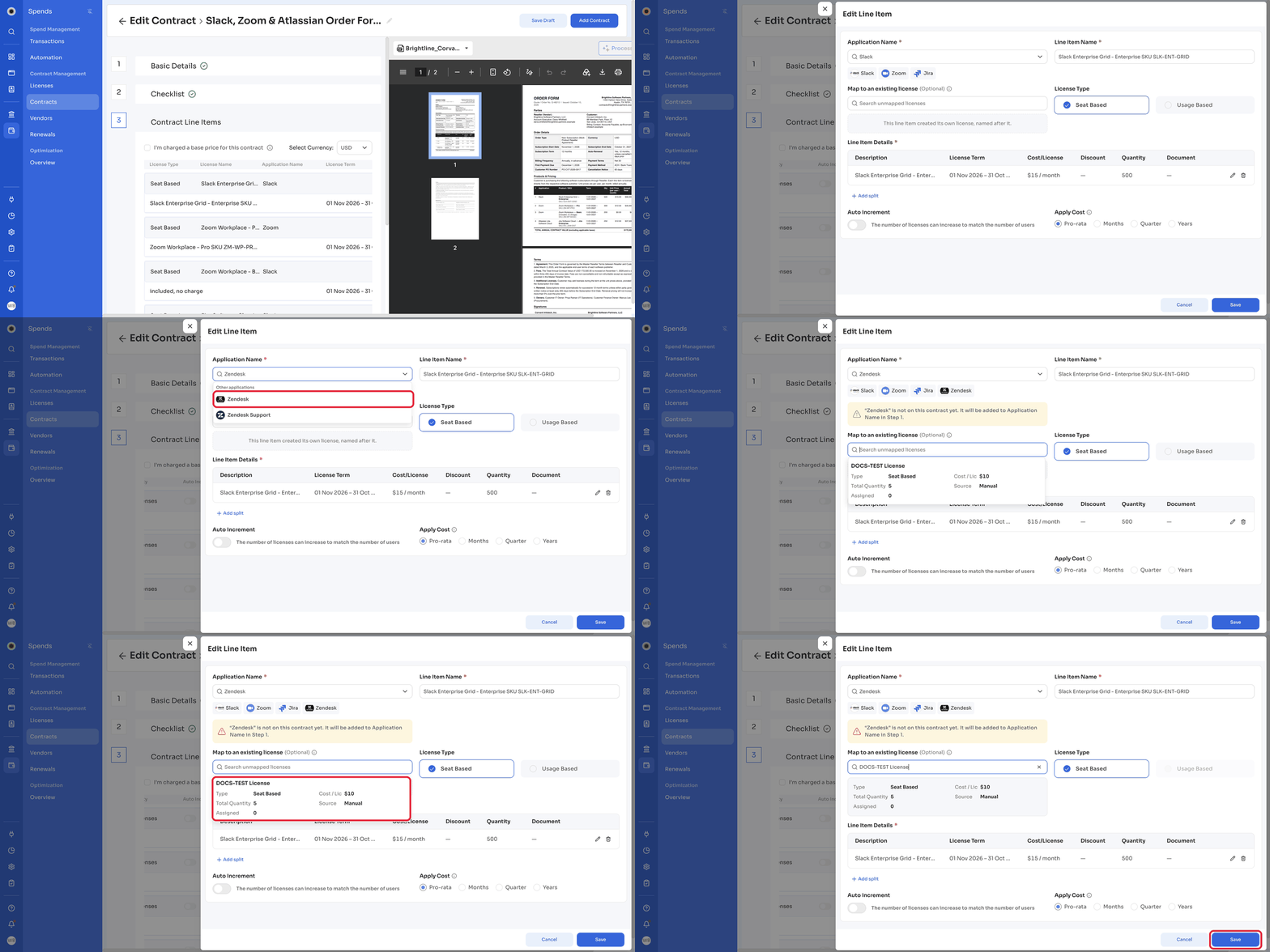
- In the Add Line Item panel, select the Application Name. When you edit an existing line item, use the Edit Line Item panel instead. This works for manual contracts and for contracts that Zluri AI created from an uploaded PDF.
- Under Map to an existing license (Optional), click Search unmapped licenses. The list shows only the selected application's licenses that aren't mapped to any contract yet, from an integration or added manually. Each result shows its Type, Cost / Lic, Total Quantity, Source, and Assigned count.
- Select the license. Its details appear below the field. To choose a different license, click the clear icon in the field.
- Complete the line item details, then click Save.
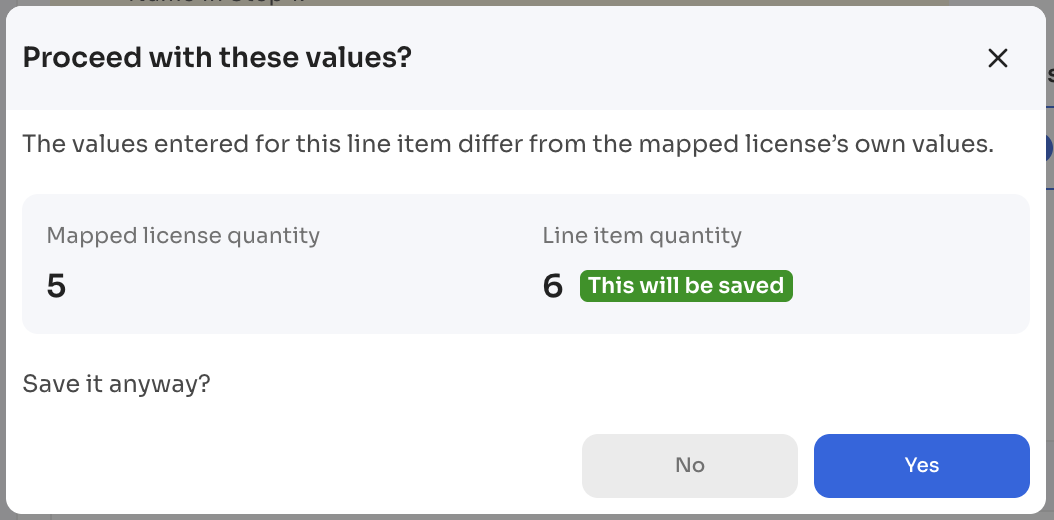
- If the line item's values differ from the license's own values, Zluri shows Proceed with these values? with the message The values entered for this line item differ from the mapped license's own values. It compares the values side by side, such as Mapped license quantity with Line item quantity, or Mapped license cost with Line item cost. The line item's values are tagged This will be saved.
- Under Save it anyway?, click Yes to save the mapping with the line item's values, or click No to go back without saving.
If the application has no unmapped licenses, the list shows No unmapped licenses found for this application.
After you map a license, the contract's Quantity and Cost/License values take precedence, and Zluri replaces the license's values with them. A license can be mapped to only one line item at a time. When you save the contract, Zluri checks that each license you selected is still unmapped, because another contract or draft may have mapped it first.
You can also map a license that's already in Zluri from the Licenses tab. See From the Licenses page.
Add licenses with different terms
Add the same license as separate line items when parts of it cover different periods or quantities. For example, add one line item for 100 seats from January and another for 20 more seats from July. Set each line item's period in License Term.
Choose how Zluri calculates cost
Apply Cost sets the minimum duration for which Zluri applies cost to the license. When a license term starts partway through a billing period, this setting decides how much Zluri charges for that period:
| Setting | How Zluri calculates the cost |
|---|---|
| Pro-rata | Only for the days the licenses are active. |
| Months | For the full month, regardless of the days used. |
| Quarter | For the full quarter, regardless of the days used. |
| Years | For the full year, regardless of the days used. |
Step 4: Review and add the contract
Steps
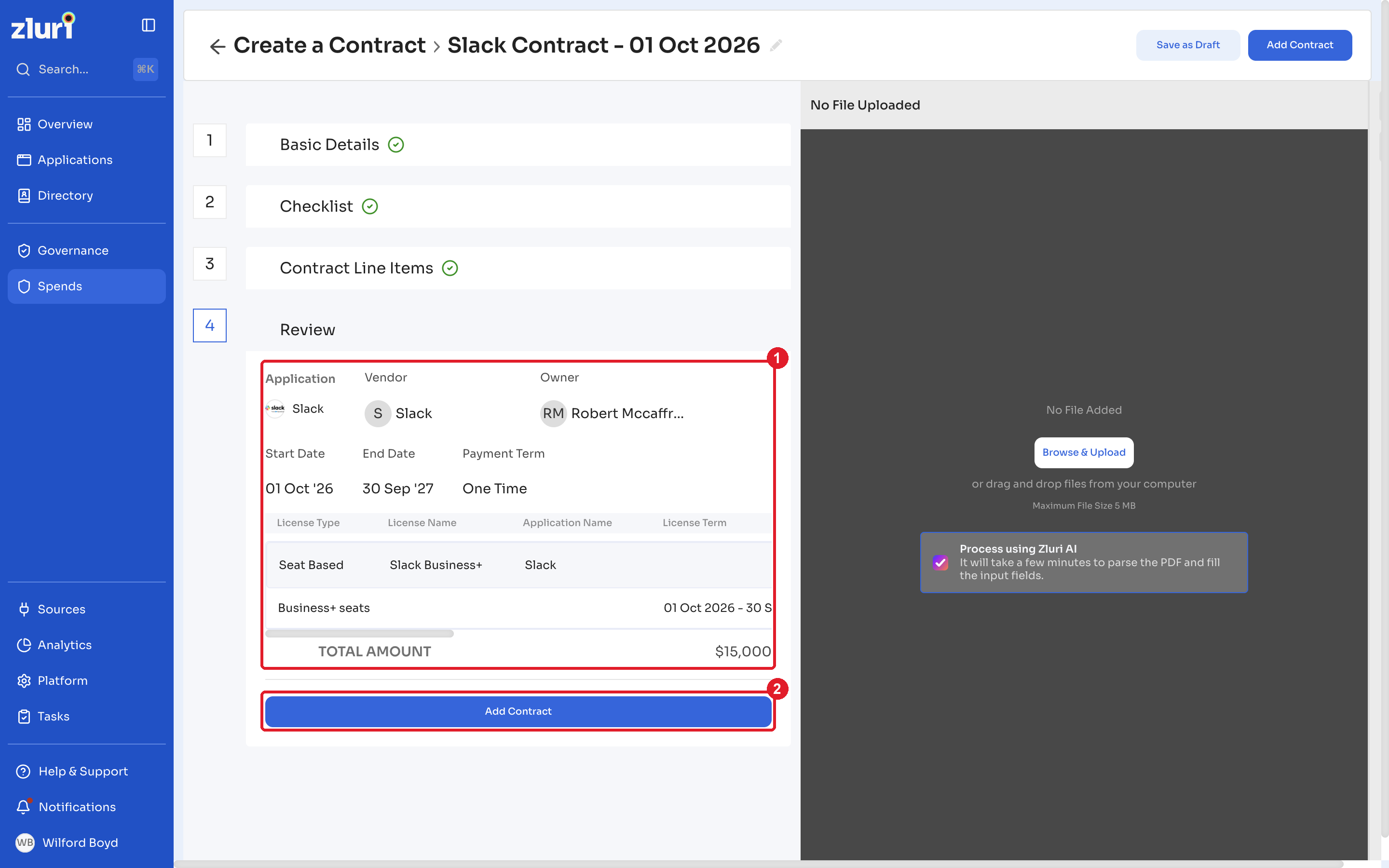
- Review the application, vendor, owner, dates, payment term, and line items.
- To change a detail, click the section you want to update.
- Click Add Contract.
To finish later, click Save as Draft at the top of the page. Find saved drafts on the Drafts tab.
Zluri confirms that it added the contract and opens the contract's details page. Renewals and costs may take some time to appear.
Map licenses to usersAfter you add the contract, click Map Licenses Now on its Overview tab to assign the licenses to users. To assign users for one line item, click Assign users next to it. See Assign Licenses to Users.
Related articles
- Contracts
- Contract Upload and Contract Mapping Process
- Assign Licenses to Users
- Contract Notifications and Reminders
- Map Licenses to Contracts
Got questions? Feel free to submit a ticket or contact us directly at [email protected].
Updated about 6 hours ago