
Vendors
The Vendors page lists the vendors you buy applications from, with their contracts, spend, and costs. Use it to see how much you spend with each vendor and to keep vendor details and contacts in one place.
Open the Vendors page
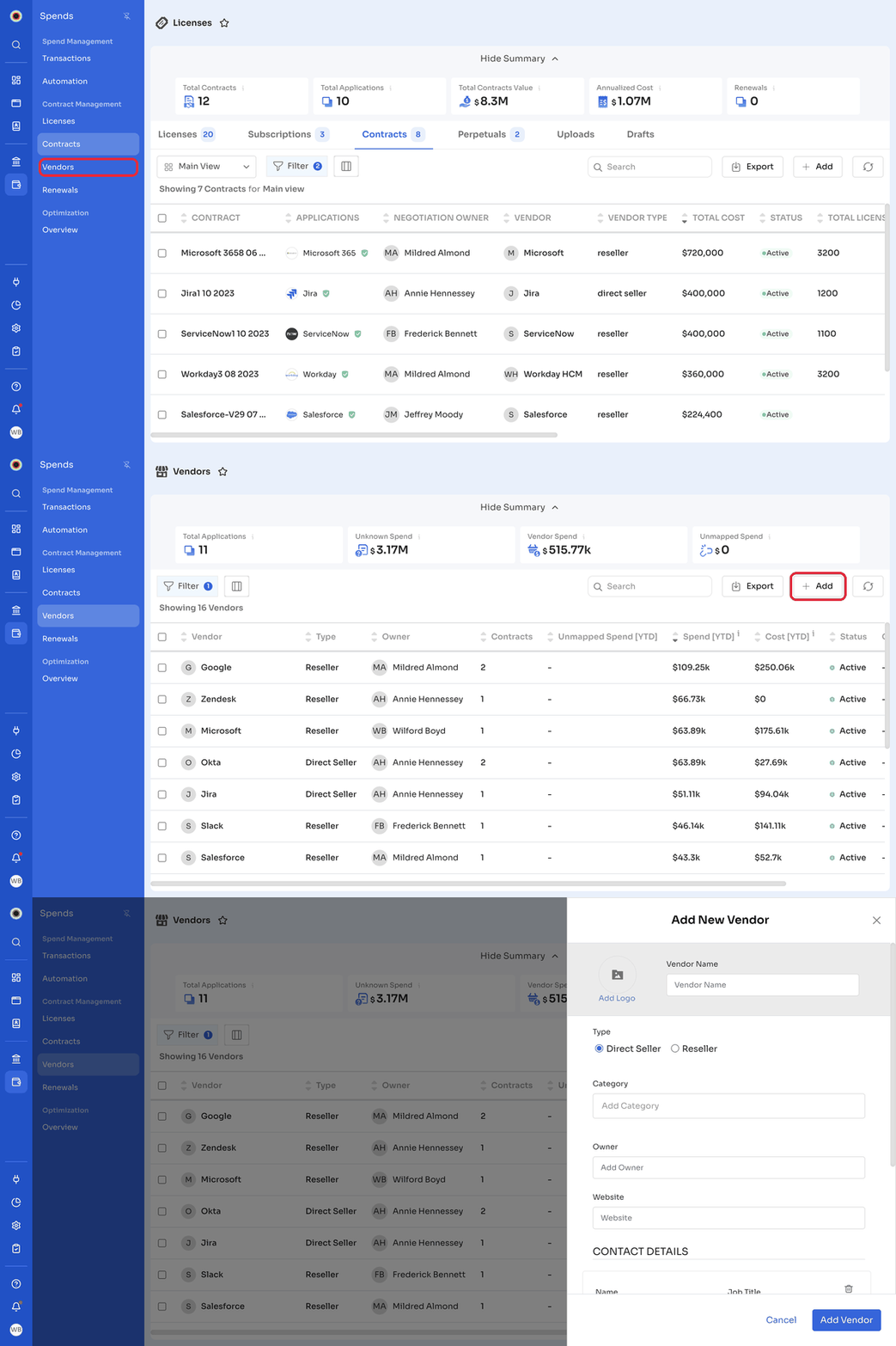
In the left navigation, click Spends, then click Vendors under Contract Management.
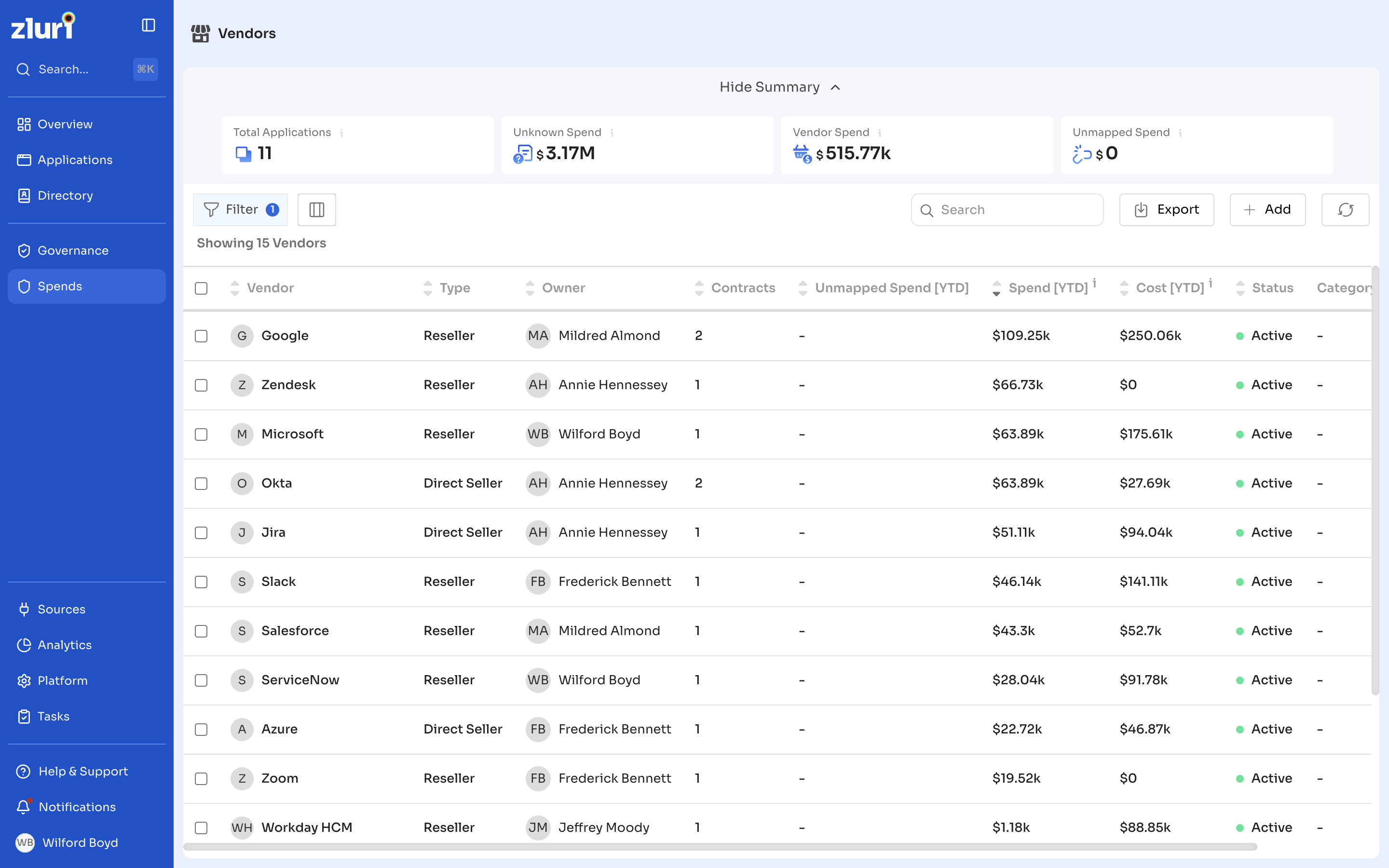
The page opens with a summary at the top. Click Hide Summary to collapse it. Hover over the info icon next to a metric to see its definition.
| Metric | Description |
|---|---|
| Total Applications | Number of applications with an active vendor. |
| Unknown Spend | Total spends for the current fiscal year that are not mapped to a vendor. |
| Vendor Spend | Total spends for the current fiscal year that are mapped to a vendor. |
| Unmapped Spend | Total spends for the current fiscal year that are mapped to a vendor but not to an application. |
Vendor list
| Column | Description |
|---|---|
| Vendor | The vendor's name. |
| Type | Whether the vendor is a Direct Seller or a Reseller. |
| Owner | The person who owns the vendor relationship. |
| Contracts | The number of contracts with the vendor. |
| Unmapped Spend [YTD] | Unmapped spend with the vendor this year. |
| Spend [YTD] | Spend with the vendor this year. |
| Cost [YTD] | Cost with the vendor this year. |
| Status | The vendor's status, for example Active. |
| Category | The vendor's category. |
| App Count | The number of applications from the vendor. |
Use Filter to filter the list, the columns icon to choose which columns to show, and Export to export the list.
Add a vendor
- On the Vendors page, click + Add.
- In Add New Vendor, enter the Vendor Name. To add a logo, click Add Logo.
- Select the Type: Direct Seller or Reseller.
- Optionally, add the Category, Owner, and Website.
- Under CONTACT DETAILS, add the vendor's contacts, such as their Name and Job Title.
- Click Add Vendor.
View a vendor
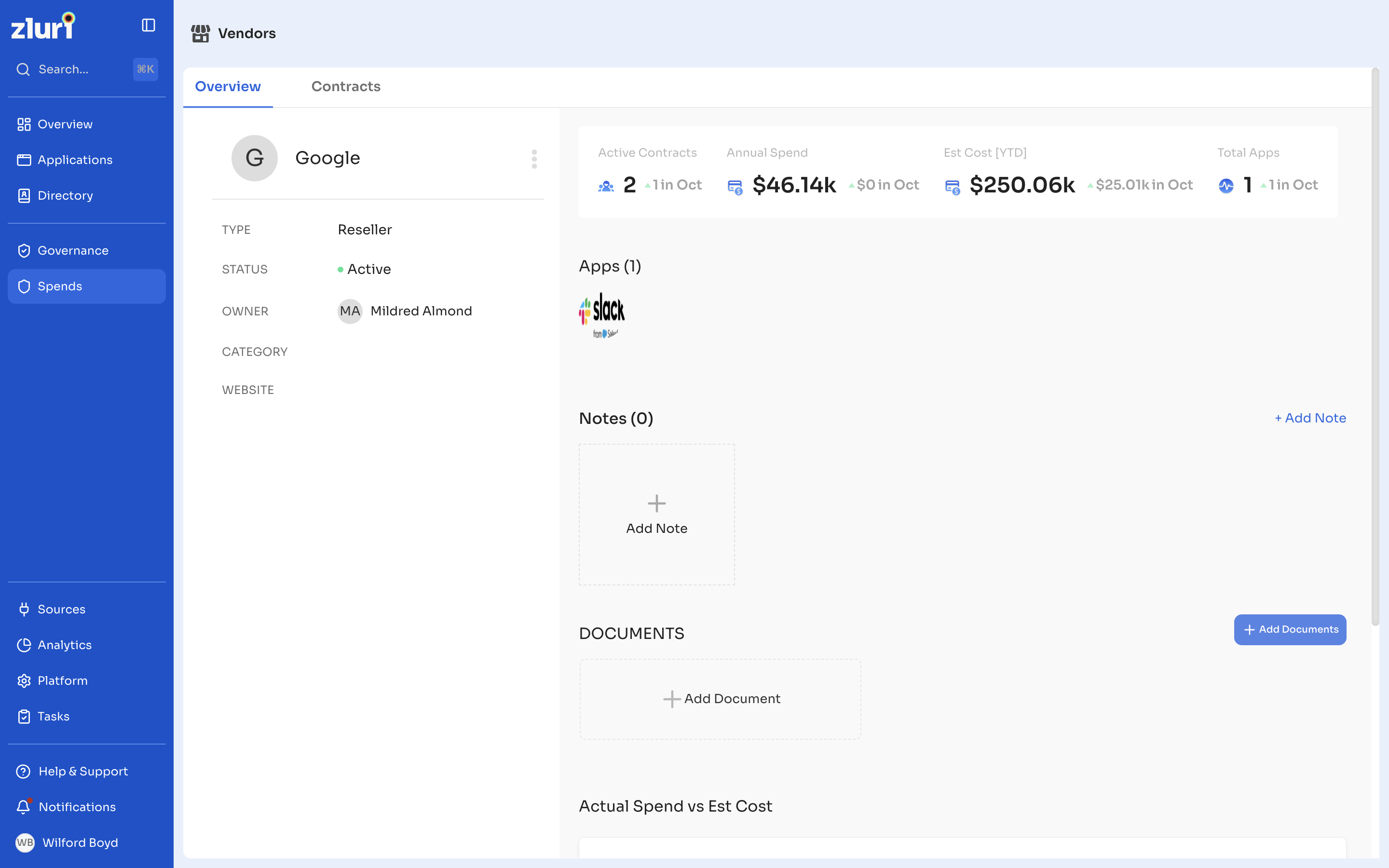
Click a vendor's name to open its details page. The page has two tabs: Overview and Contracts.
The Overview tab shows:
- The vendor's Type, Status, Owner, Category, and Website.
- Active Contracts, Annual Spend, Est Cost [YTD], and Total Apps, with the change for the current month.
- The vendor's Apps, Notes, and Documents.
- An Actual Spend vs Est Cost chart.
The Contracts tab lists the vendor's contracts.
Related articles
Updated 10 days ago
Did this page help you?