
Assign Licenses to Users
License mapping connects the licenses your organization pays for with the people and purchases they belong to. Without mapping, Zluri knows how many licenses you own but not who holds them or which contract they came from. Mapping closes that gap, so Zluri reports accurate spend forecasts, renewal dates, utilization, and optimization data.
This article covers assigning licenses to users. To connect a license to the contract line item it was purchased under, see Map Licenses to Contracts.
Map licenses to users
Map licenses to users after you add a contract or subscription, or whenever new users start using an application. Until you map licenses, the contract or subscription's Overview tab shows a Just one more step pending banner.
Steps
- In the left navigation, click Spends.
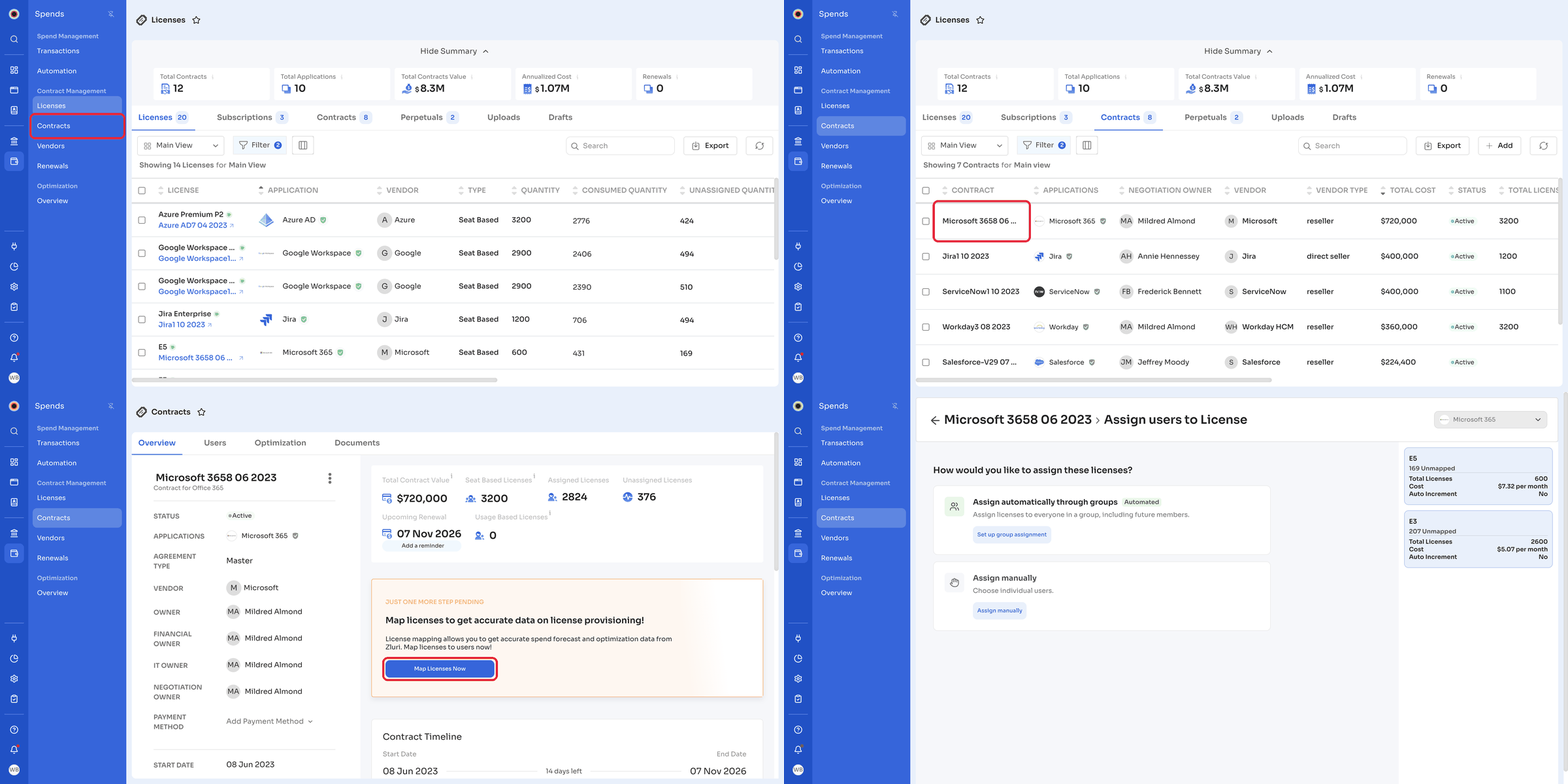
- Under Contract Management, click Licenses, then open the Contracts or Subscriptions tab.
- Click the contract or subscription name to open its details.
- On the Overview tab, click Map Licenses Now.
You can also start from the application. Go to the application's Contract & Licenses tab, open the Licenses table, and click ⋮ > Assign Users on the license row.
To assign users for one line item, open the contract's Overview tab and click Assign users next to the line item. The page opens with that line item's application already selected.
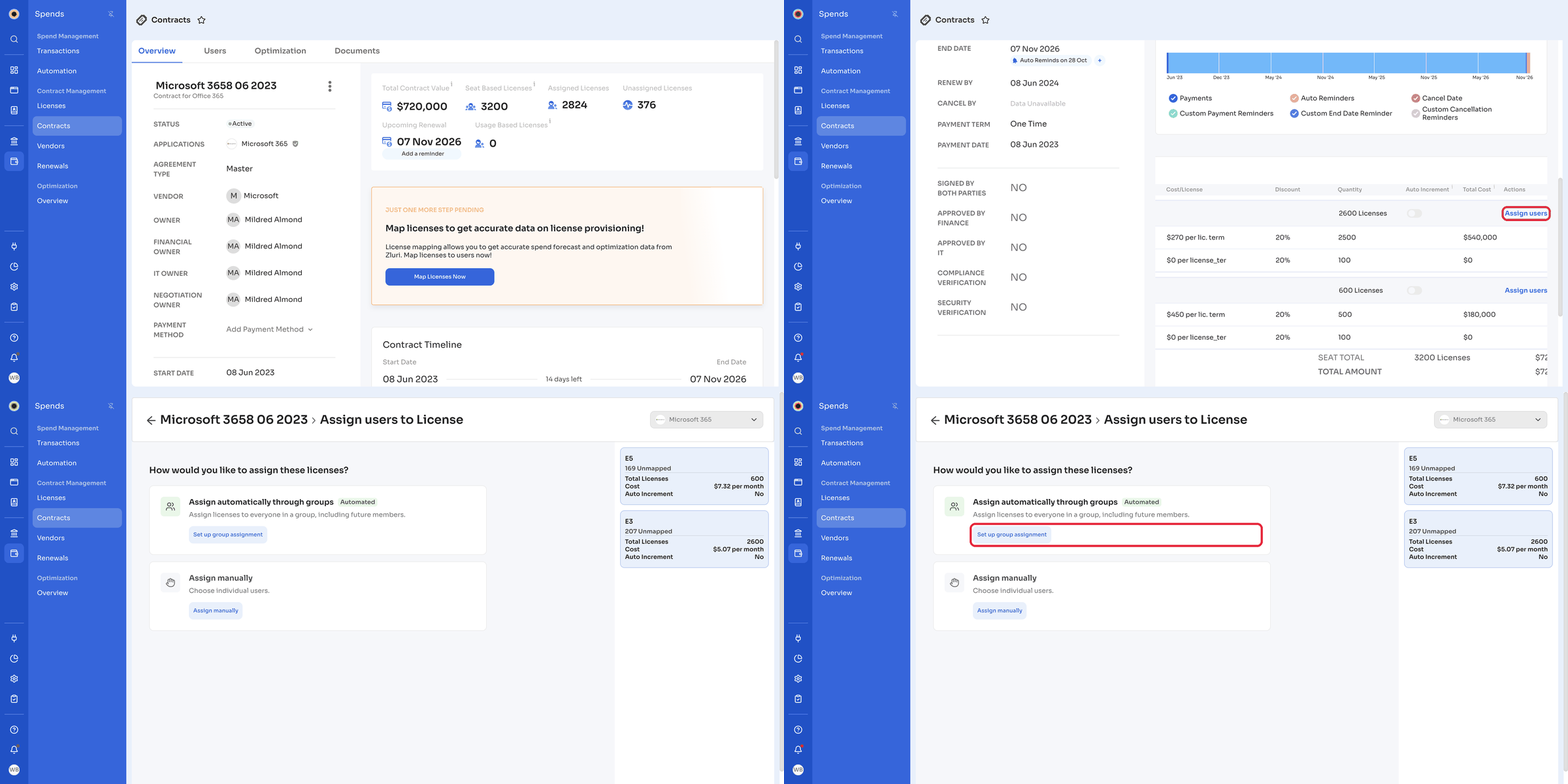
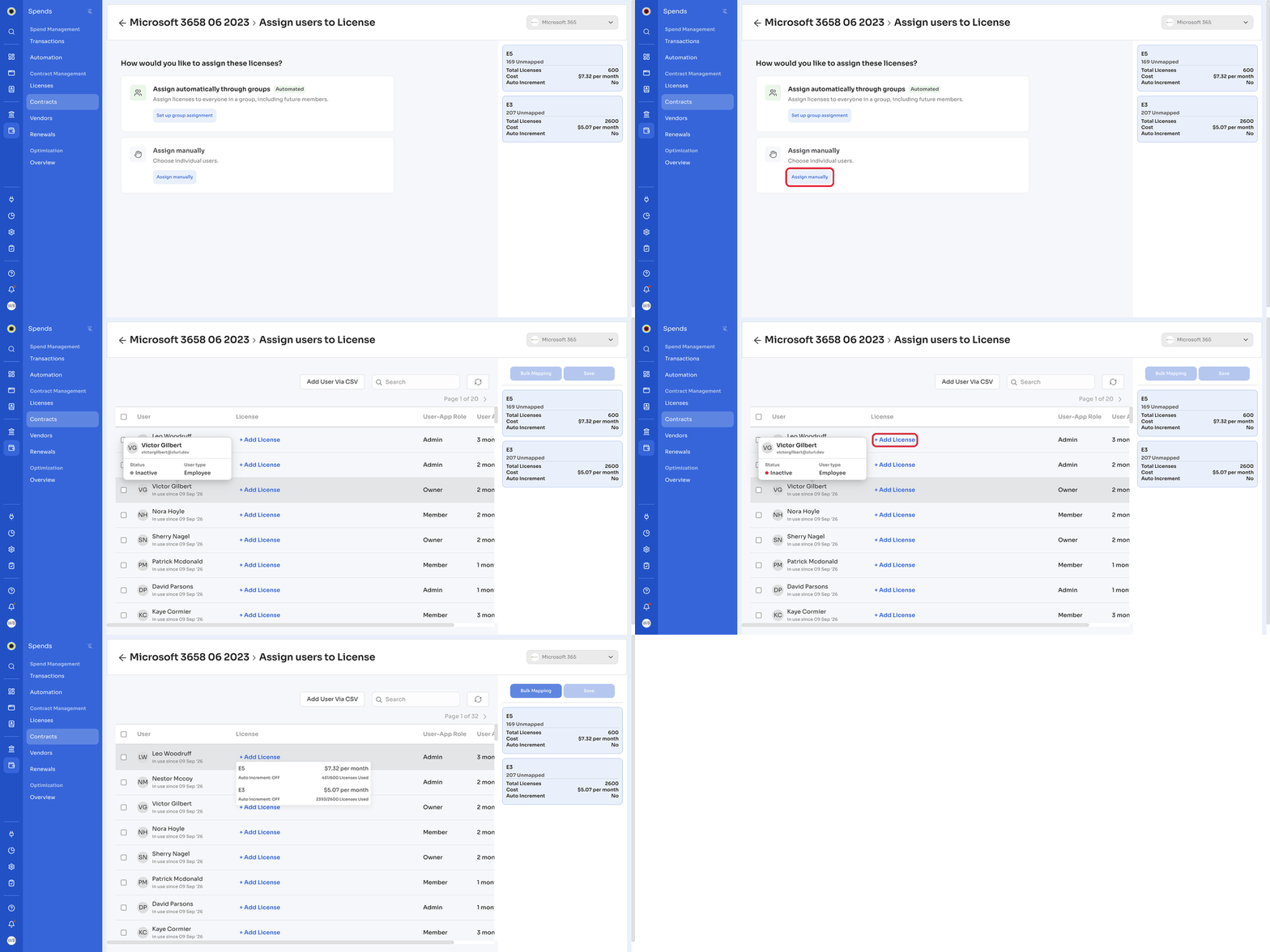
The Assign users to License page opens and asks How would you like to assign these licenses? To map licenses for a different application in the same contract or subscription, select it from the application selector in the top-right corner.
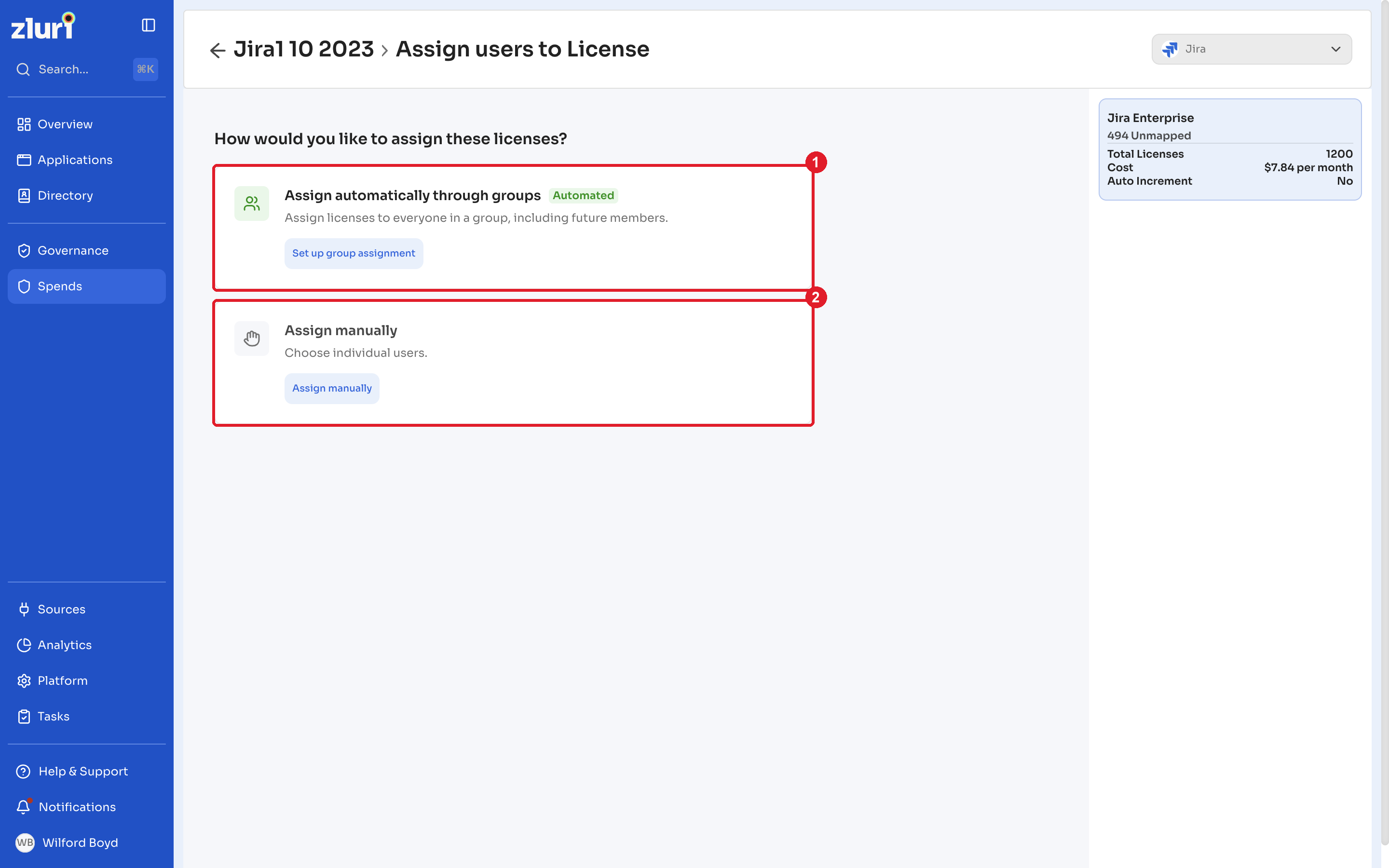
Choose one of two methods:
| Method | When to use it |
|---|---|
| Assign automatically through groups | Assign licenses to everyone in a group, including future members. |
| Assign manually | Choose individual users, for example contractors, exceptions, or partial rollouts. |
Assign licenses through groups
BetaGroup assignment is in beta.
Group assignment appears as an option next to Assign manually, both on the application's license mapping screen and in the contract license mapper. It opens the application's group assignment settings, already scoped to the license you're working on.
When group assignment is availableYou see Set up group assignment only for applications connected through an integration that brings in group configuration. Applications added manually, or found only by the Zluri agent, don't have this option.
Steps
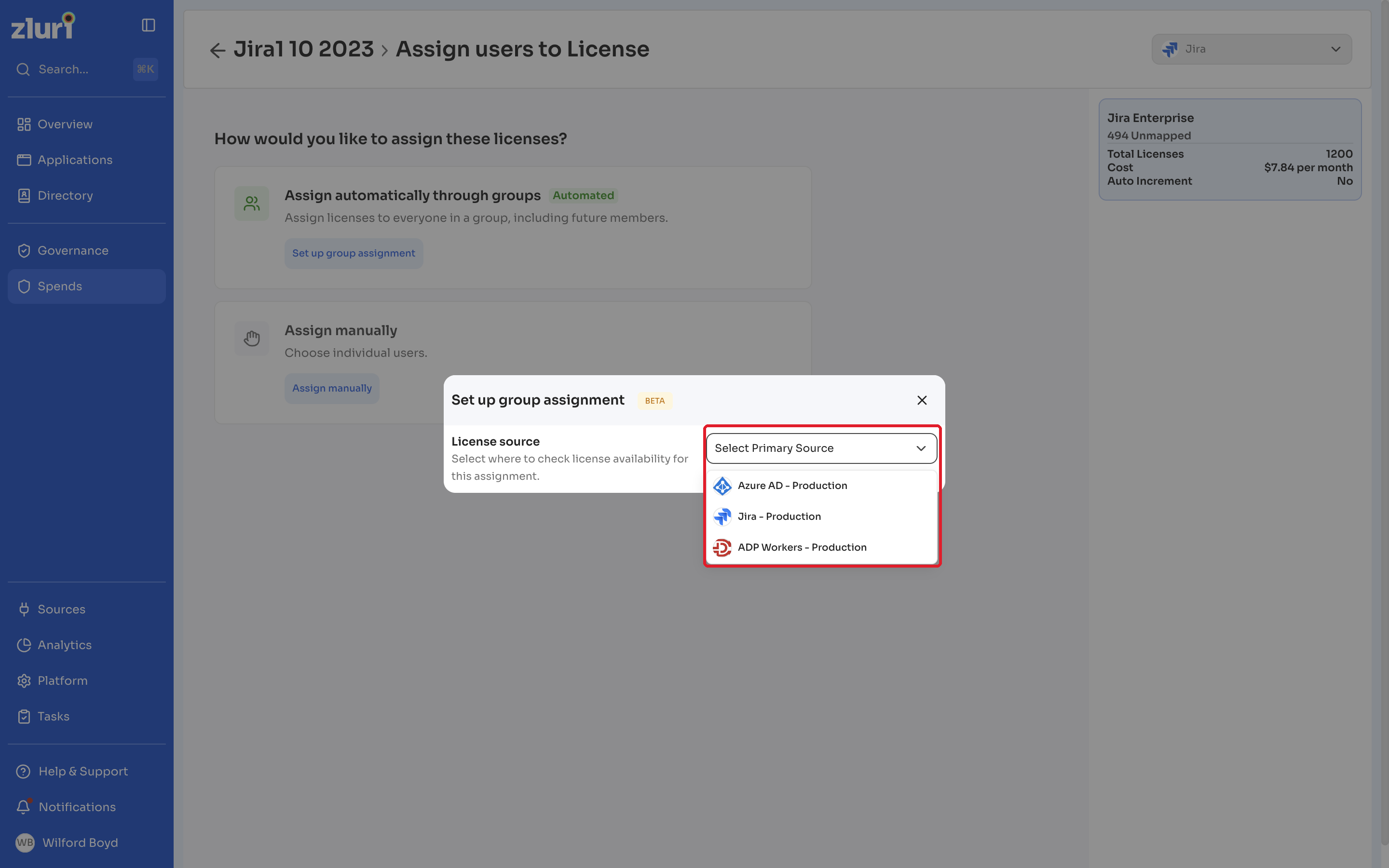
- Click Set up group assignment.
- In the Set up group assignment dialog, select a License source from Select Primary Source. This is the source Zluri brings the user groups in from, such as Okta - Production or Azure AD - Production.
- Select the groups from that source, and map each group to a line item (license). You can map one line item to each group. Zluri assigns the license to all users in the mapped group.
- Confirm the assignment.
Zluri schedules a background job to assign the licenses and shows License assignment job has been scheduled. It assigns licenses to the group's members and to anyone who joins the group later.
Sources without group syncIf the selected source doesn't sync groups, Zluri shows a message, for example Azure AD - Production does not sync groups, so there is nothing to assign licenses to. Pick a different source. Select a different source to continue.
Assign licenses manually
Click Assign manually to open the user table. The table lists the application's users with the following details:
| Column | Description |
|---|---|
| User | The user's name and the date they started using the application. |
| License | The license assigned to the user. Click + Add License to assign one. |
| User-App Role | The user's role in the application, such as admin or user. |
| User App Last Used | When the user last used the application. |
Steps
- Find a user in the table, or use Search.
- In the License column, click + Add License and select the license.
- Repeat for each user you want to assign.
- Click Save.
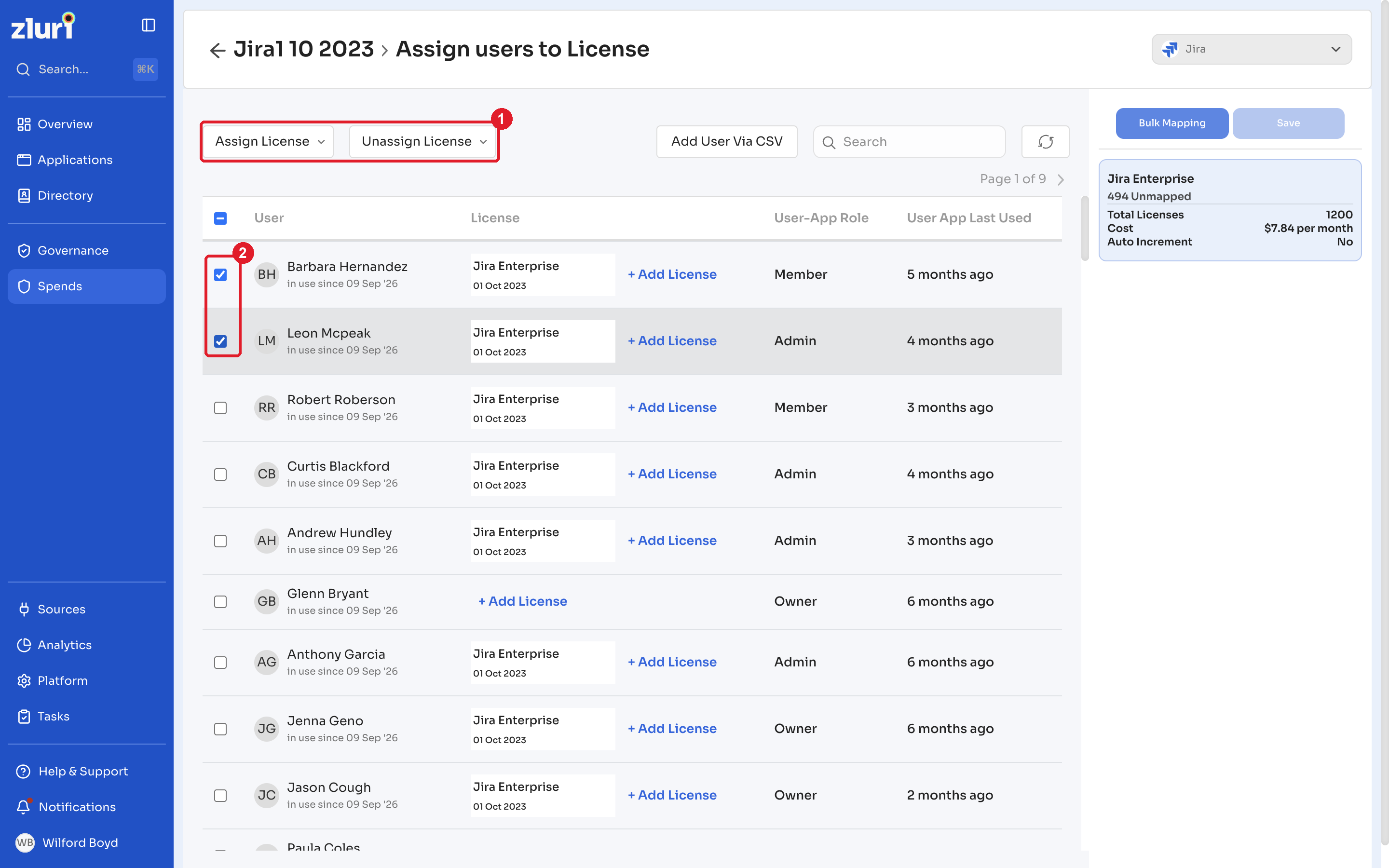
To assign or remove licenses for several users at once, select their checkboxes, then use Assign License or Unassign License.
Add users through a CSV file
Add users to the application in bulk when they don't appear in the table yet.
Steps
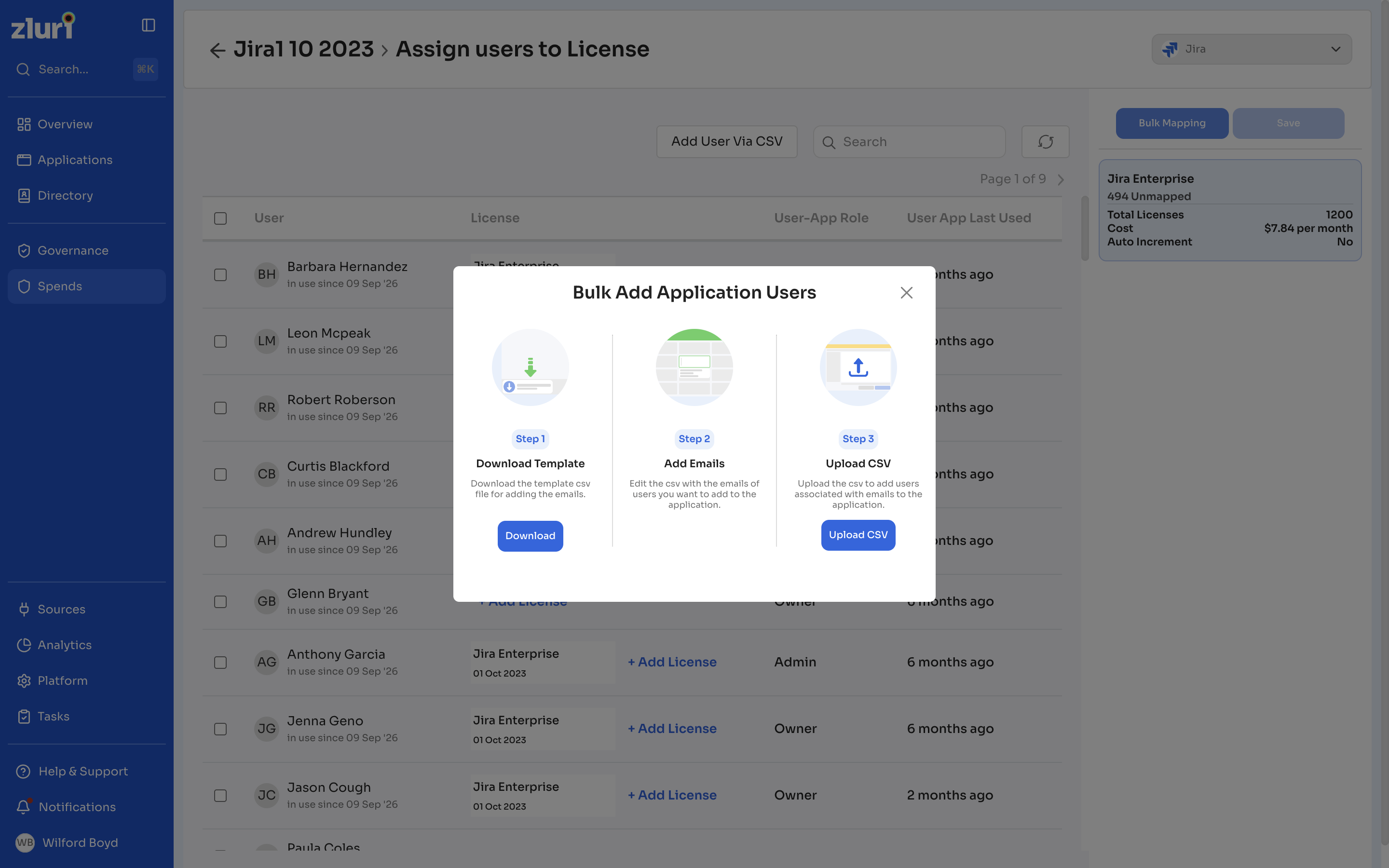
- Click Add User Via CSV. The Bulk Add Application Users dialog opens.
- Click Download to download the CSV template.
- Add the email addresses of the users to the template.
- Click Upload CSV and select the completed file.
Zluri queues the upload and notifies you in the app when it finishes processing the file.
Related articles
Got questions? Feel free to submit a ticket or contact us directly at [email protected].
Updated about 9 hours ago