
Transaction Uploads
The Uploads tab lists every CSV file you have uploaded to add spend transactions manually.
View uploads
- Go to Spends > Transactions.
- Click the Uploads tab.
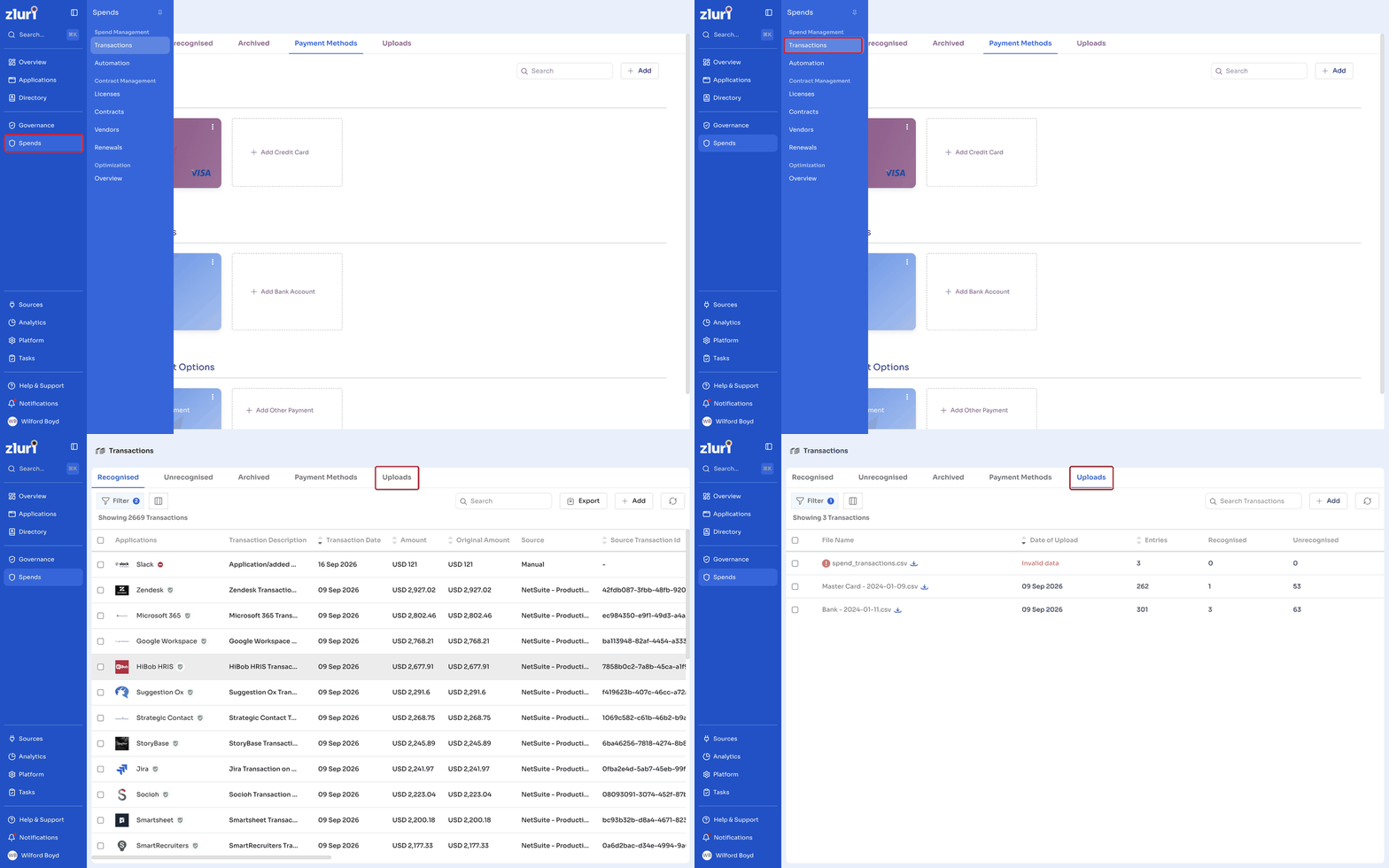
The table shows five columns: File Name, Date of Upload, Entries, Recognised, and Unrecognised.
Filter uploads
Click Filter to narrow the list by Date of Upload or Number of entries in a CSV file.
Upload a new file
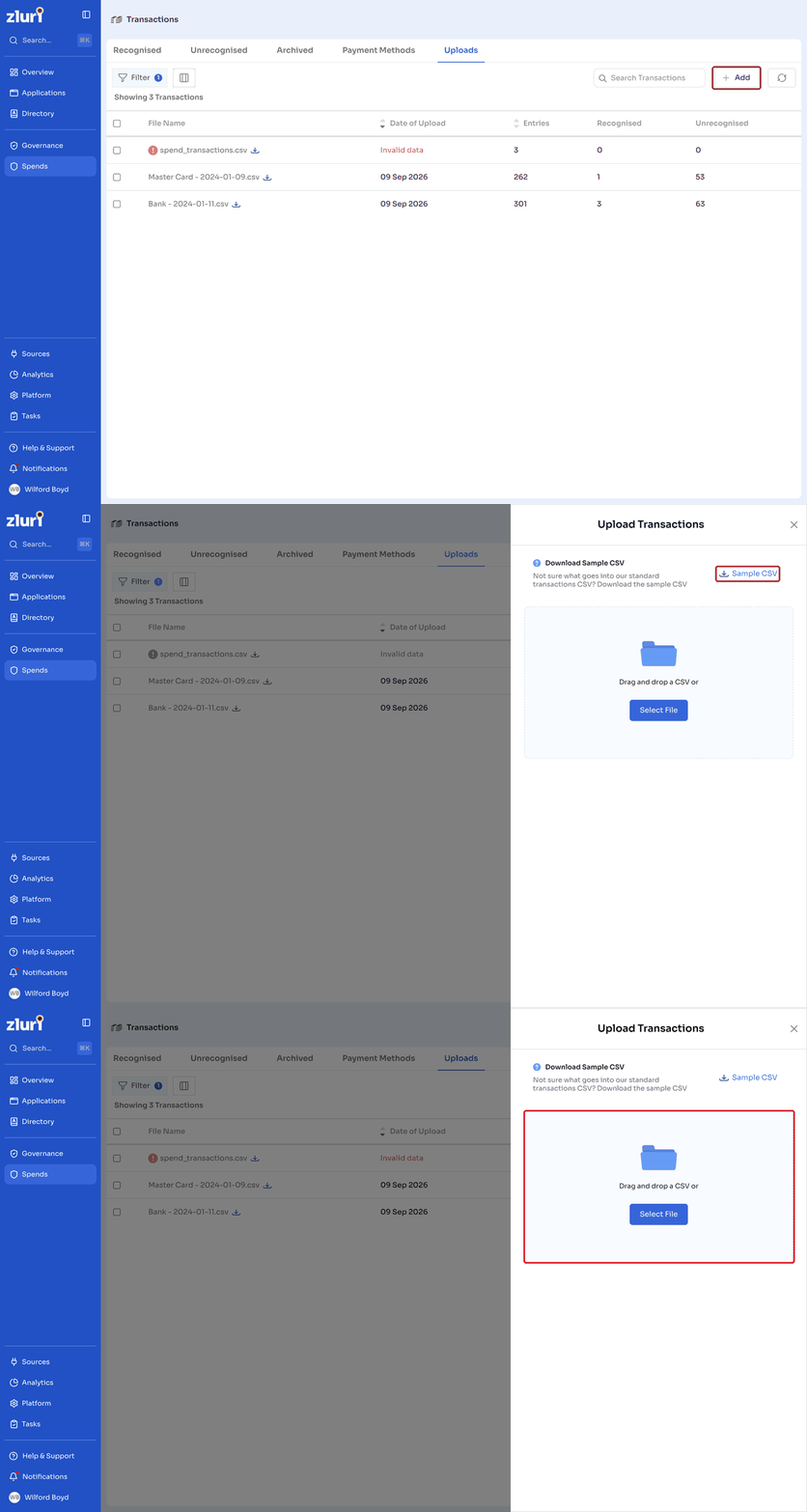
- Click Add. The Upload Transactions panel opens.
- Download the Sample CSV if you need the correct column format.
- Enter your transaction details into the template and drag and drop the completed file into the upload area, or click Select File to browse for it.
If the Vendor or Cost Center names in your CSV match existing names in Zluri, the transactions map to those existing records. If a name does not match, Zluri creates a new Vendor or Cost Center using the name from the CSV.
Spend data can also come from a connected financial integration, either because the required fields are available in that system's API response or because you maintain the data directly in your expense management system.
Deactivate or activate an uploaded file
Deactivating a file removes all of its transactions from Zluri.
- Select the checkbox next to a file.
- Click Deactivate.
- In the confirmation dialog, click Deactivate to confirm.
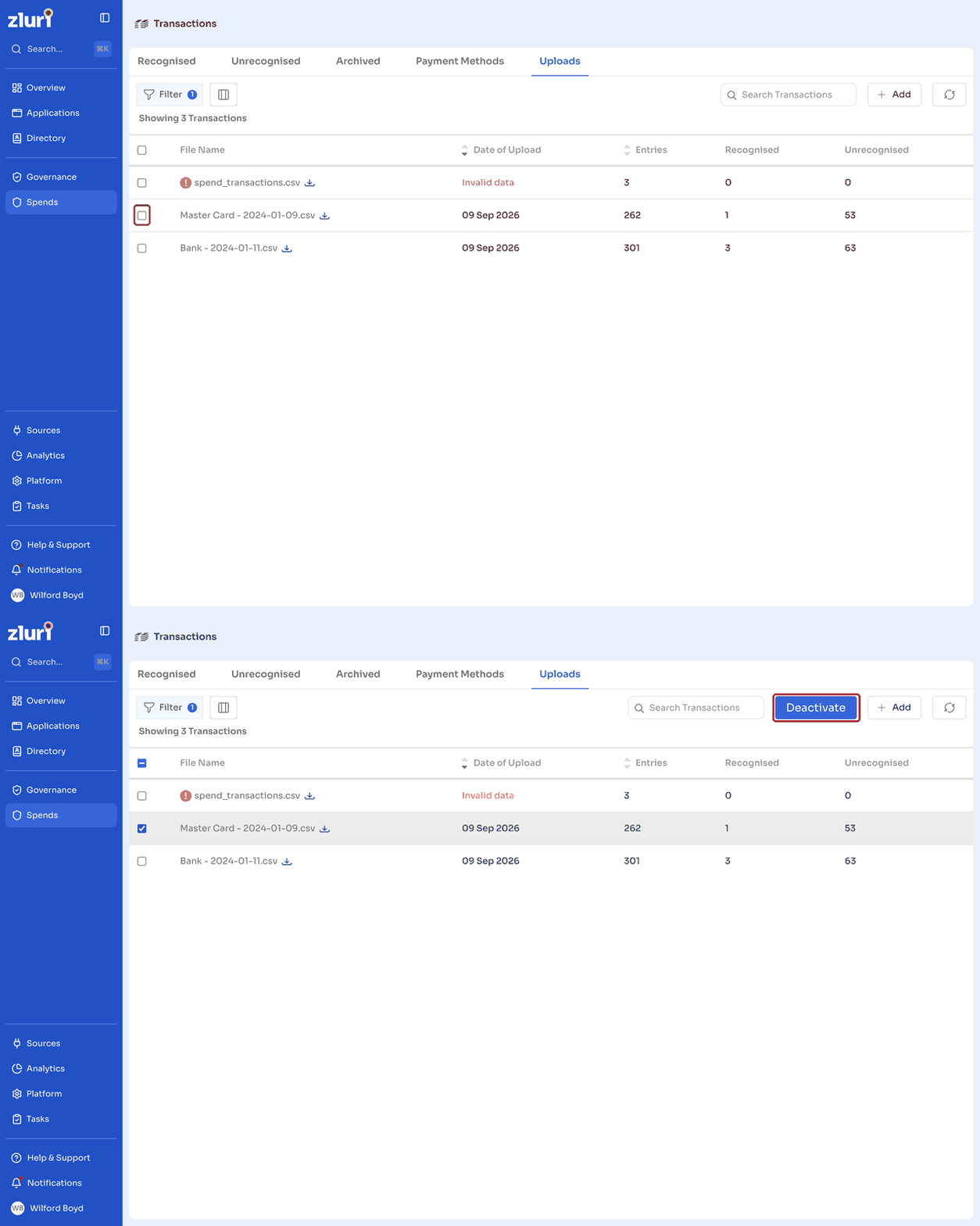
To activate a deactivated file, select it and click Activate.
View transactions within an uploaded file
Click a file name to open its own Recognised, Unrecognised, and Archived tabs, scoped to just the transactions from that file. If no transactions have been added yet, the Recognised tab shows an option to add transactions via CSV or an integration like QuickBooks.
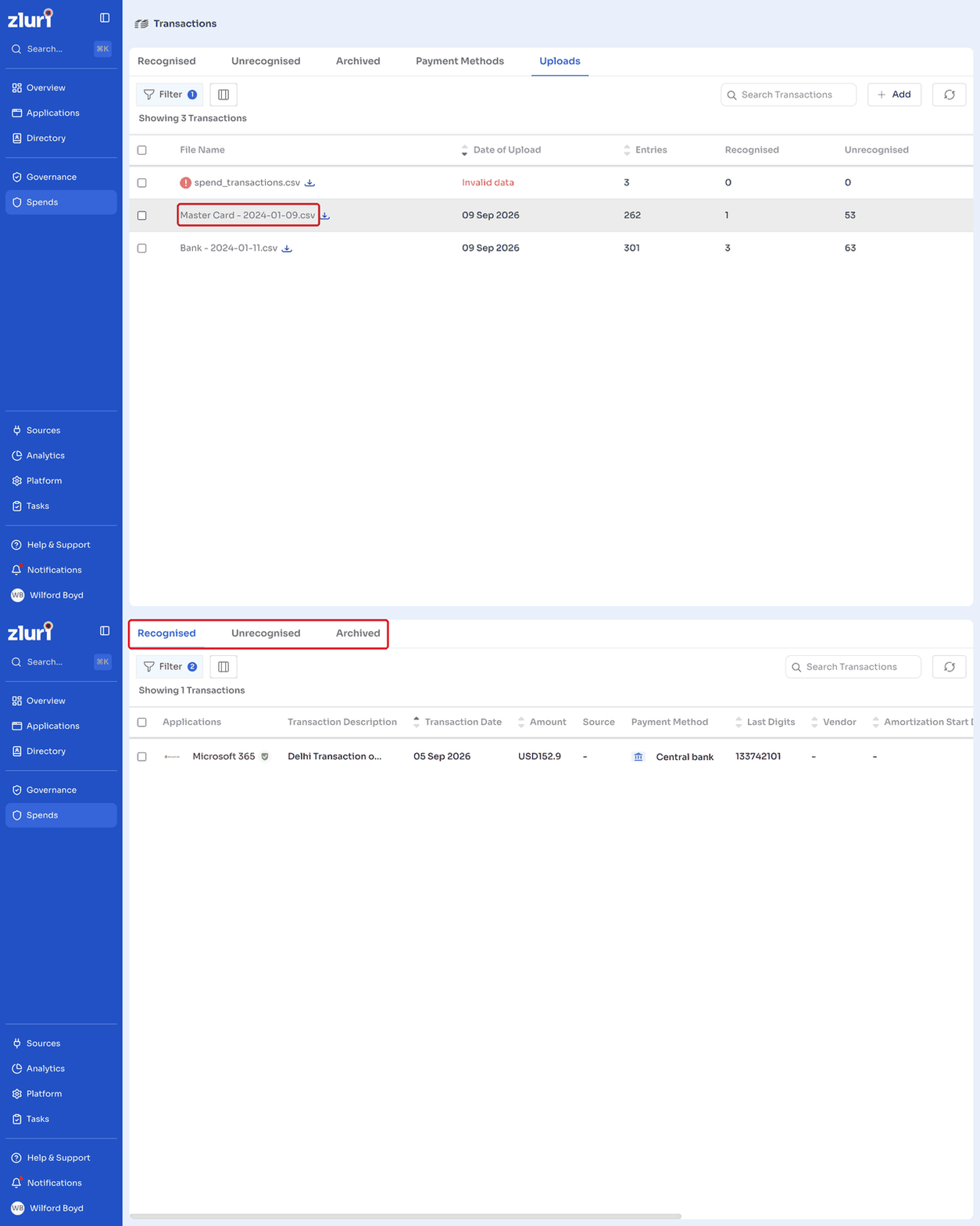
- On the Recognised tab, select one or more transactions to change their payment method or perform other bulk edits.
- On the Unrecognised tab, click Assign to App on a transaction to move it into the Recognised tab for that file.
- On the Archived tab, view any transactions from that file that have been archived.
Got questions? Feel free to submit a ticket or contact us directly at [email protected].
Updated 12 days ago