
Contracts
The Contracts tab lists every contract your organization has with its vendors, along with its cost, licenses, and key dates. Use it to track contract values and renewals, and to add, edit, or remove contracts.
Open the Contracts tab
- In the left navigation, click Spends.
- Under Contract Management, click Contracts.
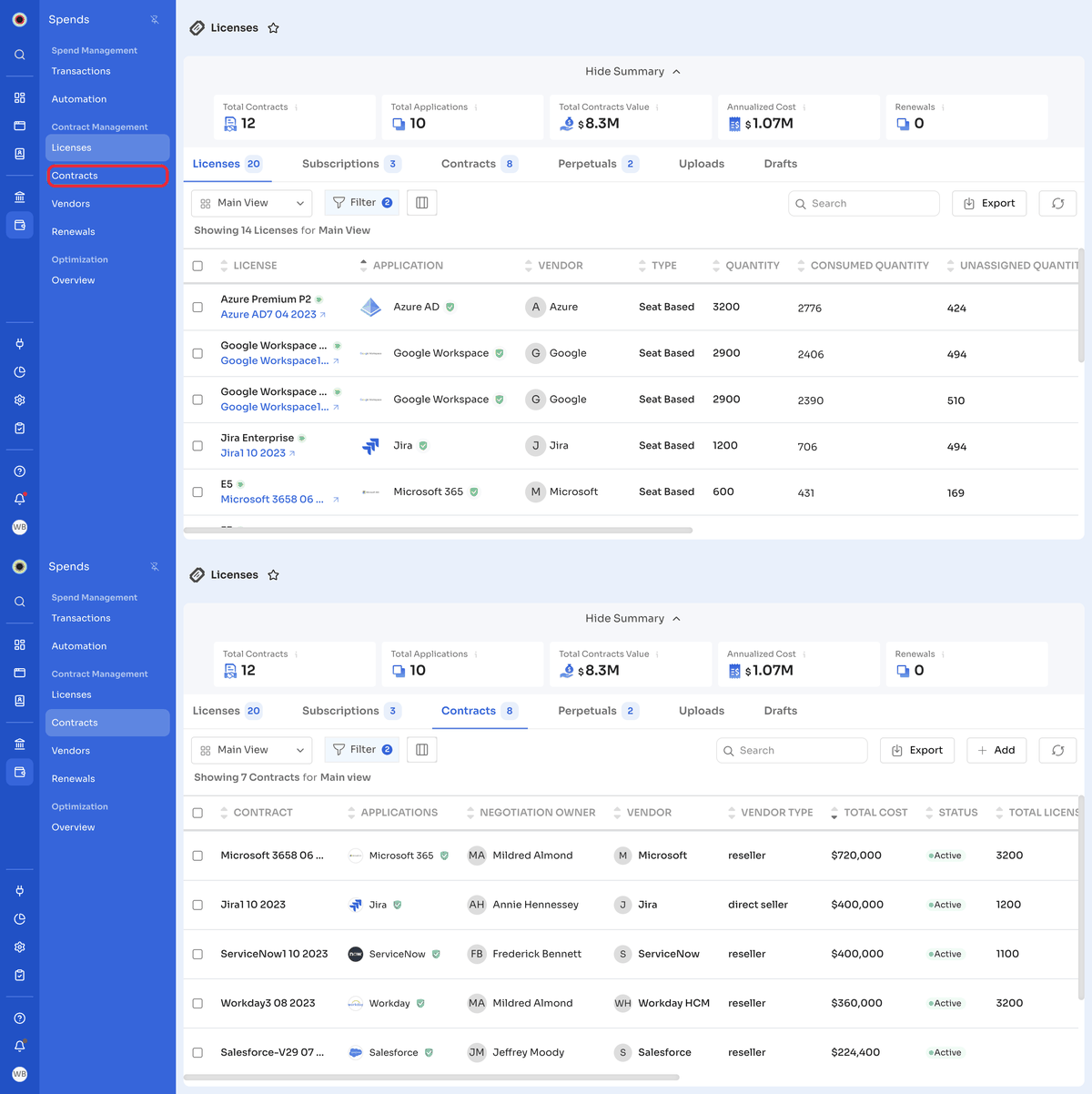
The page opens with a summary at the top: Total Contracts, Total Applications, Total Contracts Value, Annualized Cost, and Renewals. Click Hide Summary or Show Summary to collapse or expand it.
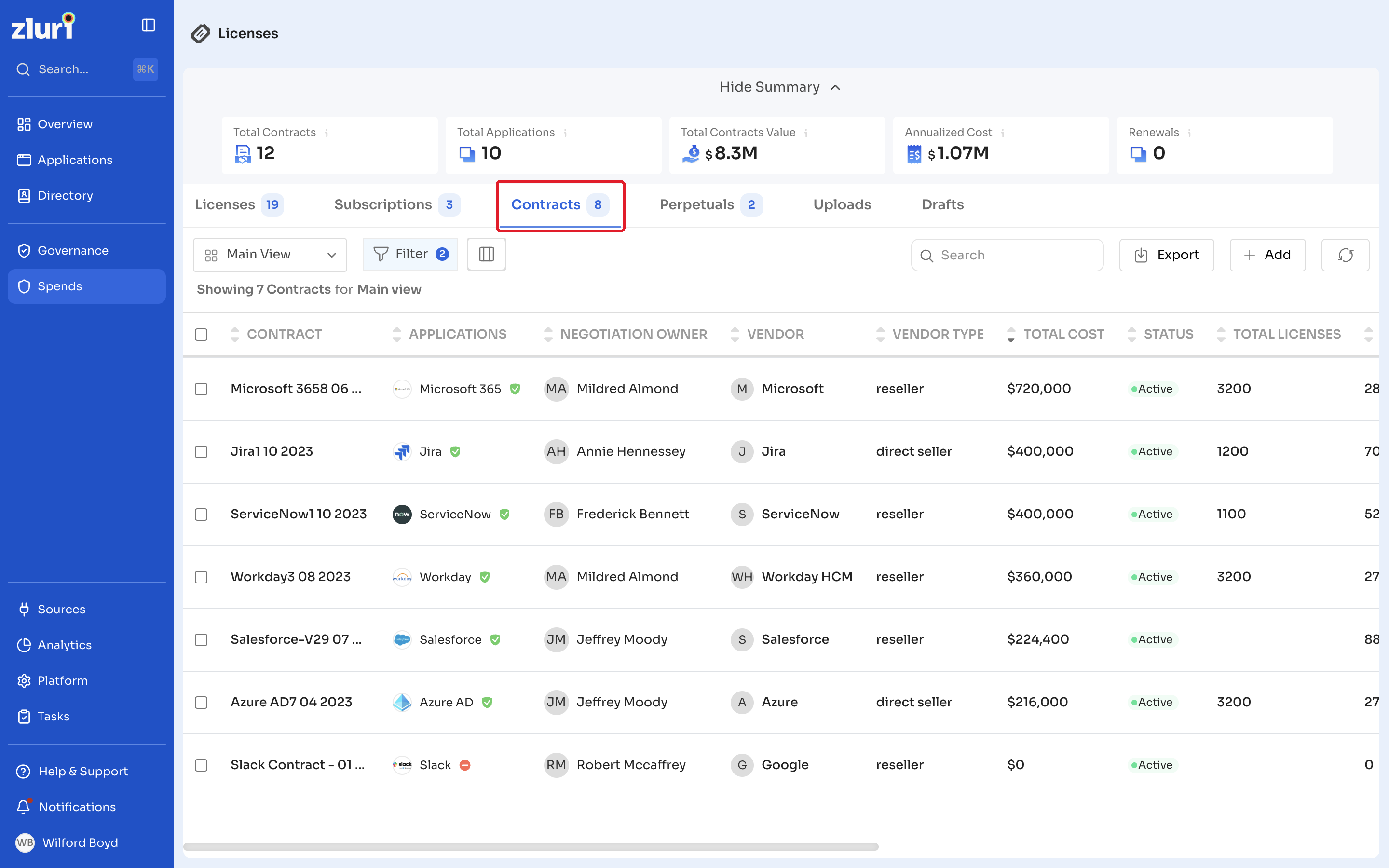
Tabs
The number next to each tab shows how many records it contains. The page has six tabs:
| Tab | Description |
|---|---|
| Licenses | All licenses in your organization. See Licenses. |
| Subscriptions | Licenses managed as subscriptions. See Subscriptions. |
| Contracts | All contracts in your organization. This article covers this tab. |
| Perpetuals | Licenses purchased with a one-time payment. See Perpetuals. |
| Uploads | Contract files uploaded to Zluri. See Contract Uploads. |
| Drafts | Contracts saved as drafts and not yet finalized. See Drafts. |
Contracts list
By default, the list shows active, unarchived contracts in Main View, with these columns:
Contract, Applications, Negotiation Owner, Vendor, Vendor Type, Total Cost, Status, Total Licenses, Assigned Licenses, Payment Term, Auto Renewal, Start Date, End Date, and Next Payment Date.
Use the controls above the list to work with contracts:
- Main View: switch to another saved view.
- Filter: filter the list. The badge shows how many filters are applied.
- Columns icon: choose which columns to show.
- Bulk Edit: select contracts, then Archive/Unarchive or Delete contracts.
- Search: find a contract.
- Export: export the list.
- + Add: create a contract.
- Refresh icon: reload the list.
View a contract
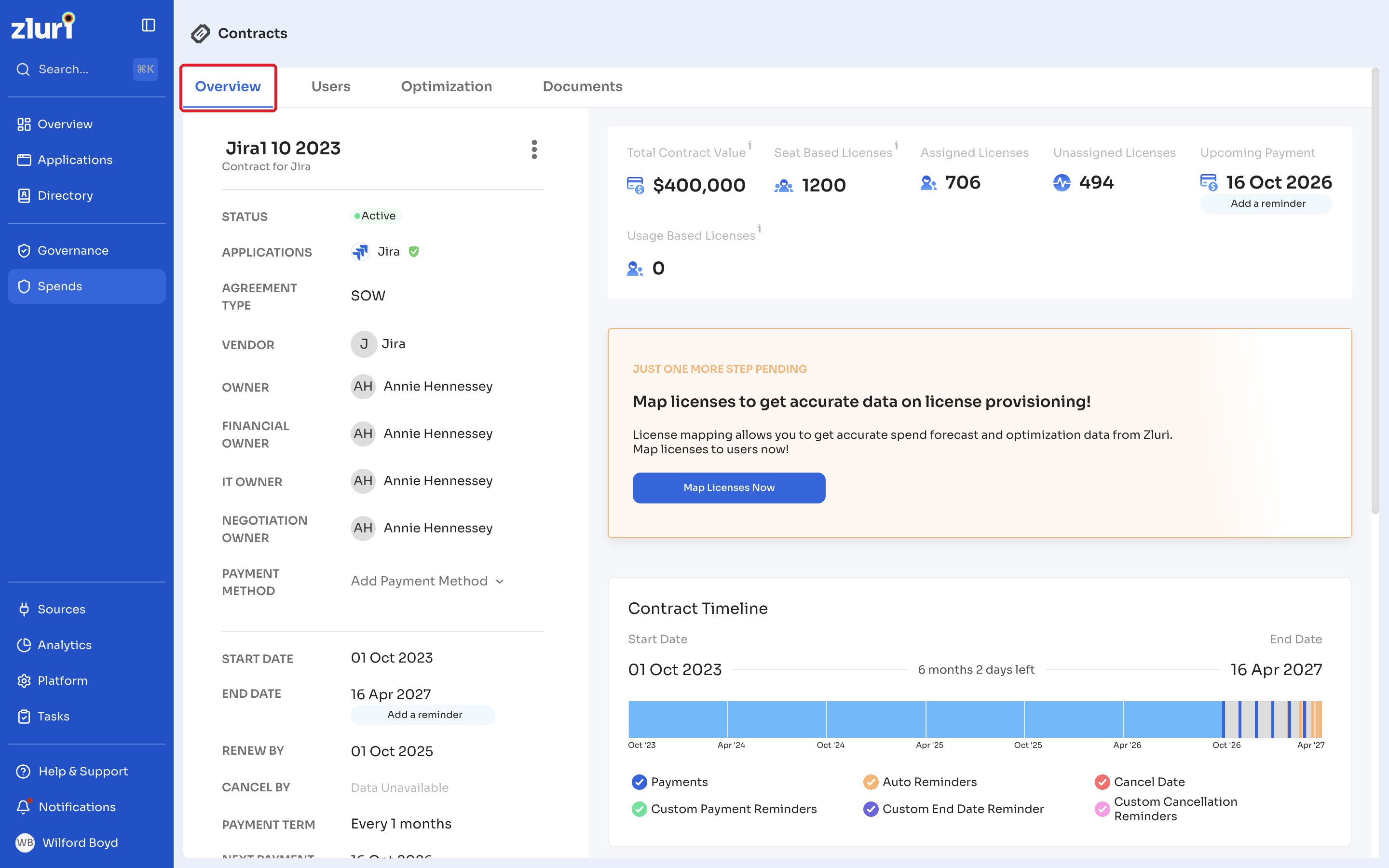
Click a contract name to open its details page. The page has four tabs: Overview, Users, Optimization, and Documents.
The Overview tab shows the contract details, such as status, applications, vendor, owners, dates, and payment terms, along with:
- Total Contract Value, licenses, and the Upcoming Renewal date.
- Contract Timeline, from the start date to the end date.
- The contract's line items.
- Notes.
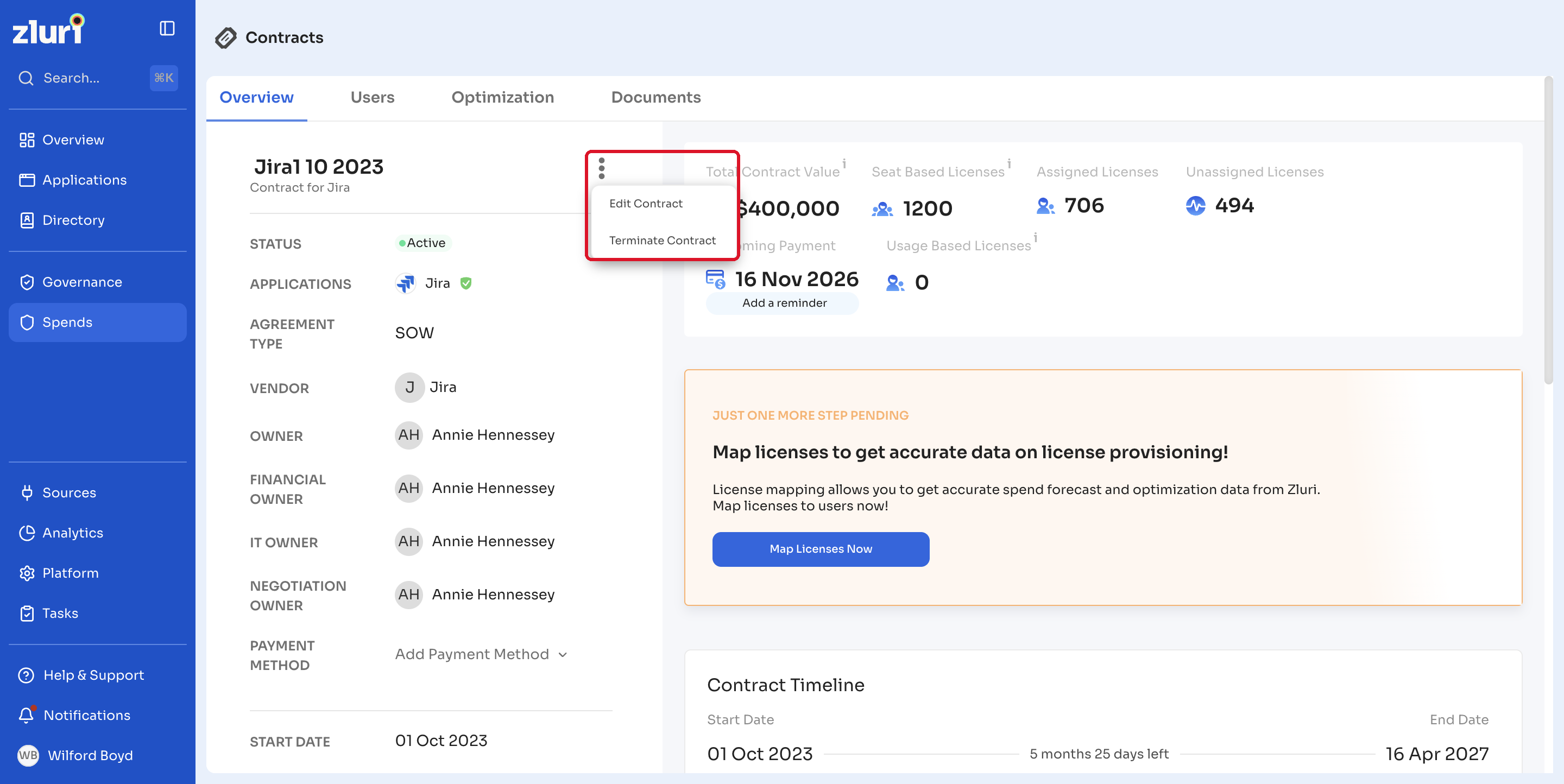
Click the more options icon next to the contract name to Edit Contract or Terminate Contract.
Add contracts
You can add contracts in three ways:
| Method | Use it when | See |
|---|---|---|
| Create a contract manually | You want to enter every detail yourself | Create a Contract |
| Upload a contract PDF | You want Zluri AI to read the contract and fill in the details | Contract Upload and Contract Mapping Process |
| Upload a CSV | You want to add several contracts at once | Bulk Contract Upload |
Related articles
Updated 4 days ago