
Perpetuals
Perpetuals are contracts without an end date, such as a one-time purchase of licenses that you own indefinitely. Use the Perpetuals tab to track these purchases, their cost, and their licenses.
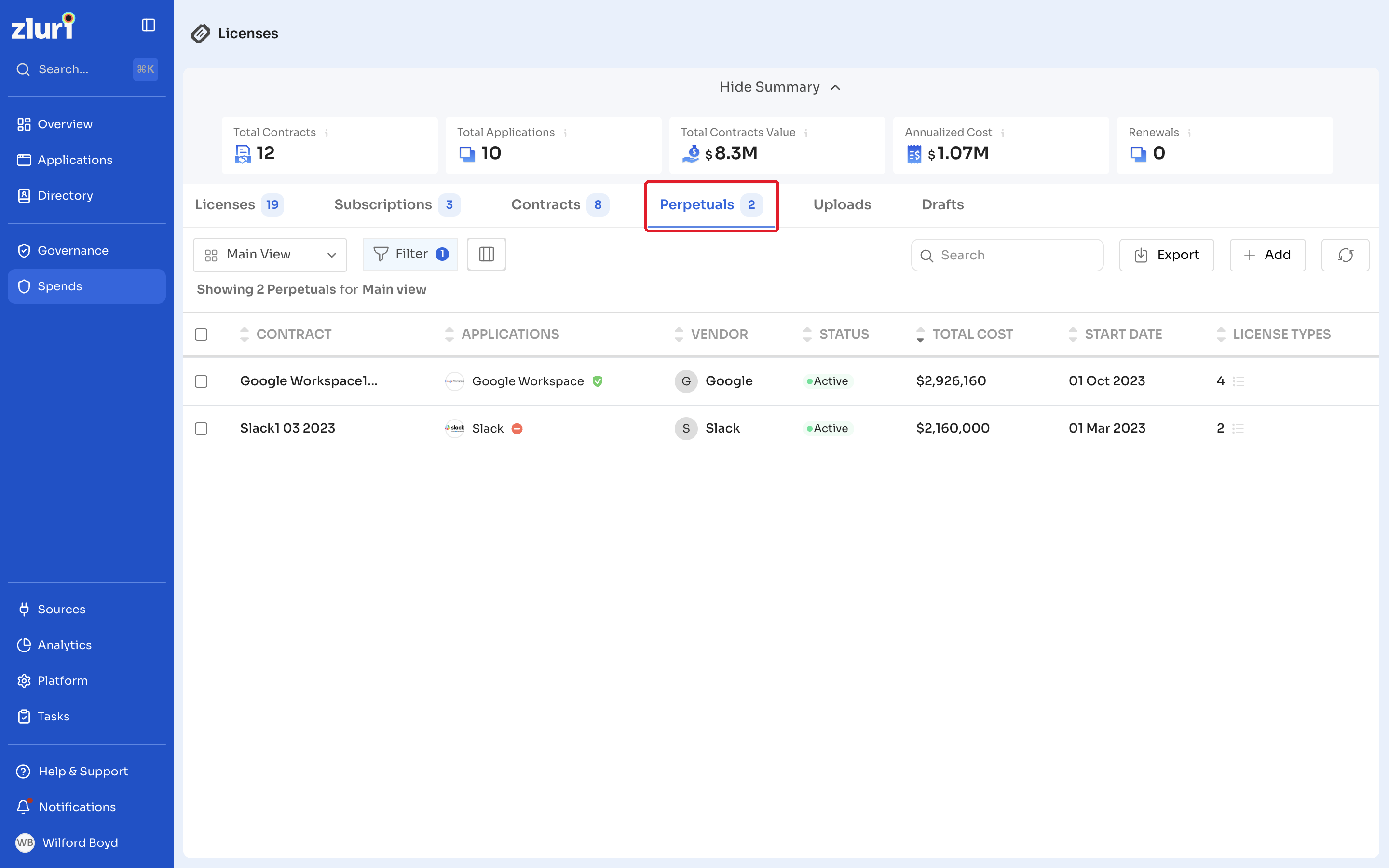
Open the Perpetuals tab
- In the left navigation, click Spends.
- Under Contract Management, click Contracts, then click the Perpetuals tab.
The list shows these columns: Contract, Applications, Vendor, Status, Total Cost, Start Date, and License Types.
Use Export to export the list, the refresh icon to reload it, and + Add to create a perpetual.
Create a perpetual
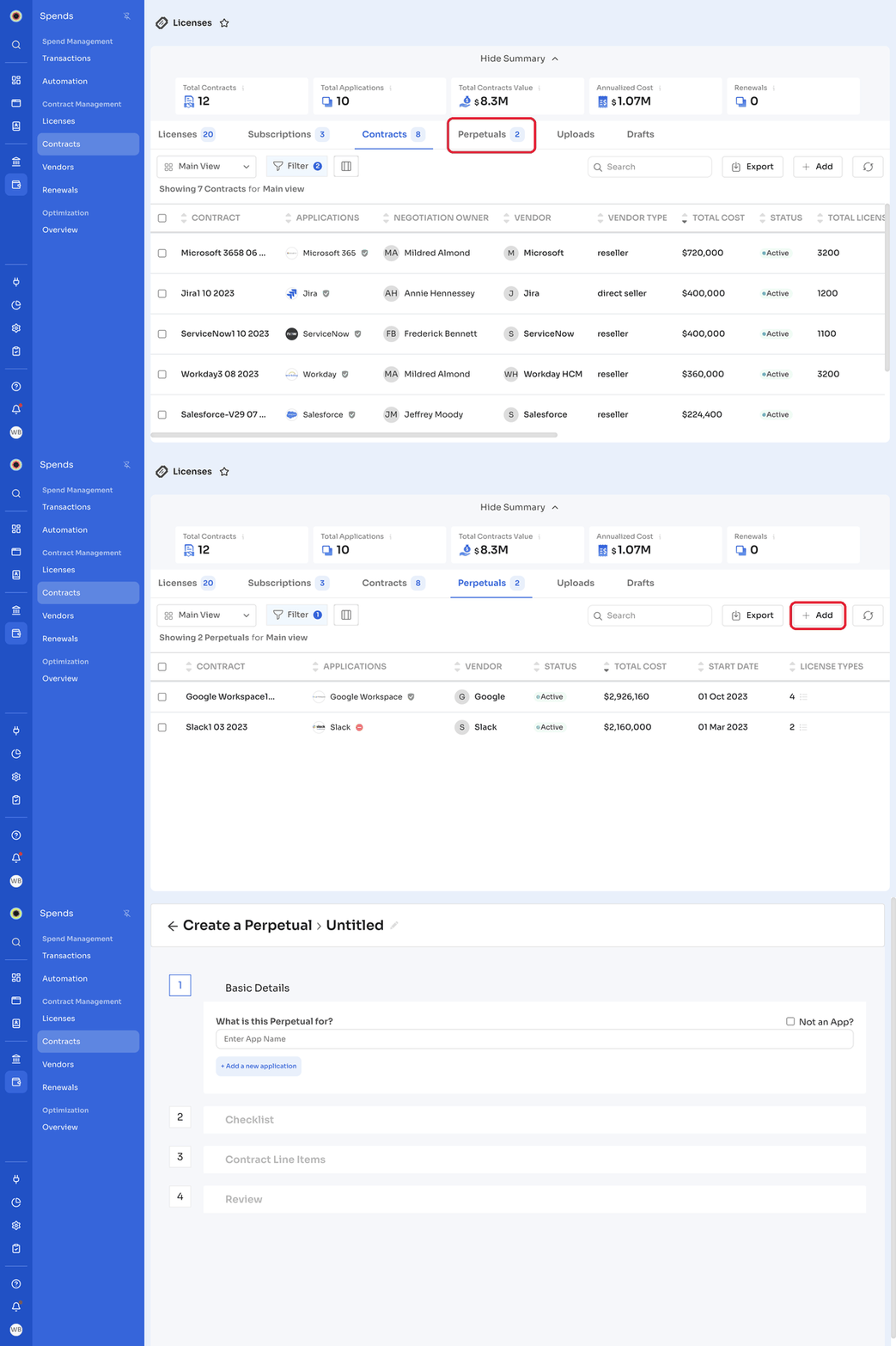
Creating a perpetual works like creating a contract. The Create a Perpetual page has the same four sections: Basic Details, Checklist, Contract Line Items, and Review. For the steps, see Create a Contract.
A perpetual differs from a contract in these ways:
| Detail | Perpetual |
|---|---|
| End date | A perpetual has no end date, cancel-by date, or renew-by date. |
| Start Date | Required. |
| Payment Term | Always One Time. |
| Payment Date | Required. |
| Line items | Each line item has a Start Date instead of a license term. |
Steps
- On the Perpetuals tab, click + Add.
- Under What is this Perpetual for?, select the applications the perpetual covers, or select Not an App?.
- Complete Basic Details, Checklist, and Contract Line Items, then review and add the perpetual.
View and edit a perpetual
Click a perpetual's name to open its details page. Like a contract, it has Overview, Users, Optimization, and Documents tabs. The Overview tab shows the perpetual's details, Total Perpetual Value, licenses, and line items.
To edit the perpetual, click the more options icon next to its name, then click Edit Perpetual.
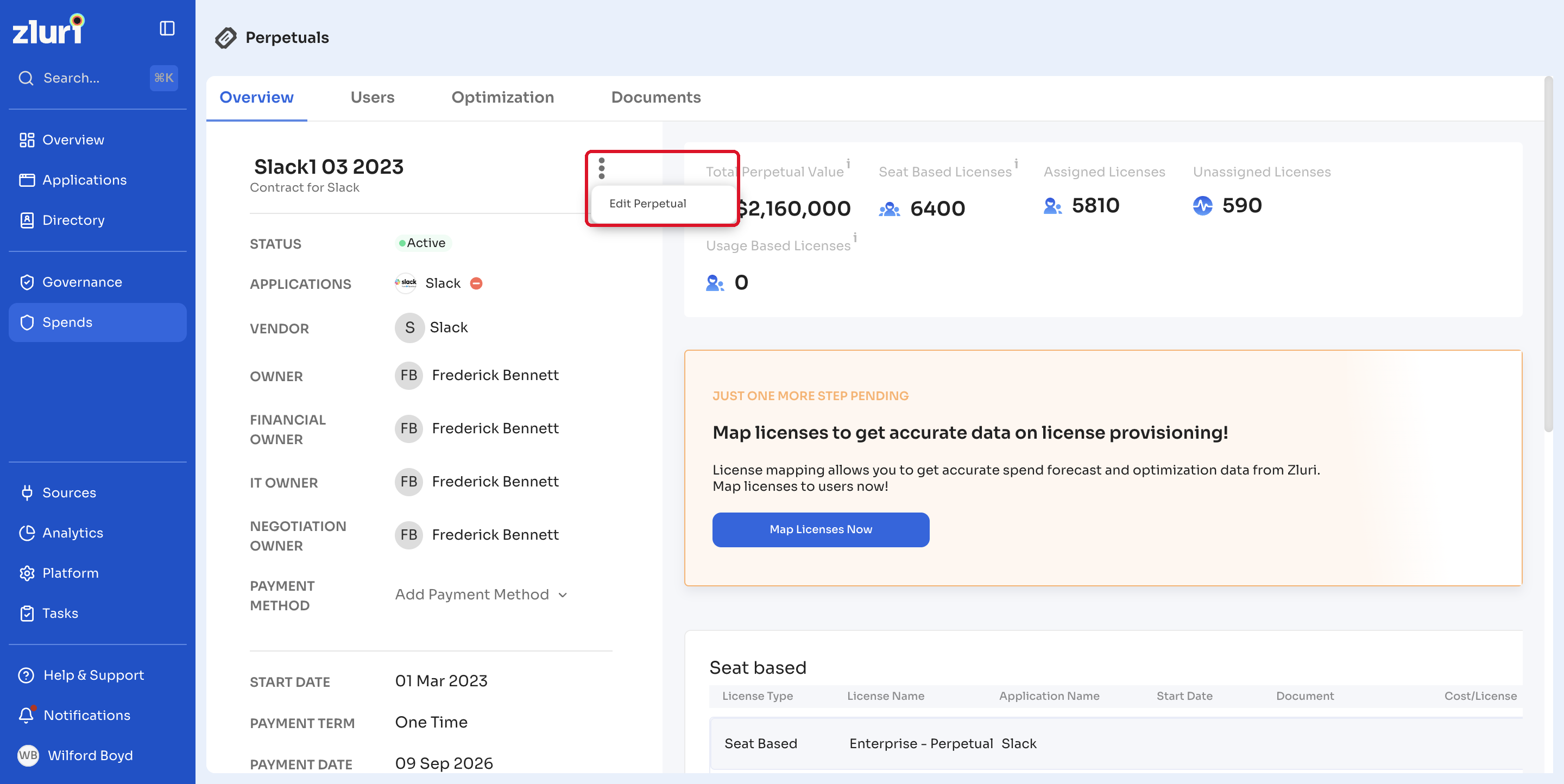
After you add a perpetual, map its licenses to users. Click Map Licenses Now on the Overview tab. See Assign Licenses to Users.
Related articles
Updated 4 days ago