
Contract AI Module
Creating contracts one by one takes time, and copying details from contract documents by hand can lead to errors or incomplete data. The Contract AI module helps you add contracts faster in two ways:
- PDF upload: Upload contract PDFs, and Zluri AI reads them and fills in a draft contract for each one. You review the draft and add the contract.
- CSV upload: Add many contracts at once from a CSV file that follows the contract template.
| Option | Use it when | See |
|---|---|---|
| Upload PDF | You have contract documents and want Zluri AI to extract the details. | Contract Upload and Contract Mapping Process |
| Upload CSV | You have contract data in a structured format and want to add many contracts at once. | Bulk Contract Upload |
What Zluri AI extracts
Zluri AI reads each PDF and extracts the contract details into a draft contract, such as:
- The applications the contract covers, matched to the applications in your Zluri account
- The vendor
- The start date and other dates
- The agreement type and description
- The line items, mapped to applications where Zluri AI can match them
Fields that Zluri AI filled in show an AI label in the draft, and a banner shows Contract information auto-filled by Zluri AI. The form is on the left and the uploaded PDF is on the right, so you can compare the two.
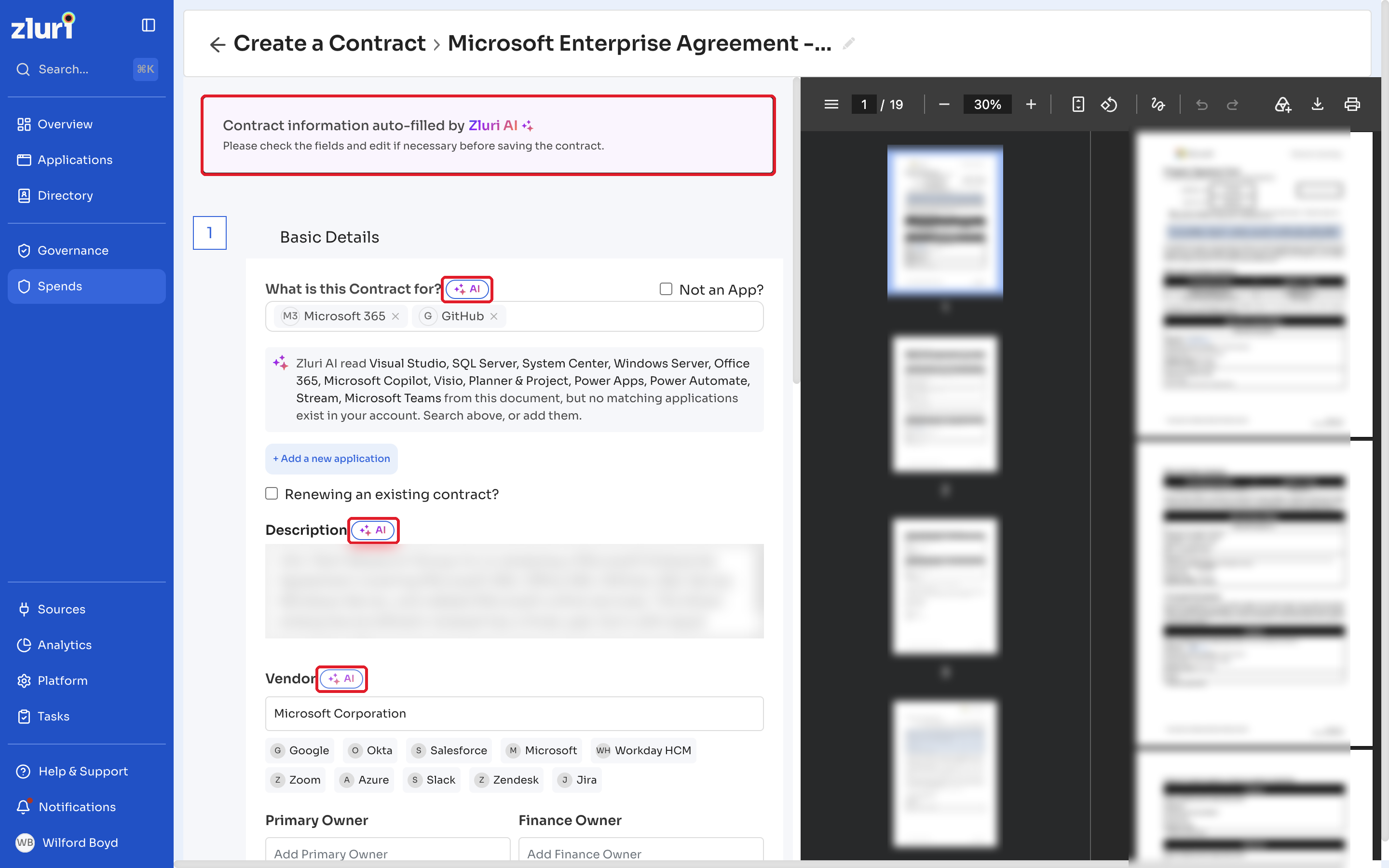
If the PDF names applications that don't exist in your account, Zluri lists them in a note, so you can search for them or add them. Line items that Zluri AI couldn't map to an application show Not set under Application Name. See Contract Line Item Mapping.
Upload limits
- Each file must be a PDF of up to 5 MB.
- You can upload up to 10 files at a time. Zluri AI processes each file separately as an individual contract.
- Only English-language files are supported.
How PDF processing works
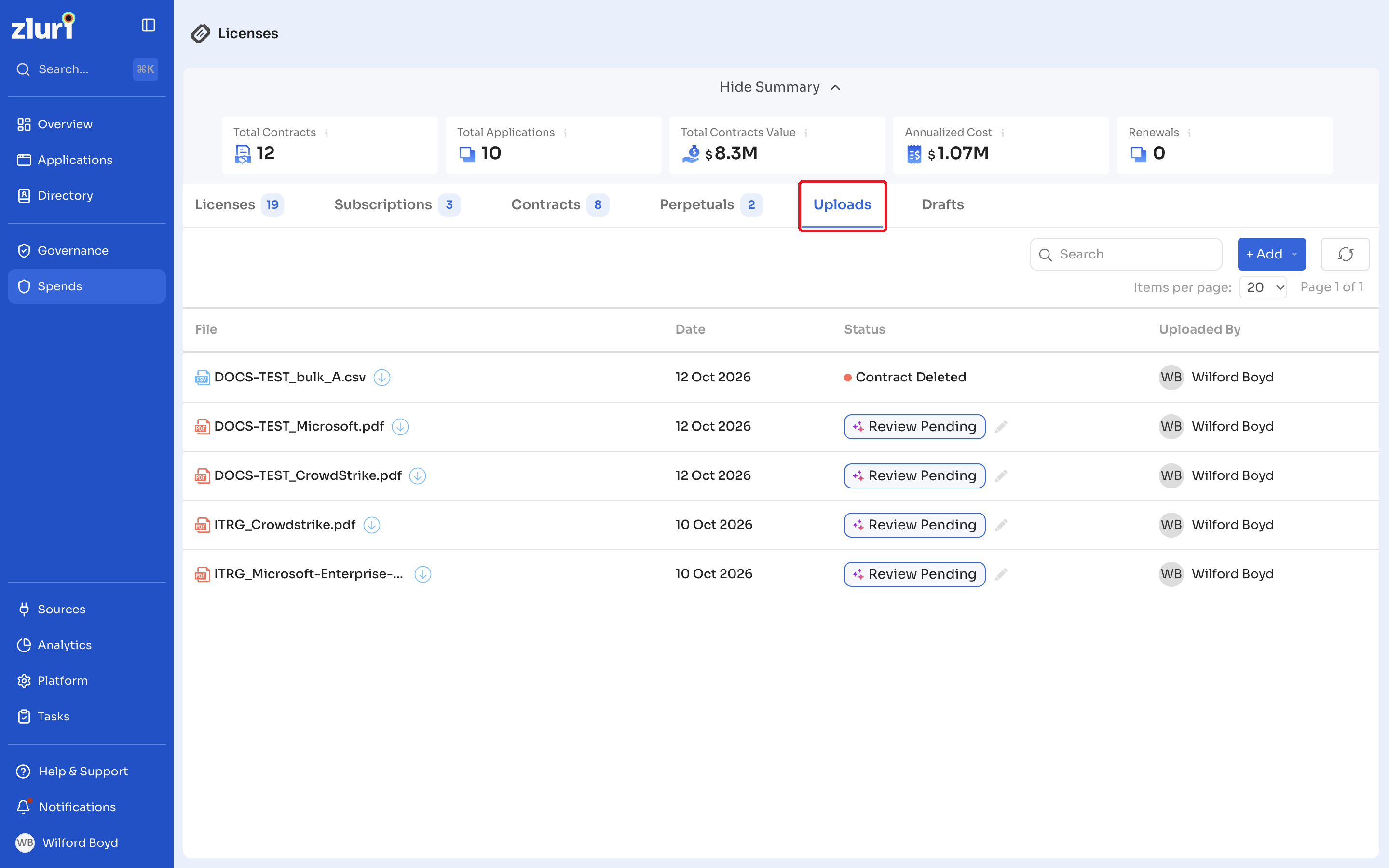
- Upload. On the Contracts > Uploads tab, click + Add > Upload PDF, add the files, keep Processing by Zluri AI selected, and click Submit. You can also upload a single PDF while creating a contract, from the document panel on the Create a Contract page.
- Processing. The file's status changes from Pending to Validating, AI Processing..., and then Review Pending. Processing can take several minutes.
- Notification. When the draft is ready, Zluri sends an in-app notification, Contract Management - Contract PDF Draft Generated.
- Review. Click the edit icon next to Review Pending to open the draft. Check each section, edit any field that needs a change, fill in any required field that's empty, and map applications and line items. You can also map each line item to a license that Zluri already tracks. See Map a line item to an existing license.
- Add. Click Add Contract. To finish later, click Save for later. The upload stays in Review Pending until you add the contract.
Related articles
Updated 35 minutes ago