
Exclude Users from Optimization
Use the Optimization Inclusion setting to prevent optimization from running on specific users. By default, every user is Included For All Optimizations.
You can set Optimization Inclusion in two places:
| Where | Scope of the change |
|---|---|
| Users table in Directory | Applies to all licenses assigned to the user, across all applications. |
| Users tab of an application | Applies only to that application. |
Add the Optimization Inclusion column
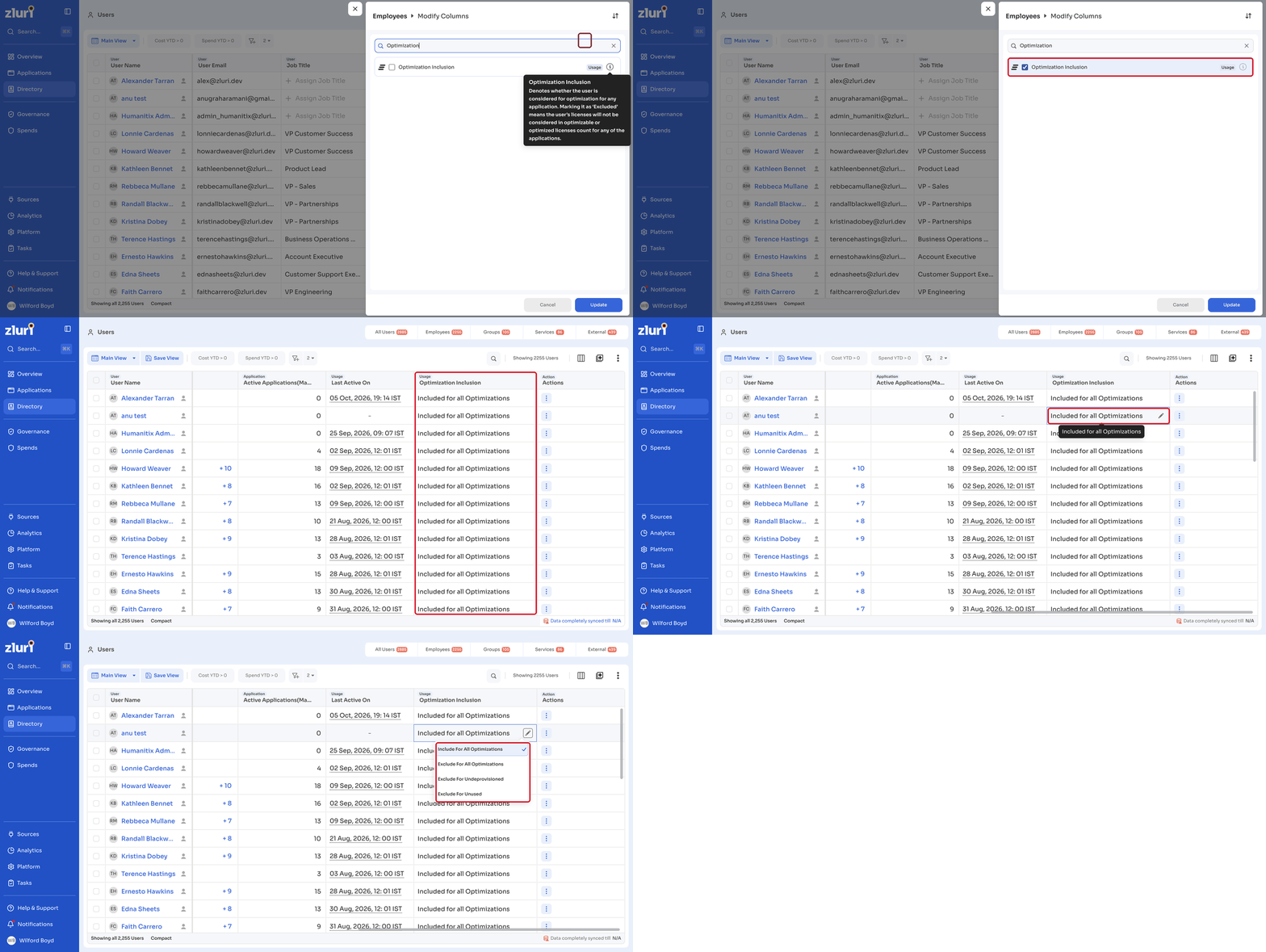
The Optimization Inclusion column isn't shown in the Main View by default. Add it to the table, and save the view as a custom view if you want to keep it.
Steps
- Open the Users table, or an application's Users tab.
- Click the columns icon to open Modify Columns.
- Search for Optimization Inclusion and select it.
- Click Update.
- To keep the column, click Save View and save it as a custom view.
Exclude a user from optimization
Steps
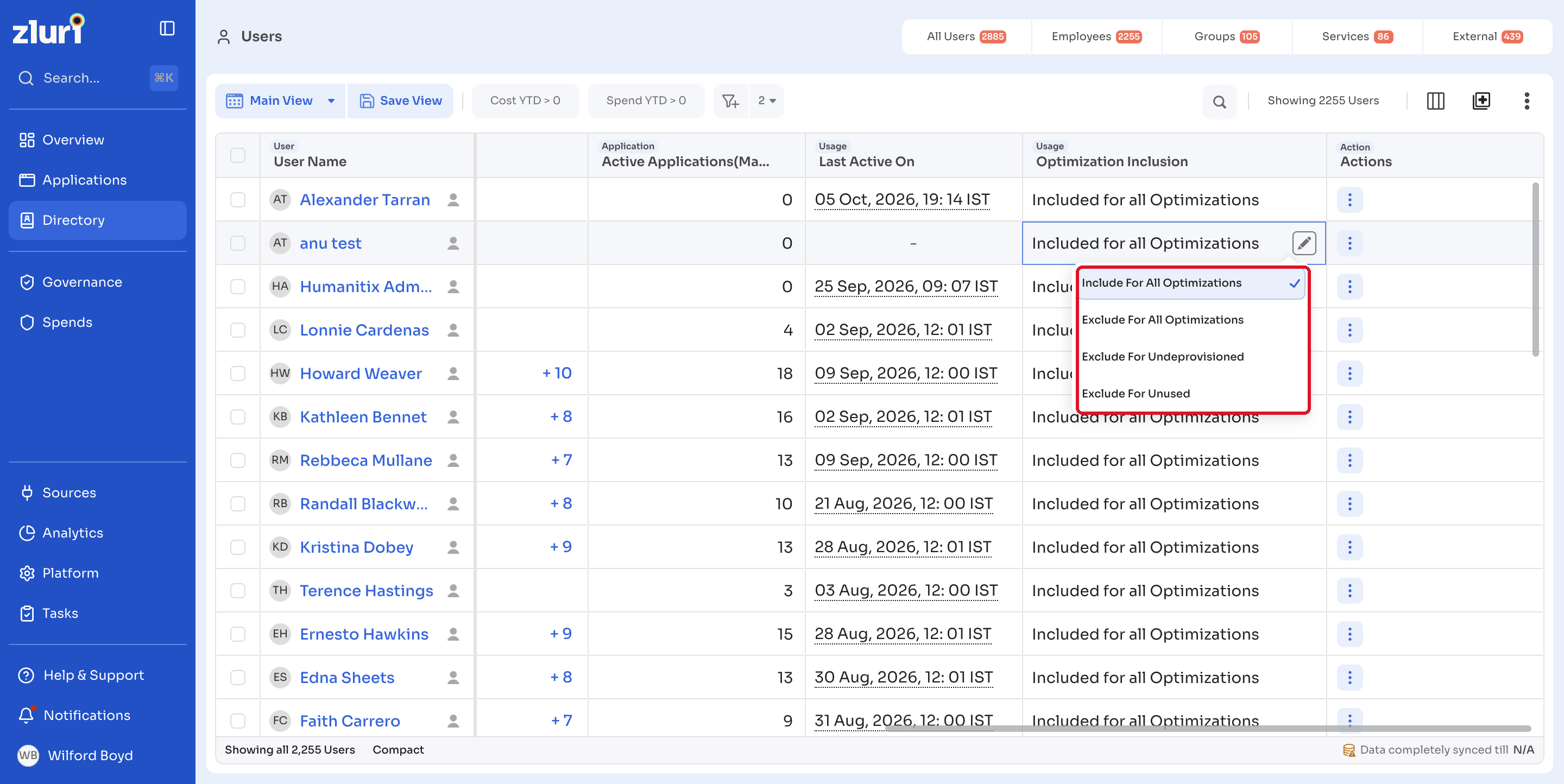
- In the Optimization Inclusion column, click the edit icon on the user's row.
- Select an option:
| Option | What it does |
|---|---|
| Include For All Optimizations | The user is included in all optimization. This is the default. |
| Exclude For All Optimizations | The user is excluded from all optimization. |
| Exclude For Undeprovisioned | The user is excluded from undeprovisioned optimization only. |
| Exclude For Unused | The user is excluded from unused-license optimization only. |
You can also update the Optimization Inclusion status for several users at once.
Exclusions apply from the next runExcluding a user doesn't change past optimization runs. The user is left out of upcoming runs.
Related articles
Updated 36 minutes ago
Did this page help you?