
Contract Line Item Mapping
A contract's line items capture each license in the contract and what it costs. Line item mapping connects each line item to the application it belongs to, and connects licenses that Zluri tracks to the line item they were purchased under. This lets Zluri attribute each license's cost, renewal date, and utilization to the right application and purchase.
There are two kinds of mapping:
| Mapping | What it connects | Where you do it |
|---|---|---|
| Line item to application | A contract line item to the application it covers. | Application Name in the Contract Line Items section of a contract. |
| License to line item | A license that Zluri already tracks to the contract line item it was purchased under. | Map to an existing license (Optional) when you add or edit a line item, or ⋮ > Map to contract on a license row in the Licenses tab. |
Map line items to applications
Every line item needs an application. A contract can cover more than one application, and each line item belongs to one application. For example, one Atlassian contract can cover both Jira and Confluence, with separate line items for each.
When you create a contract
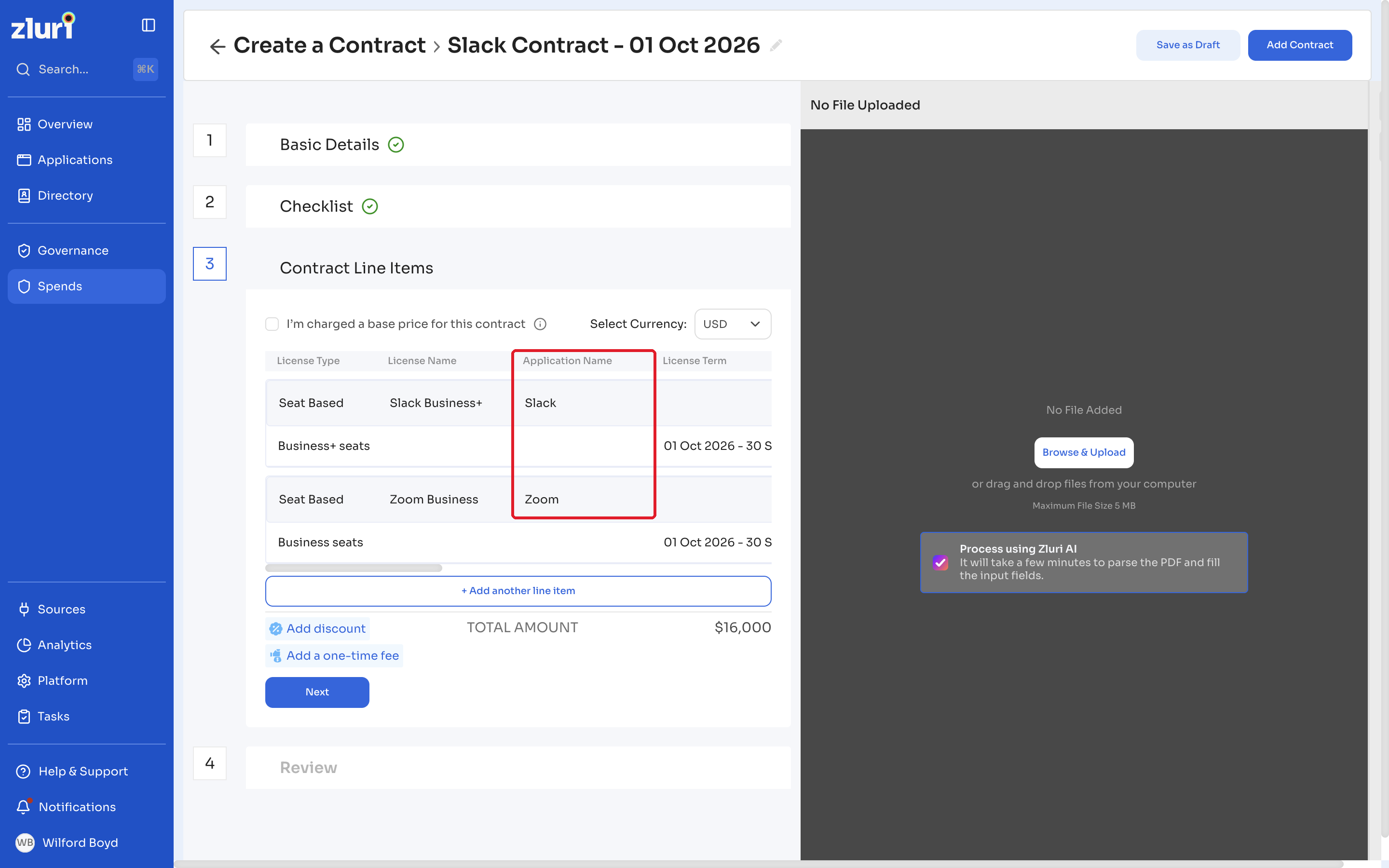
In the Contract Line Items section, choose the application for each line item in Application Name. The list shows the applications you selected in Basic Details. To use an application that isn't in the list, search for it or create it from the same list. See Create a Contract.
When Zluri AI creates the draft
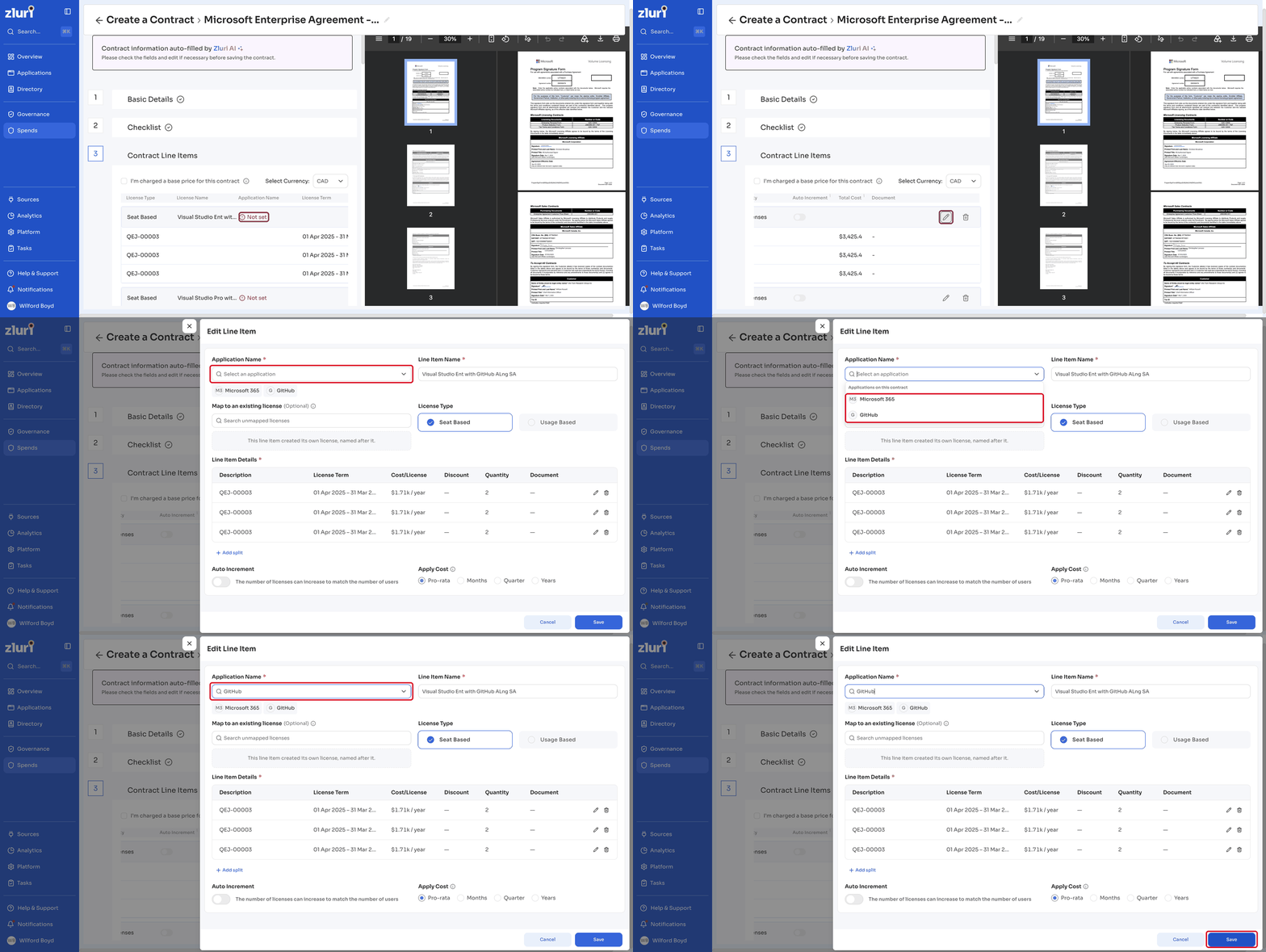
When you upload a contract PDF, Zluri AI adds the line items it reads from the PDF and maps them to applications. The Application Name column shows Not set for any line item that Zluri AI couldn't map.
If you continue while line items aren't mapped, Zluri shows Assign an application to every line item, with the list of line items that need one.
Steps
- Click Review line items to return to the line item list.
- Click the edit icon on a line item to open it.
- Choose the line item's application.
- Repeat for each line item that shows Not set.
Remove an application from a contract
Remove an application from a contract only when no line item uses it. If a line item still uses the application, the remove option is disabled and shows the number of linked licenses. Change or delete those line items first.
Map licenses to line items
Zluri detects some licenses through integrations before it knows which contract they belong to. For example, an integration may detect an admin license because a user has admin rights in the application. Map the detected license to the line item it was purchased under.
When you add or edit a line item
In the Add Line Item or Edit Line Item panel, select the license under Map to an existing license (Optional), then click Save. This works for manual contracts and for drafts that Zluri AI created from an uploaded PDF. See Map a line item to an existing license.
From the Licenses page
Steps
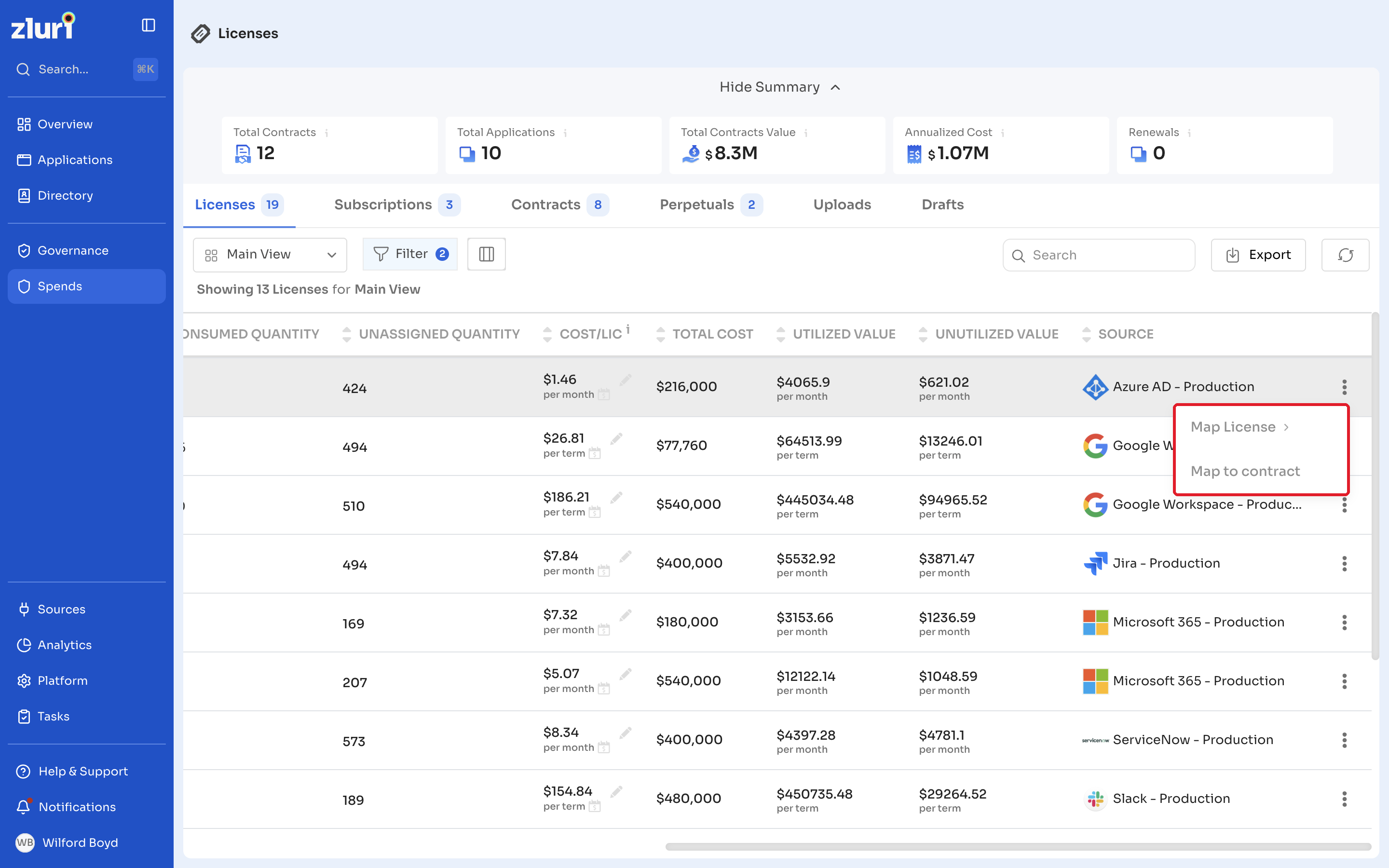
- In the left navigation, go to Spends > Licenses. You can also open the application's Contract & Licenses tab and use its Licenses table.
- On the license row, click ⋮ > Map to contract. The Map to Contract dialog opens with a summary of the license.
- Under Choose the contract to map it to, search for and select the contract, subscription, or perpetual. Each result shows an Active or Inactive status tag.
- Review the contract summary to confirm you picked the right contract.
- Under Choose the line item to map it to, select the line item.
- Click Map to contract. The button is available only after you select both a contract and a line item.
Which line items you can select
- By default, the list shows every line item on the contract except line items that are already mapped.
- You can select only line items for the same application as the license that aren't already mapped. Other line items are greyed out.
- To see line items that are already mapped, turn on Show integration line items. They're shown for reference only, and you can't map the license to them here. To change a line item's mapping, edit the contract in Contracts.
- If no line item is eligible, the dialog shows a message that explains the eligibility rule instead of an empty list.
Mapping rules
- Each license record maps to only one contract line item at a time, across all contracts.
- When a license is mapped, the contract line item's Quantity and Cost/License values take precedence. Zluri replaces the license's values with the contract's values.
To see which line item each license is mapped to, select the Line Item column in the Licenses tab.
Related articles
Updated 34 minutes ago