
Connect
Connect UKG Pro to Zluri
Prerequisites
- System Administrator access to the UKG Pro account, which is required to create a web service account.
- Access to System Configuration > Security in UKG Pro, to read the Customer API Key and the service endpoint.
Integration steps
Step 1: Create a Web Service Account in UKG Pro
Zluri connects with a dedicated web service account that uses Basic Authentication. The account only needs read access to one web service.
-
Log in to the UKG Pro account.
-
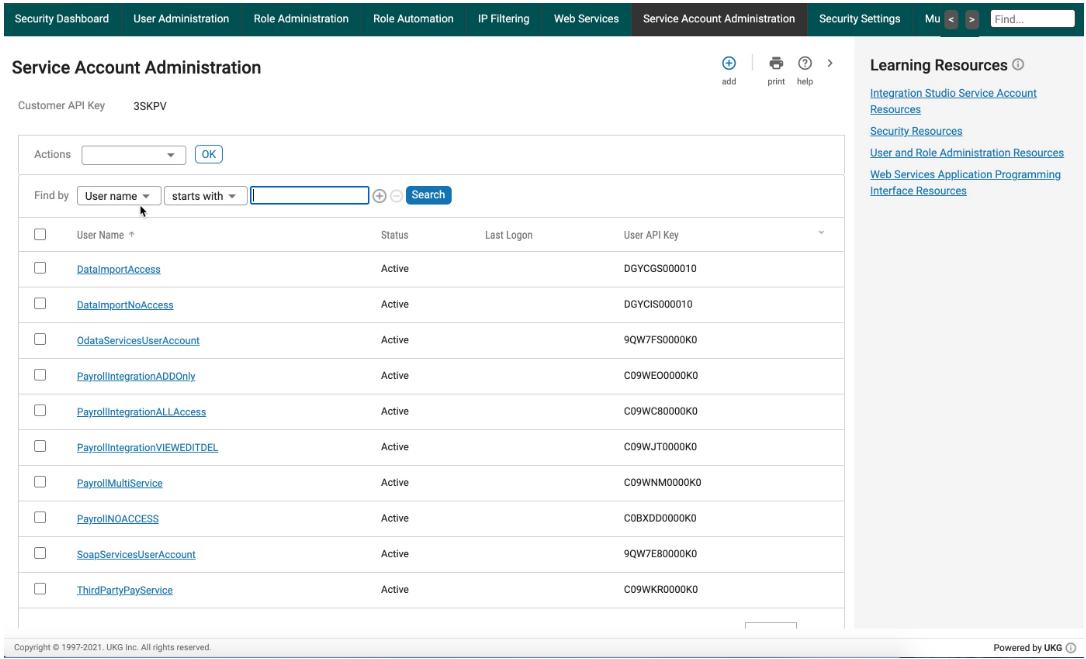
Navigate to Menu > System Configuration > Security > Service Account Administration.
-
Copy and securely store the Customer API Key shown at the top of the page. Zluri needs this value for connecting the integration.
-
Select Add to create a new web service account.
-
Enter a Username (for example,
zluri-integration) and a valid Email. -
Under Web Services, select the View checkbox next to Personnel Integration. Leave every other web service unchecked. Zluri does not need Add, Edit, or Delete on any web service.
-
Select Save.
-
Copy and securely store the generated Password. UKG Pro shows it only once.
Note: If a connection or sync later fails with a permissions error (UKG-101), add View on Employee Person Details as well.
Step 2: Find the Service Endpoint
-
Navigate to Menu > System Configuration > Security > Web Services.
-
Locate any REST endpoint listed for the tenant. The endpoint starts with the base URL of the datacenter, for example https://service5.ultipro.com/personnel/v1/....
-
Copy only the scheme and host, for example https://service5.ultipro.com. Do not include /services/ or any path after the host.
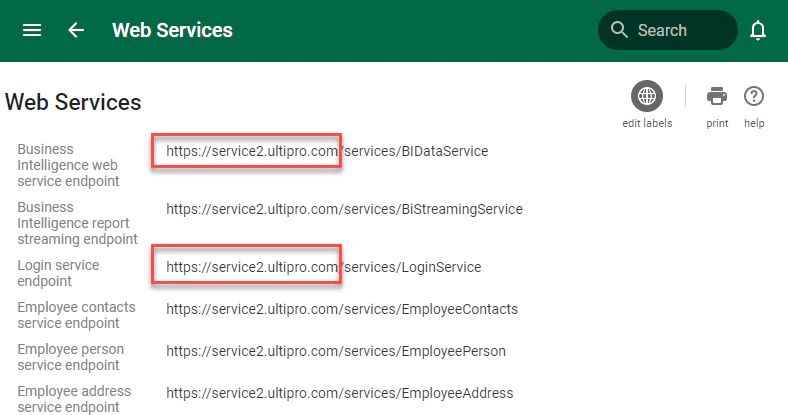
Note: The value differs by datacenter and environment. Production tenants use https://serviceN.ultipro.com where N is the datacenter number. Test tenants use https://servicet.ultipro.com.
Step 3: Begin the Integration in Zluri
- Log in to the Zluri dashboard.
- Open the UKG Pro Integration page.
- Select Connect Integration or Connect another instance if an existing connection is already configured.
- Review the required scopes displayed for the integration. UKG Pro has one scope User Profile Details, which maps to the web service permission granted in Step 1.
Authorization Options
Self-Authorization
- Proceed directly to Step 4 to complete authorization.
Co-worker Authorization
- Enter a co-worker's details to share the access request.
- Zluri sends an invite email or link containing a unique Connect Code.
- The co-worker can use the code to approve and complete the connection setup.
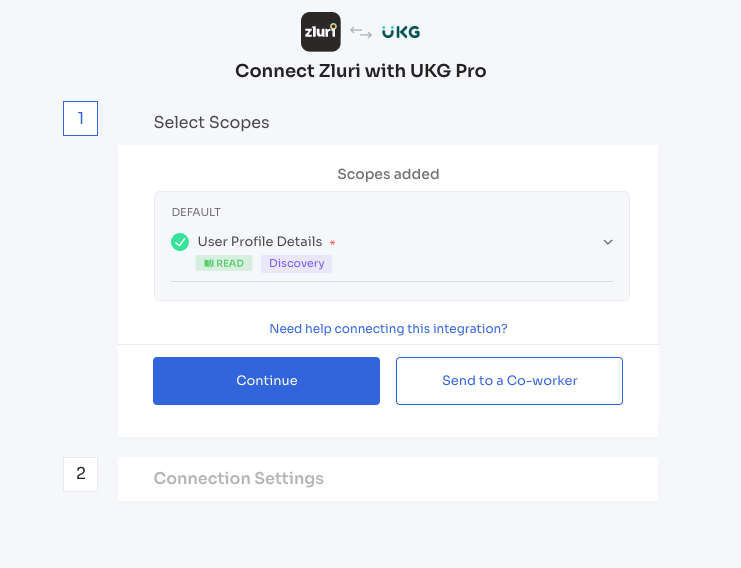
Step 4: Authorize the Connection
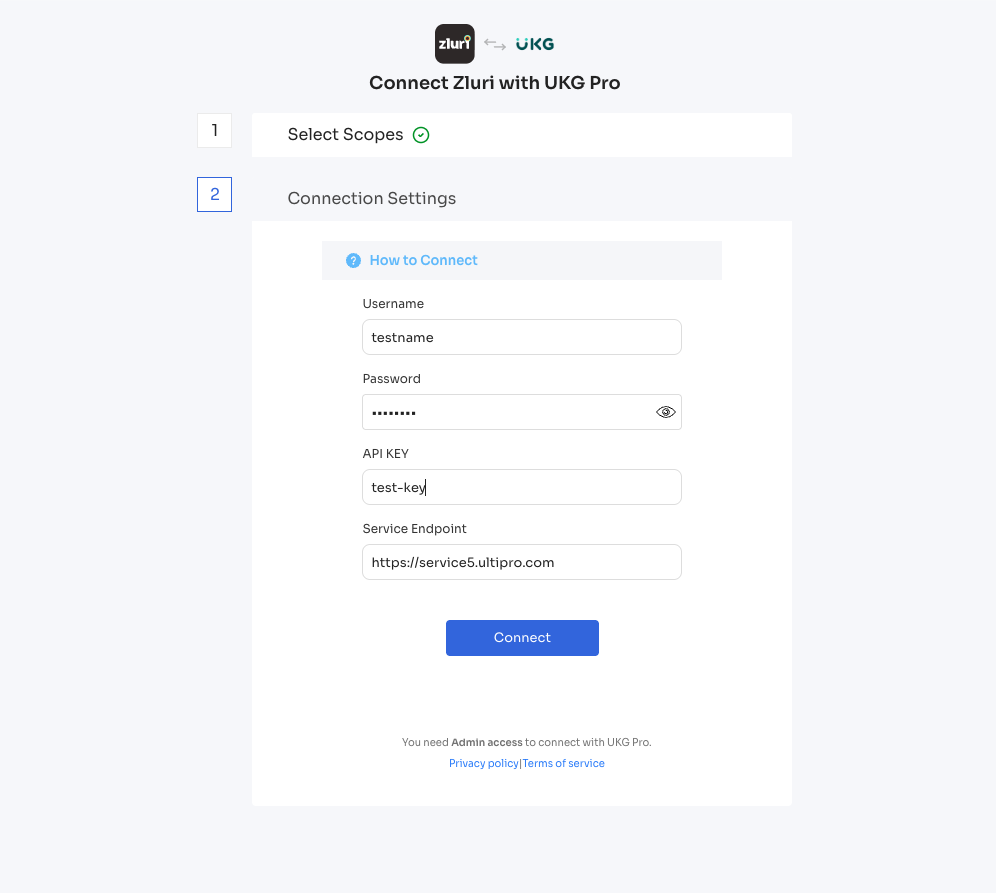
- Depending on the authorization method (self or co-worker), enter the necessary credentials.
- Enter the web service account Username and Password from Step 1.
- Paste the Customer API Key from Step 1 into the API Key field. This is the key shown at the top of the Service Account Administration page, not the User API Key of the web service account.
- Paste the base URL from Step 2 into the Service Endpoint field, for example
https://service5.ultipro.com. - Select Connect to complete the integration.
Integration Complete
Zluri is now successfully connected to UKG Pro and will begin syncing data automatically.
Got questions? Feel free to submit a ticket or contact us directly at [email protected].
Updated about 9 hours ago