
Connect
This guide provides the steps to connect a Darwinbox account to Zluri
Prerequisites
- Super Admin access to the Darwinbox account.
- The Darwinbox Studio module is enabled on the account. If Studio is not available, contact the Darwinbox account manager to create the API user and API keys listed in Steps 1 and 2.
- The Darwinbox instance URL (for example,
https://{company}.darwinbox.in).
Step 1: Create an API User in Darwinbox Studio
-
Log in to the Darwinbox account with the Super Admin role.
-
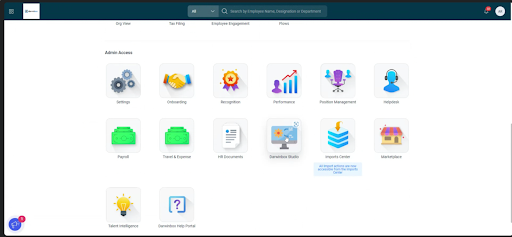
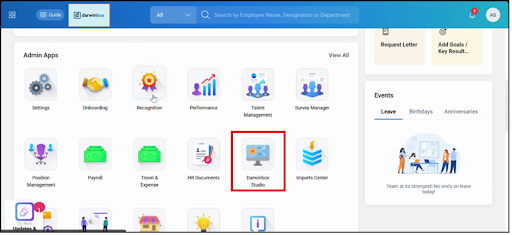
Navigate to Modules > Darwinbox Studio.
-
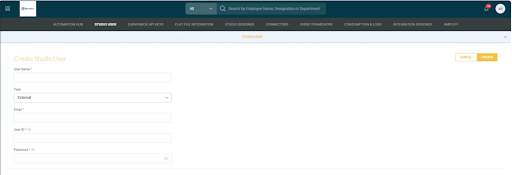
Under Studio Users, select Add Studio User.
-
Enter the following details:
- Username: a recognizable name such as
Zluri Integration - Type: External
- Email: an admin email address owned by your organization
- User ID: a unique identifier
- Password: a strong password
- Username: a recognizable name such as
-
Save the user.
-
Copy and securely store the Username and Password. These are used for Basic Authentication.
Step 2: Generate the API Keys and Dataset Keys
-
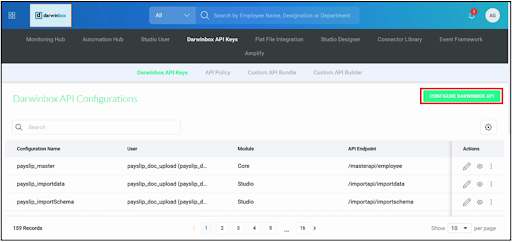
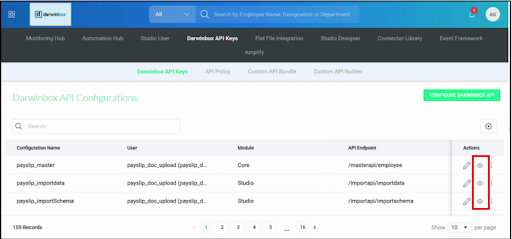
In Darwinbox Studio, navigate to Darwinbox API Keys.
-
Select Configure Darwinbox API.
-
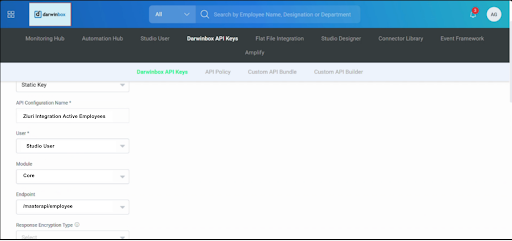
Create an API key for Active Employees:
-
Authentication Type: Static Key
-
Configuration Name: Zluri Integration Active Employees
-
User: the Studio user created in Step 1
-
Module: Core
-
Endpoint: /masterapi/employee
-
Dataset Key: select the active employees dataset under Core
-
Save, then copy the API Key and Dataset Key from the popup
6.Select the employee fields to include in the dataset (see the note below), then select Create.
-
-
Repeat the previous step to create an API key for Inactive Employees on the same
/masterapi/employeeendpoint, with the dataset filtered to inactive employees.Create an API key for Inactive Employees:
- Key Type: Static Key
- Configuration Name: Zluri Integration Inactive Employees
- User: the Studio user created in Step 1
- Module: Core
- Endpoint: /masterapi/employee
- Dataset Key: select the inactive employees dataset under Core
- Save, then copy the API Key and Dataset Key from the popup

- Copy and securely store each generated API Key and its Dataset Key for both Active and Inactive users.
Note: Include at least the following fields in both datasets: employee ID, full name, company email, personal email, reporting manager email, employee status, department, designation, cost center, business unit, office location, date of joining, and date of exit.
Step 3: Begin the Integration in Zluri
-
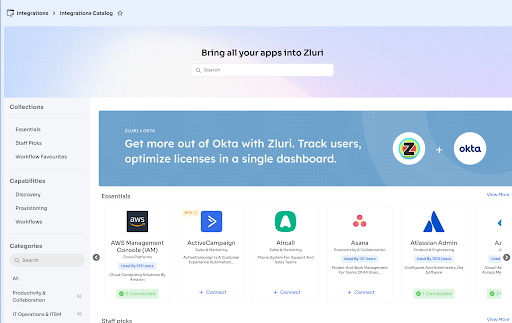
Log in to the Zluri dashboard >catalog.
-
Open the Darwinbox Integration page.
-
Select Connect Integration or Connect another instance if an existing connection is already configured.
Step 4: Review and Add Scopes
- Review the required scopes displayed for the integration.
- Add additional scopes as needed for custom use cases or advanced access, such as Update Employee Email ID for onboarding workflows.
Authorization Options
Self-Authorization
- Proceed directly to Step 5 to complete authorization.
Co-worker Authorization
- Enter a co-worker's details to share the access request.
- Zluri sends an invite email or link containing a unique Connect Code.
- The co-worker can use the code to approve and complete the connection setup.
Step 5: Authorize the Connection
- Depending on the authorization method (self or co-worker), enter the necessary credentials.
- Enter the Darwinbox instance URL in the Instance URL field.
- Enter the Username and Password from Step 1.
- Paste the API Key and Dataset Key for active employees into the Active Employees API Key and Active Employees Dataset Key fields.
- Paste the API Key and Dataset Key for inactive employees into the Inactive Employees API Key and Inactive Employees Dataset Key fields.
- (Optional) Paste the update API key into the Update Employee Email API Key field.
- Select Connect to complete the integration.
Integration Complete
Zluri is now successfully connected to Darwinbox and will begin syncing data automatically.
Got questions? Feel free to submit a ticket or contact us directly at [email protected].
Updated about 1 hour ago