
Setting a Dashboard for Overview in Zluri
The Overview Dashboard in Zluri is your personalized landing screen in the SMP (SaaS Management Platform) or IGA (Identity Governance and Administration) modules. It shows a snapshot of your key performance indicators (KPIs), insights, and metrics relevant to your role and organization. To view an Overview Dashboard, you must have access to at least one dataset used in the dashboard's widgets.
Overview Dashboard
To switch between the two, use the SMP Overview / IGA Overview selector at the top of the Overview page.
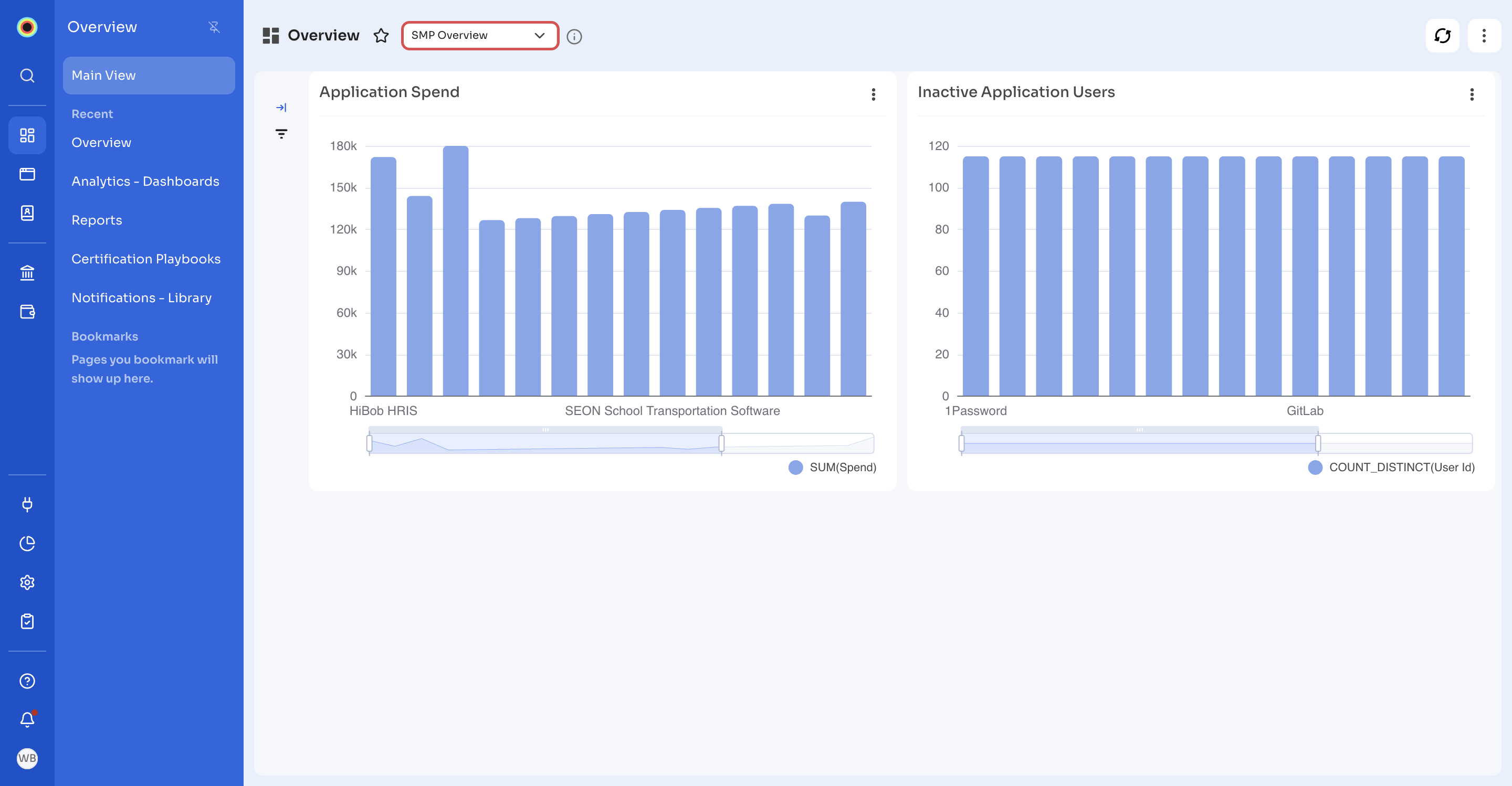
There are three types of Overview Dashboards in Zluri:
| Type | Description |
|---|---|
| Personal Overview | A dashboard that you set as your personal landing page (SMP or IGA). |
| Org Overview | A dashboard set as the organization-wide Overview. |
| Zluri Default Overview | A standard dashboard provided by Zluri when no personal or org-wide Overview is defined. |
Set a Dashboard as Overview
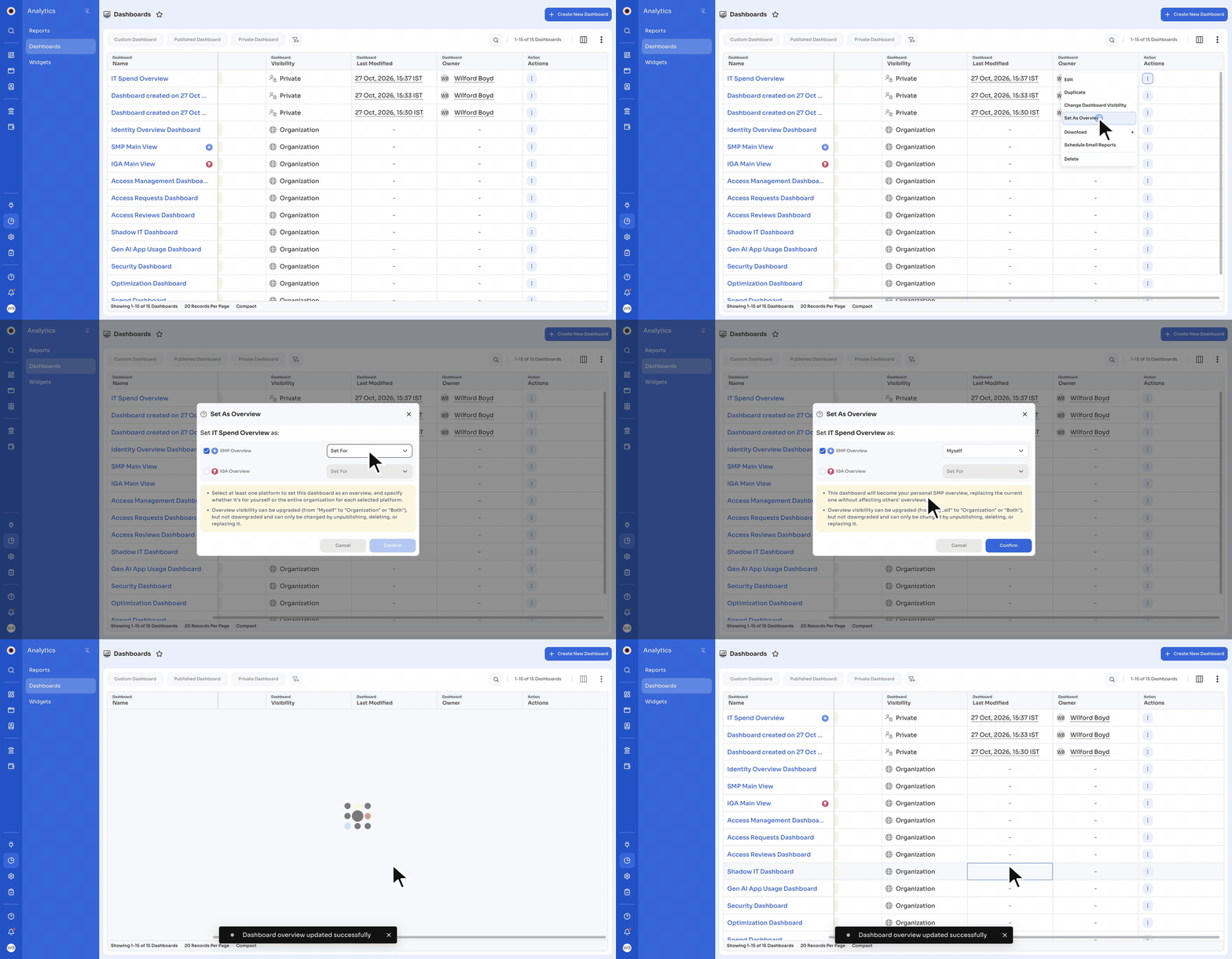
- Go to Analytics → Dashboards.
- Find the published dashboard you want to set as your Overview.
- Click the Actions menu (⋮) next to the dashboard and select Set As Overview.
- In Set As Overview, select SMP Overview, IGA Overview, or both.
- For each one you select, choose who it's for in Set For:
- Myself: Your personal Overview.
- Organization: The organization-wide Overview.
- Both Myself and Organization: Your personal Overview and the organization-wide Overview.
- Read the notes in the dialog, which describe what changes, and then click Confirm.
If the dashboard is already the Overview for a module, that module's option is already selected and you can't clear it.
Rules for Overview Dashboards
- You can set only published dashboards as Overview. For a draft dashboard, Set As Overview is unavailable.
- You can set a Private dashboard only as your own Overview: in Set For, only Myself is available.
- You can upgrade the Set For scope of an Overview (from Myself to Organization or Both Myself and Organization), but you can't downgrade it.
- After you set an Overview, you can't unset it. It changes only when the dashboard is unpublished, deleted, or replaced by selecting another dashboard.
- You can still edit or delete a dashboard that is set as Overview, or change its dashboard visibility.
- Setting a dashboard as your personal Overview doesn't affect other users' personal Overviews.
Overview Dashboard Resolution Priority
When you open SMP or IGA, Zluri shows the first Overview Dashboard available to you, in this order:
- Personal Overview
- Org Overview
- Zluri Default Overview (fallback)
Note: If the selected Overview is unavailable or inaccessible (for example, because of dataset restrictions), Zluri falls back to the next available type.
If You Cannot Access a Dashboard
- Make sure the dashboard is published (not in draft).
- Confirm that you have access to at least one dataset used in the dashboard.
- Contact your Zluri admin or the dashboard owner if access seems incorrect.
Permission Required to Access and Make Changes
Three things determine whether you can view an Overview Dashboard or set and change one:
- Dashboard visibility (a Private dashboard can be set only for Myself)
- Dataset permissions
- Dashboard status (must be published, not draft)
Updated 18 minutes ago