
Widgets
Widgets are reusable visual components that make up dashboards in Zluri's Analytics module. They let you visualize data from SaaS Management Platform (SMP) and Identity Governance and Administration (IGA).
Each widget is based on:
- A dataset (underlying data source)
- A chart type (visual representation)
Widget Types in Zluri
Zluri supports two types of widgets in the Analytics module:
- Standard Widgets: Pre-built by Zluri for common use cases
- Custom Widgets: User-defined visualizations built using available datasets and chart types
Standard Widgets
Standard Widgets appear on the Widgets page with the type Standard.
| Attribute | Description |
|---|---|
| Created by | Zluri Team |
| Editable | Not editable, but can be duplicated |
| Visibility | Available to all users with Analytics access |
| Available In | standard dashboards and custom dashboards |
| Purpose | Provide baseline KPIs and insights across SMP and IGA |
Custom Widgets
Custom Widgets are user-defined and fully customizable. Teams can use them to tailor insights to specific business functions or use cases.
| Attribute | Description |
|---|---|
| Created by | Dashboard owners, analysts, or platform admins |
| Editable | Fully editable: chart type, filters, and formatting |
| Visibility | Based on dataset permissions |
| Available In | Any dashboard the user owns or that is shared with them |
| Purpose | Enable function-specific, departmental, or personal analytics |
Custom Widget Capabilities
- Choose from the datasets listed under Choose a dataset
- Apply filters, groupings, and aggregations
- Choose from seven chart types: Area Chart, Bar Chart, Histogram, Line Chart, Number, Pie Chart, and Table
- Reuse across multiple dashboards
How to Create a Custom Widget
You can create custom widgets from scratch or by duplicating and editing a standard widget.
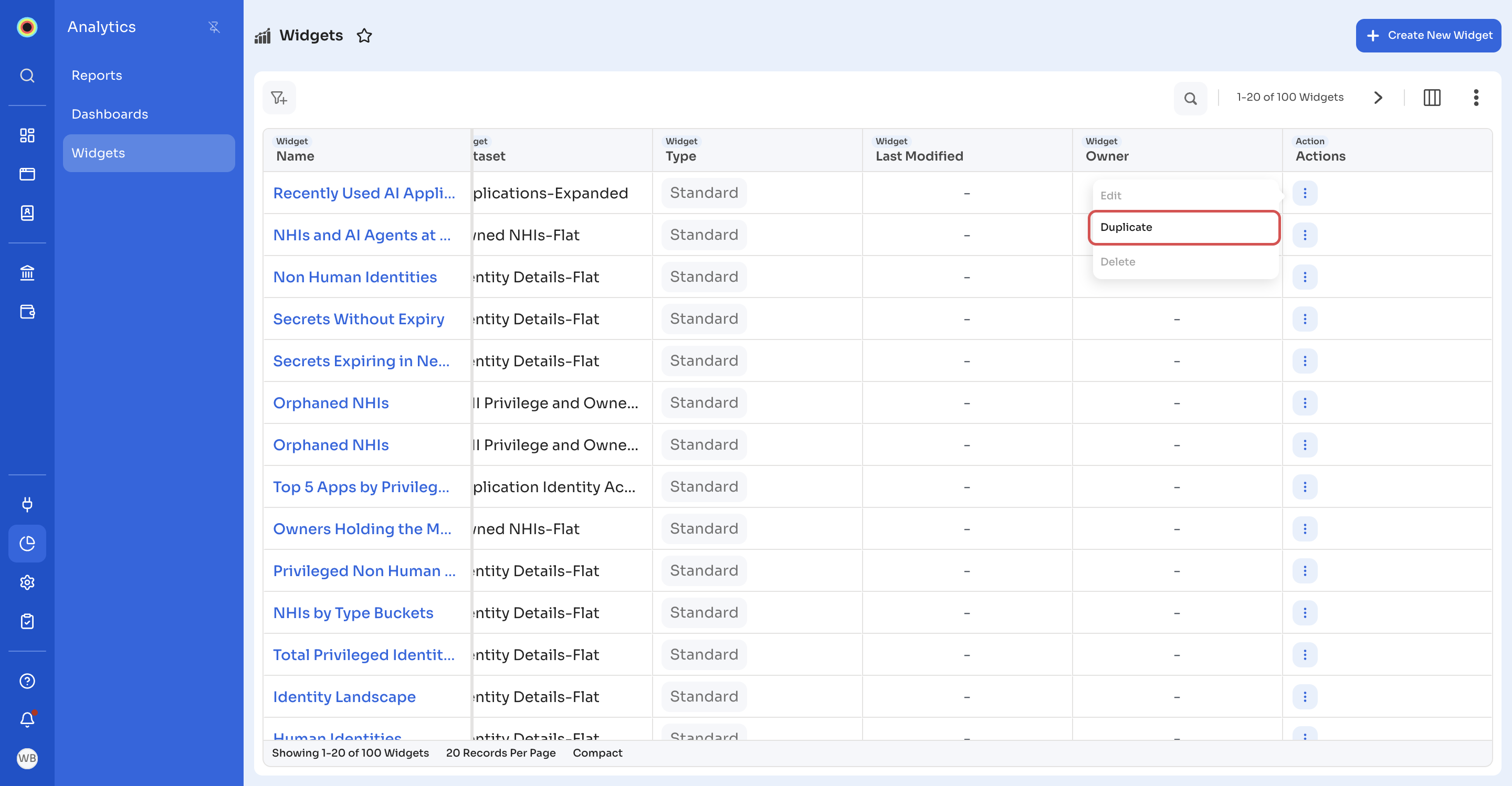
To start from a standard widget, go to Analytics → Widgets, click the Actions menu (⋮) on the widget's row, and select Duplicate. For a standard widget, Edit and Delete are unavailable.
Zluri immediately creates and saves a copy named Copy of followed by the widget name, with the type Custom, and opens it in the widget editor. Continue with Step 3: Configure Widget.
Step 1: Select Dataset
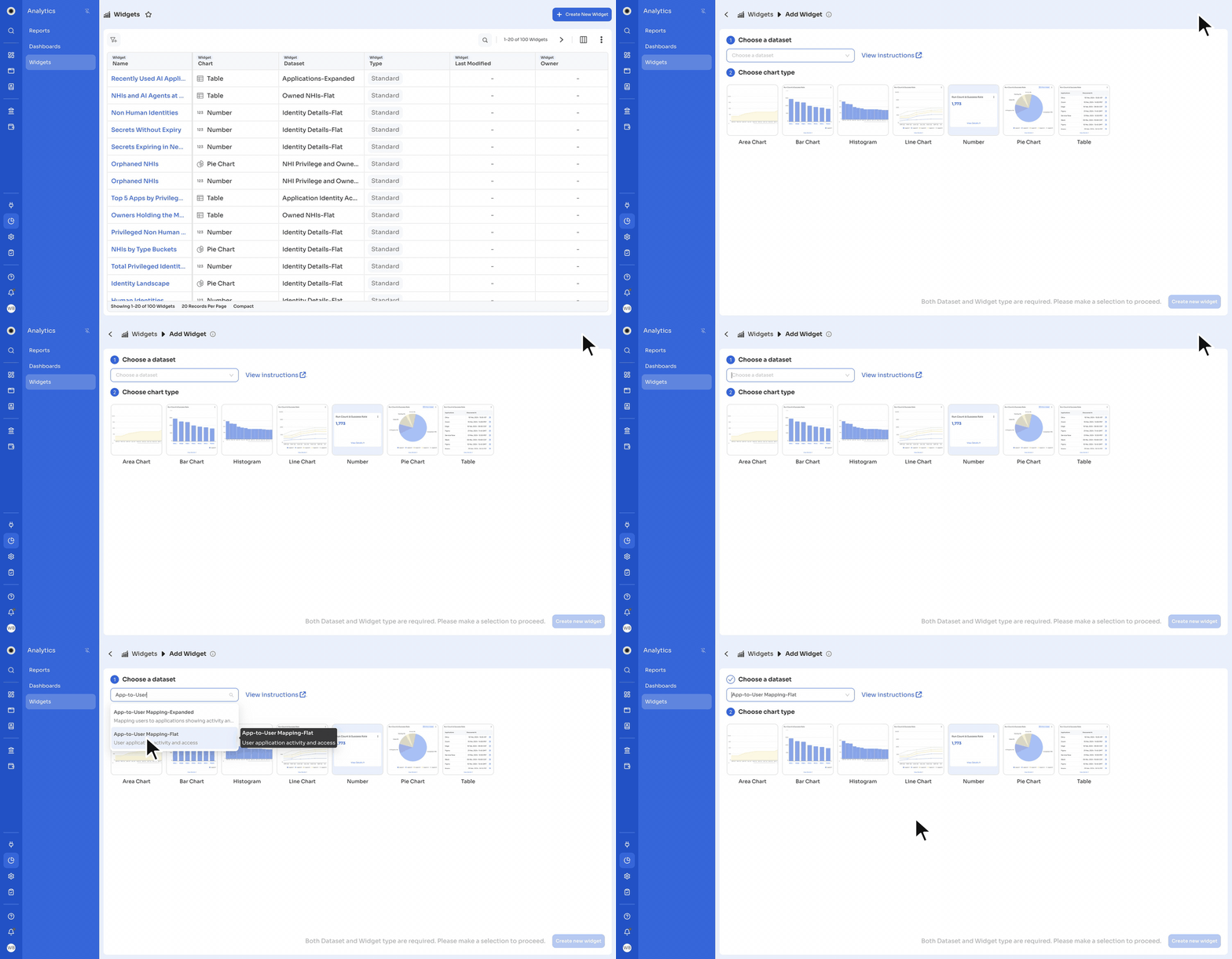
- Go to Analytics → Widgets and click Create New Widget.
- Under Choose a dataset, search for and select a dataset (for example, App-to-User Mapping-Flat) to define the source. Each dataset shows a one-line description.
- Every dataset name ends in -Flat or -Expanded. For the difference between the two, click View instructions, which opens Dataset in Zluri.
Step 2: Choose Chart Type
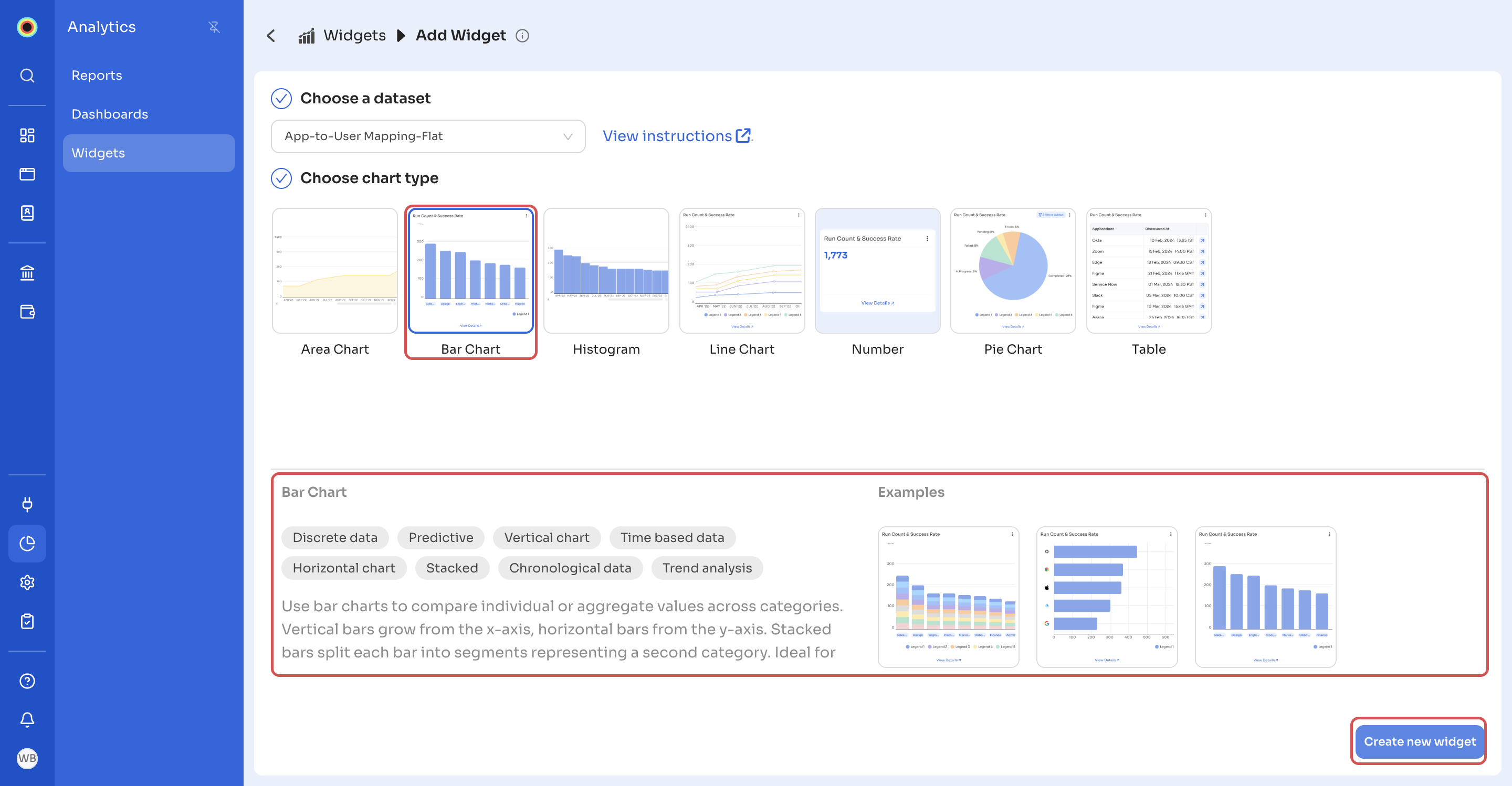
- Under Choose chart type, select a chart type that suits your dataset (for example, Bar Chart for comparisons). When you select a chart type, Zluri shows what it's suited for, with tags and examples.
- Click Create new widget. Both a dataset and a chart type are required.
Step 3: Configure Widget
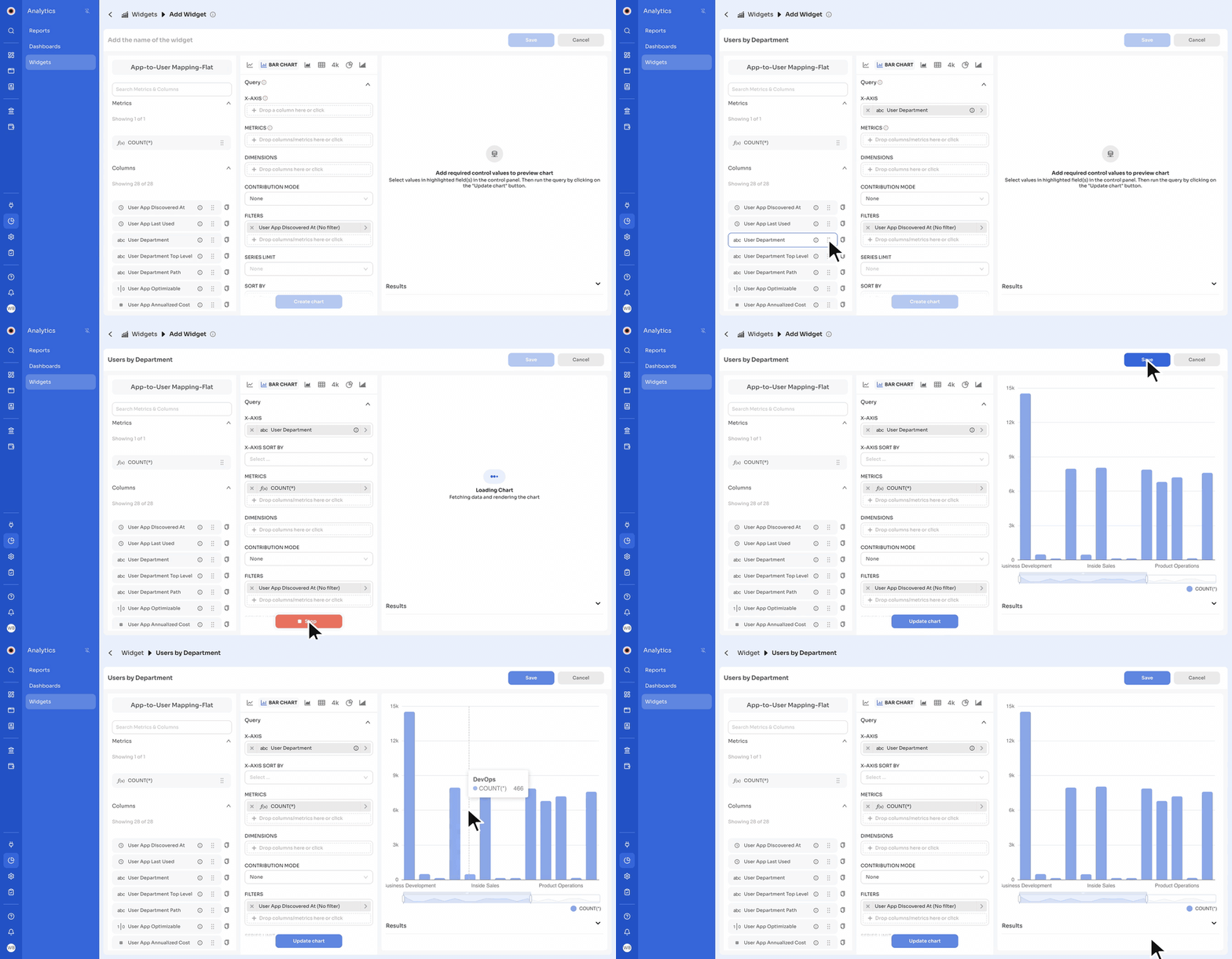
The widget editor opens. The dataset's Metrics and Columns are on the left, the chart settings are in the middle, and the chart preview is on the right.
- Enter a name in Add the name of the widget.
- Define the X-AXIS and METRICS: drag a column (for example, User Department) onto X-AXIS and a metric (for example,
COUNT(*)) onto METRICS, or click a field to choose one. - To aggregate a column, click METRICS. In the My metric panel, choose a COLUMN and an AGGREGATE option (AVG, COUNT, COUNT_DISTINCT, MAX, MIN, or SUM), and then click Save. For example, to count unique users, use COUNT_DISTINCT on a user column such as User ID.
- Add filters under FILTERS (for example, time range, department, app type).
- Choose how results are sorted and limited with SORT BY and ROW LIMIT.
- For a Bar Chart, under Chart Orientation (below Query), choose the BAR ORIENTATION (Vertical or Horizontal) and STACKED STYLE. To add redirect links, open Advanced. See Widget Redirect URLs in Zluri.
- Click Create chart to preview the widget. After further changes, click Update chart.
- Click Save. In Save Widget, confirm the WIDGET NAME and click Save. You can then add the widget to any dashboard you can edit. See Create a dashboard.
Updated 18 minutes ago