
Reports
Open Reports
Reports give you offline copies of your Zluri data as CSV files. Generate a report on demand, or schedule it so that Zluri emails it to you once or on a recurring basis.
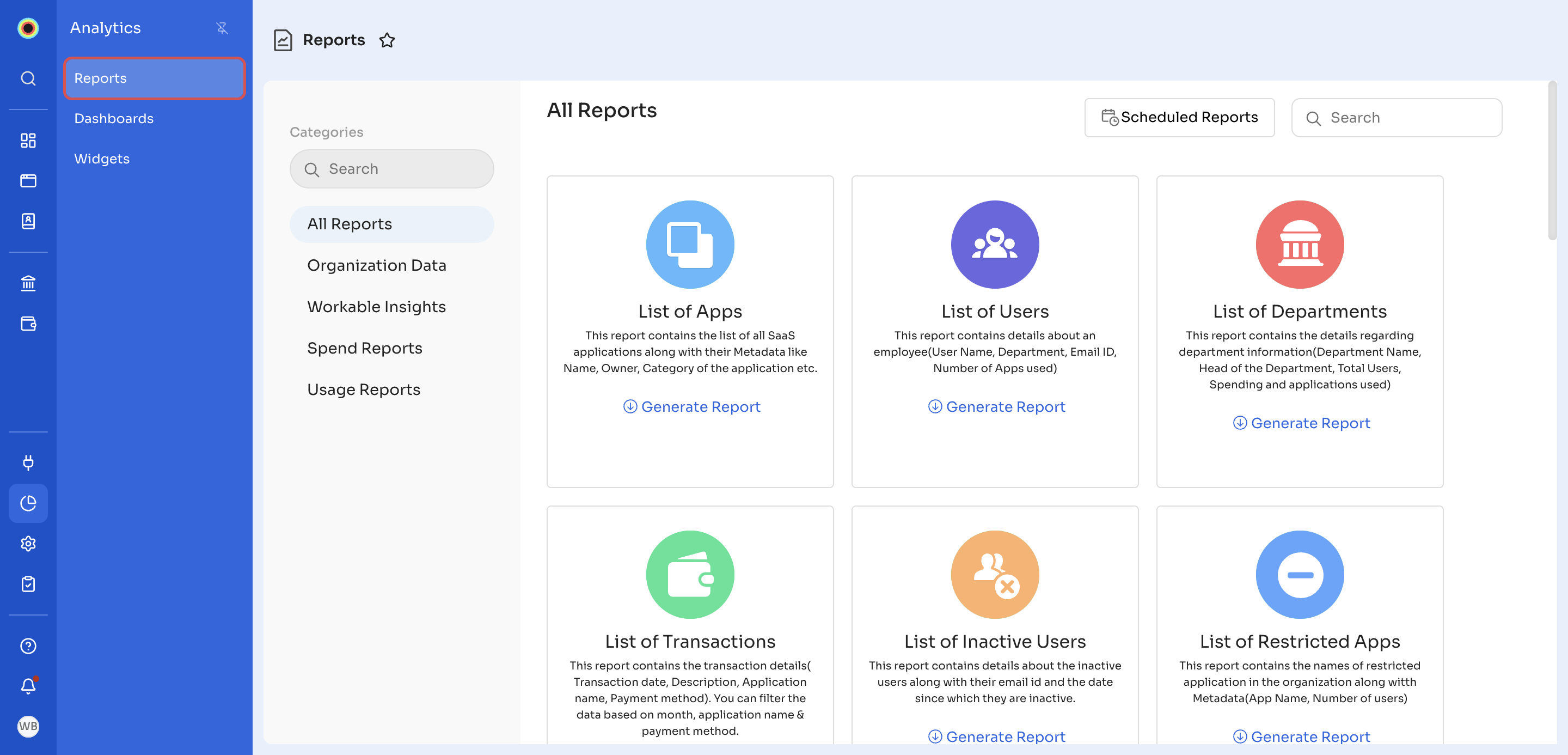
Go to Analytics → Reports. The page lists every report as a card, with a Categories panel on the left and Scheduled Reports and Search at the top right.
Report categories
Click a category in the Categories panel to filter the reports:
- All Reports: every report in Zluri.
- Organization Data: lists of your apps, users, departments, transactions, compliance, suite activity, and access requests. See Organization Data.
- Workable Insights: reports to act on, such as inactive users, restricted apps, and license optimization. See Workable Insights.
- Spend Reports: spend by department, application, and cost center. See Spend Reports.
- Usage Reports: redundant applications. See Usage Reports.
Each card shows the report's name, a description of its contents, and a Generate Report link. To find a report by name, use Search at the top right. To find a category, type its name in the search box at the top of the Categories panel.
Generate a report
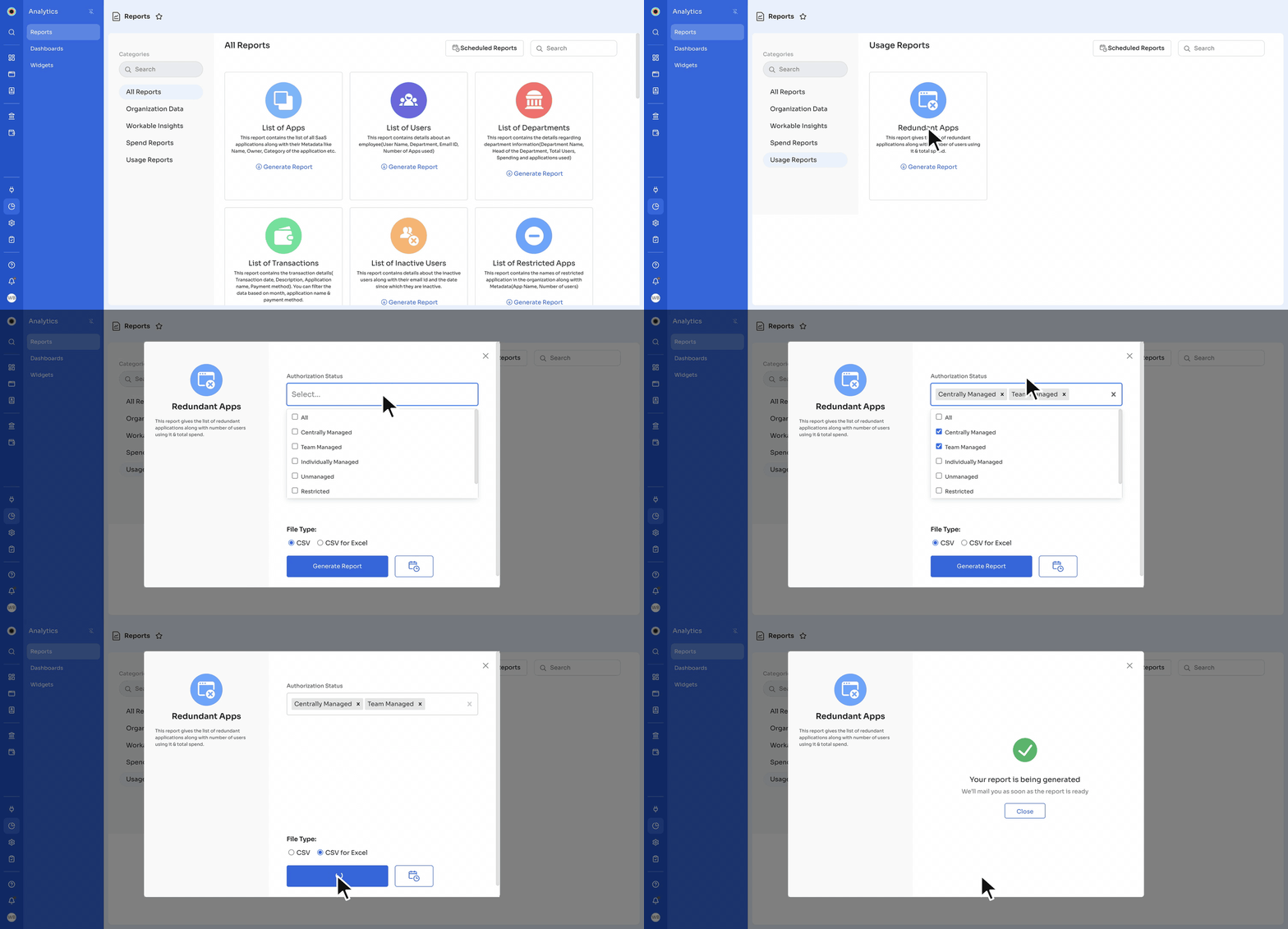
- On the report's card, click the Generate Report link.
- Set the report's filters, if it has any. Filters differ by report, and some reports have none. For example, you can filter Redundant Apps by Authorization Status.
- Under File Type, select CSV or CSV for Excel. Every report offers both file types.
- Click the Generate Report button.
Zluri shows Your report is being generated and emails you the report as soon as it's ready. Click Close to return to the reports.
Schedule a report
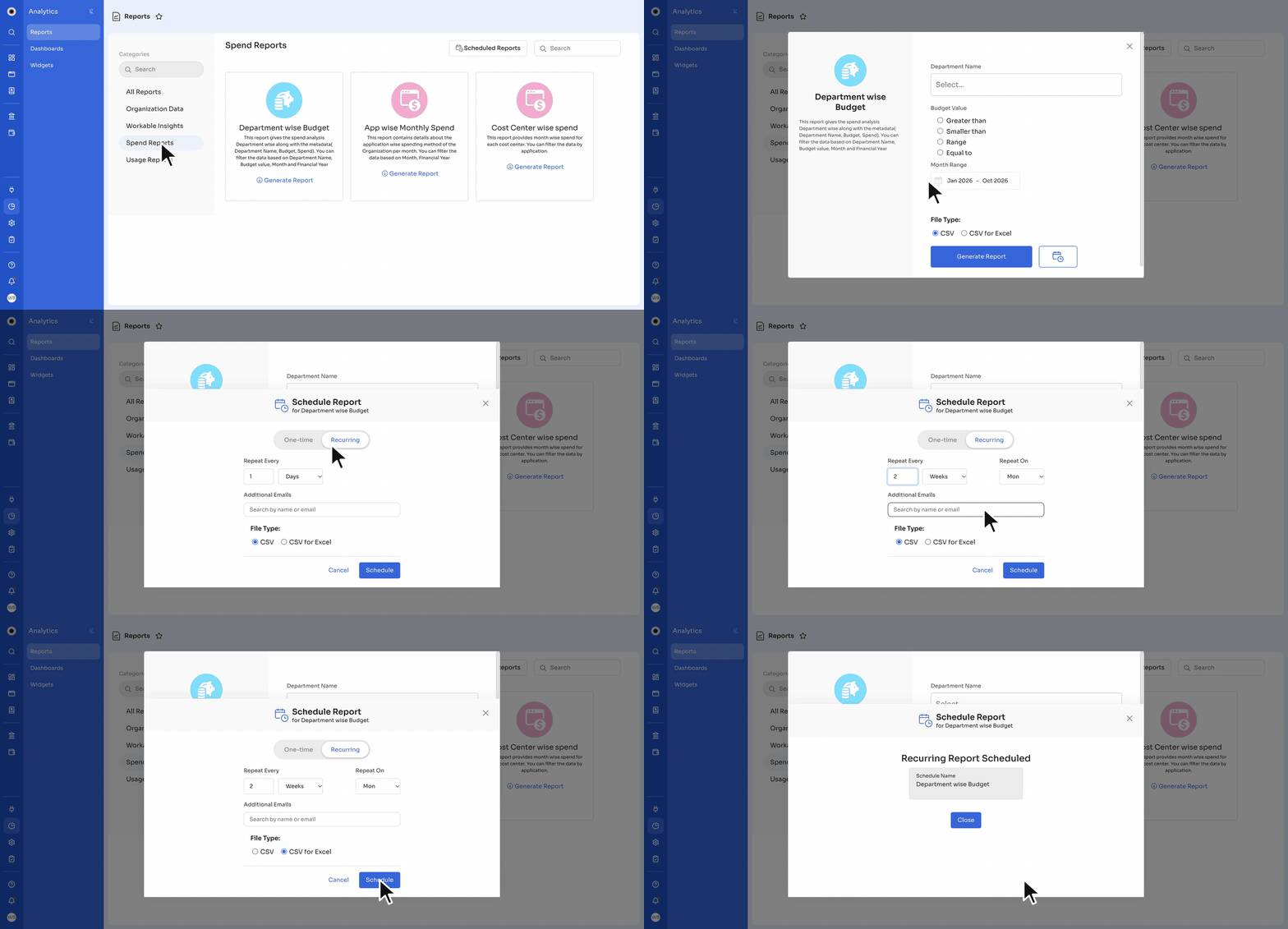
- On the report's card, click the Generate Report link and set the report's filters, if it has any.
- Click the calendar button next to Generate Report. The Schedule Report window opens.
- Choose when the report runs:
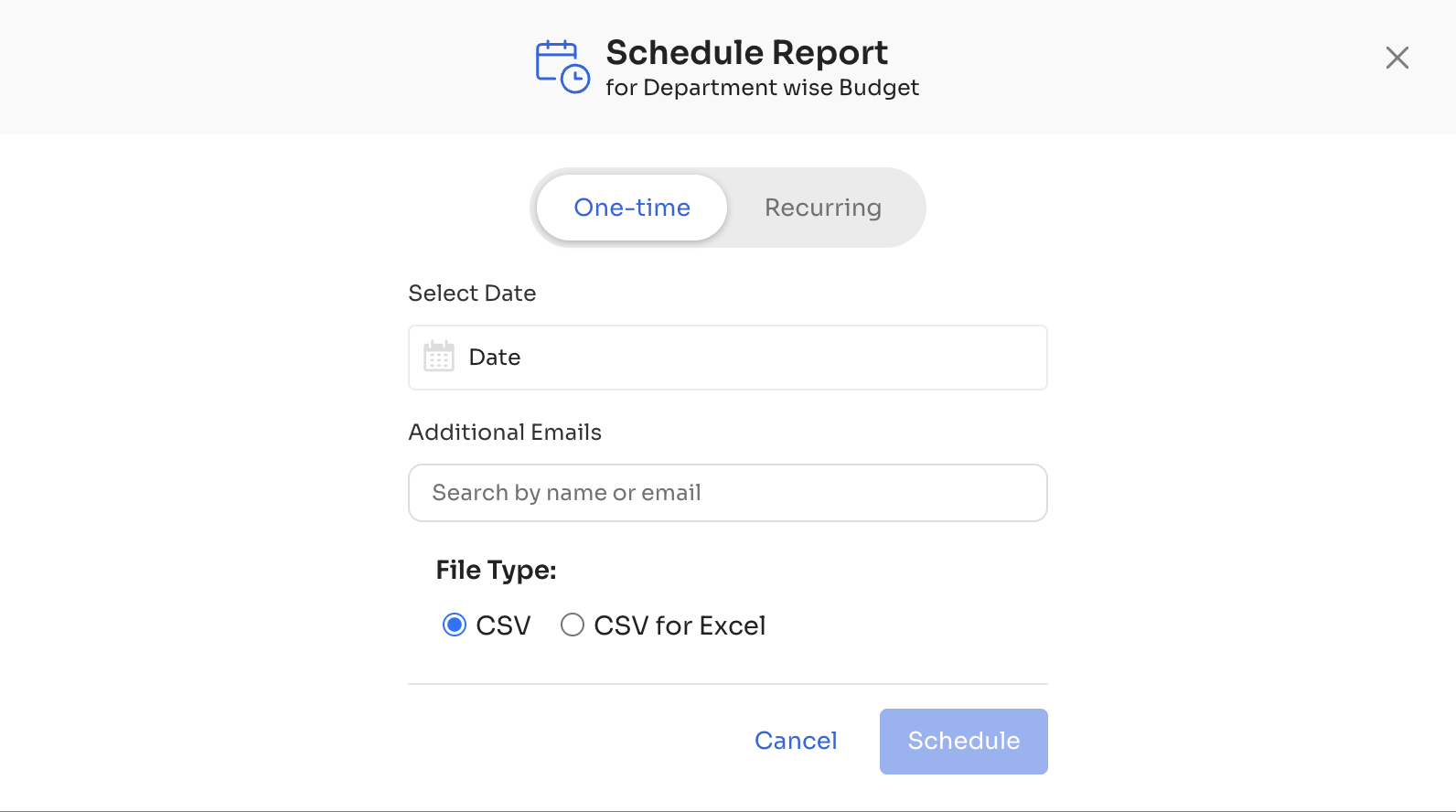
- One-time: under Select Date, select the date.
- Recurring: under Repeat Every, enter a number and select Days, Weeks, Months, or Years. For Weeks, also select the day under Repeat On.
- To send the report to more people, add them under Additional Emails. Zluri always emails the report to you.
- Under File Type, select CSV or CSV for Excel.
- Click Schedule.
For a recurring schedule, Zluri confirms Recurring Report Scheduled and shows the report's name under Schedule Name. Click Close.
For a one-time schedule, the window shows Select Date instead of Repeat Every:
View and delete scheduled reports
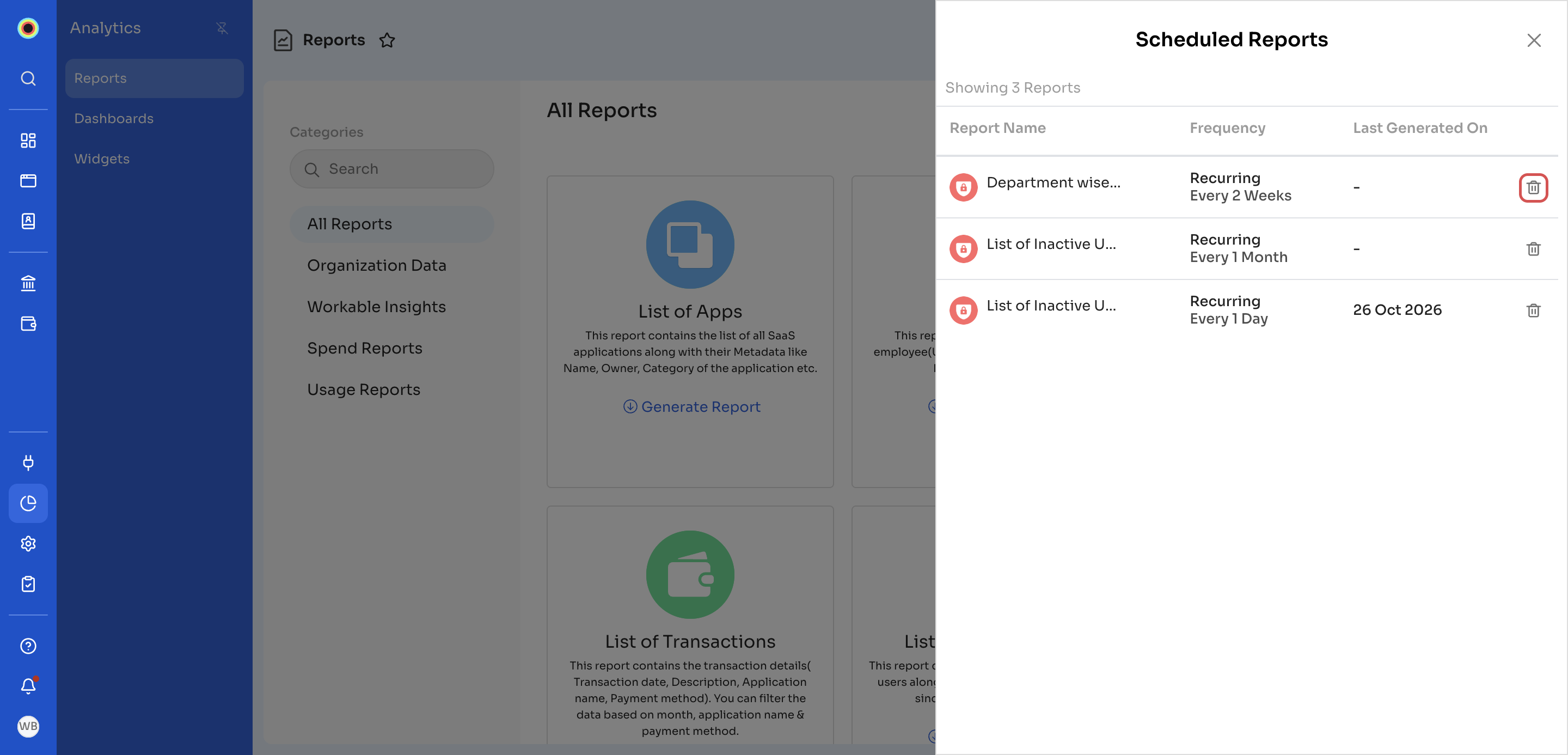
- Click Scheduled Reports at the top right of the Reports page. The panel lists each scheduled report with its Report Name, Frequency, and Last Generated On date.
- To stop a scheduled report, click the trash icon on its row.
- In the You're about to delete confirmation, click Delete.
Updated 12 minutes ago