
Widget Redirect URLs in Zluri
Admins can configure redirect URLs within widgets so that dashboard viewers can act on what they see. These redirect links let users drill down into related Zluri records, open filtered pages, or view raw data directly from a chart.
Why Use Redirect URLs in Widgets?
With redirects, viewers can:
- Open related Zluri records in one click, such as detailed app usage, access logs, or certification results.
- Check the data behind a chart.
Types of Redirect URLs
Zluri widgets support three redirect types. You set them in the widget editor under Advanced → URL Redirects: WIDGET REDIRECTION URL, DRILL TO DETAILS REDIRECTION URL, and VIEW AS TABLE REDIRECTION URL.
1. Widget Redirection URL
A static redirect set at the widget level, linking all users to the same destination.
- Best for summary or landing pages
Use case: Navigate to a page showing all active applications.
Example:
{
  "url": "/applications",
  "queryParams": {
    "status": "active"
  },
  "hash": "summary"
}
2. Drill to Details Redirection URL
A contextual redirect based on what the user clicks.
- Supports dynamic variables (for example,
{{app_id}}) - Useful for linking to filtered records or user-specific logs
Use case: View the user list for the clicked application.
Example:
{
  "url": "/applications/{{app_id}}/users",
  "queryParams": {
    "archived": false
  }
}
3. View as Table Redirection URL
Redirects users to a tabular or data grid view of the underlying dataset.
- Supports dynamic variables
- Useful for moving from a chart to a detailed table
Use case: Open a grid showing app-user mappings for the selected app.
Example:
{
  "url": "/applications/data-table",
  "queryParams": {
    "app_id": "{{app_id}}",
    "status": "active"
  }
}
Tip: Use the URL-to-JSON converter (Generate JSON from URL) to decode or build structured redirect links with query parameters. See Build and Test Redirects in the Widget Editor.
How Zluri URLs Work
Knowing how a Zluri URL is structured helps you build redirects or deep links:
Example URL:
https://app.zluri.com/v2/applications/683b9b95083427dca3257c43?application_users=%7B...%7D#users| Part | Description |
|---|---|
https:// | Protocol used to access the site securely |
app.zluri.com | Host name of the Zluri web app |
/v2/applications/<ID> | Page path; here, the details page of the application with this ID |
?application_users=... | Query string with the filters and settings that control what data the page shows |
#users | Page anchor directing to a specific section (for example, the Users tab) |
Notes
- Paths are case-sensitive.
- Query parameters are typically URL-encoded JSON objects.
- Hash fragments (
#) jump to tabs or sections.
Redirect Configuration Format
Each redirect configuration has up to three parts; only url is required:
{
  "url": "/<destination_path>",
  "queryParams": {
    "<key>": "<value>"
  },
  "hash": "<fragment_id>"
}url: The destination path (required)queryParams: Optional filters or parameters to pre-loadhash: Optional in-page anchor
Using Dynamic Variables
For Drill to Details and View as Table redirect types, Zluri supports dynamic variables using {{double curly braces}}.
Zluri fills them in from the data point the user clicks.
To get a column's variable, click the copy icon next to the column in the widget editor's Columns list. Zluri copies the variable in double braces, for example {USER_NAME} for the User Name column. See Build and Test Redirects in the Widget Editor.
Example:
{
  "url": "/application/{{app_id}}"
}
Applying Filters in Redirects
Redirects can also pre-apply filters through structured queryParams, so users land on a page that's already filtered.
String Filter
{
  "field_name": "Application Name",
  "field_values": ["Okta"],
  "field_id": "app_name"
}
Boolean Filter
{
  "field_name": "Is Archived",
  "field_values": false,
  "field_id": "is_archived"
}
Number Filter (greater than)
{
  "field_name": "Active Users",
  "field_values": [20],
  "field_order": ["gt"],
  "field_id": "active_users"
}
Range Filter
{
  "field_name": "Active Users",
  "field_values": [20, 30],
  "field_order": ["gte", "lte"],
  "field_id": "active_users"
}
Date Filter
{
  "field_name": "Upcoming End Date",
  "field_values": ["2025-07-02T18:29:59.999Z", "2025-07-03T18:29:59.999Z"],
  "field_order": ["gte", "lte"],
  "field_id": "upcoming_end_date"
}
Summary of Redirection Support
| Redirection Type | Supports Variables? | Ideal For |
|---|---|---|
| Widget Redirection URL | No | Linking to static pages |
| Drill to Details Redirection URL | Yes | Record-level navigation |
| View as Table Redirection URL | Yes | Tabular view of underlying widget data |
Best Practices
- Use a Widget Redirection URL only for generic summaries.
- Use a Drill to Details or View as Table redirect for user-specific or row-level analysis.
- Use field IDs (not names) when writing filters.
- If you write
queryParamsby hand, URL-encode any JSON values.
Build and Test Redirects in the Widget Editor
Build and check redirects in the widget editor before you save the widget.
-
In the widget editor (Analytics → Widgets, then create or open a custom widget; see Widgets), open Advanced. Under URL Redirects, find the redirect type you want to set.
-
Click Generate JSON from URL and paste a Zluri page URL into URL to JSON. For example,
https://app.zluri.com/v2/applications#managedgives{"url": "/v2/applications", "hash": "managed"}. Use the converter instead of writing the JSON yourself; it fills the JSON editor below. Click Hide URL-to-JSON Converter to close it.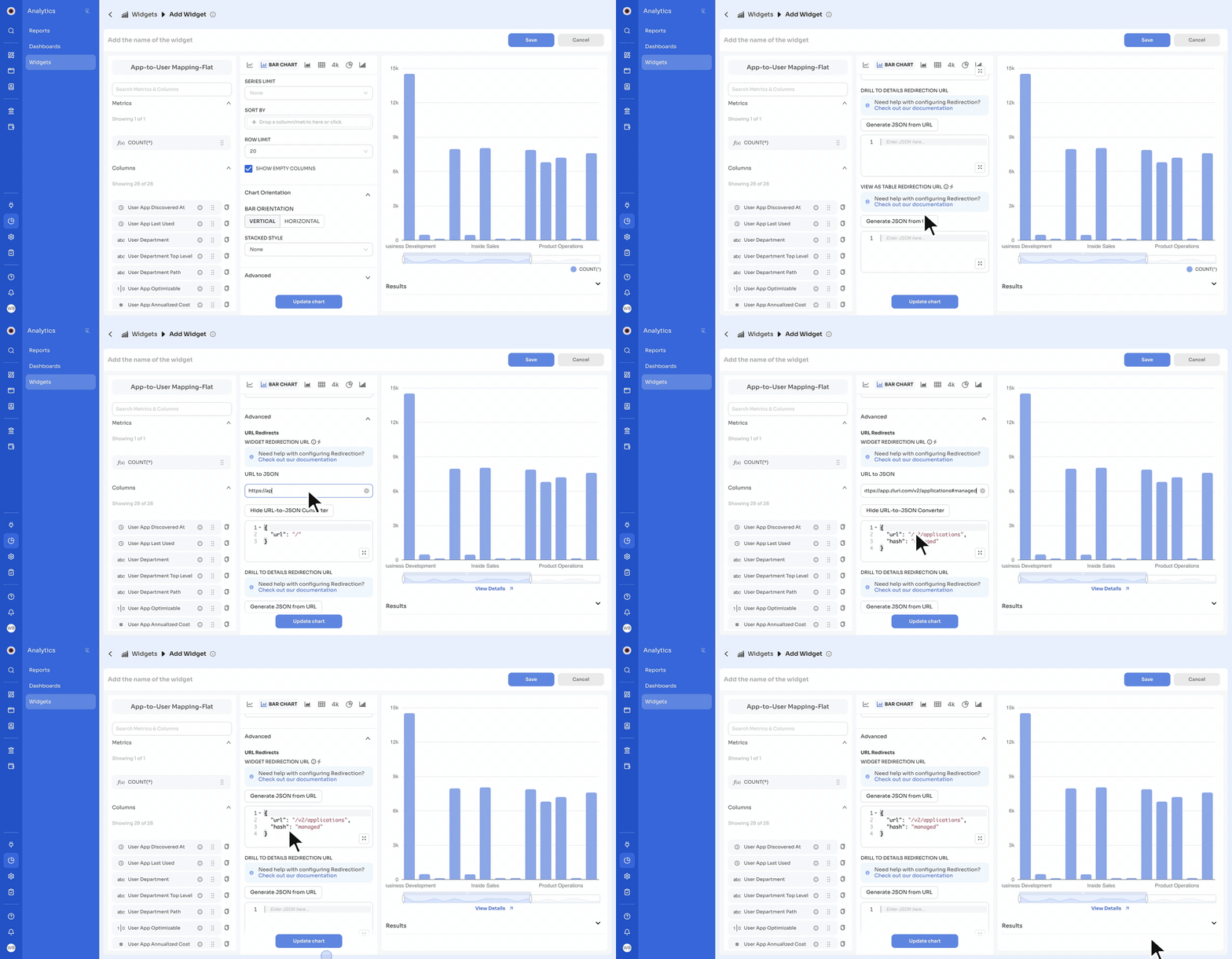
-
To use a column's value in a redirect, click the copy icon next to the column in the Columns list. Hovering over the icon shows the Click to copy tooltip. Zluri copies the column's variable in double braces (for example,
{USER_NAME}for the User Name column), which you can use as a dynamic variable in a Drill to Details or View as Table redirect JSON.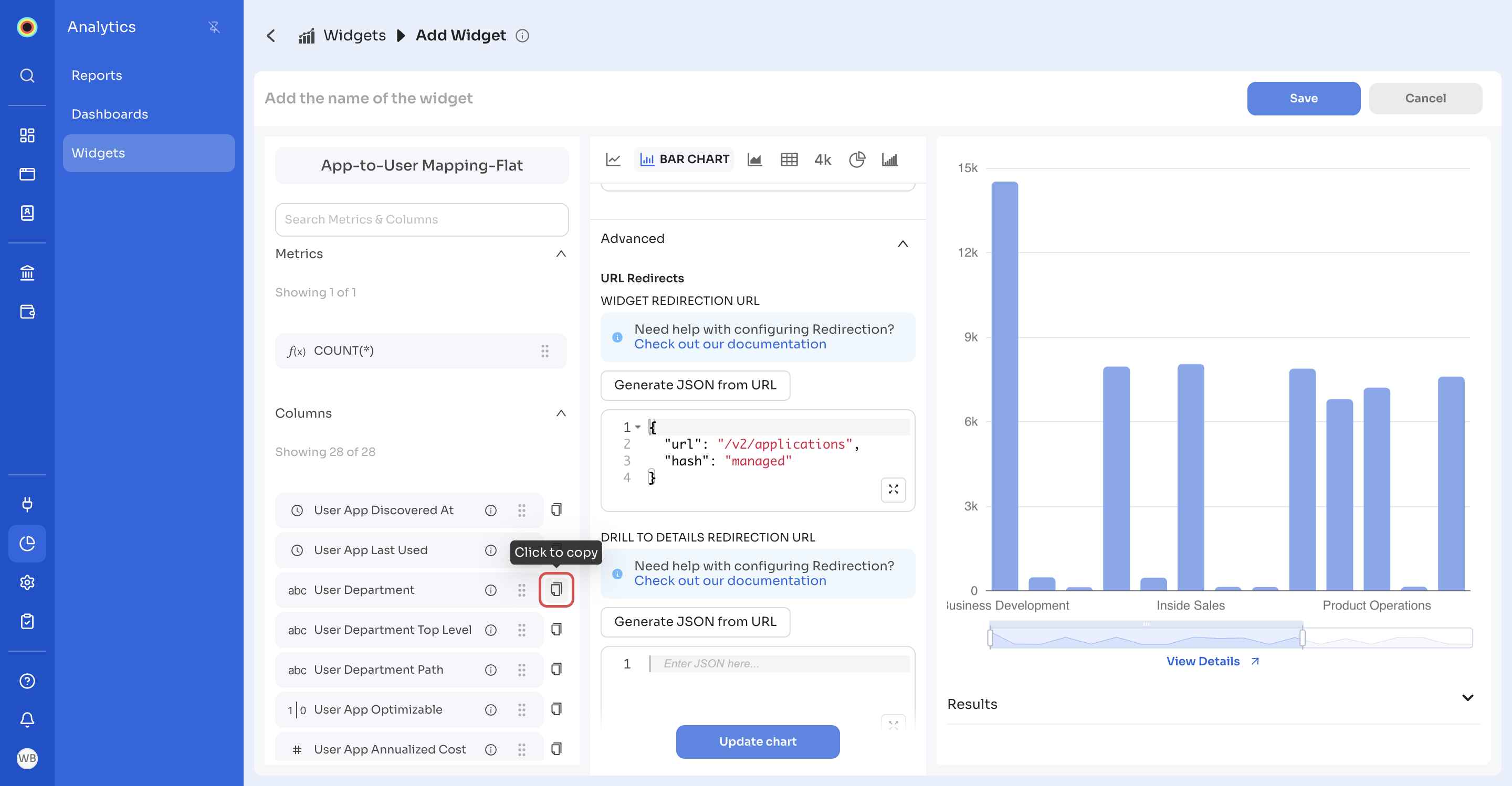
-
Test the redirect buttons before saving:
- For a Widget Redirection URL, the View Details button appears below the chart as soon as you enter a redirect URL. Click View Details to open the destination in a new browser tab and check it.
- For table views, redirection buttons appear on each row in the Results panel, so you can go to the destination directly from that row.
Updated 18 minutes ago