
Connect
This guide provides the steps to connect an OpenAI Platform organization to Zluri.
Who this integration is for
This integration works only with OpenAI Platform organizations that you manage at platform.openai.com. This is OpenAI's developer platform, where you create API keys and pay for API usage.
It does not work with:
- ChatGPT plans, such as ChatGPT Business or ChatGPT Enterprise. These are managed in ChatGPT's admin settings and use their own admin keys.
- Azure OpenAI, or OpenAI models used through another cloud provider. These are managed and billed in the cloud provider's console.
Not sure which one you have? If you manage your API keys, projects and API billing at platform.openai.com, this integration is for you. If you manage members in ChatGPT or in a cloud provider's console, it is not.
What you need
- The Organization Owner role in the OpenAI Platform organization. Only organization owners can create Admin API keys. See OpenAI's article: Admin and Audit Logs API for the API Platform.
- An Admin API key. A standard project API key won't work, because the Admin APIs accept only Admin API keys.
Step 1: Create an Admin API Key in OpenAI
-
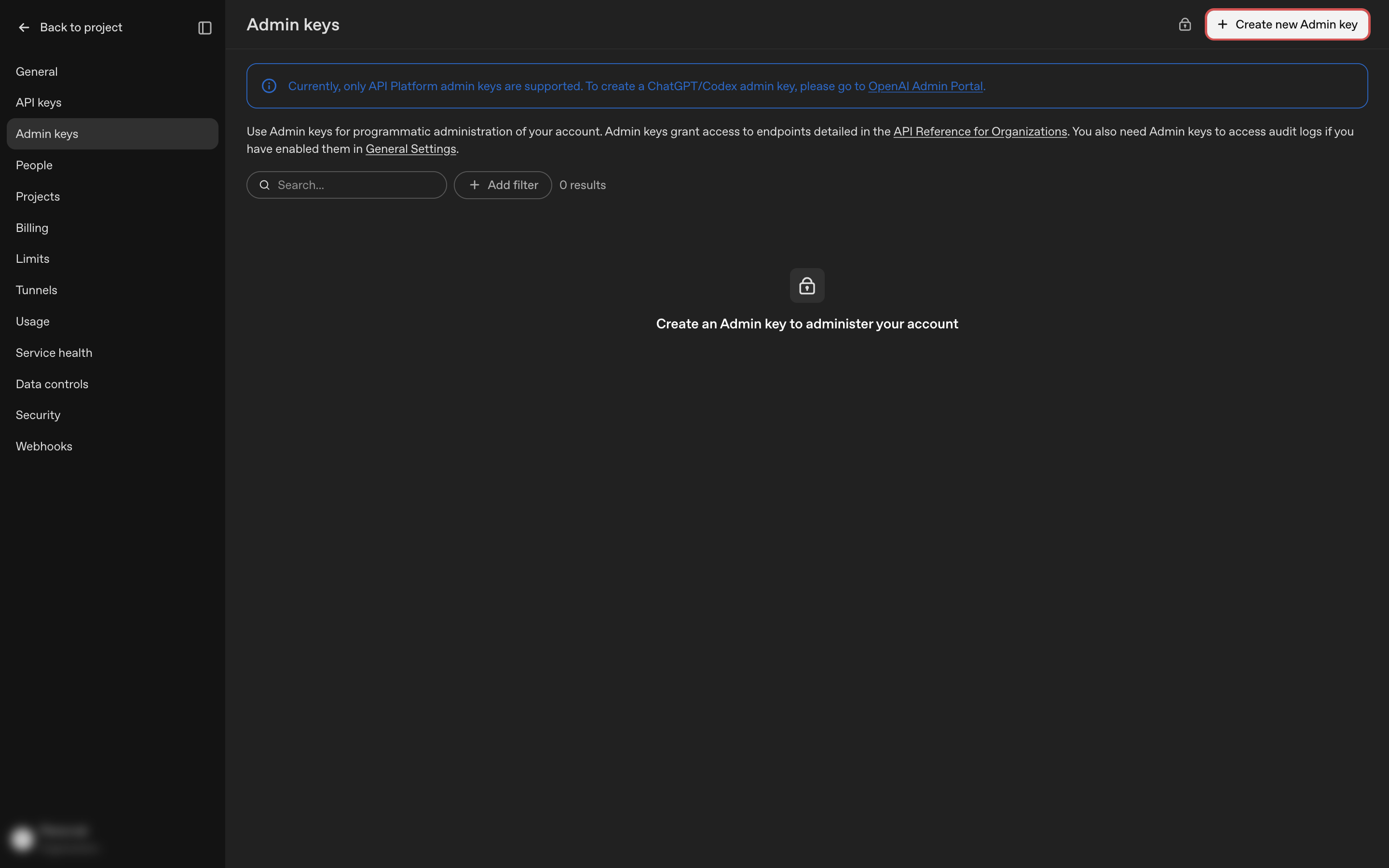
Log in to the OpenAI Platform as an organization owner and open the Admin keys page: platform.openai.com/settings/organization/admin-keys. You can also get there from Organization settings > Admin keys.
-
Select Create new Admin key.
-
-
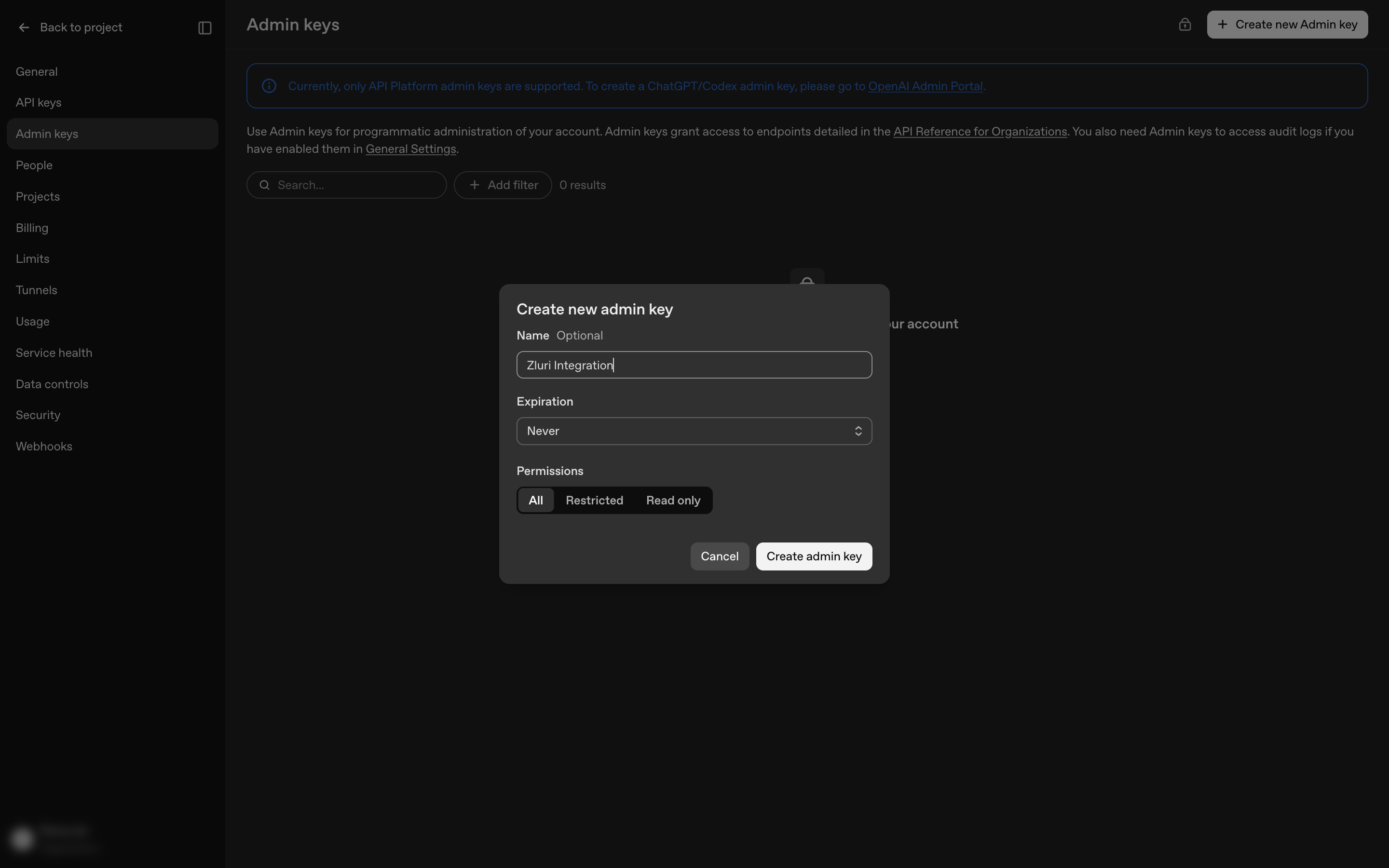
Enter a Name, for example "Zluri Integration".
-
Set Expiration as required by your key rotation policy.
-
Under Permissions, select All. OpenAI notes that some roles data needs permissions beyond the narrower options, and Zluri reads roles. Zluri only reads users, projects, roles, usage and costs, and never makes changes.
-
Select Create admin key.
-
Copy and securely store the key. It is shown only once and can't be recovered later.
Check you have the right key: an Admin API key starts with sk-admin-. If yours does not, it is not an Admin API key and the connection will fail.
Step 2: Begin the Integration in Zluri
- Log in to the Zluri dashboard.
- Open the OpenAI Platform Integration page.
- Select Connect Integration or Connect another instance if an existing connection is already configured.
Step 3: Review Scopes
Review the required scopes displayed for the integration. The following scopes are selected by default:
- Read Organization Users
- Read Projects, Project Members & Service Accounts
- Read Roles & Permissions
- Read Usage & Costs
Authorization Options
Self-Authorization
- Proceed directly to Step 4 to complete authorization.
Co-worker Authorization
- Enter a co-worker's details to share the access request.
- Zluri sends an invite email or link containing a unique Connect Code.
- The co-worker can use the code to approve and complete the connection setup.
Step 4: Authorize the Connection
- Depending on the authorization method (self or co-worker), enter the necessary credentials.
- Paste the Admin API key into the Admin API Key field in Zluri.
- Select Connect to complete the integration.
Integration Complete
Zluri is now successfully connected to OpenAI Platform and will begin syncing data automatically.
Got questions? Feel free to submit a ticket or contact us directly at [email protected].
Updated about 4 hours ago