
Account Classification Rules
Set the type of every discovered account with ordered rules, and see how account types decide identity types.
Overview
Account classification rules set the type of every discovered account, such as Employee, External, Service Account, or Bot, from conditions you build in Zluri.
One person holds many accounts across apps: an employee account in the HRMS, a seat in an AI tool, an API key that a system uses, an OAuth app. Zluri usually gets each account's type from the source it comes from, but some sources do not send a type at all. Classification rules fill that gap. You write one ordered list of rules, and Zluri uses it to set the type of every account that matches. Zluri then works out each identity's type from the types of the accounts it holds.
Rules add to the classification Zluri already does. Existing classification keeps working and needs no migration.
What this feature enables
The table below summarizes what account classification rules do.
| Capability | Description |
|---|---|
| Rule-based classification | Build rules from account, application, and source fields and from account custom fields, and set every matching account to one of 20 account types. |
| Priority ordering | Rules run top to bottom. The first rule that matches an account sets its type, and lower rules skip that account. |
| Rule status | Keep a rule as Draft, Active, or Inactive. Only active rules classify accounts. |
| Matched accounts | Open a table of the accounts a rule matches while you build it, before you save. |
| Unclassified accounts listing | See every account that no rule has classified, so you know which rules to write next. |
| Identity roll-up | Zluri sets each identity's type from the types of its accounts. Rules never set an identity's type directly. |
| Daily run | Zluri runs all active rules every day at 00:00 UTC. |
| Audit trail | Zluri records every rule you create, update, deactivate, or delete in Audit Logs. |
How classification works
An identity is a person or a workload, for example a human employee or a deployment pipeline. An account is one login that an identity holds on one app instance. One identity holds many accounts, such as an Okta login, a Slack member, and a GitHub token.
Rules classify accounts, and Zluri then derives each identity's type from its accounts. The table below shows how Zluri evaluates rules on each daily run.
| Step | What happens |
|---|---|
| 1 | Zluri takes the active rules in priority order, starting from priority 1. |
| 2 | For each account, Zluri checks the rules in that order. |
| 3 | The first rule whose conditions match sets the account's type. Zluri stops checking rules for that account. |
| 4 | If no active rule matches, the account stays unclassified and appears in the Unclassified Accounts listing. |
| 5 | Zluri recalculates each identity's type from its accounts. |
Think of it as a waterfall. Say Zluri has 100 accounts to classify. The first rule matches 20 and sets them as Employee. The other 80 fall through to the second rule, which sets some as External, and so on down the list. Whatever is left at the bottom stays unclassified.
Because the first match wins, two rules never conflict. However, a broad rule placed high in the list catches accounts that a more specific rule lower down was meant to catch. Place narrow rules, such as service accounts and bots, above broad rules, such as a company email domain.
Account types
A rule's action sets one of the account types below. The Set account as menu groups them into Human Identity and Non Human Identity.
| Group | Account type |
|---|---|
| Human Identity | Employee |
| Human Identity | External |
| Non Human Identity | Service Account |
| Non Human Identity | Shared Account |
| Non Human Identity | CI/CD |
| Non Human Identity | Managed Identity |
| Non Human Identity | IAM Role |
| Non Human Identity | Container |
| Non Human Identity | Bot |
| Non Human Identity | Connected App |
| Non Human Identity | Service Principal |
| Non Human Identity | Webhook |
| Non Human Identity | SAML App |
| Non Human Identity | OAuth App |
| Non Human Identity | API Token |
| Non Human Identity | SSH Key |
| Non Human Identity | Certificate |
| Non Human Identity | GPG Key |
| Non Human Identity | OAuth Token |
| Non Human Identity | AI Agent |
Unclassified is not an action. An account stays unclassified when no active rule matches it. Zluri does not treat an account that is not an employee as external.
Open the Account Classification Rules page
The Account Classification Rules page lists every rule in priority order.
Steps
- Select Platform in the left navigation.
- Select Account Classification under Data Management.
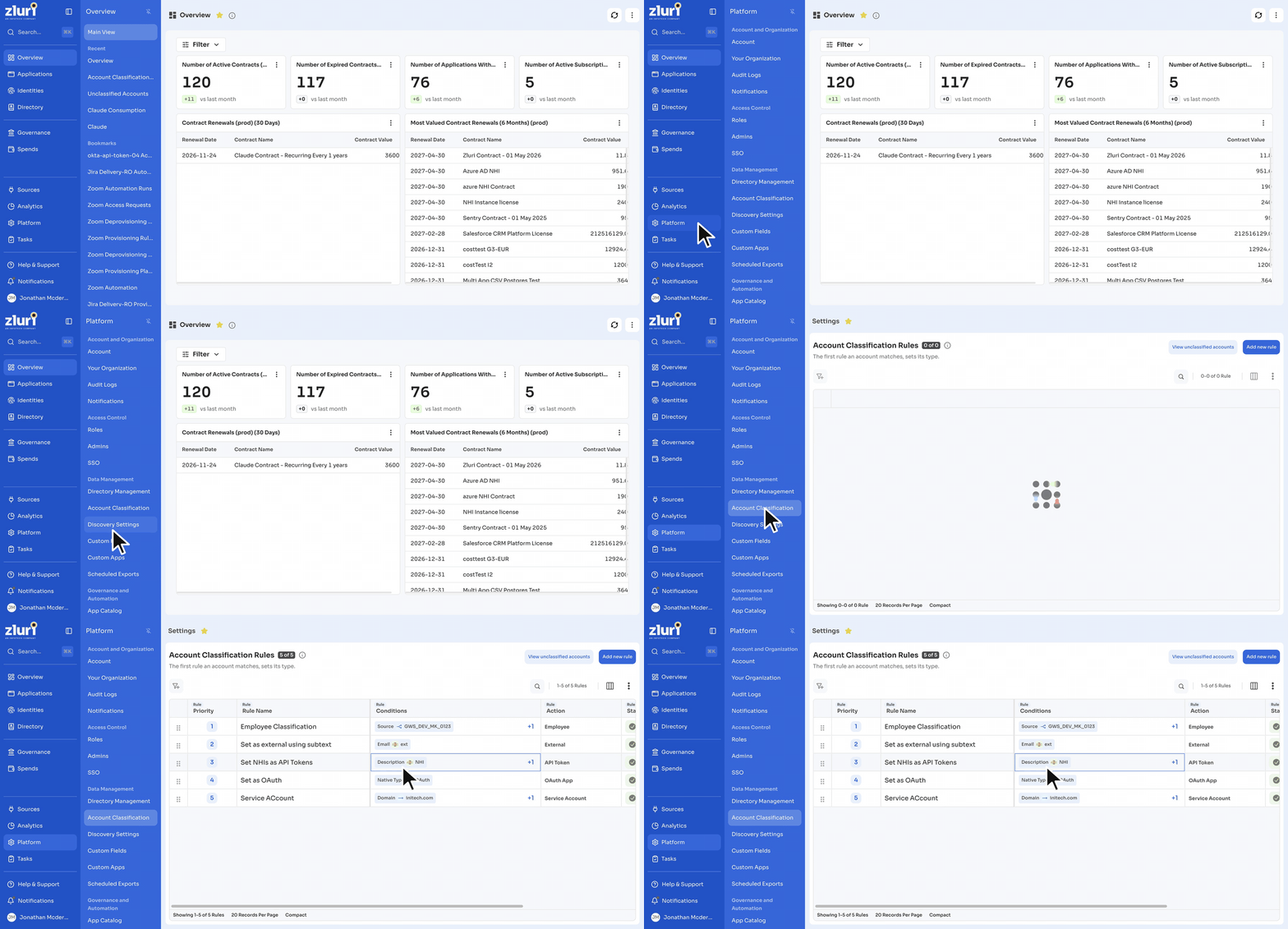
The page shows a count badge next to its title, for example 5 of 5, and the line The first rule an account matches, sets its type. Hover over the info icon next to the title to read how account types decide identity types.
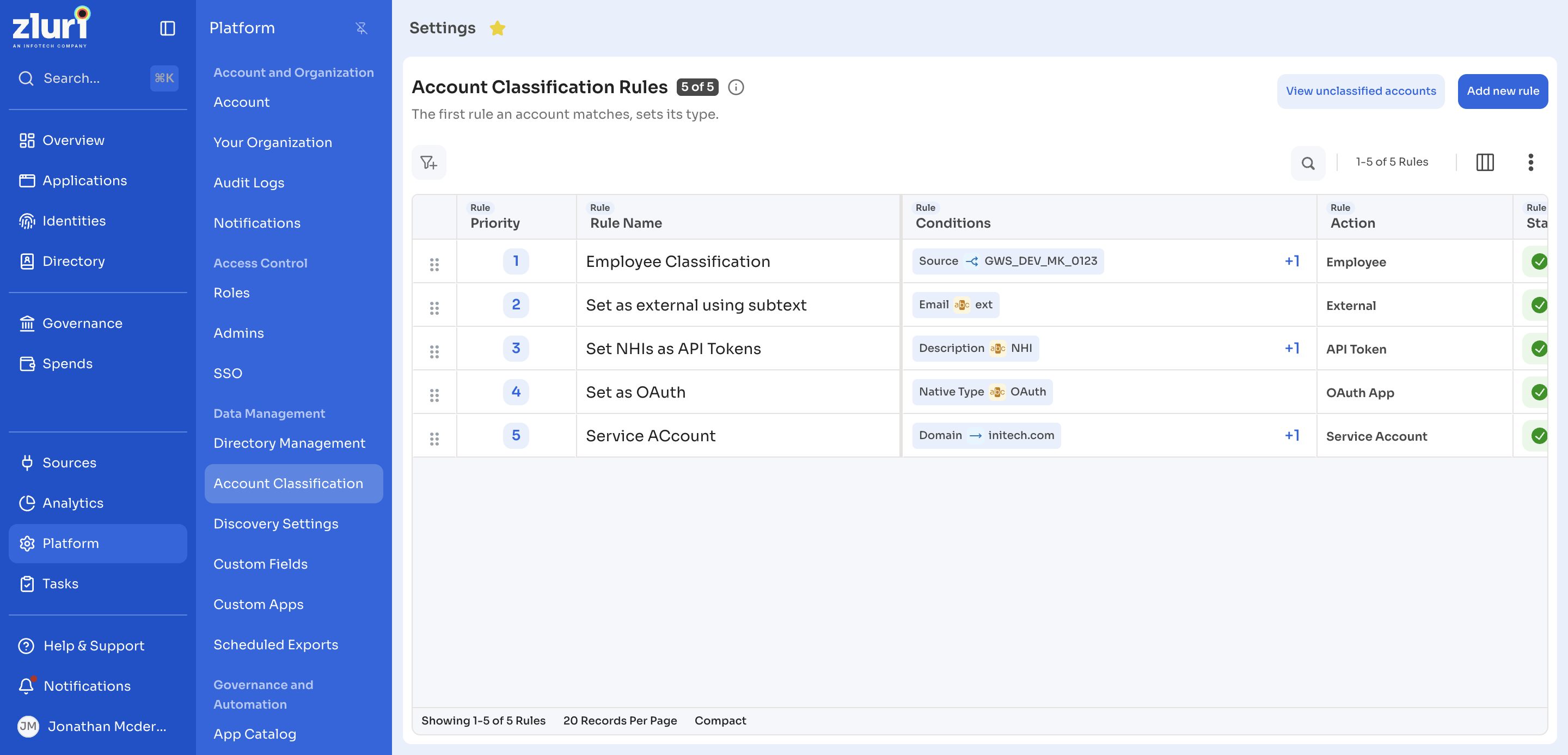
The rules table shows the columns below.
| Column | Description |
|---|---|
| Drag handle | Drag a row to change its priority. |
| Priority | The rule's priority. Priority 1 runs first. |
| Rule Name | The rule's name. |
| Conditions | The rule's first condition, for example Email contains ext. A +N marker counts the remaining conditions. |
| Action | The account type the rule sets. |
| Status | Active, Inactive, or Draft. |
| Actions | A menu with Edit and Delete. |
Use the filter and search buttons above the table to find a rule.
Create a classification rule
Each rule has a name, a status, one or more conditions, and one action. You build it in the Rule Configuration panel.
Steps
- Navigate to Platform > Account Classification.
- Select Add new rule.
Zluri opens the Rule Configuration panel. - Enter a name in Rule name, for example Anthropic partner accounts.
- Select a status from the status menu next to the name: Active, Inactive, or Draft. New rules start as Draft.
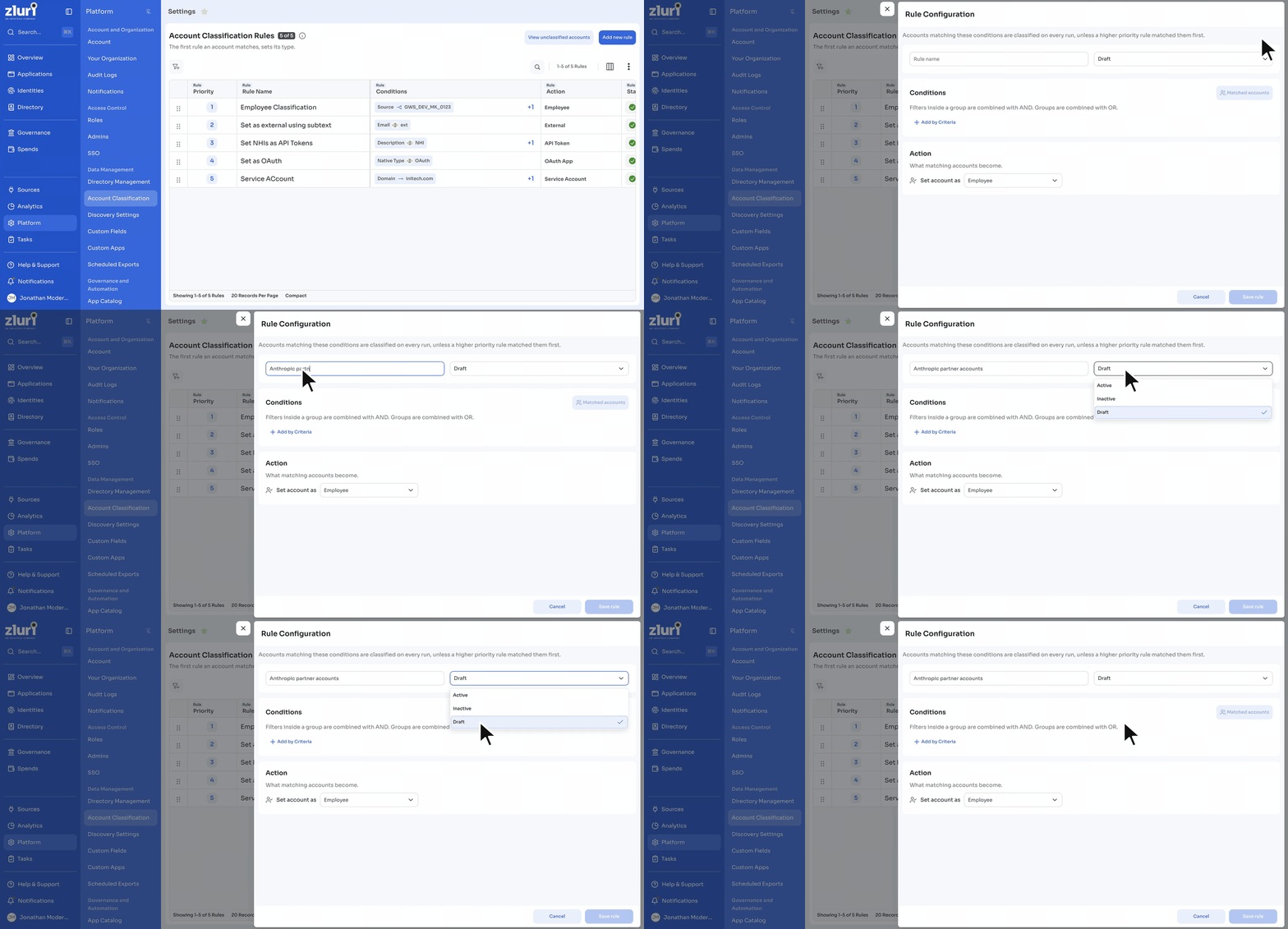
Next, add the rule's conditions.
Add conditions to a rule
Conditions decide which accounts the rule matches. Filters inside a group combine with AND. Groups combine with OR.
Steps
- Under Conditions in the Rule Configuration panel, select Add by Criteria.
- Type a field name in Search Category or Column, or open a category such as Account, and select a field, for example Email.
- Select an operator, for example ends with, and enter the value, for example anthropic.zluri.dev.
- Select Apply Filter.
Zluri adds the condition to 1 Criteria Set as Where Email ends with anthropic.zluri.dev. - Select Add Filter to add another condition to the same group, for example Status is any of Active.
- Select Add Filter Group to add an alternative set of conditions, for example Email contains contractor.
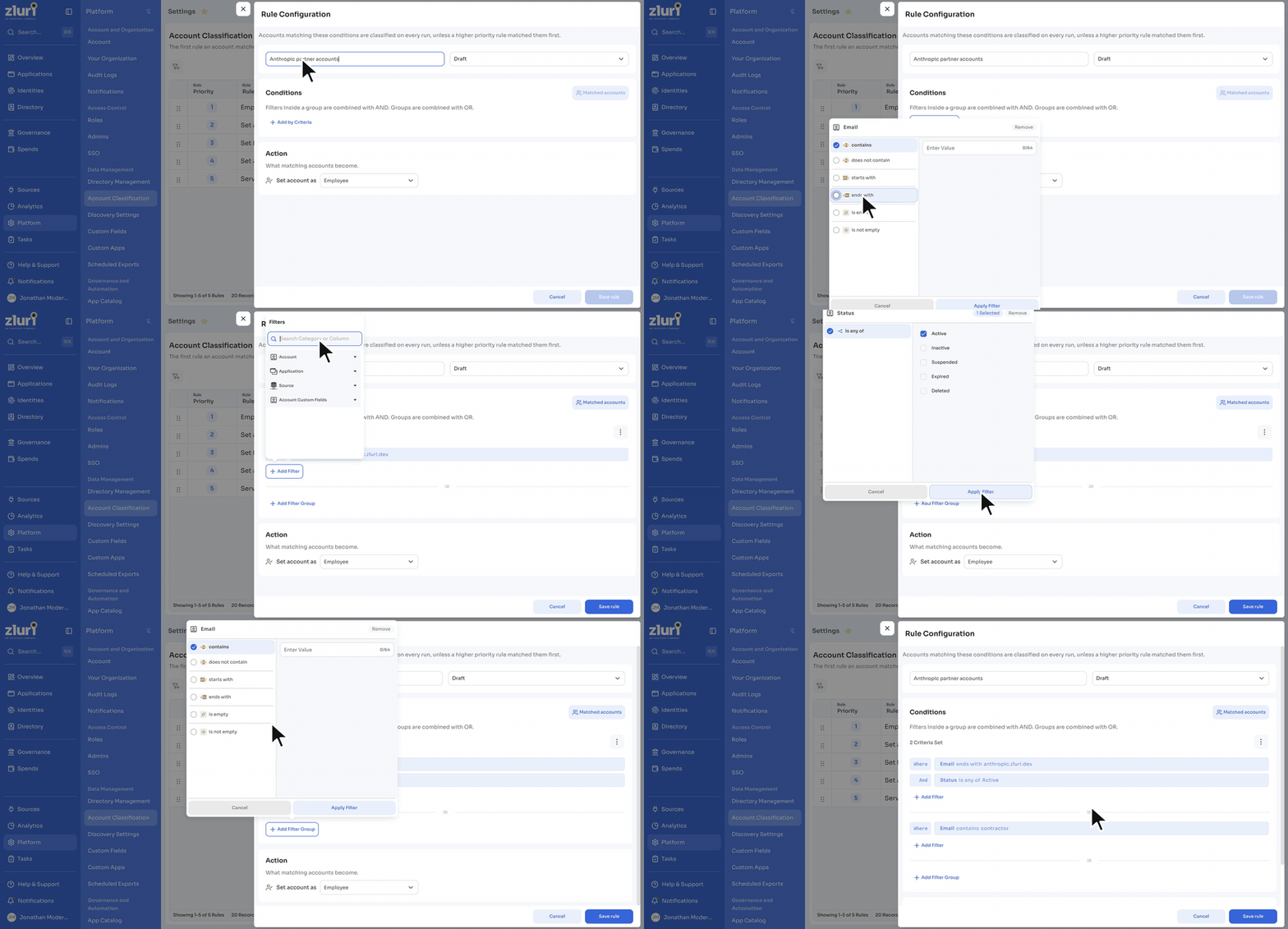
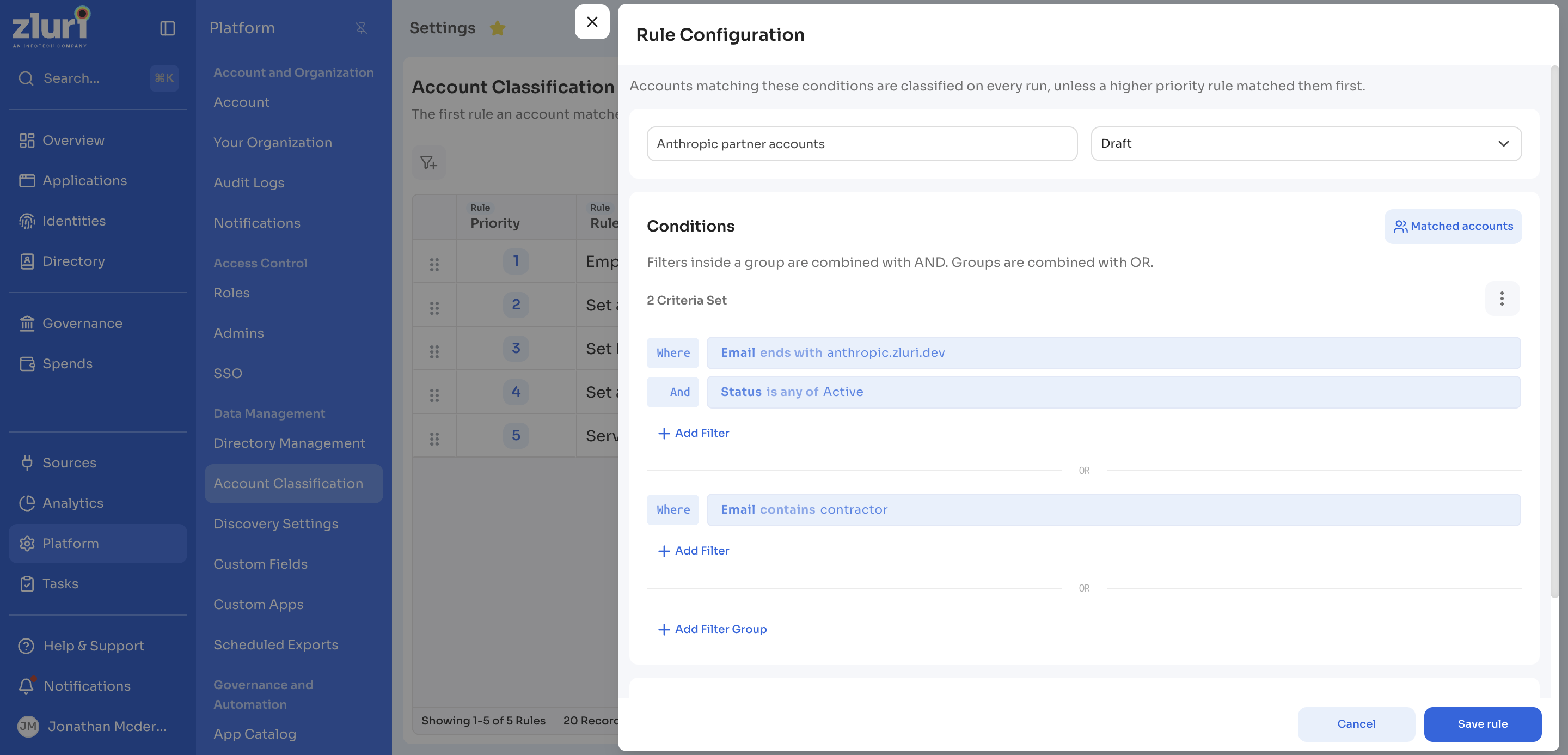
To remove a condition while you edit it, select Remove in the filter editor. Select Cancel in the filter editor to close it without adding the condition.
Condition fields and operators
Rules read the fields of each account, not the fields of the person. The Filters menu groups the fields into the categories below. Type in Search Category or Column to find a field.
| Category | Field | Description | Operators |
|---|---|---|---|
| Account | Description | Free text carried over from the source | contains, does not contain, starts with, ends with, is empty, is not empty |
| Account | Domain | The domain of the account's email, picked from your organization's domains | is any of, is none of |
| Account | The account's email on the source app | contains, does not contain, starts with, ends with, is empty, is not empty | |
| Account | Groups | Groups the account belongs to on the source app | is any of, is none of |
| Account | Name | The account's display name on the source app | contains, does not contain, starts with, ends with, is empty, is not empty |
| Account | Native ID | The account's own ID in the source app | contains, does not contain, starts with, ends with, is empty, is not empty |
| Account | Native Type | The account type the source app reports, for example OAuth | contains, does not contain, starts with, ends with, is empty, is not empty |
| Account | Status | Active, Inactive, Suspended, Expired, or Deleted | is any of |
| Application | Instance Name | The app instance the account lives on | is any of, is none of, is empty, is not empty |
| Source | Source | Where Zluri found the account: Manual or Integrations | is any of, is none of, is only |
| Account Custom Fields | Your account custom fields | Every account custom field your organization has created | Depends on the field type |
A typed value holds up to 64 characters. For fields with a list of values, select Only next to a value to select that value alone.
Set the action and save the rule
The action sets the account type for every account the rule matches.
Steps
- Under Action, open the Set account as menu.
- Select an account type, for example External.
- Select Save rule.
Zluri shows Rule created successfully and adds the rule at the bottom of the priority list.
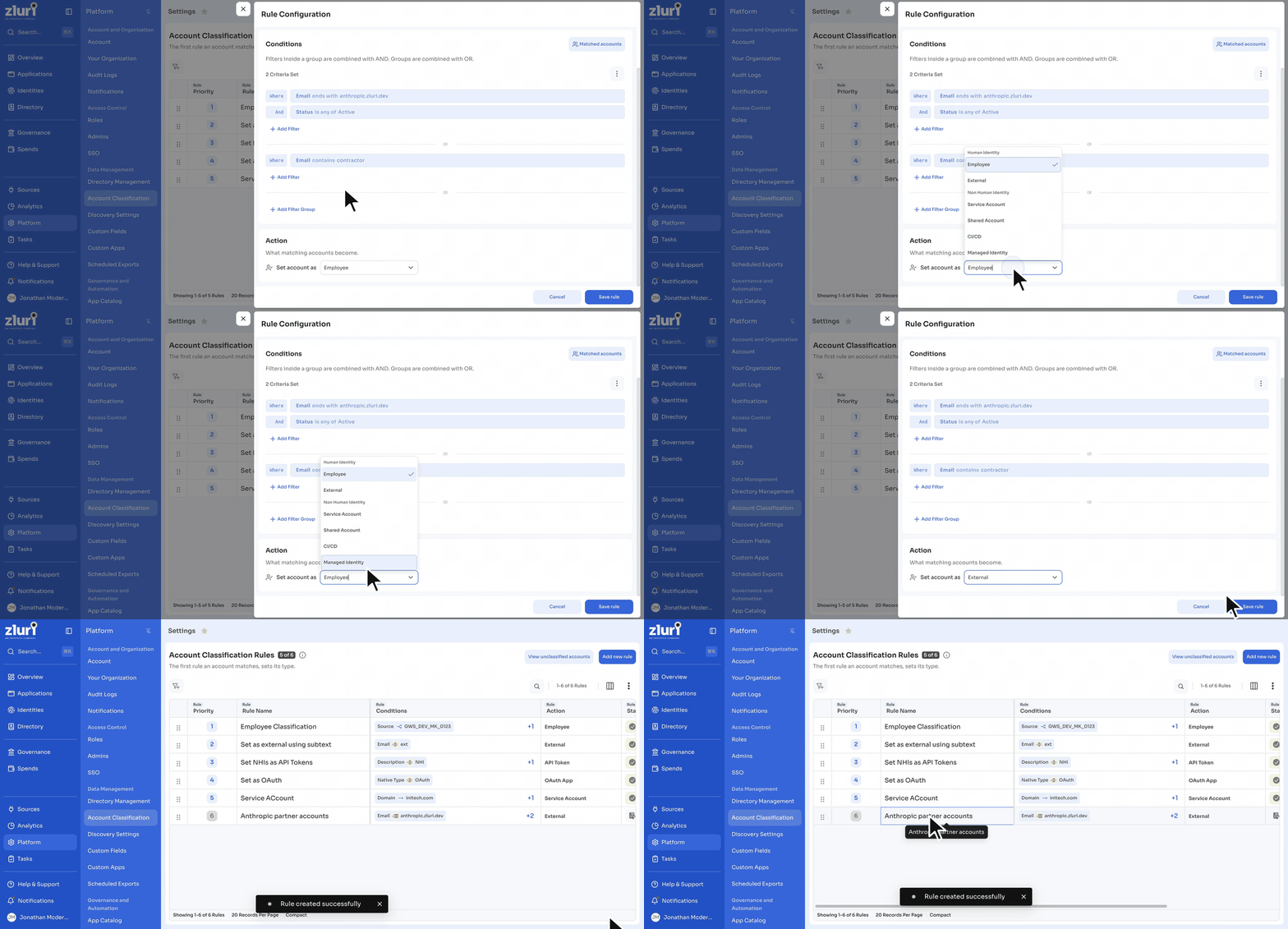
Save rule stays unavailable until the rule has a name and at least one condition. Select Cancel to close the panel without saving.
Check the accounts a rule matches
Matched accounts shows every account that matches the rule's conditions, so you check the rule before you save it.
Steps
- In the Rule Configuration panel, add at least one condition.
- Select Matched accounts.
Zluri opens the Matched accounts view with a count, for example 1-20 of 39 Accounts. - Select the next arrow next to the count to see the next 20 accounts.
- Select the back arrow to return to the rule.
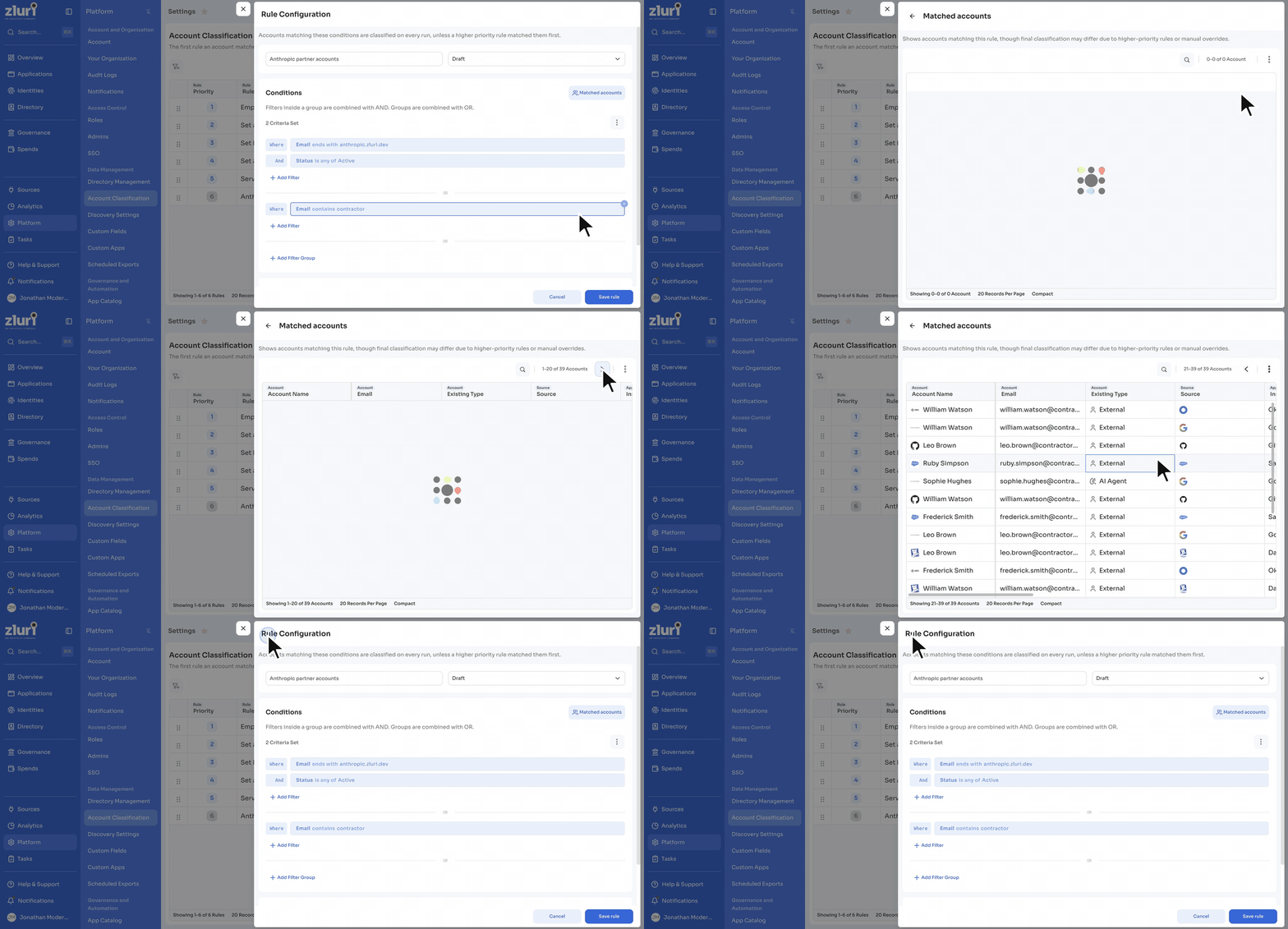
The view shows the note Shows accounts matching this rule, though final classification may differ due to higher-priority rules or manual overrides. The Existing Type column shows each account's current type, which helps you spot accounts that another rule already covers.
The table shows these columns: Account Name, Email, Existing Type, Source, Instance Name, Linked User, Department, Groups, Created On, and Last Active.
Change rule priority
Priority decides which rule wins when an account matches more than one rule.
Steps
- Navigate to Platform > Account Classification.
- Drag a rule by its handle to a new position.
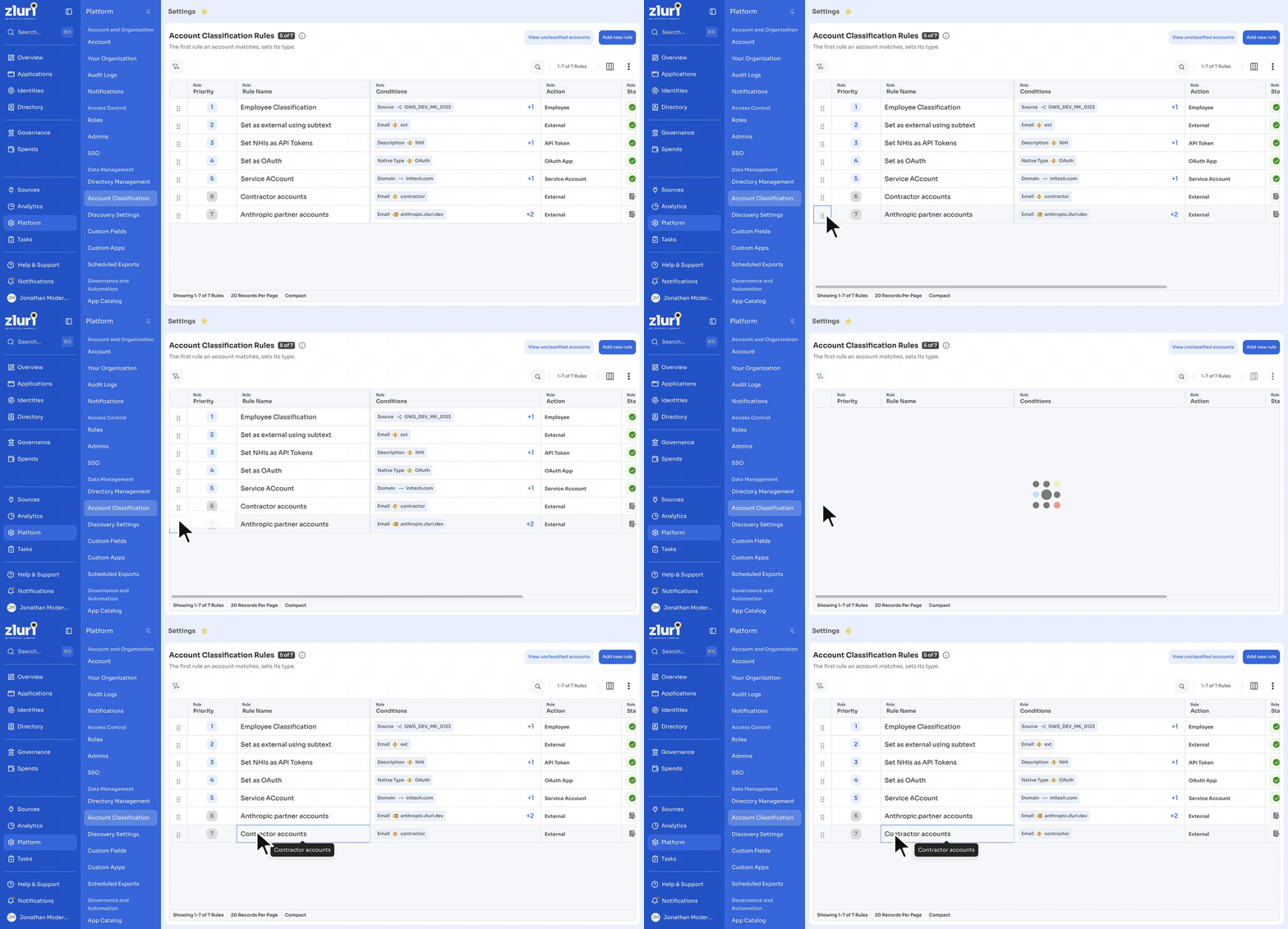
Zluri reloads the table and renumbers the Priority column right away. The new order applies from the next daily run.
Edit or delete a rule
Open a rule's Actions menu to change or remove it.
Steps
- Navigate to Platform > Account Classification.
- Select the Actions menu in the rule's row.
- Select Edit.
- Change the name, status, conditions, or action.
- Select Save rule.
Zluri shows Rule updated successfully.
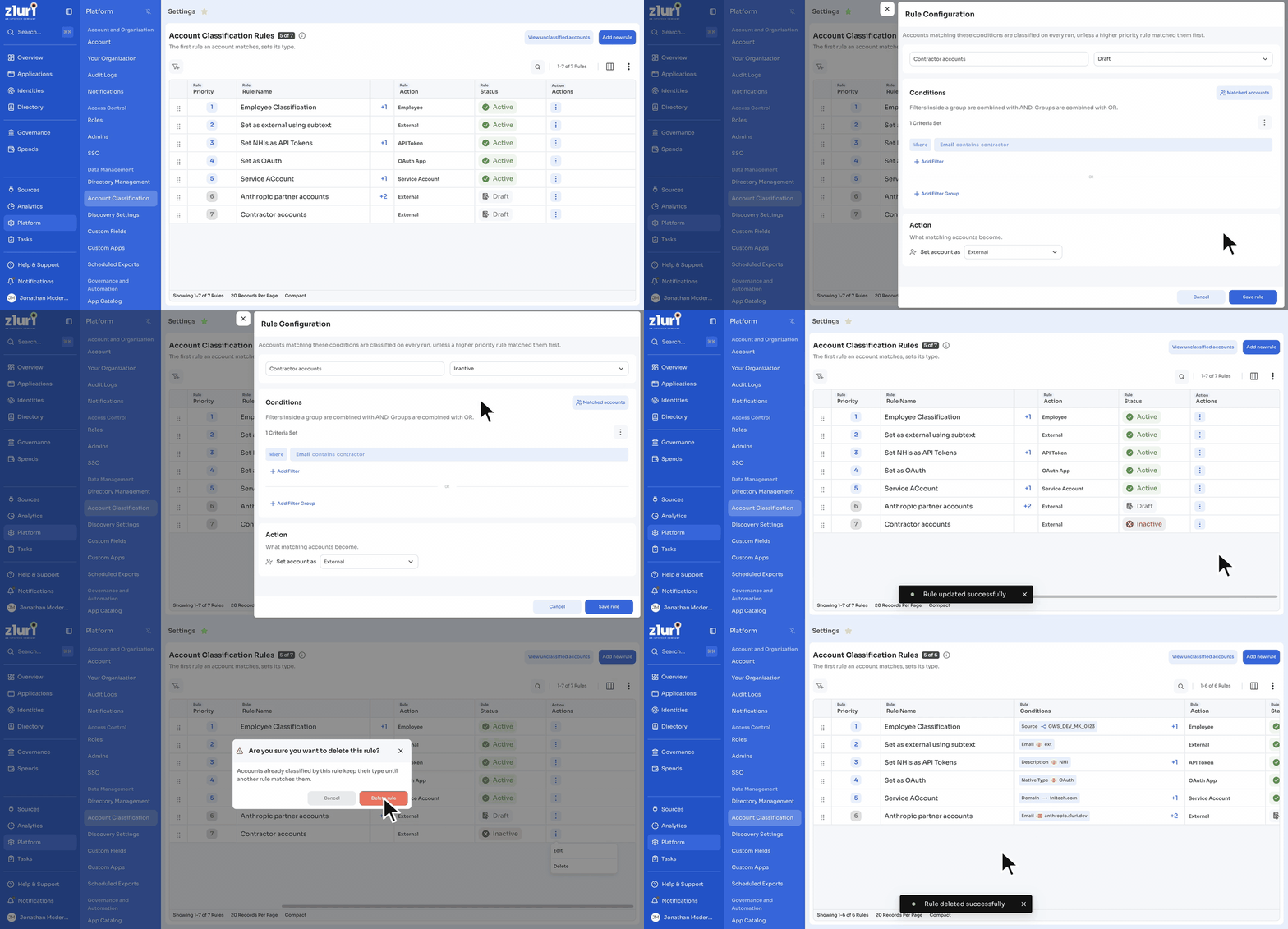
To delete a rule, select Delete in the rule's Actions menu, and then select Delete rule. The confirmation reads Are you sure you want to delete this rule? Accounts already classified by this rule keep their type until another rule matches them. Zluri shows Rule deleted successfully and moves the rules below it up one place.
To stop a rule without deleting it, set its status to Inactive. Zluri skips inactive and draft rules on every run.
View unclassified accounts
The Unclassified Accounts page shows every account that no rule has classified. Look through it for a pattern, such as a shared source, native type, or naming style, and write a rule that covers it.
Steps
- Navigate to Platform > Account Classification.
- Select View unclassified accounts.
- Use the search or filter buttons to narrow the list.
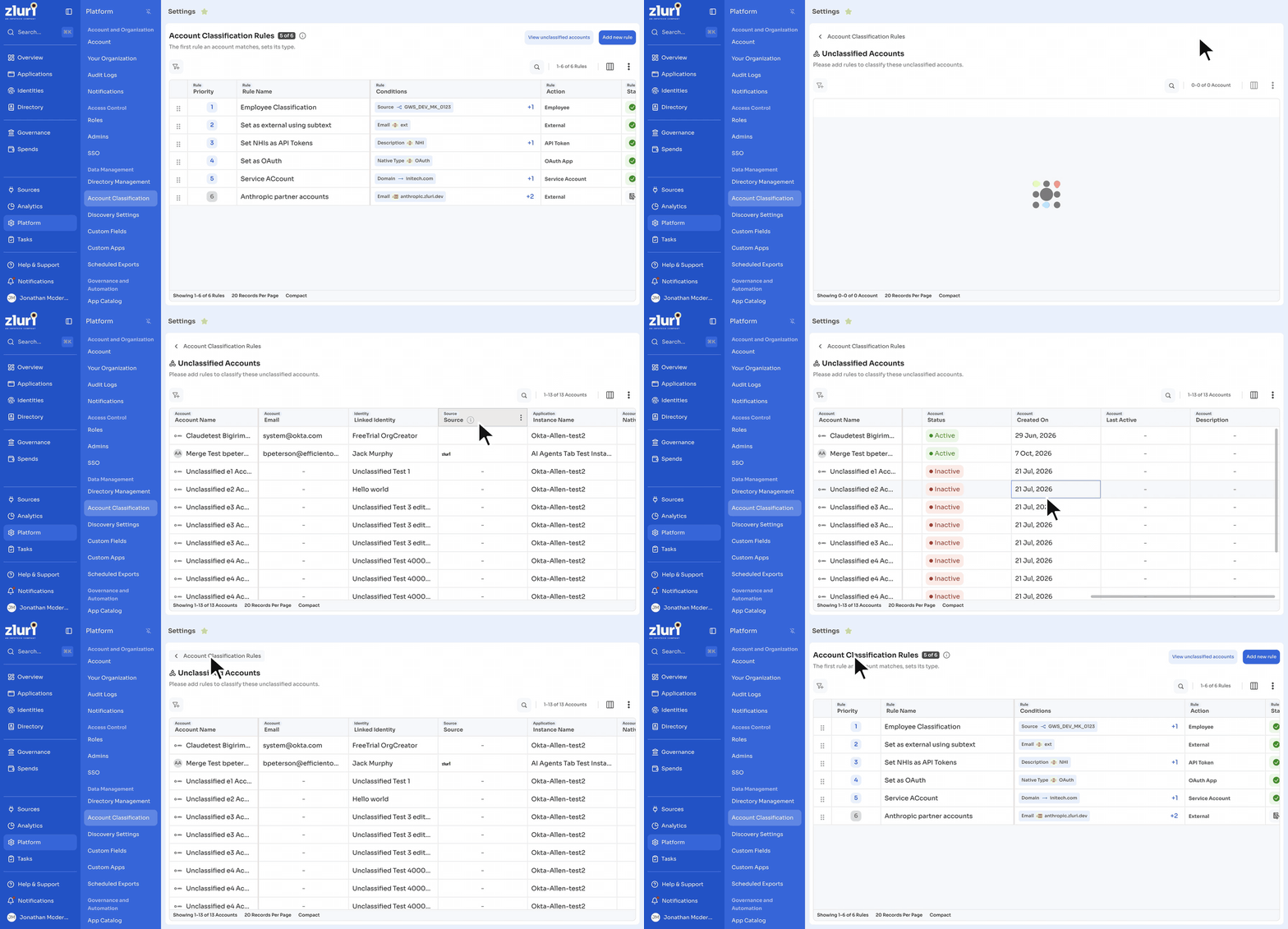
The page shows Please add rules to classify these unclassified accounts. and these columns: Account Name, Email, Linked Identity, Source, Instance Name, Native Type, Native ID, Role, Groups, Status, Created On, Last Active, and Description.
Unclassified identities appear separately, under Identities > Unclassified.
How Zluri sets an identity's type
Zluri sets each identity's type from the types of the accounts it holds. Rules never set an identity's type directly. The info icon next to the Account Classification Rules title summarizes these checks.
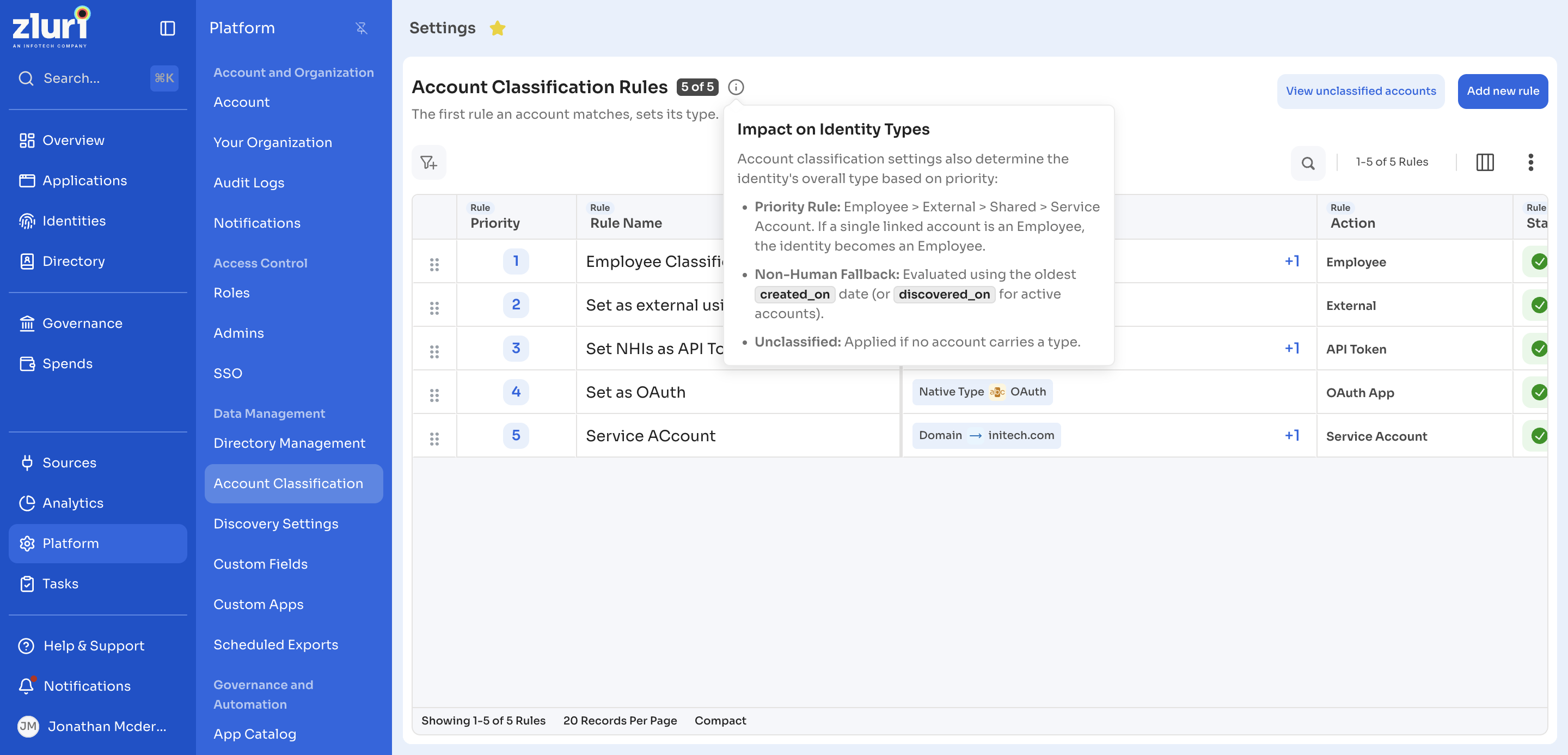
If a source ranked in identity source prioritization reports the identity's type itself, Zluri uses that type and skips the checks below.
Four account types decide an identity's type outright. Zluri checks them in the order below, and the first one found decides the identity's type.
| Order | If the identity holds at least one | The identity becomes |
|---|---|---|
| 1 | Employee account | Employee |
| 2 | External account, and no employee account | External |
| 3 | Shared Account, and none of the above | Shared Account |
| 4 | Service Account, and none of the above | Service Account |
For example, an identity with one employee account and twelve bot accounts is an Employee.
If the identity holds none of those four types, it is a non-human identity. Zluri takes the type of its oldest account, judged by the date the source app created the account. For active accounts without that date, Zluri uses the date it discovered the account.
An identity with no classified accounts stays unclassified until a rule classifies one of its accounts. Find these identities under Identities > Unclassified and classify them from there.
The identity's type follows its accounts. If an employee account appears on an identity that was a Bot, the identity becomes an Employee on the next run.
Audit logs
Zluri records every change to a classification rule in Audit Logs, with the user who made it. The table below lists each entry.
| Event Type | Event Description | When Zluri records it |
|---|---|---|
| Created | Account Classification Rule Anthropic partner accounts was created | You save a new rule. |
| Updated | Account Classification Rule Anthropic partner accounts was updated | You save changes to a rule. |
| Updated | Account Classification Rule Anthropic partner accounts was deactivated. | You set a rule's status to Inactive. |
| Removed | Account Classification Rule Anthropic partner accounts was removed | You delete a rule. |
Use cases
The table below shows common rules and the result of each.
| Scenario | Rule | Outcome |
|---|---|---|
| Staff accounts on the company domain | Domain is any of acme.com AND Status is any of Active, set as Employee | Active accounts on the company domain become employees. |
| Contractors marked by a group | Groups is any of Contractors, set as External | Accounts in the contractors group become external, even on the company domain, if this rule sits above the domain rule. |
| Service accounts from the source | Native Type contains ServiceAccount, set as Service Account | Accounts the source already labels as service accounts get the same type in Zluri. |
| Tokens on one app instance | Instance Name is any of GitHub - Production AND Native Type contains Token, set as API Token | Tokens on that instance get their own non-human type instead of counting as people. |
| Bots in chat tools | Native Type contains Bot, set as Bot | Slack and other chat bots stop showing up as employees. |
Best practices
Rule order
- Put narrow, non-human rules (service accounts, bots, tokens) at the top.
- Put broad rules, such as a company email domain, below them. A broad rule at the top classifies every matching account first, and the narrow rules below it never match.
- Check the Existing Type column in Matched accounts. If most matches already have the type you expect from another rule, the new rule may sit too low.
Rollout
- Save new rules as Draft first, check Matched accounts, and then set them to Active.
- Review the Unclassified Accounts page after each daily run and add rules for what remains.
Updated about 1 hour ago