
Connect
This guide provides the steps to connect a Claude Enterprise account to Zluri
Who this integration is for
This integration works only with organizations on the Claude Enterprise plan, managed at claude.ai.
It does not work with:
- Claude Team, Pro or Max plans. The APIs Zluri uses are available only on Claude Enterprise.
- Claude Console (Claude Platform) organizations managed at platform.claude.com. Use the Claude Platform integration for those.
- Claude through a cloud provider, such as Amazon Bedrock, Google Cloud Vertex AI or Microsoft Foundry. These are managed and billed in the cloud provider's console.
Not sure which one you have? If you manage your Claude members and seats in claude.ai under Organization settings, and your plan is Enterprise, this integration is for you. If you manage them at platform.claude.com, use the Claude Platform integration instead.
What you need
- The Primary Owner role in the Claude Enterprise organization. Only the Primary Owner can turn on API access and create a key with the scopes Zluri needs. Organization Owners can create keys too, but only with Compliance API scopes, which Zluri doesn't use. If your organization sits under a parent organization, the parent's Primary Owner does these steps.
- One API key created in claude.ai that carries two scopes (permissions picked when the key is made):
- read:members, so Zluri can read users, their roles and custom roles.
- read:analytics, so Zluri can read each user's activity, token usage and cost.
A key created in the Claude Console (platform.claude.com) won't work, even if it is called an Admin API key.
Step 1: Create the API Key in claude.ai
-
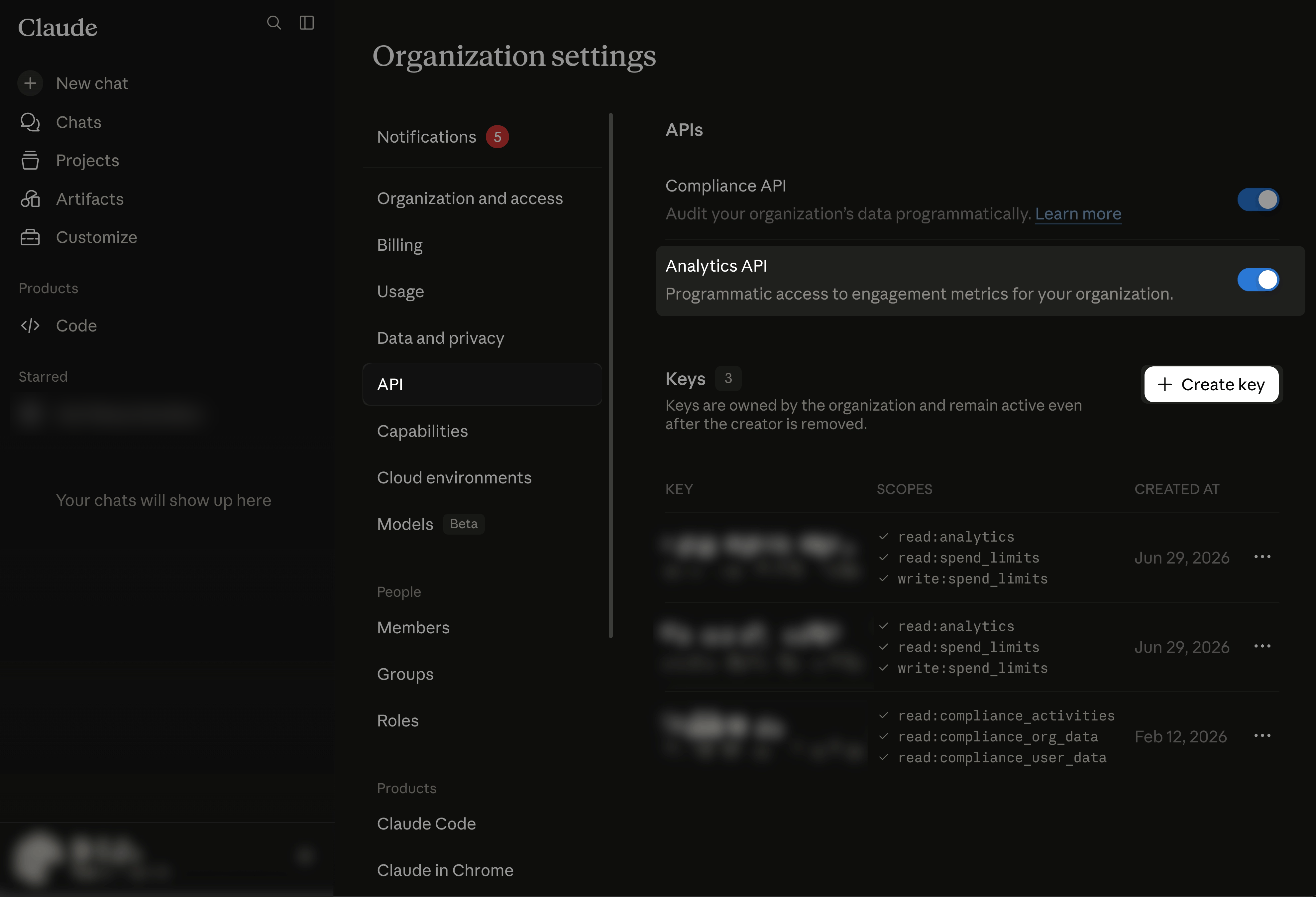
Log in to claude.ai as the Primary Owner and open the API settings page: claude.ai/admin-settings/api-access. You can also get there from Organization settings > API.
-
Under APIs, turn on the Analytics API toggle if it is off.
-
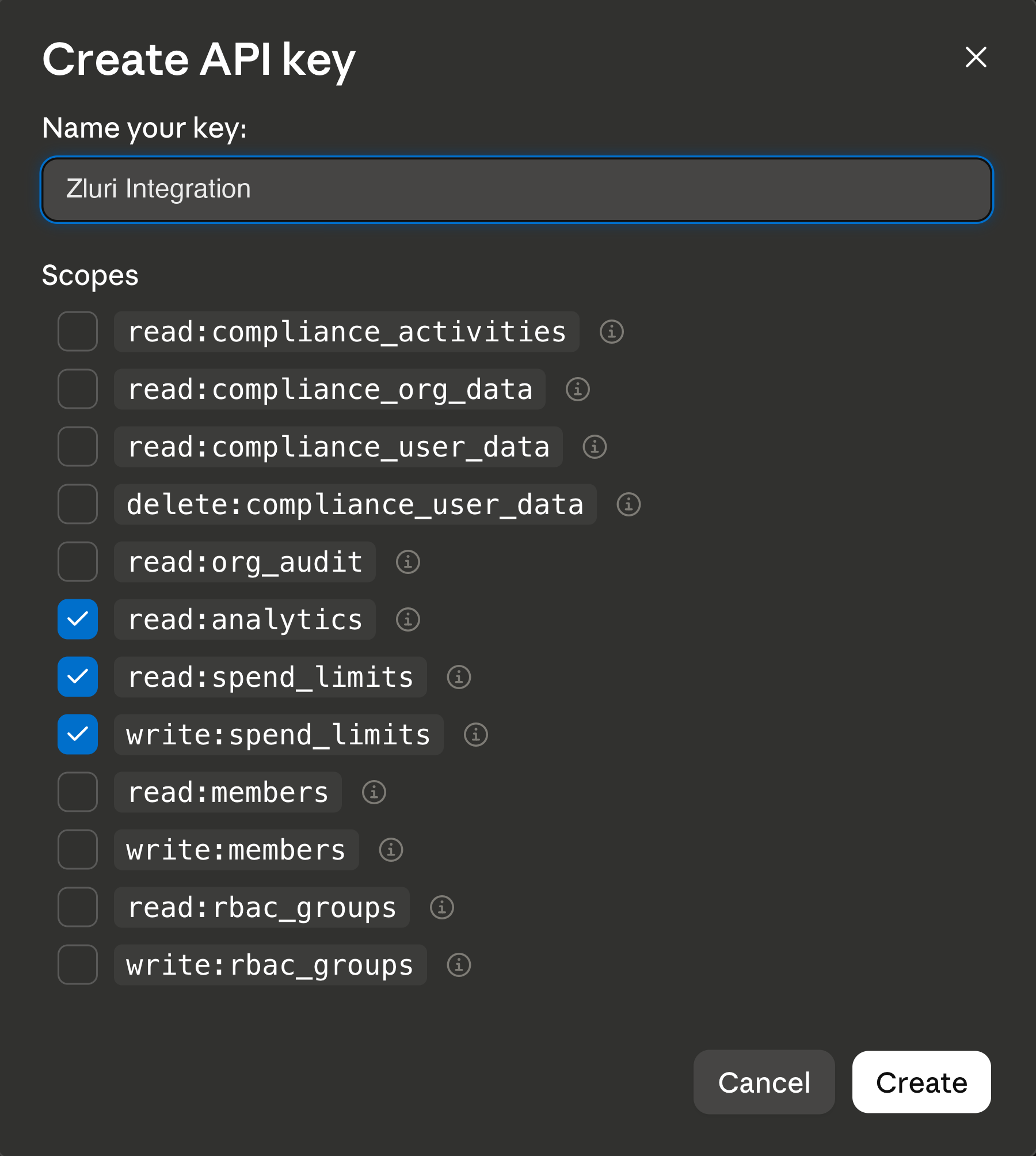
Under Keys, select + Create key and enter a name, for example "Zluri Integration".
-
Under Scopes, tick both read:members and read:analytics.
-
Select Create.
-
Copy and securely store the key. It is shown only once.
Check you have the right key: a claude.ai API key starts with sk-ant-api01-. If yours starts with sk-ant-admin01-, it was created in the Claude Console and won't work here.
Scopes can't be changed after a key is created. If you miss a scope, create a new key with both.
For more detail, see Anthropic's guide: Create a key for a Claude Enterprise organization.
Step 2: Begin the Integration in Zluri
- Log in to the Zluri dashboard.
- Open the Claude Enterprise Integration page.
- Select Connect Integration or Connect another instance if an existing connection is already configured.
Step 3: Review Scopes
- Review the required scopes displayed for the integration. Read Users is selected by default.
- Two optional scopes are also available:
- Read roles and permissions brings in custom roles and what each role can do.
- Read usage and cost analytics brings in each user's last active date, activity, token usage and cost. Cost data is complete only on usage-based Enterprise plans. On seat-based plans it shows usage credits only.
Keep both scopes on the key from Step 1 even if you leave these optional scopes off in Zluri.
Authorization Options
Self-Authorization
- Proceed directly to Step 4 to complete authorization.
Co-worker Authorization
- Enter a co-worker's details to share the access request.
- Zluri sends an invite email or link containing a unique Connect Code.
- The co-worker can use the code to approve and complete the connection setup.
Step 4: Authorize the Connection
- Depending on the authorization method (self or co-worker), enter the necessary credentials.
- Paste the API key from Step 1 into the Analytics API Key field in Zluri.
- Select Connect to complete the integration.
Paste the key directly into Zluri. Don't send it by email or chat.
Integration Complete
Zluri is now successfully connected to Claude Enterprise and will begin syncing data automatically. Activity and usage data is available from January 1, 2026 onward.
Got questions? Feel free to submit a ticket or contact us directly at [email protected].
Updated about 6 hours ago