
How Your Organization Gets Access to Zluri
Understand how you open Zluri from Infotech CIO Analytics, who becomes an Owner and how the rest of your team gets access.
Overview
This guide is for organizations accessing Zluri through the Infotech CIO Analytics dashboard. You open Zluri from CIO Analytics, so Zluri does not send you a separate sign-up link or password.
When your organization first opens Zluri, Zluri runs a 4-step guided setup for the whole organization. Anyone from your organization can open Zluri from CIO Analytics while this setup is in progress. When the setup is complete, each of these people becomes an Owner. This applies even if they did not complete any of the steps themselves. Your organization can have more than one Owner.
Everyone else gets access through an Owner. Your users appear in Zluri after you connect your identity provider (SSO) or HRMS. Syncing users does not give them access to the Zluri platform. Zluri must first classify each colleague's account, for example as Employee. An Owner then assigns a role to each colleague who needs to use Zluri, from Platform > Access Control > Admins.
How access to Zluri works
This table shows the order in which your organization gets access to Zluri.
| Step | Who | What happens |
|---|---|---|
| 1. Open Zluri and complete the guided setup | Anyone from your organization | People open Zluri from Application Discovery in CIO Analytics and complete the 4-step guided setup for the organization. |
| 2. Become Owners | Everyone who opened Zluri during the setup | When the setup is complete, everyone who opened Zluri while it was in progress becomes an Owner. |
| 3. Bring in and classify your users | Owner | Zluri syncs users from the connected identity provider or HRMS. Owners classify their accounts with account classification rules. |
| 4. Give colleagues access | Owner | An Owner assigns a role to each classified colleague who needs to use Zluri, such as Admin. |
Open Zluri from CIO Analytics
Sign in to CIO Analytics, go to Application Discovery > Overview, and click Connect. Zluri opens, already signed in with your Infotech account.
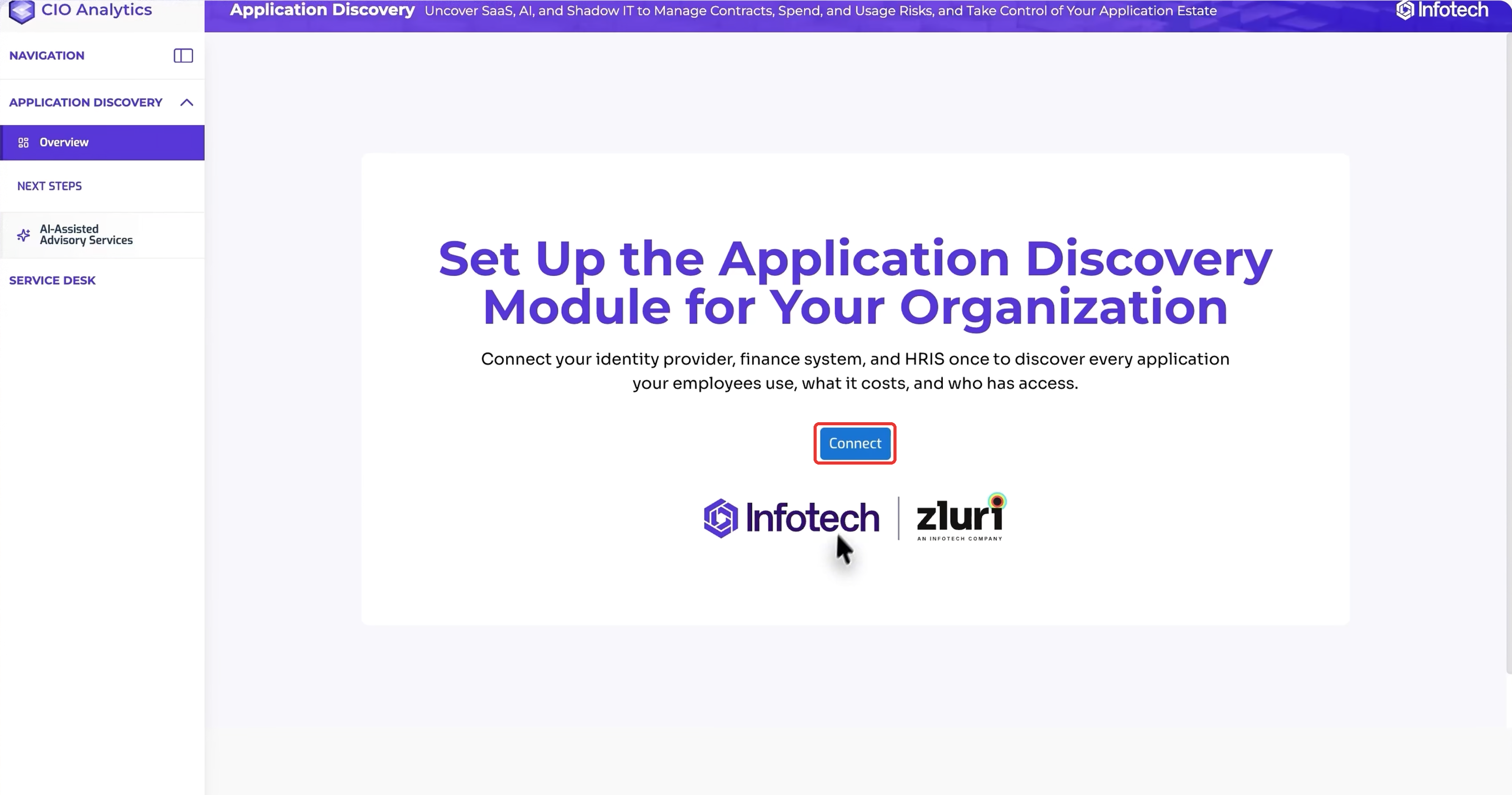
If the guided setup for your organization is not complete yet, Zluri takes you to it. For each setup step, see Account Setup and Initial Configuration.
Owners, admins and user status
Owners and admins have almost the same permissions in Zluri.
To see who has access, go to Platform > Access Control > Admins. The Role column shows each person's role, for example Owner or Admin. The User Status column shows whether they have signed in yet.
| User Status | Meaning |
|---|---|
| Pending | The person has not opened Zluri yet. |
| Active | The person has opened Zluri and can use it with the role shown in Role. |
Bring your users into Zluri
Zluri needs your users' records before you can give them access. Connect your identity provider (SSO) or HRMS during the guided setup, or later from the Integrations page.
Users that Zluri syncs from these sources do not get access to the Zluri platform automatically. This applies even if your identity provider is already connected and user data is flowing in. Classify their accounts and then assign a role to each colleague who needs to sign in, as described in the next two sections.
If you have not connected SSO, invite each colleague manually or sync your users first, and then assign their roles.
Zluri classifies each synced account, for example as Employee or External, using account classification rules. Accounts that no rule matches stay Unclassified.
Classify your colleagues' accounts
Before you can add a colleague as an admin, Zluri must classify their account, for example as Employee. Zluri classifies accounts with account classification rules. Accounts that no rule matches stay Unclassified, and you cannot add them as admins.
To see how many accounts are unclassified, go to Directory > Users and check the Unclassified count.
Steps
- Select Platform in the left navigation, then select Account Classification under Data Management.
- Select View unclassified accounts to see the accounts that no rule matches.
- Select Add new rule, and enter a name in Rule name.
- Under Conditions, select Add by Criteria, select a field such as Email, select an operator such as ends with, enter a value such as your company domain, and select Apply Filter.
- Under Action, select an account type in Set account as, for example Employee.
- Set the rule status to Active, and then select Save rule.
For conditions, rule priority and all account types, see Account Classification Rules.
Give your colleagues access to Zluri
Assign a role to each colleague who needs to use Zluri. The role decides what that colleague can view and manage.
You can add a colleague as an admin only after their account is classified. If their account is Unclassified, classify it first, as described in the previous section.
Steps
-
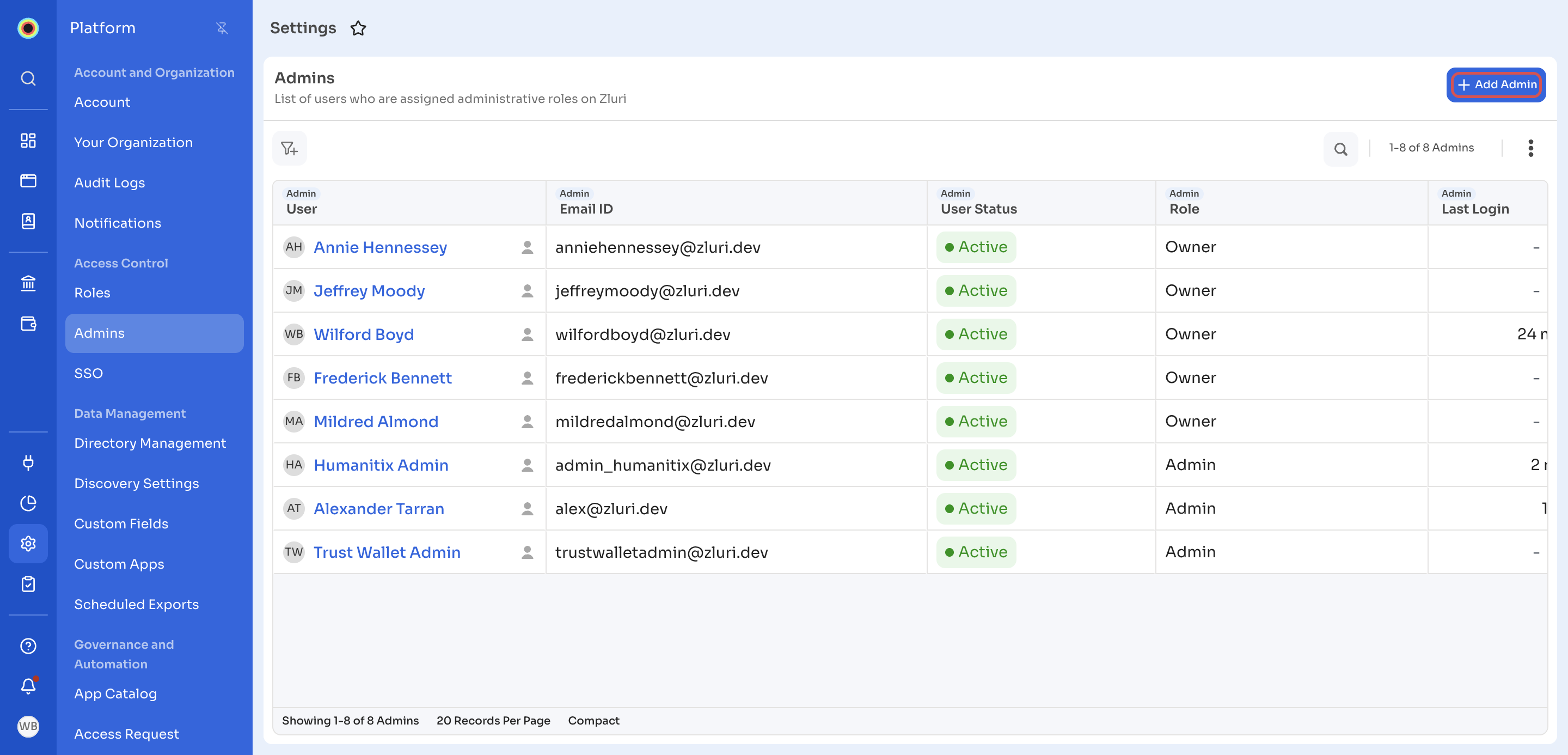
Select Platform from the left navigation, then select Admins under Access Control.
-
Click Add Admin.
-
In User Name, start typing the colleague's name and select them from the list.
-
In Role Name, select the role to assign, for example admin.
-
Click Save.
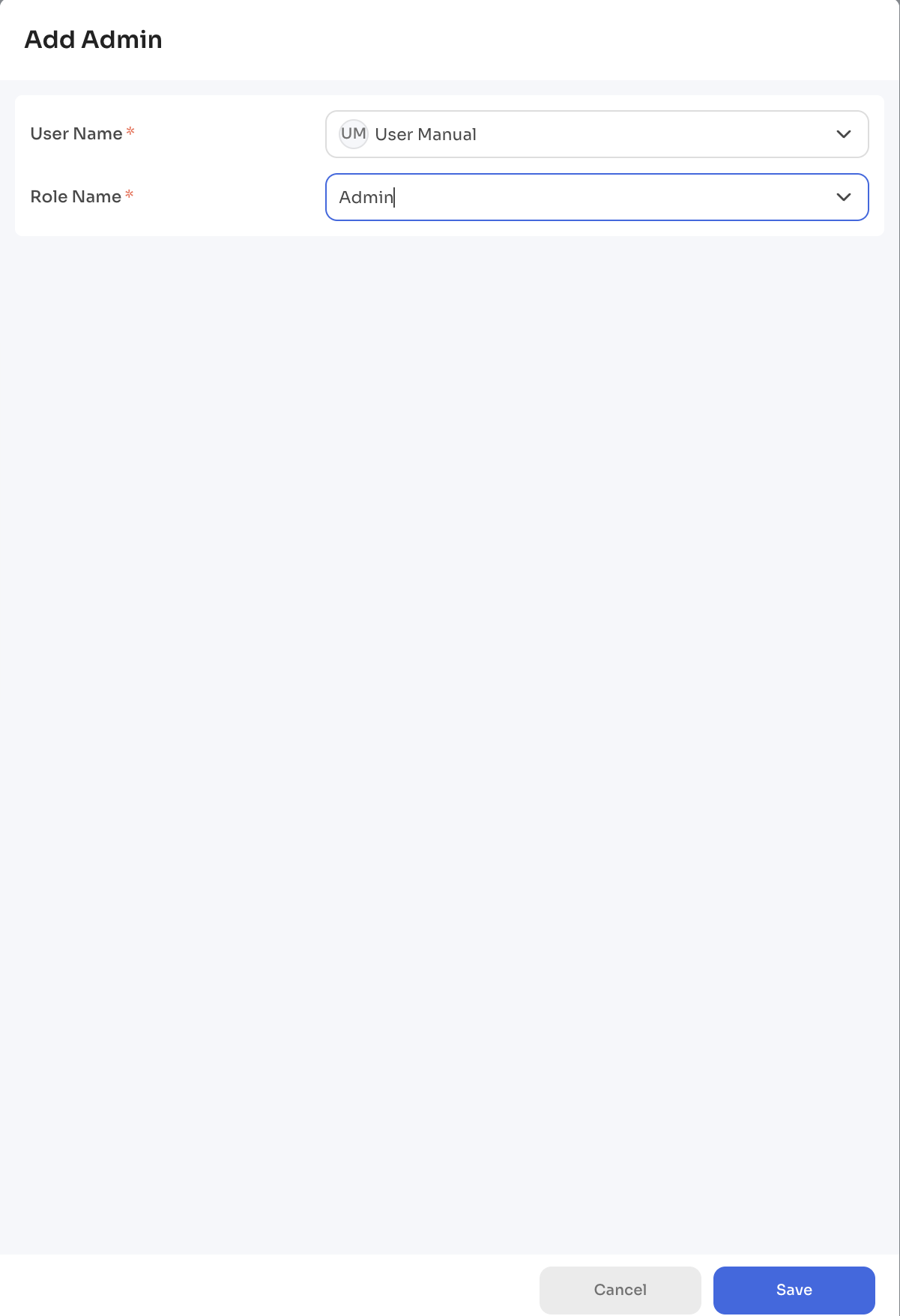
Adding the colleague is enough to give them access. Zluri does not send an invite email, and there is no invite link to share.
Repeat these steps for each colleague who needs access. The Admins page lists everyone with a role, with their User Status, Role and Last Login.
Change a role or remove an admin
Change a colleague's role, or remove their admin role, from the Admins page.
Steps
- Select Platform from the left navigation, then select Admins under Access Control.
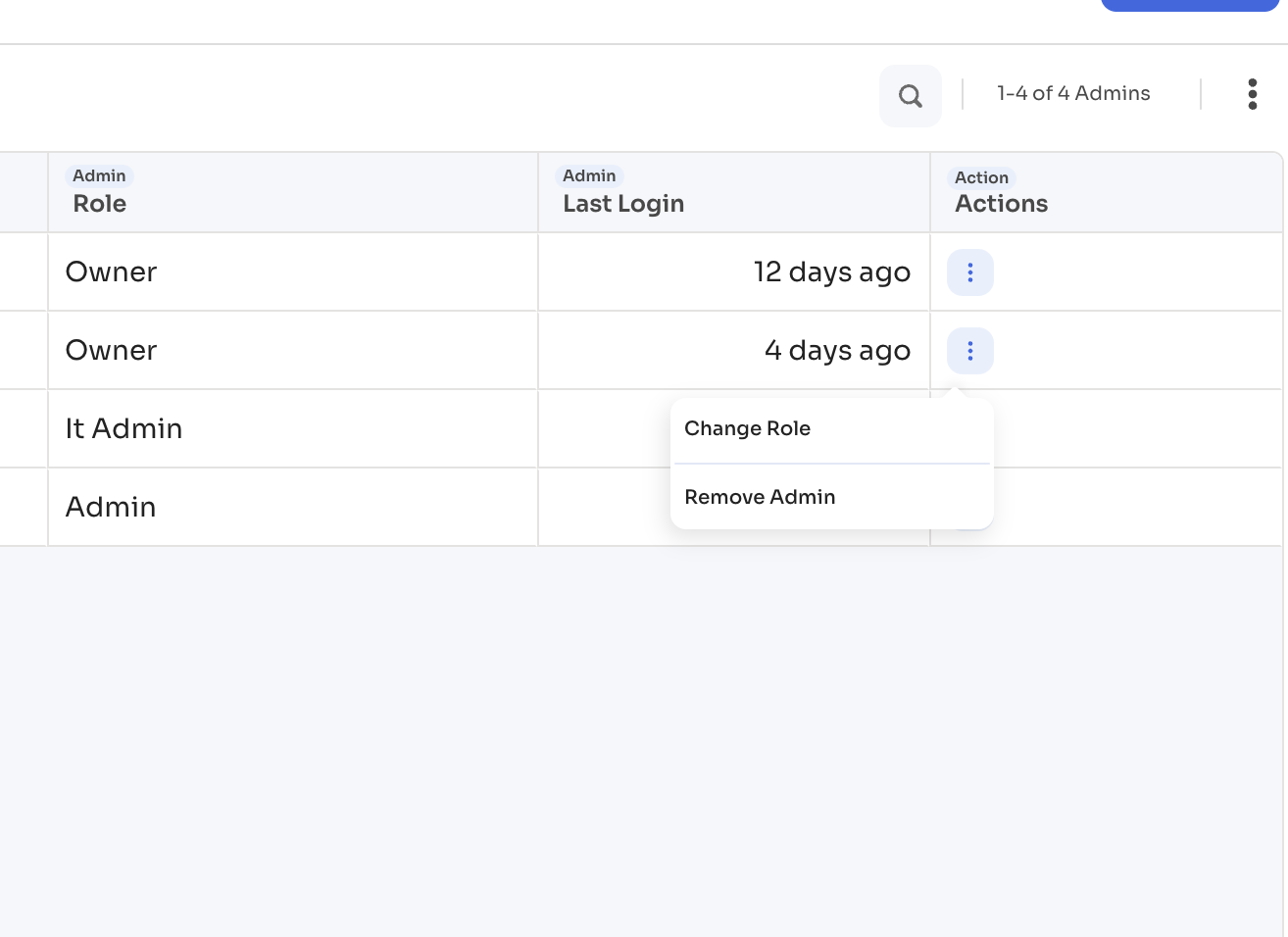
- In the person's row, select the Actions menu (⋮).
- Select one of these options:
- Change Role to assign a different role.
- Remove Admin to remove their admin role.
Roles you can assign
Zluri provides these system roles. You can also create custom roles with your own permission sets.
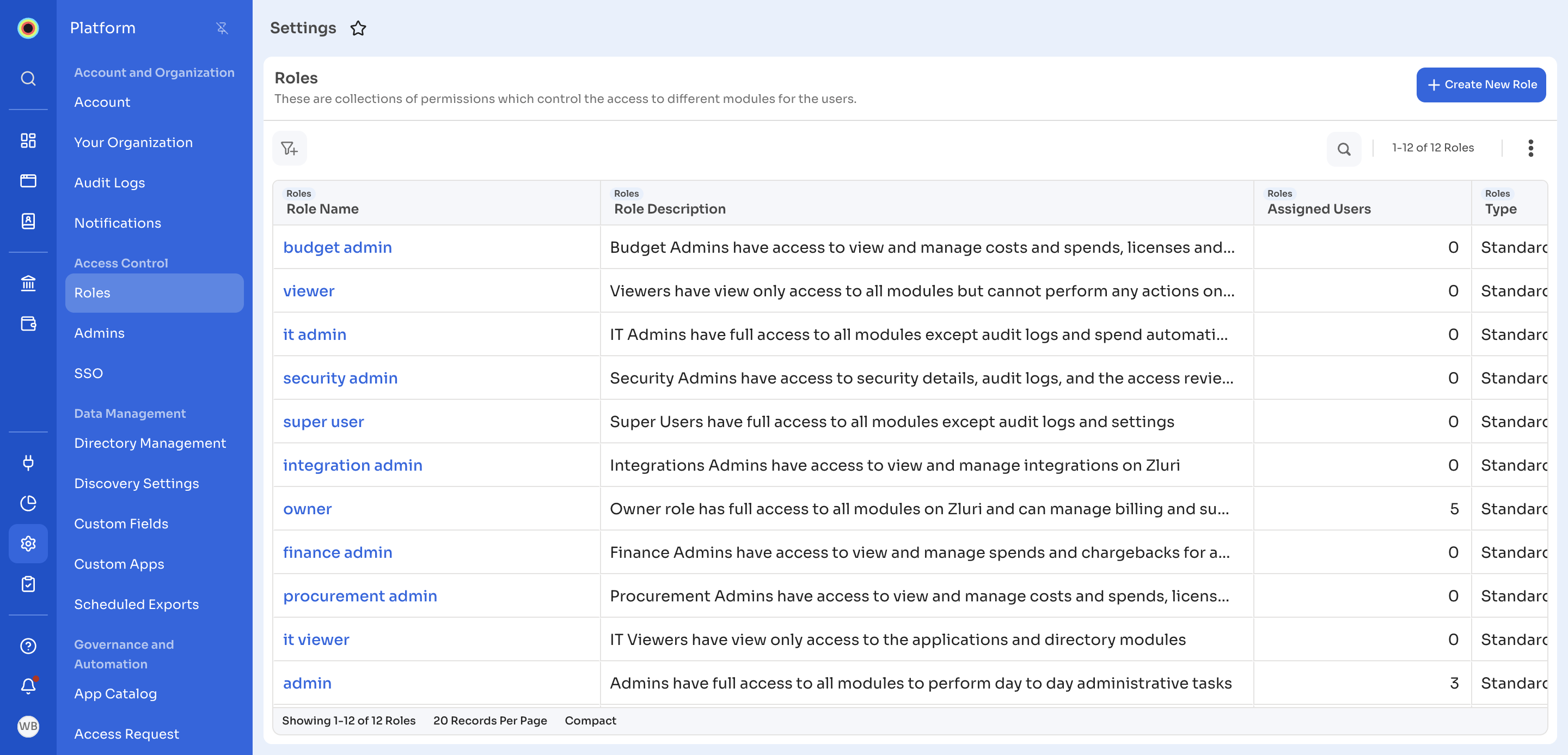
| Role | Access |
|---|---|
| owner | Full access to all modules, including billing and subscription |
| admin | Full access to all modules for day-to-day administrative tasks |
| super user | Full access to all modules except audit logs and settings |
| it admin | Full access to all modules except audit logs and spend automations |
| security admin | Access to security details, audit logs and the access reviews module |
| integration admin | Access to view and manage integrations |
| finance admin | Access to view and manage spends and chargebacks for applications and directory |
| budget admin | Access to view and manage costs and spends, licenses and contracts, renewals and vendors, and to pull reports |
| procurement admin | Access to view and manage costs and spends, licenses and contracts, renewals and vendors |
| viewer | View-only access to all modules, with no actions on the admin view |
| it viewer | View-only access to the applications and directory modules |
To see every role and its permissions, go to Platform > Access Control > Roles. To create custom roles, see Role-Based Access Control (RBAC) Setup.
Next step
For more detail on each setup step, see Account Setup and Initial Configuration.
Updated about 1 hour ago