
Transform data in a playbook
Overview
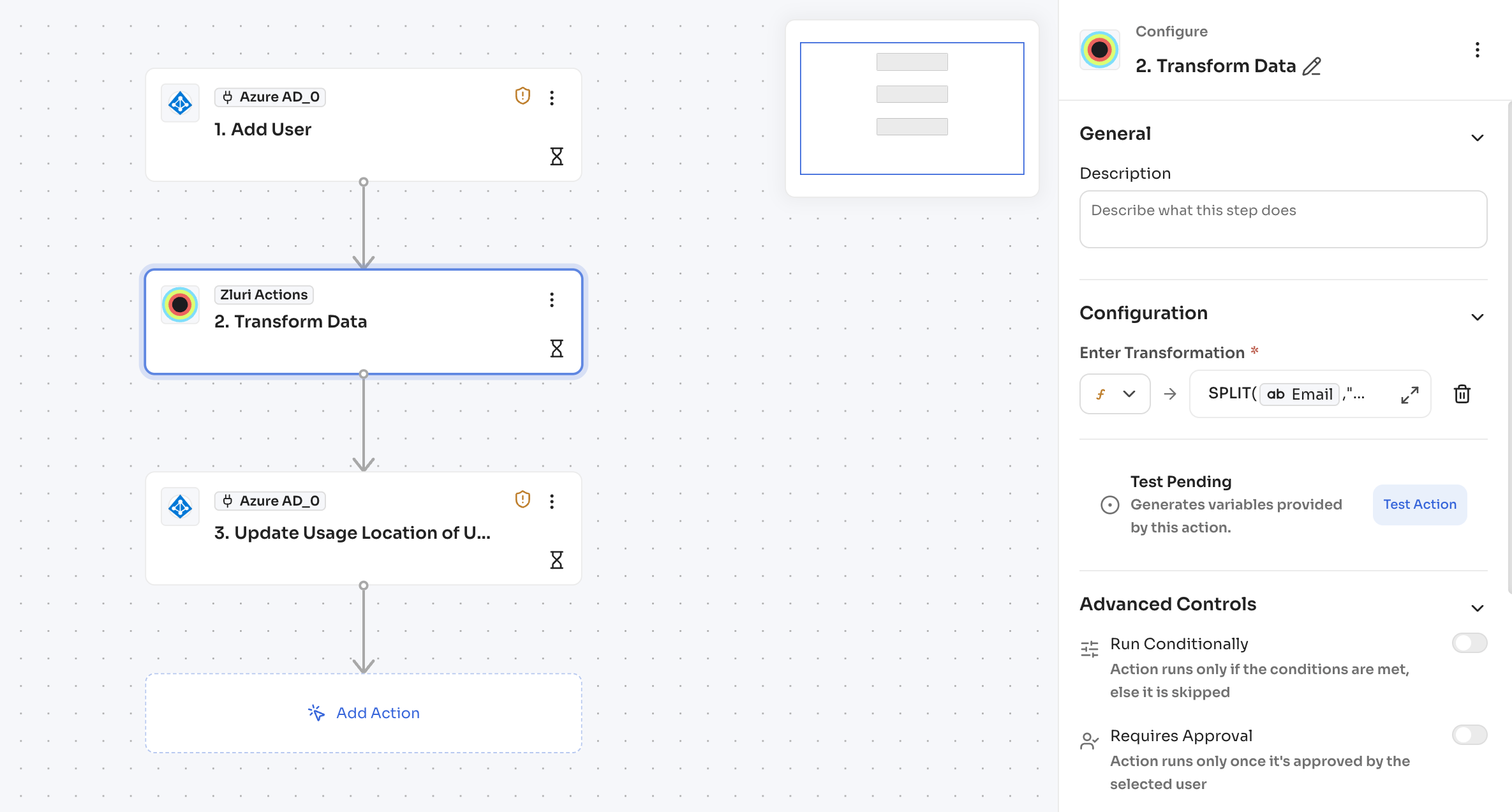
The Transform Data action reshapes a value as it moves between two steps of a playbook. Use it to split a full name before a provisioning step, lowercase an email before a connector matches on it, turn a comma-separated custom field into a list, or convert a timestamp out of UTC before a notification goes out.
Without it, a playbook that receives data in one shape and needs it in another stops at that step. Transform Data closes that gap inside the playbook, so the run completes without anyone reshaping the data by hand or in a separate tool.
The action appears in every playbook type once Zluri turns it on for the organisation. Adding it to a playbook changes nothing about the steps already in that playbook, so existing playbooks need no migration.
What this feature enables
Transform Data covers six areas of data shaping, plus an escape hatch for anything the function list does not name.
| Capability | Description |
|---|---|
| Name handling | Split a full name into first, middle and last name, and join text values together. |
| Text handling | Change case, trim, replace, pad, slice, strip accents, encode and decode, and test whether text contains a value. |
| List handling | Split text into a list, filter, sort, deduplicate, join, count, pick items by position, and run sums, averages and totals. |
| Date and time handling | Convert between timezones, format dates, add or subtract time, and count the units between two dates. |
| Number handling | Round, take absolute values, raise to a power, format with a picture, and convert between bases and written forms. |
| Type conversion and defaults | Convert between text, numbers, booleans and JSON, supply a fallback for an empty value, read parts of an email address, and generate secure passwords and random strings. |
| Custom expressions | Run a JSONata expression for arithmetic, conditions, mapping over a list, and reading inside an object. |
Add the Transform Data action between the step that produces the value and the step that consumes it. Inside the action, a single formula field holds the transformation.
Steps
- Open the playbook and select the point on the canvas where the value needs reshaping.
- Add the Transform Data action.
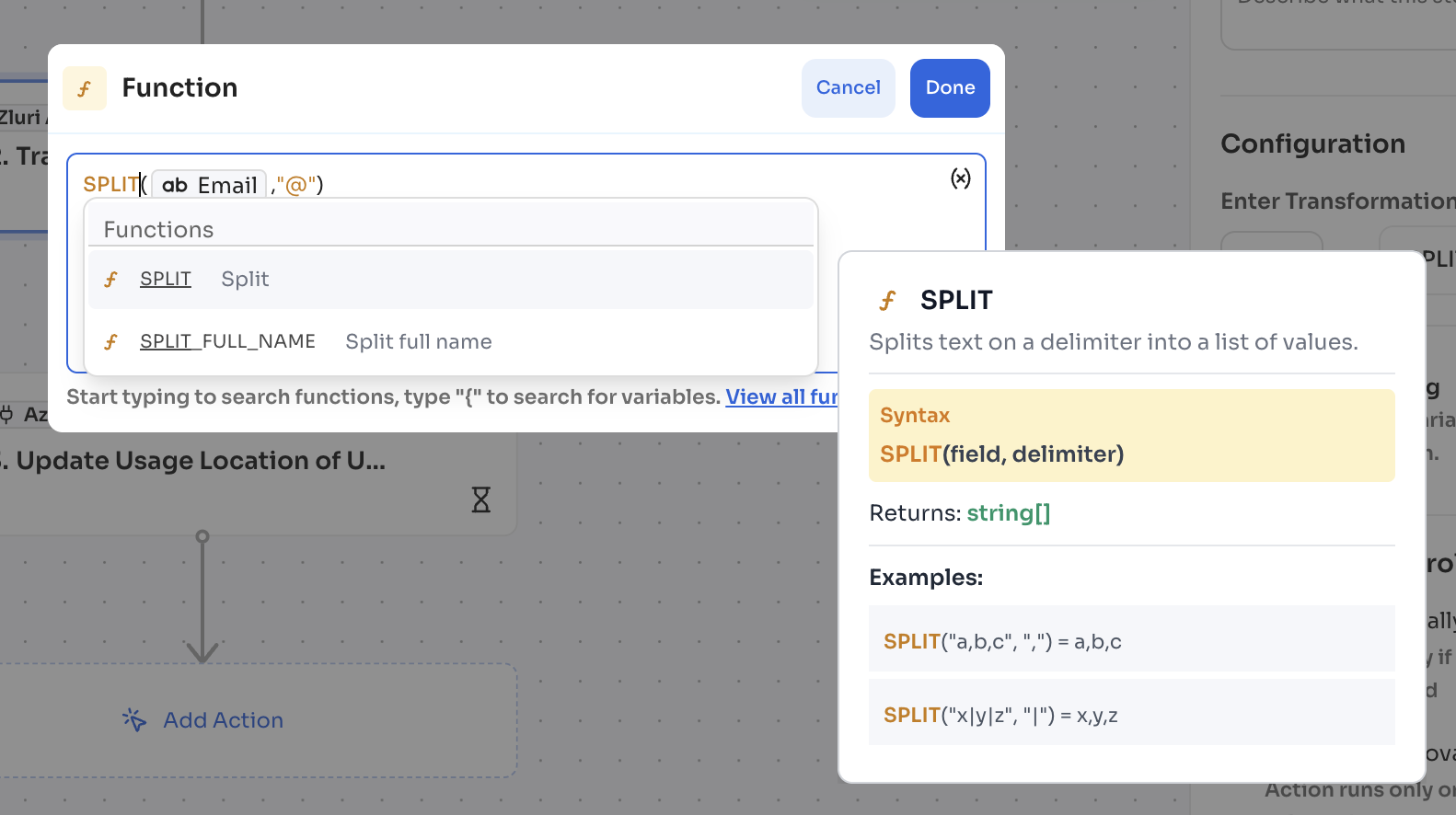
- Select the formula field and start typing a function name. Zluri lists matching functions as you type, and each one opens a help panel describing what it does and which arguments it takes.
- To use a value from an earlier step, select the variables icon or type an opening curly brace. Zluri lists the available variables, and the selected variable appears in the formula as a pill.
- Save the action. Zluri checks the formula when you save. A formula that names an unknown function, passes the wrong type, or uses an option value that does not exist blocks the save and shows the problem under the field.
- Reference the result in a later step. The output appears to downstream actions as
transformation_1, the same way any other action's output does.
Rules that apply to every formula
These rules hold across the whole function list, and most surprises come from one of them.
| Rule | What it means |
|---|---|
| Function names are upper case | Write CONCAT(...), not concat(...). Zluri refuses a lower-case name when you save. |
| Empty variables become empty text | A variable that is missing, empty or null arrives as empty text and the formula carries on rather than failing. CONCAT("x", ...) with an empty variable gives "x". |
| Wrong types fail | A wrong type written directly into the formula, such as UPPERCASE(42), blocks the save with E_TYPE_MISMATCH. A wrong type arriving in a variable fails the action when it runs, with the same code. Convert the value first with TO_STRING, TO_NUMBER or STRING_TO_ARRAY. |
| Option values are exact | Operators, units, directions and password classes must match the listed values exactly, in lower case. Write "days", not "Days". An empty option is not allowed. Both give E_INVALID_OPTION. |
| Two date-format styles | DATE_FORMAT and TZ_CONVERT take tokens such as DD/MM/YYYY HH:mm. DATETOMILLIS and MILLISTODATEFORMAT take pictures such as [D01]/[M01]/[Y0001]. Mixing the two styles blocks the save. |
| Functions follow JSONata | Each function behaves like the JSONata function underneath it unless noted. ROUND, TRIM and ARRAY_SORT differ from Excel and Google Sheets. |
| Arithmetic and conditions need an expression | 1 + 1, IF and $if are not functions in the catalogue. Type them as a JSONata expression straight into the field instead, such as $sum([1,2,3]) or the ternary form a ? b : c. Conditions on a whole action live in the action's Advanced controls. |
| Catalog functions work inside an expression | You no longer need to wrap an expression in JSONATA. Inside an expression the catalogue functions are available as $NAME, so $uppercase($TRIM(" ada ")) returns ADA. JSONata's own functions work under their usual names in the same way. |
| Some things are refused when you save | $eval, regular expressions and $match, $now, $millis, $random, $shuffle, and an expression that calls itself. Use PASSWORD or RANDOM_STRING in the formula itself rather than inside an expression. |
Updated 12 minutes ago